Why Wont My iPhone Connect to Bluetooth Right Now
Why won’t my iPhone connect to Bluetooth right now? This is one of the most common tech frustrations people face daily. The issue usually stems from simple settings glitches, outdated software, or signal interference that blocks iPhone Bluetooth connectivity. In this guide, you will learn quick fixes, car Bluetooth troubleshooting steps, and expert tips to restore seamless Bluetooth pairing on iPhone in minutes.
There is nothing more annoying than trying to play your favorite playlist through your car speakers or take a hands-free call, and your iPhone Bluetooth just will not connect. You toggle the switch. You restart the phone. You stare at the screen hoping it magically works. Nothing. If you have ever asked yourself, why wont my iPhone connect to Bluetooth right now, you are not alone. This is one of the most common tech problems iPhone users face every single day.
The good news is that most Bluetooth connection issues are easy to fix. You do not need to be a tech expert. In fact, you probably already have everything you need to solve this problem. This guide walks you through every possible reason your iPhone Bluetooth is not working and gives you clear, step-by-step fixes. Whether it is a simple settings glitch or something more complex, we have you covered.
We will also look at iPhone car Bluetooth problems specifically, because connecting your phone to your vehicle’s audio system comes with its own set of challenges. By the end of this article, you will know exactly what to do when your Bluetooth device will not pair with iPhone. Let us dive in and get your connection back.
Key Takeaways
- Restart fixes most issues: A simple restart of both your iPhone and Bluetooth device resolves the majority of connection problems.
- Check your settings first: Many people overlook basic Bluetooth settings that cause persistent connection failures.
- Forget and re-pair works wonders: Removing the old pairing and starting fresh often solves stubborn Bluetooth issues.
- Car Bluetooth has unique challenges: Interference, firmware, and distance play a bigger role in car Bluetooth connections.
- Software updates matter: Outdated iOS or device firmware is a leading cause of Bluetooth problems.
- Reset network settings for deep issues: This clears cached Bluetooth data that standard restarts cannot touch.
- Know when to seek help: Some Bluetooth problems signal hardware failure that needs professional diagnosis.
📑 Table of Contents
- Restart Your iPhone and Bluetooth Device
- Check Your iPhone Bluetooth Settings
- Forget and Re-Pair the Bluetooth Device
- Common Causes of Bluetooth Connection Problems
- Bluetooth Issues When Connecting to Your Car
- Reset Network Settings for Deep Bluetooth Issues
- Prevent Bluetooth Problems Before They Start
- Conclusion
Restart Your iPhone and Bluetooth Device
Before you try anything complicated, start with the simplest fix. Restarting both your iPhone and the Bluetooth device you are trying to connect to solves the majority of Bluetooth connectivity issues. It is the first thing every tech support team will tell you, and there is a good reason for that.
When your iPhone and another device have been connected for a long time, small software glitches can build up. These glitches block communication between the two devices. A restart clears the temporary memory and refreshes all wireless connections, including Bluetooth.
How to Restart Your iPhone
Restarting your iPhone is quick and easy. Here is what you need to do:
- iPhone with Face ID: Press and hold the side button and either volume button until the power slider appears. Slide it to power off. Wait 30 seconds, then turn it back on.
- iPhone with Home button: Press and hold the side button until the power slider appears. Slide to power off. Wait, then turn it back on.
How to Restart Your Bluetooth Device
Do not forget to restart the device you are trying to pair. Whether it is your car stereo, wireless headphones, or a speaker, turn it off completely and then turn it back on. This ensures both devices start fresh and can find each other again during the Bluetooth pairing process.
Quick Tip: Wait at least 10 seconds after turning both devices off before powering them back on. This gives the wireless modules enough time to fully reset.
Check Your iPhone Bluetooth Settings
Sometimes the problem is not your device at all. It is your settings. Many people do not realize how easily a simple toggle can cause iPhone Bluetooth connection problems. Before moving on to advanced fixes, take a moment to check your Bluetooth settings carefully.
Turn Bluetooth Off and On Again
This sounds too simple, but it works more often than you think. Go to Settings, tap Bluetooth, and turn the switch off. Wait 15 seconds, then turn it back on. This refreshes the Bluetooth radio on your iPhone and often resolves minor Bluetooth not connecting iPhone issues instantly.
Make Sure Bluetooth Is Enabled
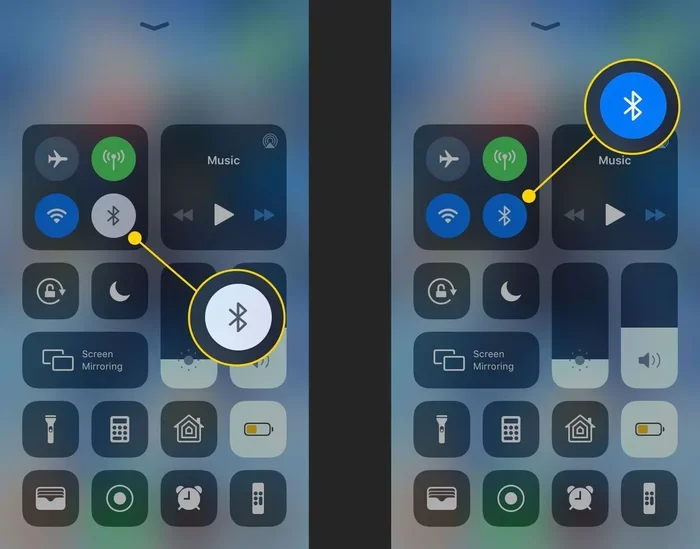
It sounds obvious, but you would be surprised how often this is the root cause. Check that the Bluetooth toggle is actually turned on. You can also check the Control Center by swiping down from the top-right corner of your screen. The Bluetooth icon should be highlighted blue. If it is not, tap it to enable it.
Check Your iPhone Distance from the Device
Bluetooth range on iPhone is typically about 30 feet or 10 meters. If your phone is too far from the device you are trying to connect to, the connection will fail or keep dropping. Move closer to the device and try again. This is especially important for iPhone car Bluetooth connections, where the phone might be in your pocket while the car system is across the vehicle.
Check for Interference
Other wireless devices can interfere with your Bluetooth signal. Wi-Fi routers, microwaves, USB 3.0 devices, and even other Bluetooth devices can create interference that disrupts your connection. Try moving away from these devices and see if your iPhone Bluetooth pairing improves.
Forget and Re-Pair the Bluetooth Device
If restarting did not fix the problem, the next step is to forget the existing pairing and start over. Over time, your iPhone stores data about previously connected devices. Sometimes this stored data becomes corrupted, which causes your iPhone Bluetooth not connecting even though everything else looks fine.
How to Forget a Bluetooth Device on iPhone
Follow these steps to remove an old pairing:
- Open Settings on your iPhone.
- Tap Bluetooth.
- Find the device you want to remove in the list.
- Tap the info icon (the small “i” next to the device name).
- Tap “Forget This Device.”
- Confirm your choice.
How to Re-Pair the Device
Once you have forgotten the device, put it in pairing mode. For most Bluetooth speakers and headphones, this means holding down the power button or a dedicated Bluetooth button until a light starts flashing. For car stereos, check your car manual for how to enter pairing mode. Then go back to your iPhone, open Settings, tap Bluetooth, and select the device from the list of available devices.
Quick Tip: Make sure the Bluetooth device you are trying to pair is not connected to another phone or device. Many Bluetooth devices can only be paired with one device at a time. Disconnect it from other devices first to avoid Bluetooth pairing conflicts.
Common Causes of Bluetooth Connection Problems
Understanding why your iPhone Bluetooth will not connect helps you prevent the problem from happening again. Here are the most common causes of Bluetooth connection dropped issues and what you can do about them.
Outdated iOS Software
Apple regularly releases iOS updates that include bug fixes for iPhone Bluetooth connectivity. If you have not updated your iPhone in a while, an outdated operating system could be the reason your Bluetooth is not working. Go to Settings, tap General, then Software Update, and install any available updates.
Outdated Device Firmware
It is not just your iPhone that needs updates. The Bluetooth device you are trying to connect to also needs to run the latest firmware. Check the manufacturer’s app or website for firmware updates for your headphones, speaker, or car stereo. Bluetooth firmware update issues are a surprisingly common cause of connection failures.
Low Battery on Either Device
Bluetooth requires power to maintain a connection. If your iPhone battery is very low or the Bluetooth device is running out of charge, the connection may fail or keep dropping. Charge both devices before trying to connect them again.
Too Many Connected Devices
Your iPhone can only maintain a certain number of active Bluetooth connections at once. If you have too many devices connected, some connections may become unstable. Disconnect devices you are not actively using to free up Bluetooth bandwidth.
Airplane Mode Interference
If Airplane Mode is turned on, even accidentally, it disables all wireless connections including Bluetooth. Swipe up to open Control Center and make sure the airplane icon is not highlighted. If it is, tap it to turn Airplane Mode off.
Bluetooth Issues When Connecting to Your Car
iPhone car Bluetooth problems deserve special attention because they involve two different systems trying to communicate. Your car’s infotainment system and your iPhone each have their own Bluetooth hardware and software. When these two systems clash, it can cause frustrating connection issues.
Why Car Bluetooth Connections Fail
Several factors make iPhone Bluetooth car stereo connections more prone to problems than other Bluetooth connections:
- Signal interference from the car: Modern cars have dozens of electronic systems that can interfere with Bluetooth signals. The engine control unit, navigation system, and even the charging cable can create interference.
- Multiple paired phones: If you share your car with family members, the car stereo may remember multiple phones. This can cause it to connect to the wrong phone or refuse to connect to yours.
- Car system needs a reset: Just like your iPhone, your car’s infotainment system needs occasional resets to clear its Bluetooth cache and work properly.
- Distance and placement: Your phone might be in a glove box, center console, or back seat. These locations can weaken the Bluetooth signal enough to cause connection drops.
How to Fix Car Bluetooth Connection Issues
Here are specific steps to fix iPhone Bluetooth car connection problems:
- Turn off Bluetooth on your iPhone, wait 10 seconds, and turn it back on.
- On your car’s infotainment system, go to Bluetooth settings and delete your iPhone from the paired devices list.
- Restart your car’s infotainment system. Most cars allow you to do this by holding the power button for 10 to 15 seconds.
- Turn on Bluetooth on your iPhone and search for available devices.
- Select your car from the list and enter the PIN if prompted.
- Test the connection by playing music or making a call.
Quick Tip: If your car Bluetooth keeps disconnecting while driving, check that your phone is not in Low Power Mode. Low Power Mode disables Bluetooth in some situations to save battery. Go to Settings, tap Battery, and make sure Low Power Mode is off when you are driving.
Bluetooth Audio Cutting Out in the Car
If your Bluetooth audio cutting out only happens in the car, the problem is likely signal interference or distance. Try moving your phone to a different location in the car, such as the passenger seat or the center console. Also, make sure your phone is not behind a metal dashboard compartment, as metal blocks Bluetooth signals.
Reset Network Settings for Deep Bluetooth Issues
When all the simple fixes fail, resetting your network settings is the next step. This clears all saved Wi-Fi passwords, Bluetooth pairings, and cellular settings. It sounds drastic, but it is very effective at fixing stubborn Bluetooth connection problems on iPhone.
How to Reset Network Settings
Here is how to do it:
- Open Settings on your iPhone.
- Tap General.
- Scroll down and tap Transfer or Reset iPhone.
- Tap Reset.
- Select Reset Network Settings.
- Enter your passcode if prompted.
- Confirm the reset.
After the reset, you will need to reconnect to your Wi-Fi network and re-pair your Bluetooth devices. This process takes a few minutes, but it often fixes iPhone Bluetooth troubleshooting issues that nothing else can resolve.
Quick Tip: Write down your Wi-Fi password before resetting network settings. You will need it to reconnect to your network after the reset.
When to Contact Apple Support
If resetting network settings does not fix the problem, there may be a deeper issue at play. Hardware problems with your iPhone’s Bluetooth chip or the Bluetooth device itself are rare but possible. Contact Apple Support if you experience any of the following:
- Bluetooth will not turn on at all, even after a full restart.
- Your iPhone shows the Bluetooth icon but will not connect to any device.
- You notice the Bluetooth icon in your status bar is missing entirely.
- The problem started after dropping your phone or exposing it to liquid.
Apple Support can run diagnostics on your iPhone to determine if there is a hardware issue. They can also help you figure out if the problem is with the Bluetooth device itself rather than your iPhone.
Prevent Bluetooth Problems Before They Start
The best way to deal with iPhone Bluetooth not working is to prevent it from happening in the first place. Here are some simple habits that keep your Bluetooth connections strong and reliable.
Keep Your iPhone Updated
Always install the latest iOS updates as soon as they are available. Apple includes Bluetooth bug fixes and performance improvements in nearly every update. Staying current with iOS Bluetooth updates prevents many common connection issues.
Keep Your Bluetooth Devices Charged
Low battery is one of the top causes of Bluetooth disconnections. Get in the habit of checking battery levels before you need to use Bluetooth, especially for important calls or long drives.
Limit the Number of Paired Devices
The more devices your iPhone is paired with, the more likely connection conflicts become. Periodically go through your Bluetooth settings and forget devices you no longer use. This keeps your Bluetooth device list iPhone clean and reduces interference.
Restart Your Devices Regularly
Just like your computer, your iPhone benefits from regular restarts. A weekly restart clears temporary files and refreshes all wireless connections, keeping your Bluetooth connection stable iPhone running smoothly.
Conclusion
Dealing with why won’t my iPhone connect to Bluetooth right now can feel incredibly frustrating, but the solution is almost always simpler than you think. Most Bluetooth problems are caused by minor software glitches, outdated settings, or simple interference that a quick restart can fix. By following the steps in this guide, you can troubleshoot and resolve the vast majority of iPhone Bluetooth connection issues on your own.
Remember to start with the basics: restart your devices, check your settings, and forget and re-pair the connection. If those do not work, move on to resetting network settings and checking for software updates. For car Bluetooth problems specifically, pay attention to signal placement and interference from your vehicle’s electronic systems.
The key to avoiding future Bluetooth headaches is prevention. Keep your iPhone updated, maintain your Bluetooth devices, and develop good connection habits. With these practices, you will spend less time troubleshooting and more time enjoying your wireless audio, hands-free calls, and seamless Bluetooth connectivity everywhere you go.
Now that you know how to fix Bluetooth pairing problems on iPhone, you can tackle the next time your connection drops with confidence. You have the knowledge, the steps, and the tools to get everything working again quickly and easily.
Frequently Asked Questions
Why does my iPhone keep disconnecting from Bluetooth?
Frequent disconnections are usually caused by low battery, signal interference, or outdated software. Make sure both your iPhone and the Bluetooth device are fully charged, move away from other wireless devices that might cause interference, and check for iOS updates. If the problem persists, try forgetting the device and re-pairing it.
How do I force my iPhone to connect to a Bluetooth device?
Go to Settings, tap Bluetooth, and make sure it is turned on. Find the device in the list and tap on it. If it does not connect automatically, try turning Bluetooth off and on again. You can also restart both your iPhone and the Bluetooth device to force a fresh connection.
Why is my iPhone Bluetooth not showing any devices?
This usually happens when Bluetooth is turned off or when the other device is not in pairing mode. Make sure Bluetooth is enabled in your settings and that the device you want to connect to is turned on and set to discoverable. If the list is still empty, try resetting your network settings.
Can too many Bluetooth devices cause connection problems?
Yes, having too many paired and active Bluetooth devices can overload your iPhone’s Bluetooth module and cause connection issues. Disconnect devices you are not using and forget old pairings you no longer need. This frees up resources and helps maintain a stable connection.
Does Low Power Mode affect Bluetooth on iPhone?
Yes, Low Power Mode can disable or limit Bluetooth connections to conserve battery. If you are having trouble connecting, check that Low Power Mode is turned off. You can find this in Settings under Battery or in the Control Center.
What should I do if my car Bluetooth will not connect to my iPhone?
Start by deleting your iPhone from the car’s Bluetooth paired devices list and vice versa. Restart both your iPhone and your car’s infotainment system. Then re-pair the devices from scratch. If this does not work, check for firmware updates for your car’s audio system and make sure your iPhone is not in Low Power Mode.
=== META TITLE ===
Why Wont My iPhone Connect to Bluetooth Right Now
=== URL SLUG ===
why-wont-my-iphone-connect-to-bluetooth-right-now
=== SEO TITLE ===
Why Wont My iPhone Connect to Bluetooth Right Now