Why Is My CarPlay Not Working Try These Simple Fixes
CarPlay not working can be frustrating, but most issues have simple solutions. Whether your CarPlay screen is black, it keeps disconnecting, or it won’t launch at all, this guide walks you through every fix step by step. You will learn how to troubleshoot USB and wireless connections, update your software, reset settings, and prevent problems from coming back.
You are driving down the road. You tap your CarPlay icon. Nothing happens. The screen stays black. Or maybe CarPlay starts up and then freezes halfway through. Either way, it is annoying. You are not alone. Thousands of iPhone users deal with this problem every single day. The good news is that most CarPlay issues are easy to fix at home. You do not need to be a tech expert. You just need to know what to check and in what order.
This guide covers every common reason your CarPlay not working problem happens. It also gives you clear step-by-step fixes you can try right now. We will talk about USB cable issues, software updates, reset tricks, and wireless connection problems. By the end of this article, you will know exactly what to do. You will get your CarPlay back up and running quickly.
We keep our language simple here. No confusing jargon. No long technical paragraphs. Just real, practical advice you can use today. Let us dive in and fix your CarPlay for good.
Key Takeaways
- Restart both devices: A simple reboot of your iPhone and car infotainment system fixes many CarPlay glitches.
- Check your cable and ports: A damaged Lightning cable or dirty USB port is one of the top reasons CarPlay fails.
- Update your software: Outdated iOS or car firmware often causes compatibility and connection problems.
- Reset CarPlay settings: Clearing your CarPlay pairing and reconnecting can resolve persistent issues.
- Disable wireless CarPlay temporarily: Switching to a wired connection helps isolate wireless connectivity problems.
- Seek professional help when needed: Some issues stem from hardware faults or firmware bugs that require dealer support.
📑 Table of Contents
Why Does CarPlay Keep Stopping Working?
Before we jump into fixes, it helps to understand why CarPlay fails in the first place. CarPlay is a bridge between your iPhone and your car’s infotainment system. It relies on several things working together at the same time. Your phone, your cable, your car’s software, and Bluetooth or Wi-Fi all need to play nice. When one piece breaks or gets outdated, the whole system can fail.
Most CarPlay problems fall into a few clear categories. Connection issues happen when the cable or wireless link drops. Software glitches occur when the iPhone or car system has a bug. Compatibility problems show up when your car or phone is too old. And settings issues come from misconfigured CarPlay options. Let us look at each of these in detail.
USB Connection Problems
The most common reason for CarPlay not connecting is a bad USB connection. Your Lightning cable takes a beating. It gets bent, plugged in and pulled out hundreds of times. Over time, the internal wires wear out. You might not even notice the damage until CarPlay suddenly stops working.
Dirt and lint also build up inside your car’s USB port. A single piece of debris can block the connection. Your phone charges, but CarPlay does not wake up. This is a very common trick that catches people off guard. If your CarPlay screen stays black, start here. Check your cable and port first.
Software Glitches and Bugs
Both iOS and car infotainment systems are complex software. They occasionally have bugs. A software update might introduce a new issue. Or a background process on your iPhone might crash and block CarPlay from launching. These glitches do not mean anything is broken. They just need a fresh start.
Restarting both devices is the fastest way to clear these minor software hiccups. It flushes out temporary files and resets communication between your phone and car. Many users skip this simple step, but it solves the problem more often than you would think.
Compatibility and Age Issues
Not every car and phone combination works perfectly. Older cars may not support the latest CarPlay features. Similarly, very old iPhones might lose CarPlay support after an iOS update. Apple drops support for some devices over time. This is rare but it does happen.
If your iPhone connected to car but CarPlay does not appear, check your model compatibility. Apple publishes a list of supported vehicles and devices on its website. A quick check there can save you a lot of frustration.
Step-by-Step Fixes for CarPlay Problems
Now that you know the common causes, let us get into the fixes. Try these steps in order. Start with the simplest solution and work your way down. Most people find their fix in the first three steps.
Step 1: Restart Both Your iPhone and Car System
This is the number one fix for a reason. It works. A restart clears temporary memory, kills stuck processes, and refreshes the connection between your devices. It takes less than a minute and it costs nothing.
To restart your iPhone, hold down the side button and a volume button. Slide to power off. Wait ten seconds. Turn it back on. For your car, consult your owner’s manual. Most cars let you hold the power button for ten to fifteen seconds to reboot the infotainment system.
After both devices are back on, plug in your cable or wait for a wireless connection. Check if CarPlay launches. In many cases, this alone solves the problem. It is worth trying before anything else.
Step 2: Inspect Your Cable and USB Port
Your Lightning cable is the lifeline of CarPlay. If it is damaged, nothing works. Start by visually inspecting the cable. Look for fraying, kinks, or bent connectors. Try using a different cable if you have one available. This is the fastest way to rule out cable problems.
Next, check your car’s USB port. Use a flashlight to look inside. Do you see any lint, dust, or debris? Gently clean it out with a toothpick or a can of compressed air. Do not use water. A clean port makes a huge difference in connection quality.
Also, try a different USB port in your car if it has more than one. Some ports are designed only for charging and do not support CarPlay data transfer. Plugging into the right port can be the difference between a working screen and a black one.
Step 3: Update Your iPhone and Car Software
Outdated software is a leading cause of CarPlay not working. Apple releases iOS updates regularly. These updates often include bug fixes for CarPlay connectivity. If you have been putting off an update, now is the time.
Go to Settings, then General, then Software Update on your iPhone. Download and install any available updates. Your car’s infotainment system also needs updates. Check your car manufacturer’s app or visit a dealer for firmware updates. Many newer cars support over-the-air updates now.
Keeping both devices up to date ensures they can communicate properly. It also patches known bugs that could cause your CarPlay to freeze or fail to connect.
Step 4: Reset CarPlay Settings on Your iPhone
If the basics do not work, it is time to reset your CarPlay settings. This clears your paired vehicles and lets you start fresh. It does not delete any data from your iPhone. It simply removes the CarPlay pairing information.
Go to Settings, then General, then CarPlay. Tap on your car and choose “Forget This Car.” Now restart your iPhone and reconnect. Your car should appear as a new pairing option. Follow the prompts to set it up again. This fix works surprisingly well for persistent connection issues.
Step 5: Check CarPlay Settings in Your Car
Sometimes the problem lives in your car’s settings, not your phone. Every car infotainment system is different. But most have a CarPlay or Smartphone settings menu. Go into your car’s settings and look for CarPlay options.
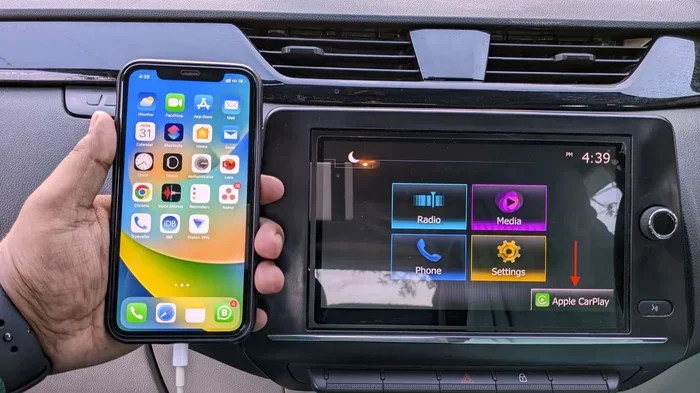
Make sure CarPlay is enabled. Some cars let you toggle between wireless and wired modes. Try switching between them. If your car supports wireless CarPlay but it is not working, disable it and use a cable instead. This simple switch can often get things running again.
Step 6: Try a Different iPhone or Cable
If none of the above steps work, try isolating the problem. Plug your iPhone into a friend’s car that supports CarPlay. Does it work? If yes, the issue is with your car. If no, the issue is with your iPhone or cable.
Similarly, try a friend’s iPhone in your car. This helps you pinpoint the exact source of the problem. Once you know whether it is a phone issue or a car issue, you can take the right next step. This diagnostic approach saves time and prevents unnecessary repairs.
Wireless CarPlay Not Working? Try These Solutions
Wireless CarPlay is incredibly convenient. But it also adds another layer of complexity compared to a wired connection. If your wireless CarPlay keeps dropping or will not connect at all, here are some targeted fixes.
Make Sure Wi-Fi and Bluetooth Are On
Wireless CarPlay uses both Wi-Fi and Bluetooth to communicate. If either one is turned off, the connection will fail. Go to Settings on your iPhone and check both Bluetooth and Wi-Fi. Make sure they are enabled.
Some cars disable Wi-Fi automatically to save data. Check your car’s settings to make sure Wi-Fi is not being turned off. You may need to manually enable it each time you start your car.
Forget and Re-Pair Your Car
Just like with wired CarPlay, resetting the wireless pairing often fixes connection issues. Go to Settings, then General, then CarPlay. Forget your car. Then turn off Bluetooth and Wi-Fi on your iPhone. Wait thirty seconds. Turn them back on. Reconnect to your car’s wireless CarPlay network.
Check for Wi-Fi Interference
Wireless CarPlay creates its own Wi-Fi network between your phone and car. Other devices nearby can sometimes interfere with this connection. If you have multiple Bluetooth devices connected, try disconnecting the ones you do not need.
Parking in a different spot can also help if you are near a lot of Wi-Fi traffic. Some users report that CarPlay works better in a quiet signal area. Try moving your car to a different location and see if the connection stabilizes.
Disable and Re-Enable Wireless CarPlay
In your car’s settings, find the wireless CarPlay option and turn it off. Wait a few seconds. Turn it back on. This forces your car and phone to re-establish the wireless handshake. It is a simple trick that resolves many intermittent wireless issues.
When the Problem Is Your Car’s Infotainment System
Sometimes the blame does not lie with your iPhone at all. Your car’s infotainment system can develop its own issues over time. Software bugs, memory buildup, and hardware failures all play a role.
Factory Reset Your Car’s Infotainment System
Some car systems allow you to perform a factory reset. This wipes all settings and restores the system to its original state. Check your car’s manual or the manufacturer’s website for instructions on how to do this.
Be careful with this step. A factory reset will erase your saved radio stations, Bluetooth pairings, and navigation favorites. Make sure you know how to set those up again before you proceed. This should be a last resort for car-side issues.
Visit a Dealer or Certified Mechanic
If your CarPlay still does not work after trying everything, it is time to seek professional help. A dealer can run diagnostic tests on your car’s infotainment system. They may find a firmware bug or a hardware fault that you cannot fix at home.
Some car manufacturers have issued recalls or service bulletins for CarPlay-related issues. Your dealer can check if your vehicle is affected. This is especially common with newer car models that had CarPlay bugs at launch.
How to Prevent CarPlay Problems Going Forward
Once you get CarPlay working again, you want to keep it that way. Prevention is always easier than troubleshooting. Here are some habits that will help you avoid future CarPlay headaches.
- Use a high-quality cable. Cheap cables cause more problems than they solve. Invest in a certified Lightning cable from a reputable brand. Apple-certified cables are the safest choice.
- Keep your iPhone updated. Do not ignore iOS updates. They often include CarPlay bug fixes and performance improvements.
- Clean your USB port regularly. A quick check every few weeks keeps lint and debris from building up. A clean port means a reliable connection.
- Restart your car system occasionally. Just like your phone, your car’s infotainment system benefits from a fresh restart. Do it once a month or so.
- Avoid using your phone while it is connected. Heavy app usage during CarPlay can cause lag or disconnections. Let CarPlay do its job without overloading your phone.
These small habits take almost no time. But they add up. They keep your CarPlay not working issues from coming back. A little prevention goes a long way.
Key Takeaways
- Restart both devices first: This simple step fixes the majority of CarPlay issues and should always be your starting point.
- Inspect your cable and USB port: A damaged cable or dirty port is the single most common cause of CarPlay failures.
- Keep software updated: Both iOS and car firmware updates patch known CarPlay bugs and improve compatibility.
- Reset CarPlay settings when needed: Forgetting and re-pairing your car clears stubborn connection problems.
- Switch between wireless and wired: This helps isolate whether the issue is with your wireless connection or something deeper.
- Seek professional help for persistent problems: Dealers can diagnose hardware or firmware issues that are beyond home fixes.
- Prevent future issues with good habits: Quality cables, regular updates, and clean ports keep CarPlay running smoothly.
Conclusion
Dealing with CarPlay not working is frustrating. But the vast majority of the time, the fix is simple and within your reach. A restart, a new cable, or a software update can bring your CarPlay back to life in minutes. You do not need to wait at a dealer or spend money on repairs. Most issues are software-related and respond well to basic troubleshooting.
Start with the simplest fixes and work your way up. Check your cable. Restart your devices. Update your software. Reset your settings. Nine times out of ten, one of these steps will solve the problem. If it does not, now you have the information you need to explain the issue to a professional.
Keep this guide bookmarked. The next time your CarPlay not connecting or your screen goes black, you will know exactly what to do. Share it with a friend who is dealing with the same problem. A little knowledge saves a lot of time and stress on the road.
Your CarPlay is designed to make driving safer and more enjoyable. Do not let a minor glitch take it away from you. Use the tips in this guide, stay proactive with maintenance, and you will keep your CarPlay running smoothly for miles to come.
Frequently Asked Questions
Why does my CarPlay keep disconnecting while I am driving?
Loose cables or dirty USB ports are the most common culprits. A cable that is not fully seated will disconnect when you hit a bump. Check your cable connection and clean the port. If you use wireless CarPlay, Wi-Fi or Bluetooth interference can also cause drops. Try switching to a wired connection to see if that stabilizes things.
Can a software update fix CarPlay problems?
Yes, absolutely. Apple regularly includes CarPlay bug fixes in iOS updates. Similarly, car manufacturers release firmware updates that address connectivity issues. Make sure both your iPhone and your car’s infotainment system are running the latest available software. This alone resolves many persistent CarPlay problems.
Is my Lightning cable the wrong type for CarPlay?
Some cables are designed only for charging and do not support data transfer. CarPlay needs a cable that can transmit data. Use an Apple-certified Lightning cable or a high-quality MFi-certified cable. Avoid cheap, uncertified cables from unknown brands. They often lack the wiring needed for CarPlay to function properly.
Does CarPlay work with Android phones?
No, CarPlay is an Apple product and works exclusively with iPhones. If you have an Android phone, look into Android Auto, which offers similar functionality. Both systems connect your phone to your car’s display for navigation, music, and calls. They are not interchangeable, so make sure you are using the right platform for your device.
Why is my CarPlay screen black but my phone is charging?
This usually means the cable can charge your phone but cannot transmit CarPlay data. The most likely cause is a damaged or low-quality cable. Try a different cable. Also check that you are plugged into the correct USB port in your car. Some ports charge only and do not support data features like CarPlay.
How do I know if my car supports CarPlay?
Check your car’s owner manual or visit the manufacturer’s website. Apple also has a full list of supported vehicles on its official CarPlay page. Most cars made after 2016 offer some level of CarPlay support. If your car does not support CarPlay natively, you can sometimes add it with an aftermarket CarPlay adapter.