Why Is My Apple CarPlay Not Showing Up On Your Screen
Apple CarPlay not showing up on your screen? You are not alone — this is one of the most common issues drivers face with their infotainment systems. The problem is usually caused by a loose USB cable, an outdated iOS version, or a simple settings glitch. In this guide, we walk you through every proven fix step by step. By the end, you will know exactly how to get your Apple CarPlay working again fast.
You hop into your car, plug in your iPhone, and wait for Apple CarPlay to light up your dashboard screen. But nothing happens. The screen stays blank. Or worse, your car stereo just shows the normal radio interface like nothing is connected. It is frustrating, confusing, and it can make your morning commute feel like a step backward.
If you have ever asked yourself, “Why is my Apple CarPlay not showing up?” — you have come to the right place. This guide breaks down every possible reason your Apple CarPlay connection is failing and gives you clear, actionable fixes. We keep things simple and practical, so you can get back on the road with your favorite apps running in no time.
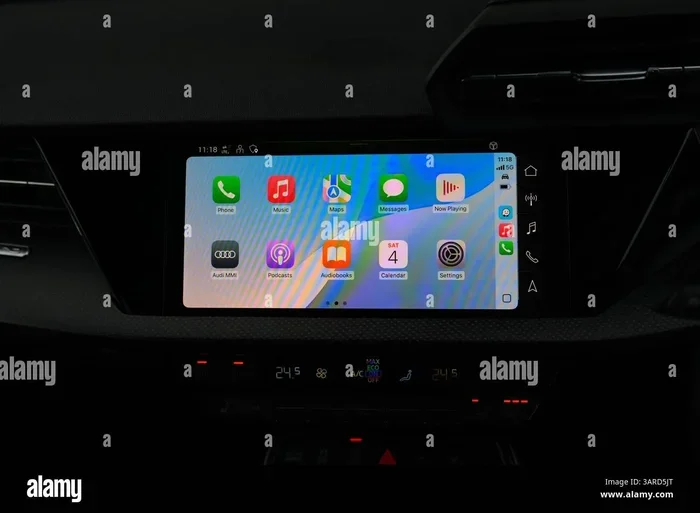
Apple CarPlay is designed to make driving safer and more connected. It mirrors your iPhone onto your car display so you can access Maps, Music, Messages, and Siri with just a tap or a voice command. But the system depends on a stable connection between your phone and your car infotainment system. When that connection breaks, Apple CarPlay simply will not appear. Let us dig into why that happens and what you can do about it.
Key Takeaways
- Check your cable and port first: A damaged USB cable or dirty port is the number one cause of Apple CarPlay not showing up.
- Restart both devices: A simple reboot of your iPhone and car infotainment system solves most connection issues.
- Update your software: An outdated iOS or car firmware version can block the Apple CarPlay connection entirely.
- Adjust CarPlay settings on your iPhone: Sometimes the issue is just a toggled-off setting that needs to be switched back on.
- Try wireless CarPlay as an alternative: If USB keeps failing, wireless CarPlay can be a reliable backup option.
- Reset network settings if needed: This clears deeper connection conflicts that simple restarts cannot fix.
- Contact your dealer if nothing works: Hardware issues may require professional diagnosis from your vehicle manufacturer.
📑 Table of Contents
Why Apple CarPlay Might Not Be Showing Up
Before you start pulling cables out and resetting things, it helps to understand what could be going wrong. The reasons range from simple hardware issues to software glitches. Here are the most common culprits behind Apple CarPlay not showing up on your screen.
Faulty or Damaged USB Cable
This is the single most common reason Apple CarPlay fails to connect. Your USB cable takes a lot of wear and tear. It gets bent, frayed, and stuffed into pockets and bags. Over time, the internal wires can break without you even noticing. If the cable cannot transfer data — not just charge your phone — Apple CarPlay will not appear on your car display.
Not all cables are created equal. Many cheap cables are designed only for charging. They lack the data pins needed for Apple CarPlay to communicate with your car. If you have been using a random cable from a gas station or a drawer, that could be your problem right there.
Dirty or Damaged USB Port
Even with a perfect cable, a dirty USB port can ruin the connection. Dust, lint, and crumbs love to collect inside car USB ports. They block the connection between the cable and the port, preventing Apple CarPlay from initializing. A quick look inside the port with a flashlight can often reveal the issue.
In some cases, the port itself is physically damaged. Maybe you yanked the cable out too hard, or it got bumped during a drive. A loose or broken port will not make a consistent connection, and your car stereo will not recognize your iPhone.
Outdated iOS or Car Software
Apple CarPlay requires compatible software on both ends. If your iPhone is running an older version of iOS, it might not support the latest Apple CarPlay features or could simply fail to connect. Similarly, your car infotainment system may need a firmware update from your vehicle manufacturer to work properly with Apple CarPlay.
Software updates often include bug fixes for connection issues. Skipping them means you could be dealing with a problem that has already been solved by Apple or your car brand. Keeping everything up to date is one of the easiest ways to prevent Apple CarPlay from disappearing.
Apple CarPlay Settings Are Turned Off
Sounds obvious, but it happens more often than you think. Sometimes Apple CarPlay gets accidentally disabled in your iPhone settings. Or maybe a recent update reset your preferences. Either way, if the setting is off, your car screen will never show Apple CarPlay — no matter how good your cable is.
On your iPhone, Apple CarPlay settings live in the main Settings app. You can also check whether your car is recognized as a CarPlay-compatible vehicle. If it is not showing up in the list, that tells you something important about where the problem lies.
Incompatibility Between Your iPhone and Car
Not every iPhone works with every car. Apple CarPlay has specific hardware and software requirements. Older cars may not support it at all, even with an aftermarket stereo installed. And while most iPhones from the last several years support Apple CarPlay, very old models might not.
Your vehicle manufacturer decides which features are built into the infotainment system. Some cars only support wireless CarPlay, while others require a wired connection. If your car and iPhone are not on the same page, Apple CarPlay simply will not show up.
Siri and Connection Permissions
Apple CarPlay relies heavily on Siri for voice commands and hands-free operation. If Siri permissions are restricted or disabled, the whole CarPlay experience can break down. Your car display might not show the Apple CarPlay interface if it cannot communicate through Siri properly.
Additionally, your iPhone may have privacy settings that block the car from accessing certain features. When you first connect Apple CarPlay, your iPhone usually asks for permission. If you accidentally denied access, you may need to revisit those settings to restore the connection.
Step-by-Step Fixes to Get Apple CarPlay Working Again
Now that you know the common causes, let us walk through the fixes. Start from the top and work your way down. Most people solve their Apple CarPlay issue within the first few steps.
Step 1: Try a Different USB Cable
Grab a different USB cable — ideally one that came with your iPhone or an Apple-certified cable. Plug it into your car and see if Apple CarPlay appears. This is the fastest way to rule out a bad cable. Do not use a cheap, non-certified cable for this test. A quality data cable makes a huge difference.
If the new cable works, you have found your problem. Toss the old cable and stick with a reliable one. Consider keeping a spare cable in your glove box so you are never stuck without a working connection.
Step 2: Clean the USB Port
Take a close look at your car USB port. Use a flashlight to check for dust or debris. If you see anything, gently clean it out. A toothpick or a small soft brush works well. Be careful not to push anything deeper into the port.
Some people use compressed air to blow out dust from car ports. This works great, but hold the can upright and use short bursts. After cleaning, plug your cable back in firmly and check if Apple CarPlay shows up on your car display.
Step 3: Restart Both Devices
Turn off your car completely. Do not just put it in accessory mode — fully power it off. Then restart your iPhone by holding the power button and sliding to power off. Wait about 30 seconds, then turn your car back on and plug in your iPhone.
This simple reset clears temporary glitches in both the car infotainment system and your iPhone. It refreshes the connection and forces both devices to re-negotiate the Apple CarPlay handshake. You would be surprised how often this alone solves the problem.
Step 4: Check Your CarPlay Settings on iPhone
Open the Settings app on your iPhone. Tap General, then CarPlay. Here, you should see your car listed as a recognized vehicle. If your car is not listed, the connection is being blocked at a fundamental level.
Tap on your car name and select “Forget This Car.” Then reconnect by plugging in your cable. This forces your iPhone to re-establish the Apple CarPlay connection from scratch. It also refreshes the pairing between your phone and your car stereo.
Make sure the toggle for Apple CarPlay is turned on. If it was accidentally switched off, turning it back on should bring your car display back to life with the familiar Apple CarPlay interface.
Step 5: Update Your iPhone and Car Software
Go to Settings, then General, then Software Update on your iPhone. Install any available iOS updates. These updates often include fixes for connectivity bugs that affect Apple CarPlay.
For your car, check your owner manual or visit your dealer. Many vehicle manufacturers release infotainment updates that improve Apple CarPlay compatibility. Some cars even support over-the-air updates now, making this process much easier than it used to be.
Step 6: Try Wireless CarPlay
If you have been using a wired connection and it keeps failing, consider switching to wireless Apple CarPlay. Many newer cars support this feature natively. It connects your iPhone to your car display over Wi-Fi and Bluetooth, eliminating the cable entirely.
To set up wireless Apple CarPlay, go to your car infotainment settings and look for the wireless CarPlay option. Follow the prompts to pair your iPhone. Once set up, you should see Apple CarPlay automatically appear when you get in your car — no cable needed.
Keep in mind that wireless Apple CarPlay uses more battery than the wired version. If your iPhone battery is low, a wired connection might still be the better choice. But for daily use, wireless CarPlay is incredibly convenient and cuts out cable problems completely.
Step 7: Reset Network Settings
If Apple CarPlay still will not show up, resetting your iPhone network settings can help. Go to Settings, then General, then Transfer or Reset iPhone, then Reset, and choose Reset Network Settings. This clears all saved Wi-Fi passwords, Bluetooth pairings, and cellular settings.
Do not worry — this will not delete your data. After the reset, reconnect your iPhone to your car and see if Apple CarPlay appears. This fix works especially well when Bluetooth and Wi-Fi conflicts are preventing the connection from forming properly.
Step 8: Factory Reset Your Car Infotainment System
As a last resort before visiting a dealer, you can try resetting your car infotainment system. The process varies by vehicle manufacturer. Check your owner manual for specific instructions. Some cars have a reset button hidden behind the stereo face. Others require you to hold a combination of buttons on the steering wheel.
A factory reset wipes all custom settings from your car display and returns it to the original state. This can clear deep software glitches that prevent Apple CarPlay from loading. After the reset, reconnect your iPhone and set up Apple CarPlay again from scratch.
When to Seek Professional Help
If you have tried every fix in this guide and Apple CarPlay still does not show up, it is time to seek professional help. There may be a hardware issue with your car stereo or your iPhone that you cannot fix on your own.
Start by visiting your car dealer. They can run diagnostic tests on your infotainment system and check for known issues with your specific vehicle model. Many vehicle manufacturers have documented Apple CarPlay compatibility problems with certain model years, and they may offer free software updates to fix them.
You should also consider visiting an Apple Store or authorized service provider for your iPhone. A hardware issue with your iPhone’s lightning port or internal components could be blocking the Apple CarPlay connection. They can run diagnostics and recommend the right repair or replacement option.
Tips to Prevent Apple CarPlay Connection Issues in the Future
Once you get Apple CarPlay working again, you want to keep it working. Here are some simple habits that help prevent future connection problems.
- Use an Apple-certified USB cable: These cables meet Apple’s quality standards and are designed to support data transfer for Apple CarPlay reliably.
- Keep your USB ports clean: Periodically check and clean your car USB ports to prevent dust buildup that can block connections.
- Update your iPhone regularly: Install iOS updates as soon as they become available to keep Apple CarPlay running smoothly.
- Avoid cheap cables and adapters: Non-certified accessories are a leading cause of Apple CarPlay connection failures.
- Restart your iPhone weekly: A regular restart clears temporary bugs and keeps your iPhone’s connection systems running properly.
- Store cables properly: Do not let your USB cables get tangled, kinked, or crushed in your bag or console.
Taking these small steps can save you a lot of frustration down the road. Prevention is always easier than troubleshooting, and a little care goes a long way in keeping your Apple CarPlay connection strong and reliable.
Frequently Asked Questions
Why Does Apple CarPlay Keep Disconnecting From My Car?
Apple CarPlay keeps disconnecting usually because of a loose USB cable, a dirty port, or a software glitch. Try a different cable and clean the port first. If the problem persists, update your iOS and car firmware, then reset your network settings on your iPhone to stabilize the connection.
Can I Use Apple CarPlay With a Wireless Connection?
Yes, many newer cars support wireless Apple CarPlay. It connects through Wi-Fi and Bluetooth instead of a USB cable. Check your car infotainment settings for the wireless CarPlay option. If your car does not support it natively, some aftermarket stereos can add wireless Apple CarPlay capability.
Is My iPhone Too Old for Apple CarPlay?
Apple CarPlay works with most iPhones from the iPhone 5s and later. However, older models may not support the latest Apple CarPlay features. Check Apple’s official website for the full list of supported devices. If your iPhone is very old, it may be time to consider an upgrade for the best Apple CarPlay experience.
Does Apple CarPlay Work With Android Phones?
No, Apple CarPlay is exclusive to iPhones. If you have an Android phone, you should look into Android Auto instead. Both systems offer similar features like navigation, music, and voice commands, but they are designed for different operating systems and are not interchangeable.
Why Does Apple CarPlay Work Sometimes But Not Always?
Intermittent Apple CarPlay issues are often caused by a loose cable connection or a dirty USB port. Temperature changes in your car can also affect the connection. If it works sometimes, try re-seating the cable firmly or switching to a different port. A cable with a secure fit will reduce these inconsistent connection problems significantly.
Will a Factory Reset Delete My Apple CarPlay Settings?
Yes, a factory reset on your car infotainment system will erase all custom settings, including your Apple CarPlay pairing. After the reset, you will need to reconnect your iPhone and set up Apple CarPlay again. Your personal data on your iPhone is safe, but the car will forget the pairing and you will need to go through the initial setup process again.
Conclusion
Dealing with Apple CarPlay not showing up on your screen is frustrating, but it is almost always fixable. Start with the basics — check your cable, clean your port, and restart both devices. From there, work through the settings and updates until your connection is restored. Most people find the solution within the first few steps of this guide.
Remember that Apple CarPlay is a partnership between your iPhone and your car. When both devices are updated, clean, and properly configured, the connection should be seamless. Keep your cables in good shape, stay on top of software updates, and you will enjoy a smooth Apple CarPlay experience every time you get behind the wheel.
Now that you know exactly what to do when Apple CarPlay disappears, you are prepared for whatever comes next. Do not let a blank car screen ruin your day. Follow these steps, get your connection back, and enjoy the drive with your favorite apps right where you need them — on your dashboard screen.