Why Is My Apple CarPlay Not Connecting to My iPhone
Apple CarPlay not connecting to your iPhone is a frustrating but fixable problem. Whether your screen goes black, the icon won’t appear, or the connection drops randomly, this guide covers every common cause and solution. You will learn how to troubleshoot USB and wireless CarPlay, update your settings, and prevent connection issues from coming back. Follow our expert tips to get back on the road with seamless iPhone integration in minutes.
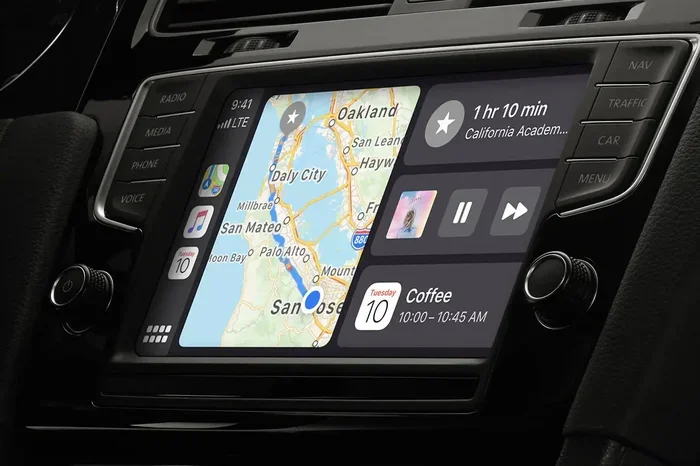
You are cruising down the road, ready to enjoy your favorite music or get directions through your car’s display. You tap the Apple CarPlay icon on your infotainment screen, and nothing happens. Or worse, the screen goes black for a second and then returns to the normal view. If you have ever wondered why is my Apple CarPlay not connecting to my iPhone, you are far from alone.
This is one of the most common tech issues drivers face today. Millions of people rely on Apple CarPlay every single day. When it stops working, it feels like your whole driving experience falls apart. The good news is that most CarPlay connection problems have simple fixes. You do not need to be a tech expert to solve them.
In this guide, we will walk you through every reason your CarPlay connection might be failing. We will cover USB problems, wireless issues, software glitches, and settings mistakes. By the end, you will know exactly what to do and how to stop it from happening again.
Key Takeaways
- Restart Both Devices: A simple reboot of your iPhone and car infotainment system fixes most connection problems instantly.
- Check Your Cable and Port: Damaged USB cables or dirty Lightning ports are the top reasons CarPlay fails to connect.
- Update iOS and Car Firmware: Outdated software on your iPhone or car system causes compatibility issues with Apple CarPlay.
- Disable and Re-enable CarPlay: Toggling CarPlay off and on in settings often resolves stubborn connection errors.
- Reset Network Settings: Wireless CarPlay issues frequently stem from Bluetooth or Wi-Fi configuration problems on your iPhone.
- Contact Support When Needed: If all else fails, your car dealer or Apple Support can diagnose hardware-level problems.
📑 Table of Contents
- Why Apple CarPlay Is Not Connecting: The Most Common Causes
- Step-by-Step Fixes for Apple CarPlay Connection Problems
- Preventing Apple CarPlay Connection Issues in the Future
- When to Seek Professional Help
- Quick Tips for Faster CarPlay Connections
- Comparison: Wired vs. Wireless Apple CarPlay
- Key Takeaways
- Conclusion
Why Apple CarPlay Is Not Connecting: The Most Common Causes
Before you start troubleshooting, it helps to understand what is going wrong. Apple CarPlay not working usually comes down to a handful of predictable causes. Let us break them down so you can pinpoint the problem fast.
1. USB Cable or Port Issues
The most frequent reason for CarPlay not showing up is a faulty cable or dirty port. Your iPhone uses a Lightning or USB-C cable to talk to your car’s infotainment system. If that cable is damaged, the connection will fail.
Here are the signs of a cable problem:
- The CarPlay icon never appears on your car screen.
- Your iPhone charges but CarPlay does not activate.
- The connection works sometimes and fails other times.
- You see a “Trust This Computer” prompt that keeps appearing.
Dust, lint, and debris can also build up inside your car’s USB port. Even a tiny bit of dirt can block the connection. This is especially common if you keep your phone in your pocket and plug it in daily.
2. Wireless CarPlay Bluetooth or Wi-Fi Problems
If you use wireless Apple CarPlay, your connection depends on both Bluetooth and Wi-Fi. When either one is not working properly, CarPlay will not connect. This is different from USB issues because there is no physical cable involved.
Common wireless CarPlay problems include:
- Your iPhone and car cannot find each other during pairing.
- The connection drops randomly while driving.
- CarPlay connects but audio or maps do not load.
- Your car shows “No CarPlay Device Found.”
Bluetooth interference from other devices in your car can also cause issues. Sometimes a nearby phone or tablet connected to the same system confuses the pairing process.
3. Outdated Software on Your iPhone or Car System
Apple releases iOS updates regularly. These updates often include fixes for CarPlay compatibility problems. If your iPhone is running an older version of iOS, it may not communicate properly with your car’s software.
Similarly, car manufacturers release firmware updates for their infotainment systems. If your car’s software is out of date, it might not support the latest version of Apple CarPlay. This is especially true for older car models that still receive occasional updates.
4. Incorrect CarPlay Settings on Your iPhone
Sometimes the problem is as simple as a setting that got turned off by accident. Your iPhone has specific toggles for CarPlay that control how and when it connects. If these settings are misconfigured, your phone will not link up with your car.
Check these settings on your iPhone:
- Go to Settings > General > CarPlay and make sure your car is listed.
- Ensure CarPlay is set to “Always Allow” for your vehicle.
- Check that Siri suggestions for CarPlay are enabled.
- Verify that your preferred apps are selected in CarPlay settings.
5. iPhone Restart or Trust Prompt Not Completed
When you plug your iPhone into a car for the first time, a “Trust This Computer” prompt appears on your screen. If you accidentally tapped “Don’t Trust,” your iPhone will refuse to share data with the car. This blocks Apple CarPlay from working even though everything else is fine.
Similarly, your iPhone might need a fresh start after a major software update. A simple restart clears temporary glitches that can prevent CarPlay from launching.
Step-by-Step Fixes for Apple CarPlay Connection Problems
Now that you know the common causes, let us get into the fixes. These steps are ordered from simplest to most advanced. Start at the top and work your way down.
Fix 1: Restart Your iPhone and Your Car Infotainment System
This is the first thing you should try, and it works more often than you might think. Restarting both devices clears temporary software bugs that can block the CarPlay connection.
To restart your iPhone:
- Press and hold the power button and either volume button.
- Slide to power off when the prompt appears.
- Wait 30 seconds, then turn your iPhone back on.
To restart your car’s infotainment system:
- Turn off your car engine and remove the key or press the start button to shut off.
- Open the driver’s door and wait 60 seconds.
- Close the door and start the car again.
Once both devices are back on, plug in your iPhone or try connecting wirelessly. In many cases, this alone solves the problem.
Fix 2: Replace or Inspect Your USB Cable
If restarting did not help, grab a different cable. Not all USB cables support data transfer. Many cables are charge-only, which means they will power your iPhone but cannot transmit CarPlay data to your car.
Follow these tips when choosing a cable:
- Use the original Lightning or USB-C cable that came with your iPhone.
- Look for Apple-certified or MFi-certified cables.
- Avoid cheap, unbranded cables from gas stations or discount stores.
- Try a shorter cable (under 3 feet) for a stronger signal.
While you are at it, inspect your car’s USB port. Use a flashlight to look inside. If you see dust or lint, gently clean it out with a toothpick or compressed air. Be careful not to damage the pins inside the port.
Fix 3: Update Your iPhone and Car Software
Keeping your software up to date is one of the best ways to prevent Apple CarPlay not connecting issues. Updates often include bug fixes that directly address connection problems.
To update your iPhone:
- Go to Settings > General > Software Update.
- If an update is available, tap Download and Install.
- Make sure your phone is connected to Wi-Fi and has at least 50% battery.
To check for car infotainment updates:
- Go to your car’s Settings menu and look for Software Update or System Update.
- Some cars let you check for updates through the manufacturer’s mobile app.
- Visit your dealer if you are unsure how to update your car’s system.
After updating both devices, try connecting CarPlay again. This fix has resolved the issue for many users.
Fix 4: Toggle CarPlay Off and On
Sometimes the simplest fix is to turn CarPlay off and then back on. This resets the connection between your iPhone and your car.
On your iPhone, go to Settings > General > CarPlay. Tap your car name and select “Forget This Car.” Then reconnect your iPhone using a cable or through wireless pairing. Your car should reappear in the CarPlay settings list.
This method works well when your iPhone CarPlay troubleshooting needs a quick reset without deeper changes.
Fix 5: Reset Network Settings for Wireless CarPlay
If you use wireless CarPlay and it keeps dropping or will not connect, your network settings may be the culprit. Resetting them can clear Bluetooth and Wi-Fi conflicts that interfere with CarPlay.
Here is how to do it:
- Go to Settings > General > Transfer or Reset iPhone.
- Tap Reset, then choose Reset Network Settings.
- Enter your passcode if prompted.
- Your Wi-Fi passwords and Bluetooth pairings will be erased, so you will need to reconnect them.
After the reset, turn Bluetooth and Wi-Fi back on. Then try pairing your iPhone with your car again. This fix is especially effective for wireless CarPlay connection issues.
Fix 6: Factory Reset Your Car Infotainment System
If nothing else has worked, you can try resetting your car’s entire infotainment system. This wipes all settings and returns the system to factory defaults. It is a more drastic step, but it often resolves deep software conflicts.
Check your car’s user manual for the exact reset process. For most vehicles, you can find the reset option under Settings > System > Factory Reset. Some cars require you to hold specific buttons on the steering wheel to initiate a reset.
After the factory reset, set up your car’s system fresh and try connecting CarPlay again. This fix has a high success rate for persistent connection problems.
Preventing Apple CarPlay Connection Issues in the Future
Once you get CarPlay working again, you probably want to keep it that way. Prevention is always easier than fixing problems after they happen. Here are some habits that will help you avoid future CarPlay connection issues.
Keep Your iPhone and Car Software Updated
Make it a habit to check for iOS updates at least once a month. Car manufacturers also release updates periodically. Staying current with both ensures the best CarPlay compatibility between your devices.
Use Quality Cables and Keep Ports Clean
Invest in a good-quality USB cable from Apple or a reputable brand. Avoid yanking cables in and out roughly, as this can wear out the connectors. Keep your car’s USB ports clean by gently removing dust and debris every few weeks.
Restart Your iPhone Weekly
A weekly restart clears out temporary files and refreshes your iPhone’s software. This simple habit can prevent many Apple CarPlay not working situations before they start.
Avoid Using Your Phone While Plugged In
Heavy phone use while CarPlay is connected can sometimes cause the connection to drop. If you notice issues, try closing apps or putting your phone on Do Not Disturb while driving.
When to Seek Professional Help
Most CarPlay problems can be fixed at home with the steps above. But sometimes the issue is beyond a simple fix. Here is when you should consider getting professional help.
If you have tried every troubleshooting step and CarPlay still will not connect, there may be a hardware problem. A damaged USB port in your car or a faulty iPhone charging port could be the root cause. In these situations, visiting your car dealer or an authorized Apple service provider makes sense.
Also, if your car is still under warranty, contact the manufacturer before trying any deep resets. Some resets can void your warranty if done incorrectly. A dealer can diagnose the issue safely and often at no cost to you.
Apple Support is another great resource. You can chat with an Apple specialist online or visit an Apple Store Genius Bar appointment. They can check your iPhone for hardware issues and confirm whether CarPlay is functioning properly on your device.
Quick Tips for Faster CarPlay Connections
Want your CarPlay to connect faster and more reliably every time? Try these quick tips:
- Lock your iPhone screen after plugging in. This signals the car that you are ready to use CarPlay.
- Disable Low Power Mode before connecting, as it can limit CarPlay functionality.
- Use a dedicated USB port in your car that is specifically designed for data, not just charging.
- Park your car before connecting or disconnecting CarPlay to avoid connection interruptions.
- Enable “Show CarPlay” in your car’s display settings so the icon is always visible on the home screen.
These small habits add up over time. They keep your wireless CarPlay or wired connection running smoothly day after day.
Comparison: Wired vs. Wireless Apple CarPlay
Understanding the difference between wired and wireless CarPlay can help you troubleshoot more effectively. Here is a quick comparison:
| Feature | Wired CarPlay | Wireless CarPlay |
|---|---|---|
| Connection Method | USB cable | Bluetooth and Wi-Fi |
| Setup | Plug in cable | Pair once, then automatic |
| Common Issues | Cable damage, dirty port | Bluetooth interference, Wi-Fi glitches |
| Reliability | Very stable when cable is good | Can drop if network is crowded |
| Charging | Yes, charges your iPhone | No charging through connection |
| Fix When Not Working | Try a new cable or clean port | Reset network settings or re-pair |
Both wired and wireless Apple CarPlay have their strengths. Wired connections tend to be more stable, while wireless connections offer more convenience. Knowing which type you use helps you apply the right fix when problems arise.
Key Takeaways
- Restart Both Devices: A simple reboot of your iPhone and car infotainment system fixes most connection problems instantly.
- Check Your Cable and Port: Damaged USB cables or dirty Lightning ports are the top reasons CarPlay fails to connect.
- Update iOS and Car Firmware: Outdated software on your iPhone or car system causes compatibility issues with Apple CarPlay.
- Disable and Re-enable CarPlay: Toggling CarPlay off and on in settings often resolves stubborn connection errors.
- Reset Network Settings: Wireless CarPlay issues frequently stem from Bluetooth or Wi-Fi configuration problems on your iPhone.
- Contact Support When Needed: If all else fails, your car dealer or Apple Support can diagnose hardware-level problems.
Conclusion
Dealing with Apple CarPlay not connecting can put a damper on your day. But as you have seen, most issues have straightforward solutions. Whether it is a bad cable, a software update, or a simple settings toggle, you now have the tools to fix the problem yourself.
Start with the easiest fixes first. Restart your devices, check your cable, and update your software. If those do not work, move on to the more advanced steps like resetting network settings or performing a factory reset on your car system. And remember, prevention goes a long way. Keep your software updated, use quality cables, and develop good connection habits.
The next time you find yourself asking why is my Apple CarPlay not connecting to my iPhone, you will know exactly what to do. You will be back to enjoying hands-free calling, navigation, music, and messaging in no time. Safe travels, and happy driving.
Frequently Asked Questions
Why does Apple CarPlay keep disconnecting while I am driving?
This usually happens because of a loose USB cable or Bluetooth interference. Try switching to a different USB port in your car or using a shorter, high-quality cable. If you use wireless CarPlay, move away from other Bluetooth devices that might be causing signal conflicts.
Can a dirty USB port prevent CarPlay from connecting?
Yes, absolutely. Dust, lint, and debris in your car’s USB port can block the connection between your iPhone and the infotainment system. Use compressed air or a soft brush to clean the port gently. This simple step often restores CarPlay functionality immediately.
Does my iPhone model affect Apple CarPlay compatibility?
Apple CarPlay is supported on iPhone 5 and later models. However, newer features and performance improvements are available on more recent iPhone models. If you have a very old iPhone, check Apple’s official compatibility list to confirm your model supports CarPlay.
How do I know if my car supports Apple CarPlay?
Check your car’s user manual or visit the manufacturer’s website. Most cars made after 2016 support CarPlay either as standard or as an optional upgrade. You can also look for the CarPlay icon on your car’s infotainment screen when you start the vehicle.
Should I update my iPhone before trying to fix CarPlay issues?
Yes, always. Software updates often include bug fixes that directly address CarPlay connection problems. Before trying any other troubleshooting steps, make sure your iPhone is running the latest version of iOS. This alone can resolve many connection issues.
What should I do if CarPlay works in one car but not another?
This usually means the problem is with the car’s infotainment system, not your iPhone. Try forgetting the car in your CarPlay settings and re-pairing. If that does not work, check for infotainment software updates from the car manufacturer. The second car may need a firmware update to maintain compatibility.