Does CarPlay Use Bluetooth or Wi-Fi for Hands-Free
Apple CarPlay uses both Bluetooth and Wi-Fi depending on the connection type. Wireless CarPlay relies on Wi-Fi for data-heavy tasks like navigation and music streaming, while Bluetooth handles initial pairing and hands-free calling. Understanding how Does CarPlay Use Bluetooth or Wi-Fi helps you get the most from your iPhone CarPlay setup.
Have you ever jumped into your car and wondered how your phone connects to the infotainment system? If you use Apple CarPlay, you have probably asked yourself this question more than once. Does CarPlay Use Bluetooth or Wi-Fi is a question many drivers ask, and the answer is not as simple as a yes or no.
The truth is, CarPlay connectivity depends on how you connect your phone. Wireless CarPlay uses Wi-Fi for most tasks. Wired CarPlay uses a USB cable. And Bluetooth plays a role in both setups, especially for hands-free calling. In this guide, we will break down exactly how each connection works, what the differences are, and how you can get the best experience from your iPhone CarPlay setup.
Whether you drive a CarPlay compatible car or are thinking about upgrading your vehicle, understanding these connection types matters. It affects audio quality, navigation speed, battery life, and overall convenience. Let us dive in and clear everything up.
Key Takeaways
- CarPlay uses Wi-Fi for wireless connections: Wireless CarPlay needs Wi-Fi for fast data transfer, navigation, and audio streaming.
- Bluetooth handles hands-free calls: Even with wireless CarPlay, Bluetooth manages phone calls and initial device pairing.
- Wired CarPlay uses USB only: A USB cable connects your iPhone directly, no Bluetooth or Wi-Fi needed.
- Wi-Fi gives better performance: Wireless CarPlay over Wi-Fi delivers smoother navigation and faster app loading.
- Setup is simple: You can enable wireless CarPlay through your car settings or iPhone settings.
- Troubleshooting is straightforward: Most CarPlay connection issues have easy fixes like restarting or resetting network settings.
📑 Table of Contents
- What Is Apple CarPlay and How Does It Work?
- Does CarPlay Use Bluetooth or Wi-Fi?
- When Does CarPlay Use Bluetooth?
- CarPlay Bluetooth vs Wi-Fi: What Is the Difference?
- How to Set Up CarPlay for the Best Hands-Free Experience
- Common CarPlay Connection Problems and Fixes
- Expert Tips for Getting the Most Out of CarPlay
- Key Takeaways
- Conclusion
What Is Apple CarPlay and How Does It Work?
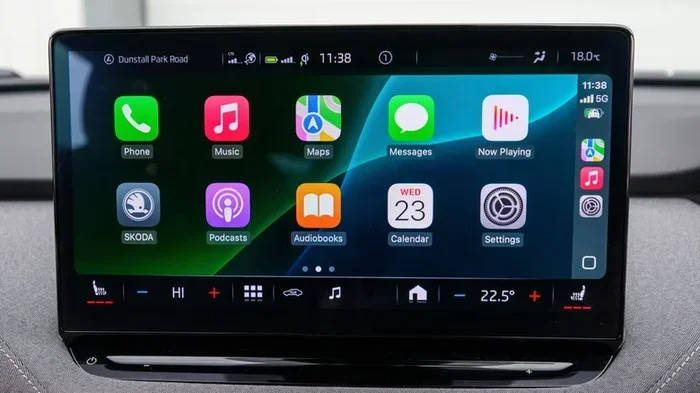
Apple CarPlay is a smart system that mirrors key features from your iPhone onto your car’s display. It lets you access maps, music, messages, and phone calls safely while driving. The system was designed to keep your eyes on the road and your hands on the wheel.
When you connect your iPhone to your car, CarPlay creates a bridge between your phone and the vehicle’s infotainment system. This bridge allows you to use apps like Maps, Spotify, Podcasts, and Messages through your car’s screen and controls. You can also use Siri CarPlay voice commands to make calls, send texts, and start navigation without touching your phone.
CarPlay comes in two main forms. The first is wired CarPlay, which uses a USB cable. The second is wireless CarPlay, which connects without any cables. Both versions offer the same core features, but they differ in how they handle data and connectivity.
Not all cars support wireless CarPlay. Older vehicles and some budget models may only offer wired connections through a USB port. If you have a newer car, there is a good chance it supports wireless CarPlay setup right out of the box.
Does CarPlay Use Bluetooth or Wi-Fi?
The short answer is that Does CarPlay Use Bluetooth or Wi-Fi depends on the type of connection you are using. Wireless CarPlay uses Wi-Fi as its primary connection method. Bluetooth plays a supporting role, especially for hands-free calling and initial device discovery. Let us look at each connection type in detail.
How Wireless CarPlay Connects via Wi-Fi
When you use wireless CarPlay Wi-Fi, your iPhone and your car’s infotainment system create a direct Wi-Fi connection. This is not the same Wi-Fi network you use at home. Instead, it is a dedicated peer-to-peer Wi-Fi link between your phone and your car.
This direct Wi-Fi connection allows for much faster data transfer than Bluetooth ever could. That means your maps load quicker, your music streams without buffering, and apps respond faster. If you have ever noticed that wireless CarPlay feels snappier than wired, the Wi-Fi connection is the reason.
Here is how wireless CarPlay typically works:
- Your car and iPhone establish a Wi-Fi Direct connection.
- Siri helps with initial pairing and voice commands.
- Maps, music, and other apps stream data over Wi-Fi.
- Bluetooth handles phone calls separately in the background.
The beauty of this setup is that you get the best of both worlds. Wi-Fi handles the heavy data tasks, and Bluetooth takes care of audio for phone calls. This split duty keeps everything running smoothly.
How Wired CarPlay Uses USB
Wired USB CarPlay connects your iPhone to your car using a Lightning or USB-C cable. This connection does not rely on Wi-Fi or Bluetooth for the main data link. Instead, the USB cable handles all communication between your phone and the car’s system.
With wired CarPlay, your connection is very stable. There is no risk of Wi-Fi interference or signal drops. The downside is that you are tethered to your car’s center console, which can be inconvenient. You also need to keep your cable handy and plug in your phone every time you drive.
Wired CarPlay does not need Bluetooth for its main functions either. However, your car may still use Bluetooth for audio routing during phone calls. The USB connection handles the visual and app data, while Bluetooth handles the audio for calls.
When Does CarPlay Use Bluetooth?
Even if you use wireless CarPlay Bluetooth features, Bluetooth is still part of the picture. Bluetooth plays several important roles in the CarPlay ecosystem, and understanding when it kicks in helps you troubleshoot issues.
First, Bluetooth is used during the initial pairing process. When you first set up wireless CarPlay, your car and iPhone use Bluetooth to discover each other. Once they are paired, the system switches to Wi-Fi for the main data connection.
Second, Bluetooth handles all hands-free calling. When you make or receive a phone call through CarPlay, the audio streams over Bluetooth. This is true for both wireless and wired CarPlay setups. Your car’s microphone picks up your voice, and the call audio comes through your car’s speakers, all via Bluetooth.
Third, Bluetooth is used for audio streaming in some scenarios. If you are listening to a podcast or music through CarPlay and a call comes in, Bluetooth seamlessly switches the audio to the call. After the call ends, it switches back to your media app.
Some older CarPlay supported vehicles rely more heavily on Bluetooth because they lack the Wi-Fi hardware needed for wireless CarPlay. In these cases, Bluetooth handles both data and audio, which can result in slower performance.
CarPlay Bluetooth vs Wi-Fi: What Is the Difference?
Understanding the difference between CarPlay Bluetooth and CarPlay Wi-Fi helps you troubleshoot issues and optimize your setup. Here is a side-by-side look at how they compare.
| Feature | Bluetooth | Wi-Fi |
|---|---|---|
| Primary Role | Hands-free calls, initial pairing | Data transfer, app streaming |
| Speed | Slower data transfer | Faster data transfer |
| Range | Up to 30 feet | Direct peer-to-peer link |
| Used In | All CarPlay setups | Wireless CarPlay only |
| Audio Quality for Calls | Standard quality | N/A (calls use Bluetooth) |
| Battery Impact | Low | Moderate |
| Connection Stability | Very stable | Stable, but can be affected by interference |
The table above shows that Bluetooth and Wi-Fi serve different purposes in CarPlay. They work together rather than competing with each other. Wi-Fi gives you speed and smooth performance for apps and navigation. Bluetooth ensures your phone calls work reliably and your initial connection is established.
If you are choosing between wired and wireless CarPlay, keep in mind that wireless gives you the full Wi-Fi experience. Wired gives you a stable USB connection but may still use Bluetooth for calls. Neither is objectively better, but wireless tends to feel more convenient for daily use.
One thing to watch out for is CarPlay battery drain. Wireless CarPlay uses Wi-Fi continuously, which can drain your iPhone battery faster than a wired connection. If you notice your phone getting hot or losing charge quickly during long drives, consider switching to wired CarPlay or keeping your phone plugged in.
How to Set Up CarPlay for the Best Hands-Free Experience
Setting up CarPlay setup correctly makes a big difference in how well it works. Whether you are using wireless or wired CarPlay, a few simple steps can improve your experience.
For wireless CarPlay, make sure your car supports it first. Check your vehicle’s manual or visit the manufacturer’s website. Then follow these steps:
- Make sure your iPhone is running the latest version of iOS.
- Go to Settings on your iPhone and tap General, then CarPlay.
- Select your car from the list of available vehicles.
- Follow the on-screen prompts to complete pairing.
- Test your connection by opening Maps or playing music.
If you are setting up hands-free calling, make sure Bluetooth is enabled on your iPhone. Go to Settings, tap Bluetooth, and ensure your car is listed as a connected device. This ensures calls route through your car’s speakers and microphone.
Here are some quick tips to improve your CarPlay connectivity:
- Restart your iPhone and your car’s infotainment system if connection issues arise.
- Forget the CarPlay pairing and reconnect from scratch if problems persist.
- Keep your iPhone’s software updated to the latest iOS version.
- Disable other Wi-Fi networks on your phone to prevent interference.
- Place your iPhone near the center console for the strongest wireless signal.
For the best CarPlay audio quality, use wireless CarPlay over Wi-Fi when possible. The Wi-Fi connection handles music and media streaming more efficiently than Bluetooth alone. If you notice audio cutting out or lagging, check your Wi-Fi signal strength and move your phone closer to the car’s antenna.
Common CarPlay Connection Problems and Fixes
Even with a great setup, you may run into CarPlay connection issues from time to time. Here are the most common problems and how to fix them.
CarPlay won’t connect at all. This is often caused by a software glitch. Try restarting both your iPhone and your car’s infotainment system. If that does not work, go to your iPhone’s CarPlay settings, remove your car, and pair it again.
Wireless CarPlay disconnects randomly. Wi-Fi interference from other devices can cause this. Make sure no other devices are competing for the same Wi-Fi band. Also, check that your car’s firmware is up to date. Some manufacturers release updates that improve wireless CarPlay connectivity.
Hands-free calling does not work. This usually means Bluetooth is not properly connected. Go to your iPhone’s Bluetooth settings and make sure your car is selected. You may also need to reset your car’s Bluetooth settings and re-pair your phone.
Maps and apps load slowly. Slow performance often means the Wi-Fi connection is weak. Move your phone closer to the center console. If you are using a phone case, try removing it, as some thick cases can interfere with Wi-Fi signals.
CarPlay audio sounds muffled. Check that your car’s audio settings are set to CarPlay mode. Also, make sure your iPhone’s volume is not set too low. If the problem continues, try connecting via USB cable to see if the issue is with the wireless connection.
For persistent CarPlay troubleshooting, resetting your iPhone’s network settings can work wonders. Go to Settings, tap General, then Transfer or Reset iPhone, then Reset, and choose Reset Network Settings. This clears all Wi-Fi and Bluetooth connections and lets you start fresh.
Expert Tips for Getting the Most Out of CarPlay
Expert Insights
Automotive tech experts recommend a few best practices to keep your CarPlay features running at their best. First, always restart your car’s infotainment system after a major iOS update. Apple and car manufacturers sometimes need their systems to sync after software changes.
Second, consider using a wireless CarPlay adapter if your car does not natively support wireless CarPlay. These small devices plug into your car’s USB port and create a Wi-Fi bridge to your iPhone. They are affordable and can add wireless CarPlay functionality to older vehicles.
Third, manage your CarPlay battery drain by plugging in your phone during long drives. Wireless CarPlay uses more power than wired, so keeping your phone charged ensures you do not lose navigation or music mid-trip.
Finally, explore the CarPlay supported vehicles list before buying a new car. Most major automakers now offer wireless CarPlay as standard or optional equipment. This ensures you get the best possible CarPlay audio streaming and navigation experience from day one.
Key Takeaways
- Wireless CarPlay uses Wi-Fi for data: Wi-Fi handles maps, music, and app streaming for fast, smooth performance.
- Bluetooth handles hands-free calls: All CarPlay setups use Bluetooth for phone call audio, whether wireless or wired.
- Wired CarPlay uses USB only: A cable provides a stable connection without needing Wi-Fi or Bluetooth for data.
- Wi-Fi gives better app performance: Wireless CarPlay over Wi-Fi loads apps faster and streams media more reliably.
- Setup is simple and quick: Pairing your iPhone to a CarPlay compatible car takes just a few minutes.
- Most issues have easy fixes: Restarting devices, resetting network settings, and re-pairing solve most CarPlay connection issues.
Conclusion
So, does CarPlay use Bluetooth or Wi-Fi? The answer is both, working together to give you the best possible experience. Wireless CarPlay uses Wi-Fi for fast data transfer, smooth navigation, and streaming media. Bluetooth handles hands-free calling, initial pairing, and audio routing during phone calls. Wired CarPlay uses a USB cable for its main connection but may still rely on Bluetooth for call audio.
Understanding how these two technologies work together helps you troubleshoot issues and get the most from your iPhone CarPlay setup. Whether you drive a brand-new vehicle with full wireless support or use an older car with a wired connection, CarPlay is designed to keep you connected and safe on the road.
Take a few minutes to explore your CarPlay settings today. Make sure your Bluetooth and Wi-Fi are working properly, and test your hands-free calling and navigation. A little setup goes a long way toward a better driving experience. With the right connection type and a few simple tips, you will enjoy seamless CarPlay audio quality and reliable connectivity every time you hit the road.
Frequently Asked Questions
Can I use CarPlay without Bluetooth?
Yes, you can use wired CarPlay without Bluetooth. A USB cable handles all data transfer. However, Bluetooth is still needed for hands-free calling in most setups. Wireless CarPlay requires both Wi-Fi and Bluetooth to work properly.
Why does my CarPlay keep disconnecting from Wi-Fi?
Wi-Fi interference from other devices or a weak signal can cause disconnections. Try moving your phone closer to the center console, restarting both devices, or forgetting and re-pairing the connection. Updating your car’s firmware and your iPhone’s iOS can also help.
Is wireless CarPlay better than wired CarPlay?
Wireless CarPlay is more convenient because it eliminates cables. It also uses Wi-Fi for faster app loading and smoother navigation. However, wired CarPlay offers a more stable connection and does not drain your iPhone battery as quickly. Both options work well depending on your needs.
Does CarPlay use data when connected via Wi-Fi?
Yes, wireless CarPlay uses your iPhone’s cellular data for maps, streaming music, and app content. The Wi-Fi connection between your phone and car is just the bridge. Your data plan covers the actual content you access through CarPlay.
Can I make hands-free calls if my car only supports wired CarPlay?
Yes, you can. Wired CarPlay still supports hands-free calling through Bluetooth. Your car’s microphone and speakers handle the call audio, and Siri can place or receive calls through the CarPlay interface.
How do I switch between Bluetooth and Wi-Fi for CarPlay?
You do not need to manually switch. Your iPhone and car handle the connection automatically. Bluetooth manages calls and initial pairing, while Wi-Fi takes over for data-heavy tasks. If you want to force a specific connection, toggle Bluetooth or Wi-Fi off in your iPhone settings, but this is not usually necessary.