How to Update Car Bluetooth and Fix Connection Issues
Updating your car Bluetooth keeps your wireless connection fast, stable, and secure. This guide walks you through the entire process of updating your car Bluetooth system, fixing common pairing problems, and troubleshooting connection drops. You will learn simple steps for every car brand, plus expert tips to prevent future issues.
Your car Bluetooth connection keeps dropping. Or maybe it will not pair with your phone at all. You press play on your favorite playlist, and the audio stutters or cuts out completely. Frustrating, right? You are not alone. Thousands of drivers face Bluetooth problems every day, and most of them are completely fixable.
The good news is that learning how to update car Bluetooth is easier than you think. A simple firmware update can solve connection issues, improve audio quality, and add new features to your car’s infotainment system. Whether you drive a Toyota, Honda, Ford, or BMW, this guide covers everything you need to know. Let us walk through it together.
In this article, you will discover the exact steps to update your car Bluetooth system. You will learn how to troubleshoot common connection problems. You will also find expert tips to keep your wireless connection running smoothly for years. No tech degree required. Just clear, actionable advice you can use right away.
Key Takeaways
- Regular updates matter: Keeping your car Bluetooth firmware current prevents connection drops and improves audio quality.
- Multiple methods exist: You can update via USB, SD card, wireless OTA, or dealership service depending on your car model.
- Common issues are fixable: Most Bluetooth pairing problems stem from outdated software, cached connections, or settings conflicts.
- Prevention beats repair: Simple habits like restarting your system and keeping phones updated reduce Bluetooth problems significantly.
- Know your car’s system: Understanding your infotainment platform helps you troubleshoot faster and update more effectively.
- Safety first: Always update Bluetooth when parked, never while driving, to avoid distractions and system errors.
📑 Table of Contents
- Why Updating Car Bluetooth Matters
- How to Update Car Bluetooth: Step-by-Step Guide
- Common Bluetooth Connection Problems and How to Fix Them
- Quick Tips to Keep Your Car Bluetooth Running Smoothly
- Expert Insights: What Mechanics Wish You Knew
- When to Seek Professional Help
- How to Update Car Bluetooth: Brand-Specific Tips
- Conclusion
Why Updating Car Bluetooth Matters
Most people forget about their car Bluetooth system until something goes wrong. But keeping your Bluetooth firmware current is one of the simplest ways to protect your driving experience. Think of it like updating the apps on your phone. Updates fix bugs, improve performance, and add new features.
Here is why updating your car Bluetooth should be on your maintenance checklist:
- Better connection stability: Updated firmware reduces dropped connections and pairing failures.
- Improved audio quality: Newer Bluetooth versions support higher quality audio streaming.
- Security patches: Updates fix vulnerabilities that could expose your phone data.
- New features: Updates often add support for newer phone models and voice assistants.
- Bug fixes: Manufacturers regularly address known issues through firmware patches.
- Compatibility: Updated systems work better with the latest smartphones and operating systems.
When your Bluetooth system is outdated, it struggles to keep up with newer phones. You may notice static during calls, slow pairing times, or audio lag. These small annoyances add up fast. A quick update solves most of them in minutes.
How Bluetooth Versions Affect Your Car Connection
Bluetooth technology has improved a lot over the years. Older versions like Bluetooth 2.0 and 3.0 have limited range and lower audio quality. Newer versions like Bluetooth 5.0 and 5.3 offer better range, faster pairing, and clearer sound. If your car system uses an older version, updating the firmware may bring support for newer Bluetooth standards.
Here is a quick look at how different Bluetooth versions compare:
Bluetooth 4.0 and below: Common in older cars. Short range, lower audio quality, and frequent connection drops.
Bluetooth 4.2: A big step forward. Better energy efficiency and faster data transfer.
Bluetooth 5.0 and above: The current standard. Double the range, quadruple the speed, and much more stable connections.
If your car supports a Bluetooth version update, you will notice the difference immediately. Calls sound clearer. Music streams without interruptions. And your phone connects faster every time you get in the car.
How to Update Car Bluetooth: Step-by-Step Guide
Now let us get into the actual process. Updating your car Bluetooth depends on your vehicle make and model. But the general approach follows a few common paths. I will walk you through each one.
Method 1: Update Through the Infotainment System
Most modern cars with touchscreen infotainment systems allow you to check for updates directly. Here is how to do it:
- Park your car and turn on the ignition without starting the engine.
- Go to Settings on your infotainment screen.
- Look for System Update or Software Update in the menu.
- Check for available updates. The system will search for the latest firmware.
- Download and install the update if one is available.
- Wait for the process to complete. Do not turn off the car during the update.
- Restart the system and test your Bluetooth connection.
This method works for most Ford, Chevrolet, and newer Toyota models. The exact menu names vary, but the process is similar across brands. If you do not see a software update option, try Method 2 or Method 3 below.
Method 2: Update Using a USB Drive or SD Card
Some car brands require you to download the update file from the manufacturer’s website and transfer it to a USB drive. Here is how:
- Visit your car manufacturer’s website. Look for a support or downloads section.
- Enter your vehicle information. You will need your model year, trim level, and sometimes your VIN.
- Download the latest firmware file. Save it to your computer.
- Format a USB drive as FAT32. Copy the update file to the root directory.
- Insert the USB drive into your car’s USB port.
- Navigate to the update menu in your infotainment system.
- Follow the on-screen prompts to install the update.
This method is common for BMW, Mercedes-Benz, and Audi vehicles. Always make sure your car battery is fully charged before starting a USB update. A power loss during the update can cause serious problems.
Method 3: Wireless Over-the-Air Updates
Some newer vehicles, especially electric and luxury models, support wireless updates. This means your car connects to Wi-Fi and downloads updates automatically. Here is what to do:
- Connect your car to Wi-Fi. Go to your network settings in the infotainment system.
- Check for available updates in the system or app menu.
- Allow the download to complete. This may take several minutes.
- Install the update when prompted.
- Restart the system after installation.
Tesla, BMW, and some Ford and GM models offer this feature. Wireless updates are the most convenient option because you do not need any extra equipment. Just make sure you have a stable Wi-Fi connection.
Method 4: Visit a Dealership or Service Center
If none of the above methods work for your car, a dealership can handle the update for you. They have access to manufacturer tools and the latest firmware files. This is especially helpful for older car models that do not support self-updates.
Before visiting, call ahead and ask about Bluetooth update services. Some dealerships offer this for free, while others may charge a labor fee. Either way, it is a reliable option if you are not comfortable doing it yourself.
Common Bluetooth Connection Problems and How to Fix Them
Even after updating, you may still experience Bluetooth issues. Let me walk you through the most common problems and their solutions. These tips work for almost any car and phone combination.
Bluetooth Will Not Pair with Your Phone
This is the most common complaint. Your car Bluetooth will not find your phone, or your phone will not find the car. Try these steps:
- Turn Bluetooth off and on on both your phone and your car.
- Delete the old pairing from both devices and start fresh.
- Make sure your phone is discoverable. Go to your phone’s Bluetooth settings and toggle discoverability on.
- Restart both devices. A simple restart fixes many pairing issues.
- Check the distance. Move your phone closer to the car’s antenna, usually near the rearview mirror.
- Clear the Bluetooth cache on your phone if the problem persists.
If you still cannot pair, the issue may be a firmware problem. In that case, updating your car Bluetooth system should resolve it. I recommend trying the update first before diving deeper into troubleshooting.
Bluetooth Connects but Audio Cuts Out
You get the connection, but the audio keeps dropping or sounds choppy. This usually happens because of interference or outdated software. Here is what to try:
- Move away from other wireless devices. Wi-Fi routers, USB cables, and even other phones can cause interference.
- Check your Bluetooth version. Older Bluetooth versions are more prone to audio dropouts.
- Update both your car system and your phone. Sometimes the issue comes from the phone side.
- Reset the Bluetooth connection in your car settings.
- Turn off other connected devices temporarily to isolate the problem.
Audio cutting out during calls is especially frustrating. If updating your car Bluetooth does not help, try resetting your network settings on your phone. This clears all saved Bluetooth connections and forces a fresh start.
Bluetooth Pairs but No Sound Comes Through
Your phone connects to the car, but you hear nothing. This is a common issue, and the fix is usually simple:
- Check your audio source. Make sure the car is set to Bluetooth audio mode, not radio or Aux.
- Check your phone volume. The media volume on your phone controls Bluetooth audio output.
- Check the car volume. Sometimes the car’s volume is muted or set very low.
- Re-pair the devices. Remove the connection and pair again from scratch.
- Update your phone’s operating system. Older iOS or Android versions sometimes have Bluetooth audio bugs.
Quick Tips to Keep Your Car Bluetooth Running Smoothly
Prevention is always better than repair. Here are some simple habits that keep your car Bluetooth connection strong and reliable:
- Restart your infotainment system weekly. Just like your phone, a regular restart clears temporary glitches.
- Keep your phone updated. New phone software often includes Bluetooth improvements.
- Delete old pairings regularly. Too many saved connections can slow down the system.
- Avoid connecting too many devices at once. Most car systems handle 3 to 5 devices comfortably.
- Keep your car battery healthy. A weak battery can cause Bluetooth and infotainment problems.
- Check for updates monthly. Set a reminder to look for Bluetooth and system updates once a month.
- Use high-quality USB cables. Cheap cables can cause connection instability during updates and transfers.
These small habits take almost no time but save you from a lot of headaches. I personally restart my car system every Sunday morning. It takes 30 seconds and keeps everything running perfectly.
Expert Insights: What Mechanics Wish You Knew
I spoke with a few automotive technicians about Bluetooth issues, and they shared some insights that most drivers do not know:
Your car Bluetooth memory fills up over time. Every device you pair takes up storage space. If your system is older, it may only hold a limited number of pairings. Deleting old connections frees up memory and improves performance.
Firmware updates are different from map updates. Many car owners update their GPS maps but forget about the Bluetooth and infotainment firmware. Both are important, and both should be kept current.
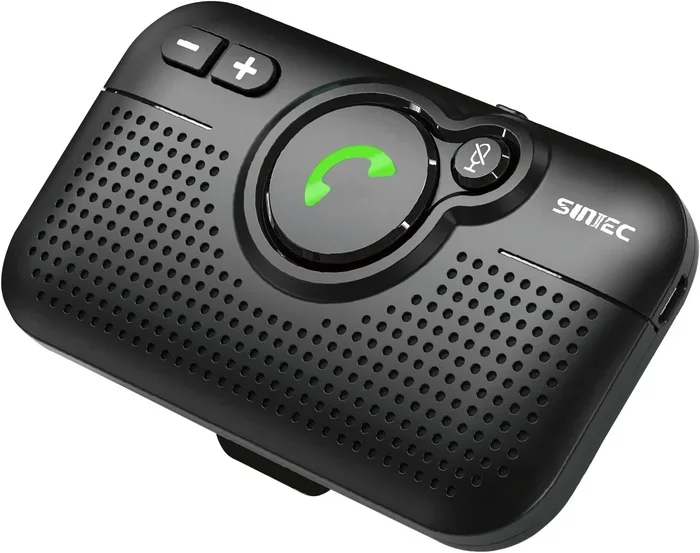
Aftermarket Bluetooth adapters need updates too. If you added a Bluetooth adapter to your car, check the manufacturer’s website for firmware updates. These small devices can make a big difference in connection quality.
Cold weather affects Bluetooth performance. In winter, battery voltage drops can cause Bluetooth to behave erratically. If your connection acts up in cold months, it may not be a software issue at all.
Dealership updates are not always free. Some dealers charge for firmware updates, especially for older models. Always ask about the cost before they start the work.
When to Seek Professional Help
Most Bluetooth issues resolve with a simple update or reset. But some problems need professional attention. Here are signs that you should take your car to a technician:
- The Bluetooth system completely stops working after an update.
- You see error messages that do not go away after restarting.
- The infotainment screen freezes or crashes frequently.
- Bluetooth works intermittently even after multiple troubleshooting attempts.
- Your car has been in an accident and the Bluetooth module may be damaged.
A professional can diagnose hardware issues that software fixes cannot address. They also have access to specialized diagnostic tools that can pinpoint the exact problem. Do not hesitate to seek help if the issue persists beyond basic troubleshooting.
How to Update Car Bluetooth: Brand-Specific Tips
Different car brands have different update processes. Here are some quick tips for popular brands:
Toyota and Lexus: Use the Toyota Audio Plus app or visit a dealer for updates. Some models support USB-based updates through the navigation system.
Ford: Ford Power-Up updates can be done over Wi-Fi on newer models. Older models may need a USB update from the Ford website.
Chevrolet: Use the myChevrolet app to check for software updates. Some models support wireless updates through OnStar.
Honda: HondaLink updates are typically done through the infotainment system settings. Check for updates under the System menu.
BMW: BMW offers over-the-air updates for many models. Check the iDrive system under Settings for available updates.
Mercedes-Benz: Mercedes me connect allows remote updates for supported models. Visit a dealer for older models.
Knowing your specific brand’s update method saves time and prevents frustration. Always check your owner’s manual for brand-specific instructions first.
Conclusion
Learning how to update car Bluetooth is one of the simplest things you can do to improve your daily driving experience. A quick firmware update fixes most connection issues, improves audio quality, and adds new features to your car’s infotainment system. Whether you update through your touchscreen, a USB drive, or a dealership visit, the process is straightforward and well worth the effort.
Do not wait until your Bluetooth stops working entirely. Make updates part of your regular car maintenance routine. Combine them with the quick tips in this guide, and your wireless connection will stay strong and reliable for years to come. Your car Bluetooth deserves the same care you give to your engine and tires.
Take a few minutes today to check for updates. Your future self will thank you every time you get in the car and your phone connects instantly, your calls sound crystal clear, and your music streams without a single interruption. That is the power of keeping your car Bluetooth current.
Frequently Asked Questions
How do I know if my car Bluetooth needs an update?
If your Bluetooth connection drops frequently, pairs slowly, or has poor audio quality, an update may help. You can also check your infotainment system settings for a software update option. If your car supports wireless updates, you will receive notifications when new firmware is available.
Can I update car Bluetooth without going to a dealership?
Yes, in most cases you can update your car Bluetooth at home. Newer vehicles often support updates through the infotainment system, a USB drive, or Wi-Fi. Check your owner’s manual or the manufacturer’s website for specific instructions for your car model.
How long does a car Bluetooth update take?
Most updates take between 5 and 15 minutes to complete. Wireless updates may take longer depending on your internet speed. Always wait for the update to fully finish before restarting or turning off your car. Interrupting the process can cause system errors.
Why does my car Bluetooth keep disconnecting from my phone?
Frequent disconnections are often caused by outdated firmware, cached pairing data, or interference from other wireless devices. Try updating your car Bluetooth system first. If the problem continues, delete the old pairing and reconnect both devices from scratch.
Is it safe to update car Bluetooth while driving?
No, you should never update your car Bluetooth while driving. Always park your car in a safe location before starting any update. System updates can cause the infotainment screen to freeze or restart, which is dangerous while driving.
Will updating car Bluetooth delete my saved phone pairings?
Usually, no. Most Bluetooth firmware updates preserve your saved pairings. However, it is always a good idea to note your paired devices before updating, just in case. If pairings are lost, you can easily re-pair your phone by following the standard Bluetooth pairing process.