How Do I Delete Unwanted Contacts From My Phone Quickly
Deleting unwanted contacts from your phone is faster than you think. Whether you use an iPhone or Android device, you can clean up your contact list in just a few minutes. This guide also covers removing synced contacts from your car’s infotainment system and Bluetooth phone setup. You will learn simple steps, quick tips, and common mistakes to avoid. Keep your phone and car contact list tidy and organized with this easy walkthrough.
We all have them. Those random contacts you added once and never called again. Maybe it is an old sales rep, a number from a one-time event, or a person you met at a party six months ago. Deleting unwanted contacts from your phone is one of the simplest ways to keep your digital life organized. This guide walks you through every step, from your iPhone or Android device to your car’s infotainment screen. You will learn fast methods, helpful tips, and mistakes to avoid.
Managing your phone contact list does more than just free up space. It helps you find the right number faster. It reduces clutter on your car’s Bluetooth phone display. And it keeps your personal information cleaner and safer. Whether you want to delete one contact or fifty, this article has you covered.
Let us get into it. No fluff, no confusing jargon. Just clear, simple steps you can follow right now.
Key Takeaways
- Deleting contacts is quick: You can remove unwanted phone numbers in under a minute on both iPhone and Android.
- Car infotainment systems matter: Many people forget to clean up contacts synced to their vehicle’s Bluetooth phone system.
- Duplicate contacts slow you down: Regular contact list cleanup saves time and reduces frustration.
- Multiple methods work: You can delete contacts manually, in bulk, or through cloud sync settings.
- Prevention is key: Simple habits keep your phonebook tidy going forward.
- Backup first: Always save a copy before mass deletions to avoid losing important numbers.
📑 Table of Contents
- Why Deleting Unwanted Contacts Matters
- How to Delete Contacts on iPhone
- How to Delete Contacts on Android
- Removing Contacts from Your Car’s Infotainment System
- Cleaning Up Synced Contacts via Bluetooth
- Tips for Keeping Your Contact List Tidy
- Common Mistakes When Deleting Contacts
- Frequently Asked Questions
- Final Thoughts
Why Deleting Unwanted Contacts Matters
You might wonder why you should bother cleaning up your contact list. It seems like a small thing. But over time, extra contacts add up fast. Here is why this matters more than you think.
A messy contact list slows you down. When you search for a name, you see dozens of old or wrong entries. This wastes time and causes frustration. Deleting unwanted contacts keeps your phonebook lean and useful.
Your car’s infotainment system also feels the impact. When your phone syncs contacts through Bluetooth, every extra name shows up on your car screen. This makes it harder to find the person you actually want to call while driving. A clean contact list means a cleaner car phone experience.
There is also a privacy angle. Old contacts may contain phone numbers, email addresses, or notes you no longer want stored on your device. Removing them reduces your digital footprint. This is especially important if you sell or share your car later.
How Cluttered Contacts Affect Your Daily Routine
Think about the last time you needed to call someone. Did you scroll past ten old numbers to find the right one? That is a sign your contact list needs attention. Every extra entry is noise. It distracts you and makes simple tasks take longer.
In your car, this problem gets worse. Most modern vehicles sync your full contact list to the dashboard screen. If your phone has 500 contacts and 100 are outdated, your car’s phone menu becomes a nightmare to navigate. Removing unwanted phone numbers from your device fixes this at the source.
How to Delete Contacts on iPhone
iPhone users have a few different ways to remove contacts. Whether you need to delete one person or a whole batch, Apple makes it straightforward. Here is how to do it.
Delete a Single Contact
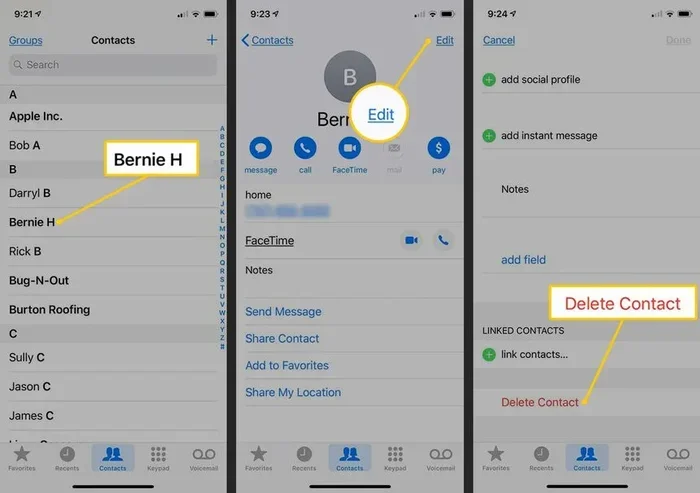
Open the Contacts app on your iPhone. Find the person you want to remove. Tap their name to open the profile. Scroll down and tap “Edit.” Then tap “Delete Contact” at the bottom. Confirm the deletion. Done. That is all it takes.
Delete Multiple Contacts at Once
If you have several contacts to remove, there is a faster way. Open the Contacts app and go to your list. Tap “Select” in the top right corner. Now tap each contact you want to delete. Once you have them all selected, tap “Delete” at the bottom. Confirm your choice, and your phone removes them all at once.
Delete Contacts from iCloud
If your contacts sync with iCloud, deleting them on your phone also removes them from the cloud. But sometimes you need to clean up iCloud directly. Go to icloud.com on a browser. Sign in with your Apple ID. Click “Contacts.” Select the unwanted entries. Click the gear icon and choose “Delete.” This keeps your cloud contact list tidy too.
Quick Tip for iPhone Users
If you use Siri, you can also say “Delete contact [Name].” Siri will confirm and remove the entry. This is great for quick deletions when your hands are busy or you are on the go.
How to Delete Contacts on Android
Android phones offer similar options with slight differences. The exact steps may vary depending on your phone brand, but the general process works across most devices. Here is how to do it.
Delete a Single Contact
Open the Contacts app on your Android phone. Find the contact you want to remove. Tap their name to open the details. Tap the three-dot menu in the top right corner. Select “Delete.” Confirm the action. The contact is removed from your phone immediately.
Delete Multiple Contacts
For bulk deletion, open the Contacts app. Tap the three-line menu icon. Look for “Delete contacts” or “Manage contacts.” Choose “Select all” or manually pick the contacts you want gone. Tap “Delete” and confirm. This is perfect for a major contact list cleanup.
Delete Contacts from Google Account
Most Android phones sync contacts with your Google account. To delete contacts from Google, go to contacts.google.com on any browser. Sign in with your Google account. Click on the contacts you want to remove. Click the trash icon. Confirm deletion. This removes them from all devices linked to that account.
Quick Tip for Android Users
If you use Google Contacts on the web, you can filter contacts by last time contacted. This makes it easy to find and delete old contacts you have not called in months or years. It is one of the best ways to keep your phone contact management in check.
Removing Contacts from Your Car’s Infotainment System
This is where many people get stuck. You delete contacts from your phone, but they still show up on your car’s screen. That is because your vehicle stores a copy of synced contacts. Here is how to handle this.
Why Car Contact Sync Creates Duplicates
When you pair your phone with your car via Bluetooth, the system downloads your contact list. This is called phone sync. The car keeps its own copy. Even if you delete contacts from your phone, the car may still show them until you refresh or re-sync the data.
Understanding this is key. Deleting contacts from your phone alone does not always remove them from your vehicle’s automotive phone system. You need to take extra steps to fully clean things up.
How to Delete Contacts Directly from Your Car
Most car infotainment systems let you manage contacts right from the dashboard. Here is the general process:
- Go to your car’s settings menu.
- Find the “Phone” or “Bluetooth” section.
- Look for “Contact List” or “Phonebook.”
- Select the contacts you want to remove.
- Choose “Delete” or “Remove.”
The exact steps vary by car brand. For example, Ford SYNC, BMW iDrive, and Toyota Entune all have slightly different menus. Check your car’s manual if you get stuck. But the general path is similar across most vehicle infotainment systems.
Force a Sync Refresh
Sometimes the easiest fix is to force your car to re-sync with your phone. Turn off Bluetooth in your car. Turn it back on. Or unpair your phone and pair it again. This refreshes the contact list and often removes deleted entries.
You can also try deleting all contacts from your car’s system and then re-syncing from your phone. This is a clean slate approach. It works well after a major contact book cleanup on your phone.
Quick Tip for Car Owners
After deleting contacts from your phone, wait a few minutes for the sync to update. Then check your car’s display. If old numbers still appear, manually refresh the sync or re-pair your device. This solves the problem 90% of the time.
Cleaning Up Synced Contacts via Bluetooth
Bluetooth phone connectivity is a huge convenience. But it also creates a hidden problem. Your contact list gets copied between devices. This means duplicates and old numbers can pile up across your phone, car, and even smartwatch.
The Sync Problem Explained
When you connect your phone to your car, a copy of your contacts goes to the vehicle. When you connect to a smartwatch, another copy goes there. Over time, these copies drift out of sync. You delete a contact on your phone, but the car and watch still have it. This creates confusion and clutter.
The solution is to manage contacts at the source. Start with your phone. Delete what you do not need there first. Then refresh the sync to your car and other devices. This one-two punch keeps everything clean.
Best Practices for Bluetooth Contact Management
- Always delete contacts on your phone first, not on the car or watch.
- After deleting, re-sync all connected devices.
- Review your car’s contact list once a month.
- Use the “Merge duplicates” feature if your phone supports it.
- Turn off auto-sync for contacts you do not want shared across devices.
Following these steps keeps your Bluetooth phone contacts clean and prevents the build-up of old or unwanted entries.
Common Bluetooth Sync Issues
Sometimes the sync does not work as expected. Contacts reappear after deletion. Or the car shows an older version of your contact list. Here is what to do when things go wrong.
- Restart your phone and your car’s infotainment system.
- Unpair and re-pair the Bluetooth connection.
- Clear the car’s cached contact data in settings.
- Update your phone and car software to the latest version.
- Check for duplicate contact storage on your Google or iCloud account.
These steps fix most sync problems. They are simple and take just a few minutes.
Tips for Keeping Your Contact List Tidy
Deleting contacts is one thing. Keeping them from piling up again is another. Here are simple habits that make a big difference.
Set a Monthly Cleanup Routine
Pick one day each month to review your contacts. Go through your list and remove any numbers you no longer need. This takes 10 to 15 minutes and keeps your phonebook in great shape. Think of it like cleaning out your car’s glove box. A little effort regularly saves a lot of work later.
Be Selective When Saving New Numbers
Before you save a new contact, ask yourself if you really need it. If it is a one-time interaction, consider saving it temporarily or not at all. This prevents clutter from building up in the first place. A little mindfulness goes a long way for phone contact management.
Use Contact Groups
Both iPhone and Android let you organize contacts into groups. Create groups like “Family,” “Work,” and “Frequent.” This makes it easy to find people without keeping every number in your main list. You can also use groups to decide which contacts sync to your car, keeping your vehicle’s display focused.
Merge Duplicate Contacts
Duplicate entries are a common problem. You save the same person twice with slightly different names or numbers. Both iPhone and Android offer built-in merge tools. Use them regularly to keep duplicates under control. This is one of the best contact list cleanup habits you can build.
Delete Contacts from Old Devices
If you upgrade your phone or sell your car, make sure to wipe contacts from the old device. Old phones sitting in drawers can still hold personal data. Before selling or recycling any device, remove all contacts and perform a factory reset. This protects your privacy and keeps your contact deletion efforts complete.
Common Mistakes When Deleting Contacts
Even simple tasks come with pitfalls. Here are the most common mistakes people make when deleting contacts and how to avoid them.
Forgetting to Back Up
This is the biggest mistake. Before you delete a batch of contacts, make sure you have a backup. iCloud and Google Contacts both offer automatic backup. But if you are doing a major cleanup, double-check that your backup is current. You never know when you might need an old number back.
Deleting the Wrong Contact
It happens to everyone. You swipe too fast and delete the wrong entry. To avoid this, take your time. Read the full contact details before confirming deletion. On iPhone, you can shake your phone to undo a recent delete. On Android, check your trash or recently deleted folder within 30 days.
Ignoring Cloud Sync
Deleting contacts from your phone does not always remove them from the cloud. If your contacts sync with iCloud or Google, the deleted entries may still exist online. Always check your cloud account after a major deletion to make sure everything is truly gone.
Not Updating Your Car After Deletion
Many people forget that their car has its own contact storage. If you do not refresh the sync, deleted contacts will still show up on your dashboard. Always re-sync your car after cleaning up your phone contacts.
Using Third-Party Apps Without Checking Permissions
There are many contact management apps available. Some are great. Others ask for unnecessary permissions. Before using any third-party app to manage or delete contacts, check what access it needs. Stick to trusted apps from your phone’s official app store.
Frequently Asked Questions
Can I recover a contact after I delete it?
Yes, in most cases. On iPhone, you can shake your phone right after deletion to undo it. On Android, deleted contacts go to a “Recently Deleted” folder and stay there for about 30 days. For cloud backups, you can restore your entire contact list from iCloud or Google if needed. Act quickly if you delete something by mistake.
Why do deleted contacts still show up in my car?
Your car stores a separate copy of synced contacts. Deleting them from your phone does not always remove them from the vehicle’s system. To fix this, go to your car’s Bluetooth or phone settings and refresh the contact sync. You may also need to unpair and re-pair your phone to force a full update.
Is it safe to delete contacts from my Google account?
Yes, it is safe. When you delete a contact from Google Contacts, it removes it from all devices linked to that account. Your phone, tablet, and any synced car system will reflect the change. Just make sure you really do not need the contact before deleting it permanently.
How often should I clean up my contact list?
A monthly cleanup works well for most people. If you meet a lot of new people or use your phone for business, you might want to clean up every two weeks. Regular maintenance keeps your contact list manageable and prevents the build-up of clutter and outdated numbers.
Can I delete contacts without affecting my phone’s performance?
Absolutely. Deleting contacts does not harm your phone in any way. It can actually improve performance slightly by reducing the size of your contact database. Modern phones handle thousands of contacts easily, but a cleaner list always helps with search speed and overall smoothness.
What is the fastest way to delete a large number of contacts?
The fastest method is bulk deletion. On iPhone, use the “Select” feature in the Contacts app to choose multiple entries at once. On Android, use the “Manage contacts” option to select and delete in batches. For cloud-based cleanup, use contacts.google.com or icloud.com on a browser to handle large numbers more efficiently.
Final Thoughts
Deleting unwanted contacts from your phone is a simple but powerful habit. It keeps your device fast, your car’s infotainment system running smoothly, and your personal data tidy. You now know how to delete contacts on both iPhone and Android. You understand how car sync works and how to manage it. You have practical tips to prevent clutter from coming back.
Start with a small cleanup today. Remove just five or ten old contacts. Notice how much easier it is to find the people you actually call. Then build from there. A little effort goes a long way toward a cleaner digital life.
Your phone is a tool. A well-organized contact list makes that tool work better for you. So take a few minutes, follow the steps in this guide, and enjoy the feeling of a fresh, clean contact list. You will wonder why you did not do it sooner.