How Can I Pair My iPhone to My Car Without Any Trouble
Pairing your iPhone to your car is easier than you think, and this guide walks you through every step with zero confusion. You will learn how to connect via Bluetooth, set up Apple CarPlay, fix common issues, and get the most from your car’s infotainment system. By the end, you will have a smooth, hands-free driving experience that keeps your phone safely connected and your focus on the road.
Ever gotten into your car and wished your iPhone would just connect already? You are not alone. Pairing your iPhone to your car is one of those small things that should be simple, but somehow it never feels that way. Maybe your phone will not find the car stereo. Maybe the connection drops every time you start the engine. Whatever the issue, this guide has you covered.
In this article, you will learn exactly how to pair your iPhone to your car without any trouble. We will walk through every step, from basic Bluetooth setup to advanced Apple CarPlay configuration. You will also find real fixes for the most common problems people face. By the time you finish reading, you will know exactly what to do and why it works.
The good news is that modern cars and iPhones are built to work together. The Bluetooth connection process has gotten much better over the years. Even older vehicles can often connect with a few simple steps. Whether you drive a sedan, SUV, or truck, this guide applies to you. Let us get your phone connected and your driving experience so much better.
Key Takeaways
- Bluetooth pairing is the most common method: It lets you make calls, stream music, and use navigation without wires.
- Apple CarPlay adds a smarter layer: It mirrors your iPhone screen on your car display for a seamless experience.
- Preparation matters: Updating iOS, clearing old pairings, and checking your car manual saves time and frustration.
- Troubleshooting is simple: Most connection issues can be fixed by toggling Bluetooth, resetting network settings, or restarting both devices.
- Wireless and wired options both work: Choose what fits your car model and personal preference.
- Safety comes first: Always set up your connection before driving, not while on the road.
📑 Table of Contents
- Why Pairing Your iPhone to Your Car Matters
- Before You Start: What You Need to Know
- How to Pair Your iPhone to Your Car via Bluetooth
- Setting Up Apple CarPlay for a Smarter Connection
- Wired vs. Wireless Connection: Which Is Better?
- Common Pairing Problems and How to Fix Them
- Expert Tips for the Best iPhone-to-Car Experience
- Key Takeaways
- Frequently Asked Questions
- Conclusion
Why Pairing Your iPhone to Your Car Matters
You might wonder why this even matters. Can you not just use your phone speaker while driving? The short answer is no, and here is why. Hands-free connectivity is not just a convenience. It is a safety feature. When your phone connects to your car, you can make calls, send messages, and use navigation without ever touching your screen.
Beyond safety, a proper connection gives you access to your music library, podcasts, and audiobooks through your car speakers. The sound quality is almost always better than a phone speaker. You also get Siri integration, which lets you use voice commands to control your phone while keeping your eyes on the road.
Let us look at the main benefits of a successful iPhone car pairing:
- Hands-free calling: Answer and make calls through your car microphone and speakers.
- Music streaming: Play Spotify, Apple Music, or any app through your car audio system.
- Navigation assistance: Use Google Maps or Apple Maps on your car display.
- Siri voice commands: Send texts, change songs, or get directions without lifting a finger.
- Battery management: Wireless connection options can reduce cable clutter and charging hassle.
As you can see, the benefits go far beyond just playing music. A solid phone connectivity setup transforms your daily commute or road trip into a smoother, safer experience.
Before You Start: What You Need to Know
Before you jump into the pairing process, there are a few things you should check. Skipping this step is the number one reason people run into trouble later. Taking five minutes to prepare saves you a lot of frustration.
Check Your iPhone Compatibility
Most iPhones from the last several years support Bluetooth connection with cars. If your iPhone runs iOS 12 or later, you are in great shape. To check your version, open the Settings app, tap General, then tap About. Look for the Software Version number.
If your iPhone is very old, some newer car features may not work. But basic Bluetooth calling and music playback should still work fine. The key is making sure your iPhone compatibility matches what your car expects.
Check Your Car’s Bluetooth Capability
Almost every car sold in the last decade has Bluetooth built in. But the version and features vary. Some cars support wireless syncing, which means no cable is needed at all. Others require a USB cable for the initial setup. Check your car manual or look up your car model online to confirm what it supports.
Here are a few quick questions to ask yourself before starting:
- Does your car have a touchscreen infotainment system?
- Does it support Apple CarPlay or Android Auto?
- Is there a USB port for wired connections?
- Does the car have a dedicated Bluetooth or Phone button on the steering wheel?
Knowing the answers to these questions helps you choose the right method and set the right expectations.
Update Your iPhone and Car Software
This is a step many people skip, but it matters. An outdated iOS version can cause Bluetooth troubleshooting headaches. Make sure your iPhone is running the latest version of iOS. Go to Settings, tap General, then tap Software Update.
For your car, check if there is a firmware update available. Many modern cars let you check for updates through the infotainment system. A simple software update on either device can fix connection issues you did not even know you had.
How to Pair Your iPhone to Your Car via Bluetooth
Bluetooth is the most common way to connect an iPhone to a car. It works with almost every vehicle that has a car infotainment system. The process is straightforward once you know the steps. Let us walk through it together.
Step-by-Step Bluetooth Pairing Guide
Follow these steps in order for the smoothest experience:
- Turn on your car and set it to the Bluetooth or Phone mode on the infotainment screen.
- Open Settings on your iPhone.
- Tap Bluetooth and make sure the toggle is turned on.
- Wait a few seconds for your iPhone to scan for nearby devices.
- Look for your car in the Other Devices list. It might show as the car brand name or model.
- Tap on your car name to begin pairing.
- Check your car screen for a pairing request and confirm it.
- Enter the PIN if your car asks for one. The code usually shows on both screens.
That is it. Your device pairing process is complete. You should see a confirmation on both your iPhone and your car display. Now you can make calls, play music, and use Siri through your car system.
What If Your Car Does Not Show Up?
This is the most common issue people face. If your car does not appear in the Bluetooth list, do not panic. Try these quick fixes:
- Toggle Bluetooth off and on again on your iPhone.
- Restart your iPhone by holding the power button and sliding to power off.
- Restart your car by turning it off and back on.
- Delete old pairings from both your iPhone and your car. Go to Settings, Bluetooth, tap the info icon next to your car, and choose Forget This Device. Do the same on the car side.
- Move closer to the car dashboard. The Bluetooth signal is strongest near the center console.
These steps resolve the issue for most people. If it still does not work, there may be a deeper problem we will address later in this guide.
Setting Up Apple CarPlay for a Smarter Connection
If your car supports Apple CarPlay, you have access to an even better experience. CarPlay mirrors key parts of your iPhone on your car screen. You get a simplified, driver-friendly interface with large icons and easy-to-read text. It makes using maps, music, and messages much safer and more convenient.
What Apple CarPlay Offers
Apple CarPlay is not just a connection. It is a whole interface designed for driving. Here is what you get:
- Maps with turn-by-turn navigation that shows on your car display.
- Siri voice control for hands-free text messaging and calls.
- Music app access including Apple Music, Spotify, and Podcasts.
- Quick reply options for incoming messages.
- Voice-controlled dialing so you never need to look at your phone.
The best part is that CarPlay works with both wireless syncing and USB cable connections. Wireless CarPlay is available on many newer car models and does not require plugging in at all.
How to Set Up CarPlay
Setting up Apple CarPlay is simple. Follow these steps:
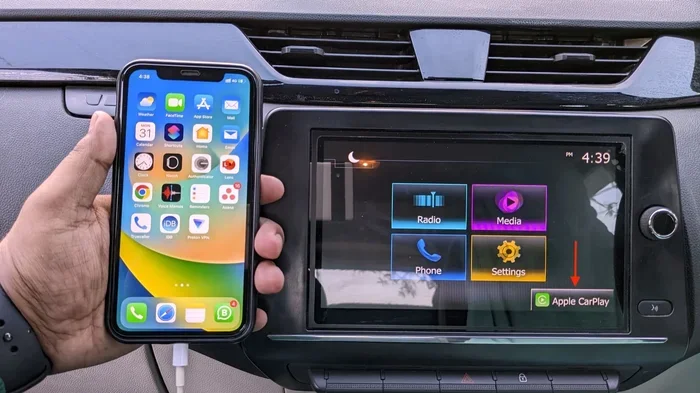
- Connect your iPhone to your car using a USB cable or through wireless Bluetooth.
- On your car screen, select the CarPlay icon or source.
- On your iPhone, a CarPlay setup prompt may appear. Tap Allow.
- Follow the on-screen instructions to customize your CarPlay layout.
- Tap Settings on your iPhone, go to General, then CarPlay, and select your car.
Once set up, your car will remember your iPhone and connect automatically. This is called auto-connect, and it is one of the best features of modern phone connectivity. You get in the car, and everything is ready to go.
Wired vs. Wireless Connection: Which Is Better?
You have two main options for connecting your iPhone to your car: wired and wireless. Both have their pros and cons. Let us compare them so you can decide what works best for you.
| Feature | Wired (USB) | Wireless (Bluetooth) |
|---|---|---|
| Setup Speed | Fast, plug and play | Fast after initial pairing |
| Cable Needed | Yes | No |
| Connection Stability | Very stable | Stable, but can vary |
| CarPlay Support | Full support | Full support on newer cars |
| Charging | Yes, charges your phone | No charging unless separate |
| Best For | Older cars, reliable use | Newer cars, convenience |
Most people prefer wireless because it eliminates cable clutter. However, wired connections are more reliable and charge your phone at the same time. If you have an older car without wireless CarPlay support, a USB cable is your best bet.
Here is a quick tip: use a high-quality USB cable if you go the wired route. Cheap cables can cause connection drops and charging issues. A certified Lightning or USB-C cable makes a big difference.
Common Pairing Problems and How to Fix Them
Even with the best preparation, things can go wrong. Bluetooth troubleshooting is a skill worth learning because it saves time and frustration. Here are the most common problems and their solutions.
iPhone Will Not Find the Car
If your iPhone does not detect your car, the first thing to do is make sure Bluetooth is on and your car is in discovery mode. Some cars stay in pairing mode for only a short time after you start the engine. If you miss the window, turn Bluetooth off and on again on your iPhone, and try once more.
Another common cause is too many saved devices. Your iPhone remembers every device it has ever paired with. Clearing out old pairings frees up space and often fixes the problem. Go to Settings, Bluetooth, and remove any devices you no longer use.
Connection Keeps Dropping
A connection that drops repeatedly is frustrating. This usually happens for one of three reasons:
- Interference: Other Bluetooth devices nearby can cause conflicts. Turn off Bluetooth on any unused devices in the car.
- Distance: If your phone is in the back seat or a bag, the signal may weaken. Keep your phone close to the dashboard.
- Software issues: An outdated iOS version or car firmware can cause instability. Update both if possible.
Audio Quality Is Poor
If your calls sound muffled or your music sounds tinny, the problem is often the connection type. Bluetooth audio uses a codec called SBC by default, which is fine but not great. Some cars support better codecs like AAC, which delivers clearer sound.
To improve audio quality, try using a wired connection instead of Bluetooth. The difference in sound clarity can be significant. If you must use Bluetooth, make sure nothing is blocking the signal between your phone and the car antenna.
CarPlay or Siri Not Working
If CarPlay connects but certain features do not work, check a few settings. Go to Settings on your iPhone, then General, then CarPlay. Make sure your car is selected and that Siri is enabled. You also need to grant permission for apps like Maps and Music to access CarPlay.
For Siri issues, go to Settings, Siri & Search, and make sure all the relevant toggles are turned on. Restart your iPhone and your car, and try again.
Expert Tips for the Best iPhone-to-Car Experience
Here are some insider tips that make a real difference in how well your iPhone and car work together. These come from years of experience and real-world testing.
Tip 1: Always clear old pairings before a fresh start. This is the single most effective fix for stubborn connection issues. Both your iPhone and your car can hold onto old pairing data that causes conflicts.
Tip 2: Use a dedicated USB port. Many cars have multiple USB ports, but not all of them support data transfer. Look for a port labeled SYNC, USB, or Media. A port that only charges will not work for CarPlay or data sharing.
Tip 3: Keep your car manual handy. Every car brand has slightly different steps for entering Bluetooth pairing mode. The manual will tell you exactly where to look and what buttons to press. It is a small investment that pays off big.
Tip 4: Restart before you troubleshoot. This sounds too simple, but restarting both your iPhone and your car infotainment system clears temporary glitches. It should always be your first step when something goes wrong.
Tip 5: Set up before you drive. Never try to pair your phone while you are on the road. Pull over, set up the connection, and test it before you start driving. Safety always comes first.
Key Takeaways
- Bluetooth pairing is the most common method: It lets you make calls, stream music, and use navigation without wires.
- Apple CarPlay adds a smarter layer: It mirrors your iPhone screen on your car display for a seamless experience.
- Preparation matters: Updating iOS, clearing old pairings, and checking your car manual saves time and frustration.
- Troubleshooting is simple: Most connection issues can be fixed by toggling Bluetooth, resetting network settings, or restarting both devices.
- Wireless and wired options both work: Choose what fits your car model and personal preference.
- Safety comes first: Always set up your connection before driving, not while on the road.
Frequently Asked Questions
How do I pair my iPhone to my car for the first time?
Start by turning on your car and setting the infotainment system to Bluetooth mode. On your iPhone, go to Settings, tap Bluetooth, and make sure it is turned on. Your car should appear in the list of available devices. Tap on it, confirm the pairing request on both screens, and enter the PIN if prompted. That is all you need to do for a first-time connection.
Why will my iPhone not connect to my car Bluetooth?
This usually happens because of old pairings, outdated software, or the car is not in discovery mode. Try toggling Bluetooth off and on, restarting both devices, and deleting old pairings from both your iPhone and your car. If the problem continues, check for software updates on your iPhone and your car infotainment system.
Can I use Apple CarPlay with a wireless connection?
Yes, many newer cars support wireless Apple CarPlay, which means you do not need a USB cable at all. Check your car manual or look up your car model online to confirm wireless CarPlay support. If your car does not support it, a USB cable will still give you the full CarPlay experience.
How do I fix poor audio quality after pairing?
Poor audio quality is often caused by Bluetooth interference or a weak signal. Try moving your phone closer to the car dashboard, turning off other Bluetooth devices in the car, or switching to a wired USB connection for better sound. Updating your iPhone and car software can also improve audio performance.
What should I do if my car keeps forgetting my iPhone?
This is usually a settings issue. Go to Settings, Bluetooth, on your iPhone and tap the info icon next to your car. Make sure Auto-Connect is turned on. On the car side, check the Bluetooth settings and ensure your iPhone is set as a trusted device. Restarting both devices often fixes this problem too.
Is it safe to use Siri while driving?
Yes, Siri is designed to be a hands-free assistant. You can use voice commands to make calls, send messages, set navigation, and play music without touching your phone. Just make sure Siri is enabled in your settings and that you are using a Bluetooth or CarPlay connection. Always keep your focus on the road.
Conclusion
Pairing your iPhone to your car does not have to be a headache. With the right steps and a little patience, you can have a fully working connection in just a few minutes. Whether you use Bluetooth, Apple CarPlay, or a USB cable, the process is designed to be simple and user-friendly.
Remember to prepare before you start. Update your software, clear old pairings, and check your car manual for model-specific instructions. If something goes wrong, the troubleshooting steps in this guide will help you get back on track quickly.
The iPhone car pairing experience has improved dramatically in recent years. Cars are smarter, and iPhones are more compatible than ever. Once you set up your connection, you will wonder how you ever drove without it. Hands-free calling, voice-controlled music, and seamless navigation make every drive better and safer.
Now that you know exactly how to pair your iPhone to your car without any trouble, go ahead and give it a try. The road ahead is connected, and your iPhone is ready to join the journey.