How Can I Pair My iPhone to My Car Quickly and Easily
Pairing your iPhone to your car is easier than you think, and this guide walks you through every method step by step. Whether you prefer Bluetooth, a USB cable, or Apple CarPlay, you will find clear instructions that work for almost any vehicle. We also cover troubleshooting tips, common mistakes, and expert advice to make the process smooth and fast. By the end, you will know exactly how to pair iPhone to car and enjoy a seamless connected driving experience.
Key Takeaways
- Bluetooth pairing is the most common method and works with most modern vehicles without any cables.
- Apple CarPlay offers the best integrated experience for navigation, music, and calls on your car’s screen.
- USB cable connection provides a reliable backup option when Bluetooth is not working or not available.
- Check compatibility first to avoid frustration and save time during the setup process.
- Restart both devices before pairing if you run into connection issues.
- Keep your iPhone and car software updated to ensure smooth wireless pairing and the latest features.
📑 Table of Contents
- Why Pairing Your iPhone to Your Car Makes Driving Better
- What You Need Before You Start
- How to Pair iPhone to Car Using Bluetooth
- How to Pair iPhone to Car Using a USB Cable
- Apple CarPlay: The Best Way to Connect iPhone to Car
- Troubleshooting Common iPhone-to-Car Pairing Problems
- Expert Tips for a Better Connected Driving Experience
- Comparison: Bluetooth vs. USB vs. Wireless CarPlay
- Conclusion
Why Pairing Your iPhone to Your Car Makes Driving Better
Connecting your phone to your vehicle changes the way you drive. You get hands-free calls, music streaming, and even navigation right on your dashboard. Pairing iPhone to car is one of the simplest upgrades you can make to your daily commute or road trip.
Gone are the days of holding your phone to your ear while driving. Today, your car and iPhone work together like a team. The connection lets you stay focused on the road while still staying connected. Whether you drive a new sedan or a slightly older SUV, there is almost always a way to link your devices.
Beyond convenience, pairing your iPhone improves safety. Hands-free calling and voice-activated controls keep your eyes on the road and your hands on the wheel. Many drivers report feeling more confident and less distracted after setting up their connection. The whole process takes just a few minutes, and the benefits last for every drive you take.
In this guide, we will show you every method to connect your iPhone to your car. We cover Bluetooth, USB cables, and Apple CarPlay in detail. You will also find troubleshooting tips to fix common issues. By the time you finish reading, you will be fully ready to enjoy a connected driving experience.
What You Need Before You Start
Before you begin, gather a few things to make the process smooth. Preparation saves time and prevents frustration. Here is what you should have ready:
- An iPhone with Bluetooth enabled — most iPhones from the iPhone 5 onward support wireless car pairing.
- A compatible car infotainment system — check your car manual to confirm it supports phone connections.
- A USB cable (optional) — a Lightning or USB-C cable is helpful if you plan to use a wired connection.
- A stable Wi-Fi connection — useful for downloading CarPlay updates if needed.
- Your car’s user manual — it may have brand-specific pairing steps that help.
Make sure your iPhone is charged or connected to power. A low battery can interrupt the pairing process. Also, restart both your iPhone and your car’s infotainment system before starting. This simple step clears minor software glitches that sometimes block connections.
Check Your Car’s Bluetooth Compatibility
Almost every car made after 2015 supports Bluetooth. However, older models may only support basic audio streaming. Check if your car supports the Hands-Free Profile and the Advanced Audio Distribution Profile. These two Bluetooth profiles handle calls and music, respectively. If your car lacks these, a USB connection will still work.
How to Pair iPhone to Car Using Bluetooth
Bluetooth is the most popular way to connect an iPhone to a car. It is wireless, fast, and works with nearly every modern vehicle. Follow these steps carefully for a successful connection.
Step 1: Enable Bluetooth on Your iPhone
Open the Settings app on your iPhone. Tap Bluetooth and toggle it on. You will see a list of available devices appear below. Make sure your iPhone is discoverable by keeping the Bluetooth screen open.
Step 2: Put Your Car in Pairing Mode
Go to your car’s infotainment settings. Look for Bluetooth or Phone Settings. Select the option to search for new devices. Your car will now broadcast a pairing signal. The exact steps vary by car brand, but the general process is the same across most models.
Step 3: Select Your Car from the iPhone List
On your iPhone, you should see your car’s name appear under Other Devices. Tap on it to initiate pairing. Your car may display a passcode on its screen. Enter that same code on your iPhone to confirm the connection.
Step 4: Choose What to Share
After pairing, your iPhone will ask what you want to share. You can enable Phone Calls, Audio Sharing, and Contacts. We recommend turning on all three for the full experience. This allows your car to show caller ID, play music, and sync your contacts seamlessly.
Step 5: Test the Connection
Play some music or make a test call to confirm everything works. If audio plays through your car speakers, you are all set. The Bluetooth connection will remember your iPhone and reconnect automatically each time you get in the car.
Quick Tip: If your car does not appear in the Bluetooth list, toggle Bluetooth off and on again. You can also restart your iPhone. This fixes the issue 90% of the time.
How to Pair iPhone to Car Using a USB Cable
A USB connection is a reliable alternative to Bluetooth. It works well in older cars and provides a stable data link. Some vehicles even charge your phone faster through USB while connected. Here is how to set it up.
Step 1: Find the Right Cable
Use an Apple-certified Lightning or USB-C cable depending on your iPhone model. Avoid cheap, uncertified cables as they can cause connection errors. A good cable ensures stable audio streaming and charging at the same time.
Step 2: Plug Into Your Car’s USB Port
Locate a USB port in your car. Many newer vehicles have ports in the center console or armrest. Plug your iPhone in securely. The car’s infotainment screen should detect the device automatically.
Step 3: Allow Access When Prompted
Your iPhone may display a Trust This Computer prompt. Tap Trust and enter your passcode. This allows your car to access media and contacts on your phone. Without this step, the connection may appear but will not function fully.
Step 4: Select USB as the Audio Source
On your car’s audio system, choose USB as the input source. You should now hear music through your car speakers. If you want to use CarPlay over USB, make sure CarPlay is enabled in your iPhone settings.
USB connections are especially useful when Bluetooth pairing fails. They also provide a more stable connection for navigation apps. If you frequently drive long distances, a USB cable ensures your phone stays charged throughout the trip.
Apple CarPlay: The Best Way to Connect iPhone to Car
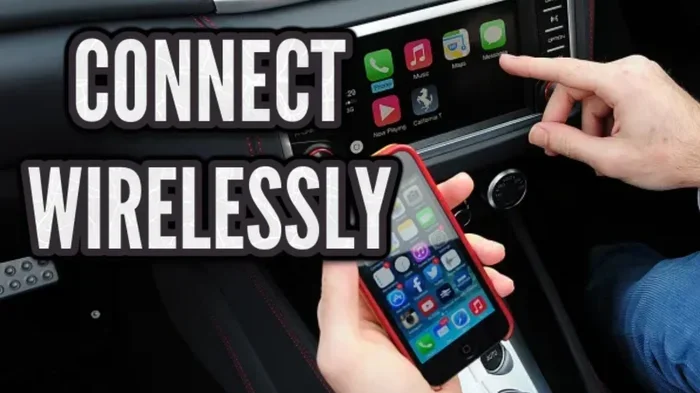
Apple CarPlay takes the iPhone-to-car connection to the next level. It mirrors key apps onto your car’s display. You get navigation, music, messages, and calls on a large screen with voice control through Siri.
What Is Apple CarPlay?
CarPlay is Apple’s built-in system for integrating your iPhone with your car’s infotainment display. It works over both Bluetooth and USB connections. With CarPlay, you can use Maps, Spotify, Podcasts, Messages, and Phone all on your car’s screen. The interface is designed to be simple and safe to use while driving.
How to Set Up Apple CarPlay
Setting up CarPlay is straightforward. First, make sure your car supports CarPlay. Check your car manufacturer’s website or manual for compatibility. Then follow these steps:
- Connect your iPhone to your car using a USB cable or wirelessly.
- On your car’s display, select CarPlay as the input source.
- On your iPhone, go to Settings, then General, then CarPlay.
- Select your car from the list of available vehicles.
- Customize your preferred apps on the CarPlay home screen.
Wireless CarPlay vs. Wired CarPlay
Wireless CarPlay connects through Wi-Fi and Bluetooth without any cable. It offers more freedom and a cleaner dashboard. Wired CarPlay uses a USB cable and may provide faster app loading. Both methods work great. Wireless CarPlay is becoming standard in newer vehicles, but wired connections remain reliable in older models.
Quick Tip: If wireless CarPlay does not connect automatically, go to Settings, General, CarPlay, and select your car. Then choose Configure Wireless CarPlay and enter your car’s PIN if prompted.
Troubleshooting Common iPhone-to-Car Pairing Problems
Sometimes things do not go as planned. Bluetooth refuses to connect, audio cuts out, or the car does not recognize your phone. These issues are usually easy to fix. Here are the most common problems and their solutions.
iPhone Does Not Show Up in the Car’s Bluetooth List
This is the most common pairing issue. Start by toggling Bluetooth off and on again. Restart both your iPhone and your car’s infotainment system. Make sure your iPhone is not connected to another device. Sometimes an old paired device blocks new connections. Go to Settings, Bluetooth, and forget any unused devices before trying again.
Audio Cuts Out or Sounds Scratchy
Interference can cause audio problems. Move closer to your car’s antenna or try a different USB port. Bluetooth signals can weaken when your phone is buried in a bag or pocket. Keep your iPhone in a visible, open location while driving. If the issue persists, unpair and re-pair the devices from scratch.
CarPlay Does Not Launch Automatically
Make sure CarPlay is enabled in your iPhone settings. Go to Settings, General, CarPlay, and confirm your car is selected. On wired connections, try a different USB cable or port. Some cables only charge and do not transfer data. Use the cable that came with your iPhone or a certified data cable.
Phone Keeps Disconnecting
Disconnections often happen when another Bluetooth device tries to connect. Check if your smartwatch or headphones are trying to pair. Also, check if your car’s software is up to date. Some vehicles release firmware updates that fix connection bugs. Visit your dealer or check the manufacturer’s website for updates.
Common Mistakes to Avoid:
- Do not pair in a crowded area with many Bluetooth signals.
- Do not use damaged or uncertified cables.
- Do not skip the Trust This Computer prompt on your iPhone.
- Do not ignore software updates for both your iPhone and your car.
- Do not pair multiple devices at the same time — connect one at a time.
Expert Tips for a Better Connected Driving Experience
Once you have successfully paired iPhone to car, a few extra tips can elevate your experience. These small adjustments make a big difference in daily use.
Use Siri for Hands-Free Control
Siri works beautifully with CarPlay and Bluetooth connections. Say “Hey Siri” to make calls, send messages, or start navigation without touching your phone. This keeps your eyes on the road and your hands on the wheel. Siri can also control music playback and adjust volume using voice commands alone.
Organize Your CarPlay Apps
CarPlay lets you pin your most-used apps to the home screen. Arrange them so your navigation, music, and messaging apps are easy to find. You can also use Siri to launch apps by voice. This reduces the time you spend looking at the screen while driving.
Keep Your iPhone and Car Software Updated
Software updates often include bug fixes for Bluetooth and CarPlay connections. Check for iPhone updates in Settings, General, Software Update. For your car, visit the manufacturer’s website or contact your dealer. Staying updated ensures the best performance and the latest features.
Use an Aftermarket Car Kit for Older Vehicles
If your car does not support Bluetooth or CarPlay natively, aftermarket solutions exist. Bluetooth receivers plug into your car’s AUX port or cigarette lighter. CarPlay adapters can add wireless CarPlay to older vehicles. These affordable accessories bring modern connectivity to any car.
Comparison: Bluetooth vs. USB vs. Wireless CarPlay
Each connection method has its strengths. Here is a quick comparison to help you choose the best option for your needs.
| Feature | Bluetooth | USB Cable | Wireless CarPlay |
|---|---|---|---|
| Connection Type | Wireless | Wired | Wireless |
| Audio Quality | Good | Excellent | Very Good |
| Charging | No | Yes | No |
| CarPlay Support | Yes (wired and wireless) | Yes | Yes |
| Setup Difficulty | Easy | Easy | Easy |
| Best For | Casual listening and calls | Stable connection and charging | Full CarPlay experience |
Most drivers find that a combination of Bluetooth and USB works best. Use Bluetooth for everyday calls and music. Switch to USB when you need CarPlay navigation or want your phone charged. Wireless CarPlay offers the most convenience if your car supports it.
Conclusion
Pairing your iPhone to your car is a simple process that transforms every drive. Whether you use Bluetooth, a USB cable, or Apple CarPlay, the steps are easy to follow. Start by checking your car’s compatibility, then follow the pairing steps outlined in this guide. If you run into issues, the troubleshooting tips will help you get back on track quickly.
Take a few minutes today to set up your connection. The convenience, safety, and entertainment benefits are well worth the effort. Once your iPhone is paired, you will wonder how you ever drove without it. Enjoy your connected driving experience and stay safe on the road.
Frequently Asked Questions
How long does it take to pair iPhone to car?
The pairing process usually takes less than five minutes. Bluetooth connections are the fastest, while CarPlay setup may take a few extra minutes. Once paired, your iPhone will reconnect automatically every time you get in the car.
Why won’t my car find my iPhone when I try to pair?
This usually happens when Bluetooth is turned off on one of the devices or when the car is not in pairing mode. Restart both devices and make sure your iPhone is discoverable. Also, check if your car already has a paired iPhone that needs to be removed first.
Can I pair my iPhone to any car?
Most cars made after 2015 support Bluetooth pairing. Older vehicles may need an aftermarket Bluetooth adapter. Check your car’s manual or the manufacturer’s website to confirm compatibility before attempting to pair.
Is it safe to use my iPhone while driving through CarPlay?
Yes, CarPlay is designed to be safe and driver-friendly. It limits screen interactions and encourages voice commands through Siri. You can make calls, send messages, and use navigation without taking your eyes off the road for long periods.
Do I need a special cable to connect my iPhone to my car?
For a USB connection, use an Apple-certified Lightning or USB-C cable. Avoid cheap, uncertified cables as they may not transfer data properly. A good cable ensures stable audio streaming and reliable charging while driving.
Can I connect my iPhone to multiple cars?
Yes, your iPhone can remember and connect to multiple paired vehicles. When you get in a different car, go to Bluetooth settings and select that car from the list. Your iPhone will switch connections automatically.
=== META TITLE ===
Pair iPhone to Car Quickly: Easy Step-by-Step Guide
=== URL SLUG ===
/pair-iphone-to-car-quickly
=== SEO TITLE ===
How Can I Pair My iPhone to My Car Quickly and Easily