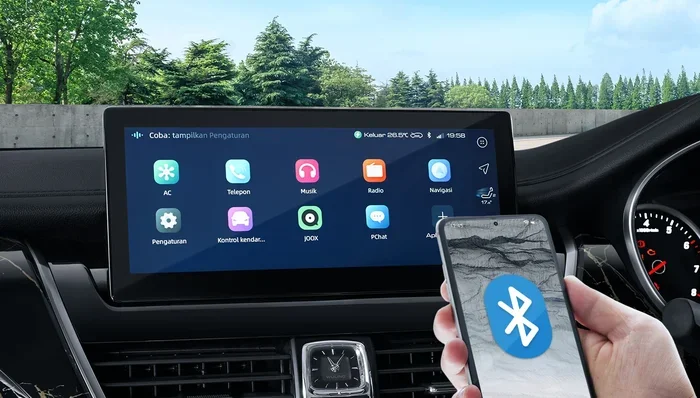
Why Is My Phone Not Connecting to My Car Bluetooth
Your phone might not connect to your car Bluetooth because of simple issues like Bluetooth being turned off, outdated software, or interference from other devices. This guide walks you through proven troubleshooting steps to fix the connection fast. You will learn how to pair your phone correctly, reset both devices, and prevent future Bluetooth problems so you can enjoy hands-free calling and music streaming on every drive.
There is nothing more frustrating than getting into your car, ready to hit the road, and discovering that your phone will not connect to your car Bluetooth. You try tapping the screen. Nothing. You toggle the Bluetooth switch off and on again. Still nothing. You wonder, why is my phone not connecting to my car Bluetooth when it worked perfectly last week.
The truth is, Bluetooth connection problems between phones and cars are incredibly common. They happen to everyone, from tech-savvy users to people who barely use wireless features. The good news is that most of the time, the fix is simple and takes just a few minutes. This guide covers every major reason your phone might refuse to pair with your car and gives you clear, step-by-step solutions to get things working again.
Whether you drive a sedan, SUV, or truck, and whether you use an iPhone or an Android device, the troubleshooting tips below apply to almost every setup. Let us dive in and get your wireless connection back on track.
Key Takeaways
- Restart Both Devices First: A simple reboot of your phone and car infotainment system resolves most Bluetooth connection issues instantly.
- Check Bluetooth Settings Carefully: Make sure Bluetooth is enabled on your phone and your car is in pairing mode before attempting to connect.
- Delete Old Pairings: Removing previous Bluetooth connections and re-pairing fresh often fixes stubborn connection failures.
- Update Software Regularly: Outdated phone software or car firmware is a leading cause of Bluetooth pairing problems.
- Watch for Signal Interference: Other wireless devices, metal objects, and even phone cases can weaken your Bluetooth signal inside the car.
- Factory Reset as a Last Resort: If nothing else works, resetting your car infotainment system can clear deep-rooted Bluetooth glitches.
📑 Table of Contents
- Common Reasons Why Your Phone Will Not Connect to Car Bluetooth
- Step-by-Step Fixes to Restore Your Bluetooth Connection
- How to Pair Your Phone to Your Car Bluetooth the Right Way
- Phone and Car Compatibility: What You Need to Know
- Advanced Troubleshooting for Stubborn Bluetooth Problems
- Preventing Future Bluetooth Connection Problems
- When to Seek Professional Help
- Conclusion
Common Reasons Why Your Phone Will Not Connect to Car Bluetooth
Before jumping into fixes, it helps to understand what is going wrong. Bluetooth technology uses short-range radio waves to link two devices together. When something disrupts that process, the connection fails. Here are the most common reasons your phone is not connecting to your car Bluetooth:
Bluetooth Is Turned Off or Not in Pairing Mode
This sounds obvious, but it happens all the time. Sometimes a simple restart turns off Bluetooth on your phone without you noticing. On the car side, many infotainment systems require you to manually enter pairing mode. If your car is not actively searching for new devices, the two will never find each other.
Your Phone Has Too Many Saved Bluetooth Connections
Modern smartphones remember dozens of Bluetooth devices. When you get into your car, the phone tries to connect to every saved device at once. This can cause conflicts, especially if you recently connected to a different car or a Bluetooth speaker nearby. Your phone gets confused about which device to prioritize.
Outdated Software on Your Phone or Car System
Bluetooth relies on software protocols that get updated regularly. If your phone is running an older operating system or your car infotainment system has not received the latest firmware, the two devices may not speak the same Bluetooth language. This is especially true for older car models that no longer receive software updates.
Signal Interference Inside the Vehicle
Your car is full of electronic devices that can interfere with Bluetooth signals. GPS units, USB chargers, dash cams, and even other smartphones can create wireless noise that disrupts the connection. Metal car roofs and thick window tinting can also weaken Bluetooth signals slightly.
Bluetooth Cache or Memory Issues
Both phones and car systems store temporary Bluetooth data called cache. Over time, this cache can become corrupted. When corrupted data builds up, it prevents new pairings from working correctly. Clearing the Bluetooth cache is one of the most overlooked fixes for connection problems.
Step-by-Step Fixes to Restore Your Bluetooth Connection
Now that you know the most common causes, let us walk through the fixes. Start with the first solution and work your way down. Most people find that one of the first few steps solves the problem.
Fix 1: Restart Both Your Phone and Your Car Infotainment System
A restart clears temporary glitches and refreshes all wireless connections. This is the single most effective first step when your phone is not connecting to your car Bluetooth. To restart your car system, hold the power button on your infotainment screen for 10 to 15 seconds until the screen goes dark and restarts. On your phone, power it off completely and turn it back on after 30 seconds.
Once both devices are back on, try pairing again. In many cases, this simple restart is all you need. The Bluetooth modules on both devices reset, and they can communicate properly again.
Fix 2: Make Sure Bluetooth Is Enabled on Both Devices
Check that Bluetooth is turned on in your phone settings. On most phones, you can swipe down from the top of the screen to access quick settings and tap the Bluetooth icon. On your car, go to the settings menu and confirm that Bluetooth is enabled. Some cars also have a separate Bluetooth toggle for the phone connection and the audio streaming feature. Make sure both are turned on.
Also check that your phone is not in Airplane Mode. Airplane Mode disables all wireless connections including Bluetooth. If you accidentally enabled it, simply turn it off and try again.
Fix 3: Put Your Car in Pairing Mode
Your car needs to be actively searching for new devices to pair with. The process varies by car brand and model. Generally, you go to the phone or Bluetooth menu on your car screen and select Add New Device or Search for Devices. The car will then broadcast a Bluetooth signal that your phone can detect.
On your phone, go to Bluetooth settings and make sure it is set to discoverable. On iPhones, this happens automatically. On Android phones, you may need to toggle the Discoverable switch on. Once both devices are searching, they should find each other within a few seconds.
Fix 4: Delete Old Pairings and Start Fresh
If restarting does not work, the next best step is to delete all previous Bluetooth pairings from both devices. On your phone, go to Bluetooth settings, find your car in the list of saved devices, and select Forget This Device or Unpair. Do the same on your car by removing your phone from the list of paired devices.
After deleting both sides, restart the pairing process from scratch. This clears any corrupted pairing data that might be blocking the connection. It is surprising how often this simple step resolves stubborn Bluetooth issues.
Fix 5: Update Your Phone Software and Car Firmware
Software updates often include Bluetooth fixes and improvements. Check for phone updates by going to Settings and looking for Software Update or System Updates. Install any available updates and restart your phone.
For your car, check the manufacturer website or your owner manual for firmware update instructions. Some newer cars allow over-the-air updates through the infotainment system. Others require a visit to the dealership. Keeping your car system updated ensures compatibility with the latest phone Bluetooth standards.
Fix 6: Clear Bluetooth Cache on Your Phone
Android phones let you clear the Bluetooth cache to fix connection problems. Go to Settings, then Apps, find the Bluetooth Share app, and select Storage. Tap Clear Cache and then Clear Data. Restart your phone and try pairing again.
On iPhones, you can reset all settings, which clears Bluetooth cache along with other temporary data. Go to Settings, General, Transfer or Reset iPhone, and select Reset All Settings. This will not delete your photos or apps, but it will reset all system settings including Bluetooth.
Fix 7: Check for Signal Interference
Remove any unnecessary wireless devices from your car while trying to pair. Turn off other Bluetooth devices, unplug USB chargers that might cause electrical noise, and make sure your phone is not buried under a thick phone case or sitting too far from the car antenna. Place your phone in the center console or cup holder closest to the car screen for the strongest signal during pairing.
How to Pair Your Phone to Your Car Bluetooth the Right Way
Prevention is the best cure. If you pair your phone correctly from the start, you will run into fewer connection problems later. Follow these steps for a smooth pairing experience every time:
- Turn on Bluetooth on your phone and set it to discoverable.
- On your car infotainment system, navigate to the Bluetooth or Phone menu.
- Select Add New Device or Search for Devices.
- Wait for your phone name to appear on the car screen.
- Tap your phone name on the car screen.
- Check both screens for a pairing code and confirm it matches.
- Tap Pair or Confirm on both devices.
- Allow any permissions the car requests, such as Contacts access and Music streaming.
Once paired, test the connection by making a hands-free call and playing music. If both work, your setup is complete. If not, check that the car has the correct audio source selected, such as Bluetooth Audio or BT Audio.
Phone and Car Compatibility: What You Need to Know
Not all phones and cars work perfectly together. Bluetooth has gone through several versions, and older car systems may not support the latest Bluetooth features. Here is what you should know about compatibility:
Bluetooth Version Differences
Bluetooth versions range from 1.0 to 5.4. Newer versions offer better range, faster connections, and lower power usage. Most cars made after 2015 support Bluetooth 3.0 or higher, which works well with modern phones. If you have a very old car with Bluetooth 1.0 or 2.0, it may struggle to connect with newer phones that use Bluetooth 5.0 or later.
Phone Operating System Compatibility
Both Apple and Android phones are generally compatible with most car Bluetooth systems. However, some car brands work better with one platform than the other. For example, some car makers optimize their infotainment systems specifically for Apple CarPlay or Android Auto. If your phone does not connect, check if your car supports these wireless projection features.
Multiple Device Pairing
Many car Bluetooth systems can remember multiple phones. If a passenger tries to connect their phone while you are driving, it can sometimes interrupt your connection. Most car systems allow only one active phone connection at a time. If you share your car with someone else, you may need to switch the active device in the car settings.
Advanced Troubleshooting for Stubborn Bluetooth Problems
If the basic fixes did not work, do not give up yet. There are more advanced steps you can try before seeking professional help.
Reset Network Settings on Your Phone
Resetting network settings clears all saved Wi-Fi passwords, VPN configurations, and Bluetooth pairings. On iPhones, go to Settings, General, Transfer or Reset iPhone, and select Reset Network Settings. On Android phones, go to Settings, System, Reset Options, and select Reset Wi-Fi, Mobile and Bluetooth.
This is a powerful fix because it wipes clean any deep network configuration errors that might be blocking your Bluetooth connection. After the reset, you will need to reconnect to your Wi-Fi and re-pair your car Bluetooth, but it often solves problems that nothing else can fix.
Factory Reset Your Car Infotainment System
If your car Bluetooth still will not work, a factory reset of the infotainment system might be the answer. This restores the car system to its original factory settings and clears all Bluetooth pairings, saved Wi-Fi networks, and app data.
The process varies by car manufacturer. Some cars let you access a factory reset option in the Settings menu. Others require you to disconnect the car battery for a few minutes. Check your owner manual or search online for instructions specific to your car model. Be aware that a factory reset will erase all saved settings, so you will need to reconfigure your radio presets, navigation preferences, and Bluetooth connections afterward.
Check for Hardware Issues
In rare cases, the problem is physical rather than software-related. The Bluetooth antenna inside your car or the Bluetooth chip in your phone could be damaged. If you have tried every software fix and your phone still will not connect, consider these possibilities:
- Has your phone been dropped or exposed to water recently? Hardware damage from drops or moisture can affect Bluetooth functionality.
- Has your car been in an accident or had its electrical system repaired recently? Wiring issues can damage the car Bluetooth module.
- Does your phone connect to other Bluetooth devices but not your car? This suggests the car Bluetooth module may be faulty.
- Does your car connect to other phones but not yours? This points to a problem with your phone Bluetooth hardware or settings.
If you suspect a hardware issue, visit a qualified technician or your car dealership for a diagnosis. For phone problems, contact the manufacturer or visit an authorized service center.
Preventing Future Bluetooth Connection Problems
Once you get your Bluetooth working again, you want to keep it working. Here are simple habits that prevent most Bluetooth connection issues:
- Keep Your Software Updated: Regular updates fix bugs and improve compatibility between your phone and car.
- Restart Your Car Bluetooth Monthly: A simple restart of the infotainment system clears temporary glitches before they become real problems.
- Limit Saved Bluetooth Devices: Delete old pairings you no longer use. Fewer saved devices means less confusion when your phone tries to connect.
- Keep Your Phone Close to the Car Antenna: When pairing, place your phone in the center console or on the dashboard near the car screen.
- Avoid Using Bluetooth While Charging: Some phone chargers create electrical interference that weakens Bluetooth signals. If you notice dropouts, try unplugging the charger and see if the connection improves.
- Turn Off Bluetooth When Not Driving: This saves battery and prevents your phone from accidentally connecting to other Bluetooth devices when you get back in the car.
Following these simple tips will keep your phone connected to your car Bluetooth reliably for years to come. You will enjoy seamless hands-free calling, voice commands, and music streaming without any interruptions.
When to Seek Professional Help
Most Bluetooth connection problems are easy to fix at home. But sometimes, the issue requires professional attention. Contact a mechanic or visit your car dealership if you experience any of the following:
- The car Bluetooth system completely stops working and does not respond to any troubleshooting steps.
- You notice a burning smell or unusual noises coming from the infotainment system.
- Other electronic features in your car start malfunctioning alongside the Bluetooth problem.
- Your phone connects to other Bluetooth devices without any issues, but will not connect to any car system.
- You recently had your car serviced or repaired, and Bluetooth stopped working afterward.
A professional technician can run diagnostic tests on your car Bluetooth module and determine if a hardware replacement is needed. While this may cost more than a DIY fix, it ensures the problem is solved correctly and safely.
Conclusion
Dealing with a phone that will not connect to your car Bluetooth is annoying, but it is almost always fixable. Start with the simplest solutions like restarting both devices and checking that Bluetooth is enabled. Move on to deleting old pairings and updating software if those do not work. For stubborn problems, clearing Bluetooth cache, resetting network settings, or even factory resetting your car system can do the trick.
Understanding why your phone is not connecting to your car Bluetooth puts you in control of the situation. You do not need to be a tech expert to fix these problems. With the right steps and a little patience, you can restore your wireless connection and get back to enjoying hands-free calling and music on every drive. Keep your devices updated, pair carefully, and your Bluetooth should work smoothly for a long time.
Frequently Asked Questions
Why does my phone keep disconnecting from my car Bluetooth while driving?
Frequent disconnections are usually caused by signal interference, outdated software, or a phone that has too many active Bluetooth connections. Try moving your phone closer to the car antenna, updating both devices, and removing unused Bluetooth pairings. If the problem persists, clear the Bluetooth cache on your phone.
Can a phone case prevent my phone from connecting to car Bluetooth?
Yes, some thick or metal phone cases can block Bluetooth signals. If you notice connection issues, remove the phone case and try pairing again. Cases with magnetic closures or metal plates are especially likely to interfere with wireless signals.
How do I know if my car Bluetooth system needs a firmware update?
Check your car manufacturer website or owner manual for firmware update instructions. Signs that your car Bluetooth needs an update include slow connection times, failure to pair with newer phones, and frequent disconnections. Some newer car models support over-the-air updates through the infotainment system settings.
Why will my phone connect to my car Bluetooth but no sound comes through?
This usually means the audio source on your car is not set to Bluetooth. Check your car infotainment system and make sure the audio source is set to Bluetooth Audio or BT Audio. Also verify that media audio is enabled in your phone Bluetooth settings under the car device options.
Is it normal for Bluetooth to take a long time to pair for the first time?
First-time pairings can take 30 seconds to a minute, especially if both devices are searching for each other simultaneously. If pairing takes longer than two minutes or fails repeatedly, try the fixes in this article, starting with restarting both devices and deleting old pairings.
Can other wireless devices in my car interfere with Bluetooth?
Yes, devices like dash cams, GPS units, USB hubs, and even other smartphones can create wireless interference that disrupts Bluetooth signals. Try turning off or unplugging unnecessary electronic devices in your car and attempt pairing again to see if the connection improves.
=== META TITLE ===
Why Is My Phone Not Connecting to My Car Bluetooth
=== URL SLUG ===
why-is-my-phone-not-connecting-to-my-car-bluetooth
=== SEO TITLE ===
Why Is My Phone Not Connecting to My Car Bluetooth?
=== OPENING SUMMARY ===
Why is my phone not connecting to my car Bluetooth? This is one of the most common tech frustrations drivers face every day. Whether you are trying to make a hands-free call, stream your favorite playlist, or use navigation apps, a failed Bluetooth connection can ruin your drive before it even starts. The good news is that most Bluetooth connection problems have simple, fixable causes that you can handle in minutes without any special tools or technical knowledge. In this complete guide, we walk you through every major reason your phone will not connect to your car Bluetooth and give you proven solutions that actually work.
From basic restarts and software updates to advanced troubleshooting steps like factory resets and hardware checks, we cover it all. You will learn exactly what to do when your phone is not connecting to your car Bluetooth, how to prevent future problems, and when it is time to call a professional. By the end of this article, you will have the knowledge and confidence to fix your Bluetooth connection quickly and keep it working smoothly for every drive.