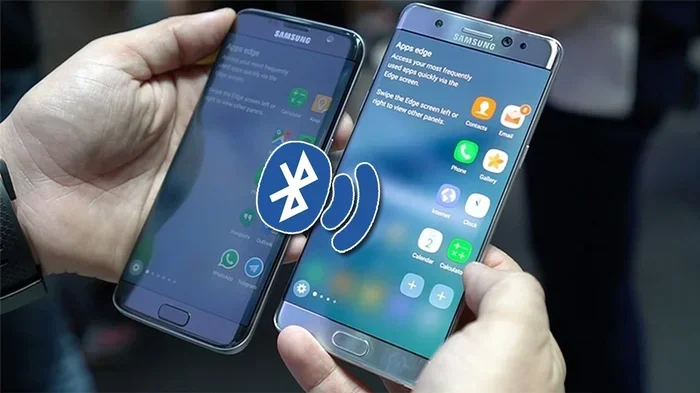
How to Put a Phone in Pairing Mode for Beginners Guide
Learning how to put a phone in pairing mode is the first step to a seamless wireless connection. Whether you use an Android or iPhone, the process is simple and takes less than a minute. This guide walks you through every step, from enabling Bluetooth to troubleshooting common issues. You will also learn how to pair your phone with your car’s infotainment system for hands-free calling and music streaming. By the end, you will feel confident connecting any device in any situation.
Have you ever gotten into your car, ready to hit the road, only to realize you cannot connect your phone to the stereo? It is frustrating. You want to play your favorite playlist, take a hands-free call, or use GPS navigation, but nothing works. The culprit is usually simple. You just need to know how to put a phone in pairing mode. Once you understand this basic process, your life behind the wheel becomes so much easier. Music flows through your speakers, calls stay crystal clear, and you keep your eyes on the road. This guide breaks it all down for you, step by step, in plain language.
Bluetooth pairing is the technology that connects your phone to other devices without wires. It uses short-range radio waves to create a secure link between two devices. Most modern cars, headphones, speakers, and smartwatches rely on this technology. The process is the same whether you are connecting to a car stereo, a wireless speaker, or a fitness tracker. But the exact steps depend on your phone type and the device you are pairing with. This guide covers everything you need to know. We will walk through the process for both Android and iPhone users. We will also tackle car-specific pairing, common problems, and expert tips to make your life easier.
If you have ever asked yourself, “how do I make my phone visible to other devices?” or “why won’t my phone connect to my car?” this article is for you. We will answer those questions and more. By the time you finish reading, you will be able to pair any device with confidence. No more guessing, no more frustration. Just a smooth, wireless connection every time. Let us dive in.
Key Takeaways
- Pairing mode makes your phone visible: It allows other devices like car stereos and speakers to find and connect to your phone wirelessly.
- Android and iPhone use slightly different steps: Each platform has its own path to Bluetooth settings, and we cover both in detail.
- Car pairing requires extra attention: Your car’s infotainment system must also be in pairing mode for a successful connection.
- Common problems have simple fixes: Restarting devices, clearing old pairings, and checking visibility settings solve most issues.
- Auto-connect saves time: Once paired, most devices reconnect automatically when you get in the car.
- Security matters: Always use a pairing code and avoid connecting in public places with open Bluetooth signals.
📑 Table of Contents
- What Is Pairing Mode and Why Does It Matter?
- How to Put an Android Phone in Pairing Mode
- How to Put an iPhone in Pairing Mode
- Step-by-Step: Pairing Your Phone to Your Car
- Common Pairing Problems and How to Fix Them
- Expert Tips for Seamless Bluetooth Connections
- How to Put a Phone in Pairing Mode for Car Audio Systems
- Key Takeaways
What Is Pairing Mode and Why Does It Matter?
Understanding the Basics of Bluetooth Pairing
Pairing mode is a special state your phone enters when it is ready to be discovered by other devices. Think of it like opening a door so someone can walk in. When your phone is not in pairing mode, it is essentially invisible to other Bluetooth devices. It is not broadcasting its presence. But when you turn on pairing mode, your phone sends out a signal. Other devices can then see it and connect.
Bluetooth is a short-range wireless technology. It typically works within a 30-foot range. This makes it perfect for connecting your phone to a car stereo, a wireless headset, or a portable speaker. The connection is secure because pairing requires a code or confirmation. This ensures only authorized devices can link up.
Understanding Bluetooth pairing is important because it affects everything from call quality to music streaming. If your phone is not discoverable, no device can find it. If the devices are too far apart, the signal drops. If there is interference from other wireless devices, the connection may be unstable. These are all things we will address in this guide.
Why Your Phone Needs to Be Discoverable
Discoverability and pairing mode go hand in hand. When your phone is discoverable, it means it is actively looking for other devices to connect with. Most phones default to not discoverable for security reasons. This prevents random devices from trying to connect to your phone without your permission.
When you want to connect phone to car or pair with a new speaker, you must make your phone discoverable first. This is the same as putting it in pairing mode. Once the connection is established, your phone usually goes back to its normal, non-discoverable state. This keeps you safe while still allowing your trusted devices to reconnect automatically.
How to Put an Android Phone in Pairing Mode
Android phones make it easy to enter Bluetooth pairing mode. The exact steps can vary slightly depending on your phone brand and Android version. But the general process is very similar across all devices. Let us walk through it.
Step-by-Step for Android Devices
- Open your phone’s Settings app. Look for the gear icon on your home screen or app drawer. Tap it to open Settings.
- Tap on Bluetooth. You will find this near the top of the Settings menu. On some phones, you may need to tap “Connections” or “Network & Internet” first.
- Turn Bluetooth on. Flip the switch at the top to the on position. You will see the Bluetooth icon appear in your status bar.
- Tap “Pair new device” or “Search for devices.” This puts your phone in Bluetooth discoverable mode. Your phone will now scan for nearby devices.
- Select the device you want to connect to. It will appear in the list of available devices. Tap on it to begin pairing.
- Confirm the pairing code. A code will appear on both screens. Make sure they match, then tap “Pair” or “Connect.”
That is it. Your Android phone is now paired with the other device. You should see a confirmation message and the device name listed under “Paired devices.”
Android Tips for Better Pairing
- Make sure your phone’s software is up to date. Older Android versions sometimes have Bluetooth compatibility issues with newer car systems.
- If your phone does not find the device, restart Bluetooth and try again. This forces a fresh scan.
- Keep your phone close to the device you are pairing with. The Bluetooth range is about 30 feet. Walls and obstacles can weaken the signal.
- Some Android phones have a “Bluetooth visibility timeout” setting. This controls how long your phone stays discoverable. Set it to “Always visible” if you are having trouble finding devices.
How to Put an iPhone in Pairing Mode
iPhone users will find the process just as straightforward. Apple keeps the Bluetooth settings simple and clean. Here is exactly what to do.
Step-by-Step for iPhone Users
- Open the Settings app. Look for the gray gear icon on your home screen. Tap it to open Settings.
- Tap Bluetooth. It is near the top of the Settings menu. The toggle switch will show whether Bluetooth is on or off.
- Turn Bluetooth on. Flip the switch to the green “on” position. Your iPhone will immediately start scanning for nearby devices.
- Wait for the device to appear. Your iPhone is now Bluetooth discoverable. Other devices will see it listed as available.
- Tap the device name you want to pair with. It will appear under “Other Devices.”
- Enter the pairing code if prompted. A code will show on both screens. Confirm they match, then tap “Pair.”
Your iPhone is now connected. You will see the device listed under “My Devices” with a status that reads “Connected.” From now on, your iPhone will automatically reconnect to this device when Bluetooth is on and you are within range.
iPhone-Specific Pairing Tips
- If your iPhone does not show the device, make sure both devices are within 30 feet of each other.
- Restart your iPhone if pairing fails. This clears temporary glitches that can block device pairing.
- Check for iOS updates. Apple regularly improves Bluetooth compatibility with new software releases.
- If you are pairing with a car, try restarting the car’s infotainment system first. This often fixes connection issues.
Step-by-Step: Pairing Your Phone to Your Car
Connecting your phone to your car is one of the most common reasons people need to know how to put a phone in pairing mode. Whether you want hands-free calling, music streaming, or GPS navigation, the process is similar across most vehicles. Here is the full walkthrough.
Preparing Your Car’s Infotainment System
Before you touch your phone, you need to prepare your car. Most car stereos and infotainment systems have their own Bluetooth settings. You must put the car system into pairing mode first.
Here is how to do it:
- Start your car and turn on the infotainment system.
- Navigate to the Settings menu on your car’s screen.
- Look for “Bluetooth,” “Phone,” or “Connections.”
- Select “Add New Device” or “Pair New Phone.”
- The car system will now search for nearby phones.
Once your car is searching, pick up your phone and follow the steps from the Android or iPhone sections above. The car should appear on your phone’s list of available devices, and vice versa.
Confirming the Connection
After pairing, test the connection right away. Play some music from your phone. Make a test call using your car’s microphone. Check that the audio routes through your car speakers. If everything works, you are all set. If not, do not worry. We will cover troubleshooting next.
Many modern cars also support auto-connect. This means your phone will automatically pair with the car the next time you get in. To enable this, go to your phone’s Bluetooth settings, find the car, and make sure “Auto-connect” or “Reconnect automatically” is turned on.
Common Pairing Problems and How to Fix Them
Even when you follow every step correctly, things can go wrong. Bluetooth pairing failed messages are frustrating, but they are usually easy to fix. Here are the most common problems and their solutions.
Phone Not Discoverable
If another device cannot find your phone, the most likely cause is that your phone is not in Bluetooth discoverable mode. Go back to your Bluetooth settings and make sure you have tapped “Pair new device” or “Search for devices.” On some phones, you need to be in this mode for a limited time, usually two minutes. If the time expires, start the process again.
Connection Drops Frequently
A weak or dropping connection can be caused by several things. First, check the distance between your phone and the car. If you are more than 30 feet apart, move closer. Second, check for interference. Other Bluetooth devices, Wi-Fi routers, and even USB cables can cause signal disruption. Third, restart both devices. A fresh start often resolves Bluetooth troubleshooting issues instantly.
Paired but No Audio
If your phone connects to the car but you cannot hear any sound, check the audio source on the car’s infotainment system. Make sure it is set to Bluetooth Audio or Media Audio, not just Phone Audio. You can adjust this in your phone’s Bluetooth settings by tapping the gear icon next to the paired device and enabling media audio.
Too Many Paired Devices
Sometimes your phone tries to connect to the wrong device. This happens when you have multiple paired devices nearby. Go to your Bluetooth settings and delete any devices you no longer use. This keeps your phone connection clean and prevents confusion. On Android, tap the gear icon next to the device and select “Unpair.” On iPhone, tap the “i” icon and choose “Forget This Device.”
Expert Tips for Seamless Bluetooth Connections
Once you master the basics of mobile device pairing, you can take your experience to the next level. These expert tips will help you get the best performance from your Bluetooth connections.
Keep Your Devices Updated
Software updates often include fixes for Bluetooth compatibility issues. Make sure your phone’s operating system is current. Also check for updates to your car’s infotainment system. Many modern cars support over-the-air updates or updates via USB. Keeping everything current reduces pairing problems significantly.
Clear Old Pairings Regularly
Over time, your phone accumulates a list of paired devices. Some of these may be old phones, borrowed devices, or equipment you no longer use. These stale entries can slow down your connection and cause confusion. Clear them regularly to keep things running smoothly. This is especially important if you sell or give away a device.
Use the Right Bluetooth Profile
Bluetooth supports different profiles for different functions. The most common ones are HFP (Hands-Free Profile) for calls, A2DP (Advanced Audio Distribution Profile) for music, and PBAP (Phone Book Access Profile) for contacts. Make sure all relevant profiles are enabled on both devices. This ensures you get full functionality, including hands-free calling and music streaming through your car speakers.
Reset Bluetooth When All Else Fails
If nothing else works, a full Bluetooth reset often solves the problem. On Android, go to Settings, then System, then Reset Options, and tap “Reset Wi-Fi, Mobile & Bluetooth.” On iPhone, you can toggle Bluetooth off and on, or unpair all devices and start fresh. A Bluetooth reset clears all cached connection data and forces a clean slate.
Consider a Bluetooth Adapter for Older Cars
If your car does not have built-in Bluetooth, you are not out of luck. A Bluetooth adapter or transmitter plugs into your car’s audio system and adds wireless connectivity. These small devices are affordable and easy to install. They are a great way to upgrade an older car without replacing the entire stereo system.
How to Put a Phone in Pairing Mode for Car Audio Systems
Car audio systems have their own quirks when it comes to device pairing. Unlike headphones or speakers, car stereos often have more complex menus and multiple connection options. Understanding how your car handles Bluetooth will save you time and frustration.
Most car infotainment systems have a dedicated Bluetooth menu. This is where you manage paired devices, adjust audio settings, and control which phone can connect. Some cars support multiple phone connections, allowing both the driver and passenger to pair their phones simultaneously. Others only support one connection at a time.
If you share your car with family members, make sure everyone knows how to pair their phone. This avoids confusion and keeps the experience smooth for everyone. Label the paired devices clearly in your car’s Bluetooth settings so each person knows which profile is theirs.
One important tip for car audio pairing is to always pair your phone while the car is parked and stationary. Do not try to pair while driving. Pull over, set up the connection, and then start driving. This keeps you safe and ensures a stable connection from the start.
Key Takeaways
- Pairing mode makes your phone visible: It allows other devices like car stereos and speakers to find and connect to your phone wirelessly.
- Android and iPhone use slightly different steps: Each platform has its own path to Bluetooth settings, and we cover both in detail.
- Car pairing requires extra attention: Your car’s infotainment system must also be in pairing mode for a successful connection.
- Common problems have simple fixes: Restarting devices, clearing old pairings, and checking visibility settings solve most issues.
- Auto-connect saves time: Once paired, most devices reconnect automatically when you get in the car.
- Security matters: Always use a pairing code and avoid connecting in public places with open Bluetooth signals.
- Keep devices updated: Software updates fix Bluetooth bugs and improve Bluetooth compatibility across all devices.



One Comment