How Do I Reboot My Bluetooth and Fix Connection Issues
How Do I Reboot My Bluetooth is an essential topic that provides valuable insights.
Key Takeaways
- Understanding How Do I Reboot My Bluetooth: Provides essential knowledge
📑 Table of Contents
Why Your Bluetooth Keeps Dropping Connection
Bluetooth technology has come a long way, but it still has quirks. Understanding why your Bluetooth connection drops helps you fix the root cause. Let us explore the most common reasons your devices lose their link.
Common Causes of Bluetooth Problems
Several factors can interfere with Bluetooth connectivity. Here are the usual suspects:
- Signal interference from other wireless devices nearby
- Outdated Bluetooth drivers or software on your device
- Low battery levels on either the source or receiving device
- Distance limits exceeding the Bluetooth range
- Software glitches after a system update
- Too many paired devices competing for the same connection
- Hardware issues with the Bluetooth module itself
Most of these problems respond well to a reboot. But knowing the cause helps you choose the right fix. For example, if your Bluetooth signal keeps dropping because of interference, a reboot alone may not solve the problem. You also need to move closer or remove competing devices.
When to Reboot vs. When to Reset
It is important to understand the difference. A Bluetooth reboot simply refreshes the connection. It turns Bluetooth off and back on. A Bluetooth reset clears all saved pairings and starts fresh. Start with a reboot. Only reset if the reboot does not work.
How Do I Reboot My Bluetooth on Different Devices
The process for rebooting Bluetooth depends on what device you are using. Here is a breakdown for the most common devices.
Rebooting Bluetooth on Your Phone
Smartphones are the most common Bluetooth devices. Whether you use Android or iPhone, the steps are simple.
- Step 1: Open your Bluetooth settings menu
- Step 2: Toggle Bluetooth off and wait 10 seconds
- Step 3: Toggle Bluetooth back on
- Step 4: Check if your Bluetooth device reconnects
If that does not work, try turning Airplane Mode on for 30 seconds, then off again. This resets all wireless connections, including Bluetooth.
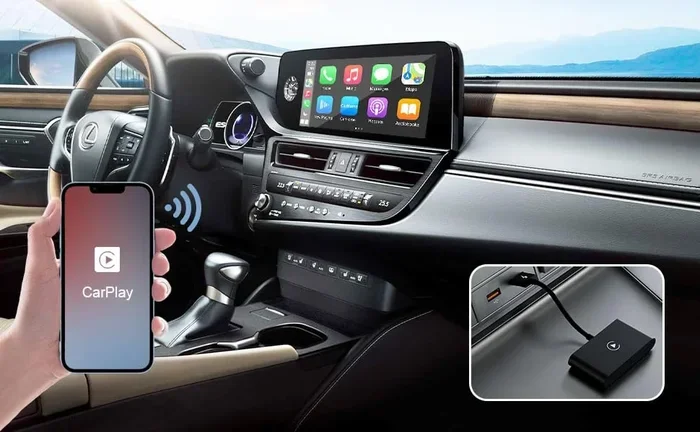
Rebooting Bluetooth in Your Car
Bluetooth car stereo issues are very common, especially in older vehicles. Here is how to reboot Bluetooth in your car:
- Step 1: Turn off your car engine
- Step 2: Disconnect the car battery for 5 minutes
- Step 3: Reconnect the battery and start the car
- Step 4: Go to the infotainment Bluetooth settings
- Step 5: Turn Bluetooth off, wait 15 seconds, then turn it back on
This method clears the car’s Bluetooth module memory. It often fixes Bluetooth pairing issues that have lingered for weeks. If your car supports it, also check for a software update in the infotainment settings.
Rebooting Bluetooth on Your Laptop or Tablet
Laptops and tablets use Bluetooth drivers that can become outdated or corrupted. Here is the reboot process:
- Step 1: Open Device Manager on Windows or System Preferences on Mac
- Step 2: Find the Bluetooth adapter in the device list
- Step 3: Right-click and select Disable
- Step 4: Wait 10 seconds, then right-click and select Enable
- Step 5: Check if your Bluetooth device reconnects
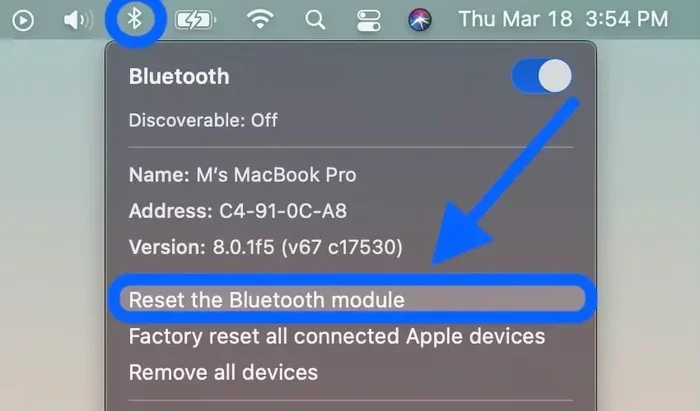
On Windows, you can also use the Bluetooth troubleshooter tool. It automatically detects and fixes common problems. On Mac, restarting the Bluetooth module requires a quick terminal command, but the toggle method usually works just fine.
Step-by-Step Bluetooth Reboot Process
Here is a universal Bluetooth reboot process you can follow on almost any device. This method works whether you are dealing with Bluetooth audio problems or hands-free calling issues.
The Quick Toggle Method
This is the fastest way to reboot my Bluetooth and is effective 80% of the time.
- Swipe down from the top of your screen to access quick settings
- Tap the Bluetooth icon to turn it off
- Wait exactly 15 seconds
- Tap the Bluetooth icon again to turn it back on
- Check if your device reconnects automatically
The 15-second wait is important. It gives the Bluetooth module time to fully power down. Skipping this step is a common Bluetooth troubleshooting mistake people make.
The Full Reset Method
Use this method when the quick toggle does not work. A full reset clears cached pairing data and refreshes the Bluetooth module.
- Go to your device’s Bluetooth settings
- Find the problematic device in the paired list
- Tap Forget Device or Remove Device
- Turn Bluetooth off completely
- Wait 30 seconds
- Turn Bluetooth back on
- Put your device in pairing mode
- Search for and reconnect to the device
This method takes a bit more time, but it resolves most stubborn Bluetooth connection problems. Think of it as clearing the slate so both devices can start fresh.
Fixing Bluetooth Pairing Problems After Reboot
Sometimes the reboot works, but pairing still fails. This section covers the most effective fixes for Bluetooth pairing problems.
Forgetting and Re-pairing Your Device
Forgetting a device removes all stored connection data. This forces a clean Bluetooth pairing process. Here is how to do it right:
- Go to Bluetooth settings on both devices
- Locate the paired device and select Forget
- Turn Bluetooth off on both devices
- Wait 20 seconds
- Turn Bluetooth back on
- Put the receiving device in discovery mode
- Search from the source device and select the target
- Enter the pairing code if prompted
After re-pairing, test the connection immediately. Play audio or make a test call to confirm everything works. If it does, you are all set. If not, move on to the next fix.
Checking Bluetooth Settings and Permissions
Sometimes the problem is not the connection itself but the settings. Make sure you check these items:
- Bluetooth is enabled on both devices
- Visibility mode is turned on for the receiving device
- App permissions allow Bluetooth access
- Location services are enabled (required for Bluetooth on Android)
- Battery saver mode is not blocking Bluetooth
- Do Not Disturb mode is not interfering with audio
Each of these settings can silently block Bluetooth connectivity. Checking them after a reboot saves a lot of frustration.
Preventing Bluetooth Connection Issues
Prevention is always better than fixing. Here are simple habits that keep your Bluetooth connection stable and reliable.
Tips for Stable Bluetooth Connectivity
- Keep devices close within the recommended Bluetooth range (usually 30 feet)
- Avoid placing devices near microwaves or Wi-Fi routers
- Regularly update your device software to get the latest Bluetooth fixes
- Remove unused paired devices to reduce interference
- Keep your Bluetooth device charged low battery causes dropouts
- Restart Bluetooth weekly as a maintenance habit
- Use one primary device for each Bluetooth connection at a time
Making these small habits part of your routine can save hours of troubleshooting. A Bluetooth reboot once a week keeps things running smoothly.
When to Update Your Bluetooth Software
Software updates often include Bluetooth driver improvements. If you notice connection problems after a system update, check for the latest patch. On Windows, go to Settings > Update & Security. On your phone, check Settings > Software Update. On your car, consult the owner’s manual for update instructions.
Expert Tips for Long-Lasting Bluetooth Performance
Here are some insider tips that experienced users and technicians swear by for maintaining strong Bluetooth performance.
Understanding Bluetooth Range and Interference
Bluetooth frequency operates on the 2.4 GHz band. This band is shared with many other devices, which creates congestion. Walls, furniture, and even your body can weaken the Bluetooth signal. Understanding these limits helps you position your devices for the best connection.
If you are in a crowded area with many wireless devices, move closer to the source. In your car, keep your phone in a holder near the dashboard for the strongest Bluetooth hands-free connection.
When to Seek Professional Help
Most Bluetooth troubleshooting can be done at home. But if you have tried everything and the connection still fails, it may be a hardware problem. A damaged Bluetooth antenna or faulty module requires professional diagnosis. Take your device to a certified technician in these cases:
- Bluetooth will not turn on at all, even after a reboot
- The Bluetooth module shows as missing in device manager
- Connections drop constantly even at close range
- You hear static or distortion in Bluetooth audio at all times
Do not ignore these signs. A professional can determine whether the issue is software or hardware, saving you time and money in the long run.
Key Takeaways
- Quick reboot fixes most issues: Turning Bluetooth off and back on resolves the majority of connection problems in seconds.
- Know your device: Each device has a slightly different reboot process, so follow the steps specific to your phone, car, or laptop.
- Full reset is your backup: When a simple reboot fails, forgetting and re-pairing the device clears stubborn connection errors.
- Check settings after reboot: Permissions, visibility, and battery settings can silently block Bluetooth connectivity even after a successful reboot.
- Prevention saves time: Regular updates, keeping devices charged, and removing old pairings prevent most Bluetooth issues before they start.
- Seek help when needed: If hardware problems persist after all troubleshooting steps, a professional diagnosis is the smart next move.
Frequently Asked Questions
Why does my Bluetooth keep disconnecting even after a reboot?
If your Bluetooth connection keeps dropping after a reboot, the issue may be caused by interference from other wireless devices or a low battery. Try moving closer to the connected device and ensure both devices have sufficient charge. You should also check for software updates that might fix the Bluetooth driver issue.
How long does it take to reboot Bluetooth?
A quick Bluetooth reboot takes less than 30 seconds. Simply toggle Bluetooth off, wait 15 seconds, and turn it back on. A full reset that involves forgetting and re-pairing a device may take 2 to 3 minutes. Either way, the process is fast and does not require any special tools.
Can I reboot Bluetooth on my car without turning off the engine?
Yes, you can reboot Bluetooth in your car without turning off the engine. Simply go to the infotainment system settings, turn Bluetooth off, wait 15 seconds, and turn it back on. However, for a deeper reset, turning off the engine and waiting a full minute gives the car’s Bluetooth module a cleaner restart.
What is the difference between rebooting and resetting Bluetooth?
A Bluetooth reboot refreshes the connection by turning it off and on. A Bluetooth reset clears all saved pairings and restores factory settings. Always try a reboot first. Only reset if the reboot does not solve the problem, since a reset requires you to pair all devices again.
Does rebooting Bluetooth delete my paired devices?
No, a simple Bluetooth reboot does not delete any paired devices. It only refreshes the active connection. However, a full reset or factory reset of Bluetooth settings will remove all saved pairings. Always check before performing a full reset so you do not lose your connections.
How can I improve my Bluetooth signal strength after rebooting?
After a Bluetooth reboot, improve signal strength by moving closer to the connected device and removing physical obstacles between them. Also reduce the number of active wireless devices nearby, as they can cause interference on the same Bluetooth frequency. Keeping your devices updated and charged also helps maintain a strong signal.
=== CONCLUSION ===
How do I reboot my Bluetooth and fix connection issues? Now you know the answer. A simple reboot solves most Bluetooth connection problems in under a minute. Whether you are dealing with a car stereo that will not pair, headphones that keep cutting out, or a phone that refuses to connect, the steps in this guide will help you get things working again.
Remember to start with the quick toggle method. Move to a full reset only if needed. Check your settings, keep your devices updated, and make Bluetooth maintenance part of your regular routine. These small habits go a long way in preventing future headaches.
Bluetooth technology makes our lives easier every day. Hands-free calling, streaming music, and syncing devices should feel effortless. With the right Bluetooth troubleshooting knowledge, you can keep it that way. The next time your connection drops, do not panic. Just follow these steps, reboot my Bluetooth, and get back to what matters most.