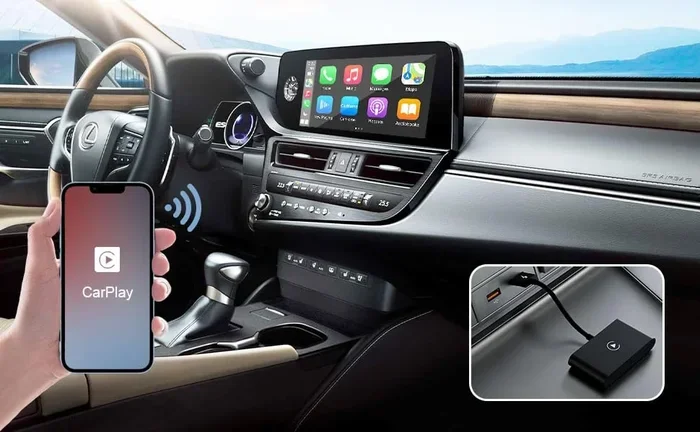
Can I Connect My iPhone to Apple CarPlay Wirelessly
Yes, you can connect your iPhone to Apple CarPlay wirelessly. Wireless Apple CarPlay eliminates the need for cables and lets you access maps, music, and messages effortlessly. We cover setup steps, compatible cars, and common fixes in this complete guide.
Want to know if you can connect your iPhone to Apple CarPlay wirelessly? The short answer is yes. Wireless Apple CarPlay has been around for a few years now, and it has changed the way we use our phones in the car. You no longer need to fumble with a cable every time you get behind the wheel. Just park your car, and your iPhone connects to the CarPlay dashboard automatically. In this guide, we will walk you through everything you need to know. We will cover what wireless Apple CarPlay is, which cars support it, how to set it up, and what to do when things go wrong. Whether you are tech-savvy or just getting started, this guide has you covered.
Wireless Apple CarPlay is one of the most popular features for modern drivers. It lets you access your favorite apps, get turn-by-turn CarPlay navigation, stream music, and send messages without taking your hands off the wheel. The iPhone connection happens over Wi-Fi, which means no cables cluttering your dashboard. If you have been wondering about your options, you are in the right place. Let us dive into the world of wireless CarPlay and help you get started.
Key Takeaways
- Wireless Apple CarPlay is available: Many newer cars and iPhones support a cable-free connection that works through Wi-Fi.
- Setup is simple: You just need a wireless CarPlay compatible car and an iPhone 12 or later running the latest iOS.
- Wired vs. wireless has trade-offs: Wireless offers convenience, while wired may provide a slightly more stable connection in some cases.
- Troubleshooting is straightforward: Most wireless CarPlay issues can be fixed with a simple restart, update, or reset of your CarPlay settings.
- Aftermarket adapters exist: If your car does not natively support wireless Apple CarPlay, a wireless CarPlay adapter can add the feature.
- Keep software updated: Both your iPhone and car infotainment system should be on the latest firmware for the best experience.
- Siri works hands-free: Wireless Apple CarPlay fully supports Siri voice commands, making driving safer and more convenient.
📑 Table of Contents
What Is Wireless Apple CarPlay?
Wireless Apple CarPlay is a feature that lets your iPhone mirror its screen onto your car’s infotainment system without using a cable. Instead of plugging in your phone, you connect through a Wi-Fi network built into your car. This means your CarPlay dashboard shows up on the car screen, and you can interact with it just like you would with a wired connection. You get access to maps, phone calls, messages, music, and third-party apps. The experience is smooth, responsive, and designed to keep you safe while driving.
How Wireless Apple CarPlay Works
When you first set up wireless Apple CarPlay, your iPhone and your car’s infotainment system pair through Wi-Fi. They create a direct connection, similar to how AirDrop works. Once paired, your iPhone screen is mirrored on the car display. The CarPlay mirroring happens in real time, so tapping icons, swiping through maps, and using Siri voice commands all work seamlessly. The connection uses both Wi-Fi and Bluetooth, which ensures a stable link between your devices. Apple designed this feature to feel fast and natural, so you barely notice the difference from a wired setup.
What You Need for Wireless Apple CarPlay
Before you can enjoy wireless Apple CarPlay, you need a few things in place. First, you need an iPhone that supports wireless CarPlay. Most iPhone models from the iPhone 12 onward work with this feature. Second, your car needs to have a wireless CarPlay compatible infotainment system. Many 2021 and newer vehicles include this, but it is always worth checking. Third, your iPhone should be running the latest version of iOS for the best iOS compatibility. Finally, your car’s software should also be up to date. These CarPlay requirements are simple, and meeting them ensures a smooth wireless Apple CarPlay experience from day one.
Which Cars Support Wireless Apple CarPlay?
Not every car on the road supports wireless Apple CarPlay yet, but the list is growing fast. Many popular brands now offer wireless CarPlay as either a standard or optional feature. Let us look at some of the most common options.
Factory-Installed Wireless Apple CarPlay
Several car manufacturers have embraced wireless CarPlay across their model lines. Brands like BMW, Mercedes-Benz, Audi, Honda, Toyota, Ford, and Hyundai often include wireless Apple CarPlay in their newer models. For example, most BMW vehicles from 2022 onward come with wireless CarPlay standard. Honda and Toyota also offer it in many of their higher trim levels. If you are shopping for a new car, look for “wireless CarPlay” in the feature list. It is becoming a must-have for many buyers, and manufacturers are listening.
Aftermarket Wireless Apple CarPlay Solutions
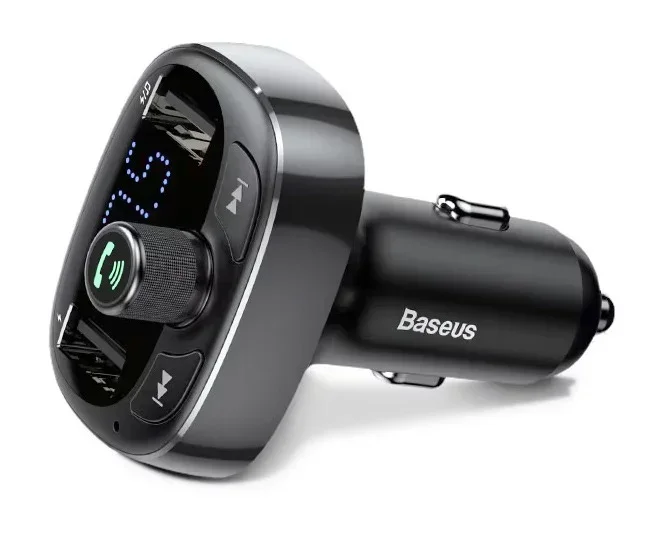
What if your older car does not support wireless Apple CarPlay? You are not out of luck. Aftermarket wireless CarPlay adapters can add this feature to almost any vehicle with an auxiliary input or USB port. These small devices plug into your car’s system and create a wireless connection with your iPhone. Popular options include the Carlinkit Wireless CarPlay Adapter and the AAWireless CarPlay Adapter. They are easy to install and cost much less than replacing your entire infotainment system. An aftermarket adapter is a great way to bring wireless Apple CarPlay to an older car without a lot of hassle.
| Option | Pros | Cons |
|---|---|---|
| Factory Wireless CarPlay | Seamless integration, no extra devices, reliable | Only available in newer or higher-end cars |
| Aftermarket Adapter | Works with older cars, affordable, easy to install | May add a small device to your dashboard |
| Wired CarPlay | Works in almost all cars with USB, very stable | Requires a cable, can be messy |
How to Set Up Wireless Apple CarPlay
Setting up wireless Apple CarPlay is straightforward, and you can have it running in just a few minutes. Follow these steps, and you will be on your way to a cable-free driving experience.
Step-by-Step Wireless Apple CarPlay Setup
Here is how you set up wireless Apple CarPlay on your iPhone and car:
- Make sure your iPhone is updated. Go to Settings, tap General, then Software Update. Install any available updates.
- Check your car’s infotainment system. Start your car and go to the settings menu. Look for Apple CarPlay or Smartphone Integration.
- Select Wireless CarPlay. Choose the wireless option instead of USB. Your car will start searching for nearby devices.
- Unlock your iPhone. A prompt should appear on your iPhone asking you to pair with the car. Tap “Allow” or “Connect.”
- Follow any on-screen prompts. Your car may ask you to confirm a pairing code or agree to terms. Go through the steps.
- Test your connection. Once paired, your CarPlay dashboard should appear on the car screen. Try opening Maps or Music to confirm it works.
That is it. Your wireless Apple CarPlay is now active. The next time you get in your car and unlock your iPhone, it should connect automatically. This auto-connect feature is one of the best parts of going wireless.
Common Setup Mistakes to Avoid
Even though setup is easy, a few common mistakes can cause problems. First, make sure Bluetooth and Wi-Fi are turned on in your iPhone settings. Wireless Apple CarPlay needs both. Second, restart your car’s infotainment system before trying to pair. A fresh start often fixes connection hiccups. Third, check that your car is in park when you attempt the connection. Some systems will not pair while the car is in drive. Finally, make sure your iPhone is not in Low Power Mode, as this can interfere with the CarPlay setup process.
Wireless Apple CarPlay vs. Wired Connection
You might be wondering whether wireless Apple CarPlay is really better than using a cable. Both options have their strengths, and the right choice depends on your needs. Let us compare them side by side.
Speed and Stability Comparison
A wired CarPlay connection uses a Lightning or USB-C cable, which provides a direct data link. This can sometimes be faster and more stable than a wireless connection. If you use CarPlay navigation for long road trips, a wired connection may offer slightly quicker response times. However, modern wireless Apple CarPlay has caught up significantly. The difference is small for most everyday drivers, and the convenience of going cable-free often outweighs any minor speed gap.
Which Option Is Right for You?
If you value a clean, clutter-free dashboard and want the simplest daily experience, wireless Apple CarPlay is the way to go. You do not have to plug in or unplug your phone every time you drive. If you need the absolute fastest performance for demanding tasks like real-time traffic navigation, a wired connection might give you a slight edge. Some drivers keep both options available, using wireless for short trips and wired for longer drives. There is no wrong choice here. Both deliver the core Apple CarPlay features you love.
Troubleshooting Common Wireless Apple CarPlay Issues
Wireless Apple CarPlay is reliable, but it is not perfect. Sometimes the iPhone CarPlay troubleshooting process is simple, and other times it requires a few extra steps. Here are the most common issues and how to fix them.
Why Won’t Wireless Apple CarPlay Connect?
If your wireless Apple CarPlay will not connect, start with the basics. First, toggle Bluetooth and Wi-Fi off and back on in your iPhone settings. This often resets the connection. Second, restart your iPhone. A simple reboot clears temporary glitches that can block CarPlay. Third, restart your car’s infotainment system. Turn the car off, wait 30 seconds, and turn it back on. If none of these steps work, try unpairing your car from your iPhone and pairing it again. Go to Settings, find your car under Bluetooth, and tap “Forget This Device.” Then start the pairing process from scratch.
Fixing Wireless Apple CarPlay Lag and Freezes
Lag or freezing during CarPlay mirroring can be frustrating. The most common cause is a weak Wi-Fi signal between your iPhone and car. Make sure you are not too far from the car’s antenna, which is usually near the windshield. Another fix is to clear your iPhone’s cache. Go to Settings, tap General, then iPhone Storage, and find CarPlay. Clearing its data can refresh the connection. Also, check if other apps are using too much bandwidth. Streaming large files while using CarPlay can slow things down. Close unnecessary apps before you drive, and you should see a smoother wireless Apple CarPlay experience.
Tips to Get the Best Wireless Apple CarPlay Experience
Once you have wireless Apple CarPlay working, a few simple habits can make the experience even better. These tips help you get the most out of every drive.
Keep Your iPhone and Car Updated
Apple regularly releases iOS updates that improve wireless Apple CarPlay performance. These updates fix bugs, add new Apple CarPlay features, and improve compatibility with more car models. Similarly, your car manufacturer may release infotainment updates that enhance wireless CarPlay support. Check for updates at least once a month. Keeping both devices current ensures you always have the best and most stable connection possible.
Optimize Your Settings for Wireless Apple CarPlay
A few small tweaks to your iPhone settings can make a big difference. Go to Settings, then General, then CarPlay, and make sure your car is set as the primary vehicle. This tells your iPhone to prioritize connecting to that car. You can also adjust Siri voice commands within CarPlay settings. Enabling “Hey Siri” lets you control maps, music, and messages hands-free, which is both convenient and safer. Finally, check your CarPlay settings to choose which apps appear on your dashboard. Keeping only the apps you use most makes the interface cleaner and faster.
Protect Your Connection in Public Parking Areas
When you connect to wireless Apple CarPlay in public parking lots, be mindful of your privacy. CarPlay uses a secure, encrypted connection, so your data is generally safe. However, it is still a good habit to lock your iPhone when you step away from the car. You can also disable CarPlay auto-connect in unfamiliar cars. Go to Settings, then General, then CarPlay, and turn off “Auto-Connect” for unknown vehicles. This simple step adds an extra layer of security to your iPhone connection.
Conclusion
Wireless Apple CarPlay has made driving more convenient and enjoyable for millions of people. Whether you have a brand-new car with factory-installed support or an older model with an aftermarket adapter, going wireless is a great move. The setup process is simple, the experience is smooth, and the freedom from cables is hard to beat. If you have been hesitant to try wireless Apple CarPlay, now is the perfect time. Follow the steps in this guide, troubleshoot any issues that come up, and enjoy a cleaner, smarter driving experience. Your iPhone and your car were meant to work together, and wireless Apple CarPlay makes that connection effortless.
Take a few minutes today to check if your car supports wireless CarPlay. If it does not, consider a wireless CarPlay adapter. You will wonder how you ever drove without it. The future of in-car connectivity is wireless, and wireless Apple CarPlay leads the way.
Frequently Asked Questions
Do all iPhones support wireless Apple CarPlay?
Most iPhones from the iPhone 12 onward support wireless Apple CarPlay. Older models may only work with a wired connection. Check your iPhone model and iOS version to confirm compatibility before setting up wireless CarPlay.
Can I use wireless Apple CarPlay in any car?
Not every car supports wireless CarPlay natively. However, you can add wireless Apple CarPlay to most vehicles using an aftermarket wireless CarPlay adapter. These adapters are affordable and easy to install, making wireless CarPlay accessible to almost any driver.
Is wireless Apple CarPlay as stable as a wired connection?
Wireless Apple CarPlay is very stable for everyday use. In most cases, the difference between wireless and wired is barely noticeable. If you experience frequent disconnects, updating your iPhone and car software usually resolves the issue.
Does wireless Apple CarPlay use a lot of battery?
Using wireless Apple CarPlay does consume more battery than a wired connection because it relies on Wi-Fi and Bluetooth. However, the difference is manageable for typical drive lengths. You can reduce battery drain by lowering screen brightness and limiting background app usage while driving.
Can I use Siri with wireless Apple CarPlay?
Yes, Siri voice commands work fully with wireless Apple CarPlay. You can ask Siri to make calls, send messages, find directions, and play music without touching your phone. This hands-free feature is one of the biggest safety benefits of wireless Apple CarPlay.
What should I do if wireless Apple CarPlay keeps disconnecting?
Start by restarting both your iPhone and your car’s infotainment system. Make sure Bluetooth and Wi-Fi are enabled, and that your car software is up to date. If the problem persists, unpair and re-pair your devices, or reset your CarPlay settings on your iPhone. This iPhone CarPlay troubleshooting approach resolves most disconnection issues quickly.