How Do I Connect My iPhone to Apple CarPlay Easily
Connecting your iPhone to Apple CarPlay is simple and transforms your driving experience. Whether you use a USB cable or set up wireless CarPlay, this guide walks you through every step with clear instructions. You will learn how to troubleshoot issues, find compatible cars, and get the most from Apple CarPlay.
Have you ever slid into your car, grabbed your iPhone, and wished you could just see your maps, music, and messages on the big screen in front of you? That is exactly what Apple CarPlay does. It mirrors the most useful parts of your iPhone onto your car’s infotainment display. And the best part? Getting it set up is way easier than most people think.
Whether you drive a brand-new vehicle or a slightly older model, connecting your iPhone to Apple CarPlay can make every trip safer and more enjoyable. In this guide, we will walk you through every method, fix common problems, and share tips that will help you get the most out of the experience. Let us dive right in.
Key Takeaways
- Easy Setup: You can connect your iPhone to Apple CarPlay using a USB cable or wirelessly in just a few simple steps.
- Wide Compatibility: Most modern cars from brands like Ford, Honda, Toyota, and BMW support Apple CarPlay.
- Wireless Option Available: Many newer vehicles offer wireless CarPlay, eliminating the need for cables altogether.
- Troubleshooting Is Simple: Most connection issues can be fixed by restarting your iPhone, updating iOS, or checking your cable.
- Safety First: Apple CarPlay lets you use Siri, maps, and messages hands-free, keeping your eyes on the road.
- Customization Matters: You can rearrange apps and adjust settings to make CarPlay work exactly how you want it.
- Regular Updates Help: Keeping your iPhone and car software updated ensures the best CarPlay experience.
📑 Table of Contents
- What Is Apple CarPlay and Why Should You Use It?
- How to Connect iPhone to Apple CarPlay Using a USB Cable
- How to Set Up Wireless Apple CarPlay
- Troubleshooting Common Apple CarPlay Connection Issues
- Which Cars Support Apple CarPlay?
- Tips to Get the Most Out of Apple CarPlay
- The Future of Apple CarPlay and iPhone Car Integration
- Conclusion
What Is Apple CarPlay and Why Should You Use It?
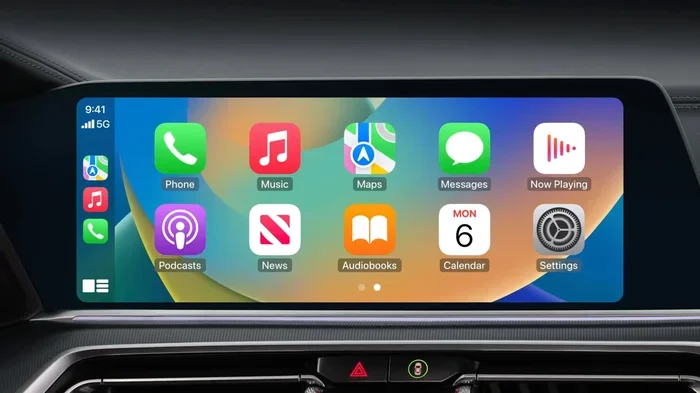
Apple CarPlay is a smart system that lets you use your iPhone safely while driving. It projects your phone’s key features onto your car’s built-in screen. You can make calls, send messages, get directions, and listen to music without touching your phone. It is one of the best iPhone car integration tools available today.
The system works with Apple’s Siri CarPlay voice assistant. This means you can keep your hands on the wheel and your eyes on the road. You just say “Hey Siri” and ask for directions, to play a song, or to read a text message. CarPlay wireless and wired versions both offer this hands-free experience.
Here is why Apple CarPlay has become a must-have feature for drivers:
- Safety: It reduces distractions by keeping your phone interactions voice-controlled.
- Convenience: Your favorite apps appear right on the car screen.
- Familiarity: The interface looks just like your iPhone, so there is no learning curve.
- Compatibility: It works with thousands of car models from dozens of brands.
- Updates: Apple regularly adds new features and improvements to CarPlay.
If you have been wondering whether CarPlay compatible cars exist for your vehicle, the answer is probably yes. Most cars made after 2016 support Apple CarPlay in some form. Let us now look at exactly how to connect your iPhone.
How to Connect iPhone to Apple CarPlay Using a USB Cable
The wired connection is the most reliable way to use iPhone CarPlay. It also works with more vehicles, including older models. Here is how to set it up step by step.
Step 1: Check Your Cable and Ports
First, grab a Lightning cable or a USB-C cable, depending on your iPhone model. Make sure the cable is in good condition. A damaged cable is one of the top reasons CarPlay not working issues happen. Plug the cable into your iPhone and then into the car’s USB port.
Many cars have a dedicated USB CarPlay port. It is often labeled with a CarPlay or smartphone icon. If your car has multiple USB ports, try different ones. Some ports only charge your phone and do not support data transfer.
Step 2: Unlock Your iPhone
This is a step many people forget. Your iPhone must be unlocked for CarPlay to activate. Simply swipe to unlock the screen or use Face ID. Once unlocked, the car screen should display a CarPlay setup prompt.
Step 3: Follow the On-Screen Prompts
Your car’s display will ask you to trust the device. Tap “Trust” on your iPhone screen. Then follow the car’s instructions to complete the pairing. You may be asked to allow access to contacts, messages, and maps.
Step 4: Set CarPlay as the Default Display
Once connected, you can navigate between your car’s native system and CarPlay. Most vehicles let you select CarPlay as the default source. Look for a “Source” or “Media” button on your car’s infotainment controls and choose Apple CarPlay.
Quick Tip: If your car does not recognize your iPhone, try a different cable or a different USB port. Sometimes a simple cable swap solves the problem instantly.
How to Set Up Wireless Apple CarPlay
Wireless CarPlay is a game-changer. It lets you connect your iPhone without any cables. This feature is available in many newer cars and works through Bluetooth and Wi-Fi. Here is how to get it working.
Step 1: Check That Your Car Supports Wireless CarPlay
Not all CarPlay compatible cars support the wireless version. Check your car’s manual or the manufacturer’s website to confirm. Wireless CarPlay usually requires a car infotainment system that supports Wi-Fi connectivity.
Step 2: Enable CarPlay on Your iPhone
Go to Settings on your iPhone. Tap General and then CarPlay. Your car should appear in the list of available vehicles. Tap on your car’s name to set it as the primary vehicle.
Make sure Bluetooth and Wi-Fi are turned on. Your iPhone needs both to establish a wireless CarPlay connection. The first time you pair, you may need to follow prompts on both your car screen and your iPhone.
Step 3: Connect Automatically
Once paired, iPhone CarPlay wireless should connect automatically when you get in your car. As long as Bluetooth and Wi-Fi are on, your iPhone will detect the car and mirror itself to the screen. No cables needed.
Using a Wireless CarPlay Adapter
What if your car does not support wireless CarPlay natively? You can buy a CarPlay wireless adapter. These small devices plug into your car’s USB port and create a wireless connection to your iPhone. Brands like Carlinkit and AAWireless make popular adapters that work well with most vehicles.
Just plug the adapter in, connect your iPhone to the adapter’s Wi-Fi network, and you are good to go. It is a simple and affordable way to add wireless CarPlay to any compatible car.
Troubleshooting Common Apple CarPlay Connection Issues
Even with a simple setup, things can go wrong sometimes. If your CarPlay connection is not working, do not worry. Most problems have easy fixes. Here are the most common issues and how to solve them.
CarPlay Not Showing Up on the Car Screen
This is the most common complaint. Start by checking your cable. A loose or worn-out cable often causes this issue. Try a different Lightning or USB-C cable that is certified by Apple. Also, make sure the USB port in your car is clean and free of dust.
Next, restart your iPhone. Sometimes a simple reboot clears up connection problems. On your car, try switching the source to USB or CarPlay. If your car has a restart option for the infotainment system, use that too.
CarPlay Disconnects Frequently
Frequent disconnections can be frustrating. This often happens with wireless CarPlay when the Wi-Fi signal is weak. Make sure your iPhone is close to the car’s antenna, which is usually near the center console.
For wired connections, a faulty cable or USB port is usually the culprit. Try another port or cable. Also, check if your iPhone is running low on battery, as some cars reduce power to USB ports when the engine is off.
Siri Not Working with CarPlay
If Siri CarPlay is not responding, go to Settings > Siri & Search on your iPhone. Make sure “Listen for Hey Siri” is turned on. Also check that Siri is enabled for CarPlay by going to Settings > CarPlay and selecting your car.
Updating Your Software
Outdated software causes many CarPlay troubleshooting issues. Make sure your iPhone is running the latest version of iOS. Go to Settings > General > Software Update to check. Similarly, check if your car’s infotainment system has a firmware update available from the manufacturer.
Expert Insight: According to Apple support documentation, restarting both your iPhone and your car’s infotainment system resolves the majority of CarPlay connection issues. This simple step should always be your first move when troubleshooting.
Which Cars Support Apple CarPlay?
Apple CarPlay support has grown enormously over the years. Today, thousands of car models from nearly every major brand work with CarPlay. Here is a look at some of the most popular brands and their CarPlay compatibility.
Popular Car Brands with CarPlay
- Toyota: Most models from 2016 onward support CarPlay, including the Camry, RAV4, and Highlander.
- Honda: The Civic, Accord, CR-V, and HR-V all offer CarPlay in newer trims.
- Ford: Ford Sync 3 and Sync 4 systems support CarPlay across most of their lineup.
- BMW: Many BMW models from 2016 onward feature CarPlay through their iDrive system.
- Chevrolet: Most Chevy models from 2016 onward, including the Silverado and Equinox, support CarPlay.
- Hyundai: The Sonata, Tucson, and Santa Fe offer CarPlay in recent model years.
- Nissan: Models like the Altima, Rogue, and Sentra support CarPlay.
To confirm whether your specific car supports iPhone connected to car screen features, check your owner’s manual or visit the manufacturer’s website. You can also look for the CarPlay logo on your car’s infotainment system or near the USB ports.
Aftermarket Car Stereos with CarPlay
What if your older car does not have CarPlay? You can install an aftermarket CarPlay stereo. Companies like Pioneer, Kenwood, and Sony make car radios that support CarPlay. These units replace your factory radio and bring modern infotainment to any vehicle. Installation typically costs between $200 and $500, and many shops can install one for you in an hour.
Tips to Get the Most Out of Apple CarPlay
Once you have Apple CarPlay connected, there are several ways to enhance your experience. These tips will help you use CarPlay like a pro.
Customize Your App Layout
CarPlay lets you choose which apps appear on your car screen. Go to Settings > CarPlay on your iPhone and select your car. From there, you can rearrange apps and choose which ones show up. Prioritize the apps you use most, like Maps, Music, and Podcasts.
Use Siri for Everything
The safest way to use CarPlay infotainment is through voice commands. Say “Hey Siri” and ask for directions, to call someone, or to play a specific playlist. This keeps your hands on the wheel and your focus on driving.
Explore Apple Maps Features
CarPlay maps offer more than just directions. You can see traffic conditions, find gas stations, check EV charging locations, and even make restaurant reservations. Apple Maps integrates with Siri, so you can say things like “Find a gas station near me” and CarPlay will show options right away.
Manage Notifications Wisely
CarPlay can read your text messages aloud and let you respond using voice dictation. To manage which notifications appear, go to Settings > Notifications on your iPhone and adjust settings for each app. This helps reduce distractions while driving.
Keep Your iPhone Charged
Using CarPlay for long drives can drain your battery, especially with navigation and music running. Plug your iPhone into a CarPlay USB port while driving. If you use wireless CarPlay, be aware that it uses more battery than a wired connection. Consider carrying a portable charger for long trips.
Update Regularly
Apple releases iOS updates that improve CarPlay settings and fix bugs. Keeping your iPhone updated ensures the smoothest iPhone car integration experience. Similarly, check for car infotainment updates from your dealer or manufacturer.
Common Mistakes to Avoid:
- Using a non-Apple or uncertified USB cable, which often causes connection failures.
- Forgetting to unlock your iPhone before connecting it to the car.
- Not restarting your iPhone or car system when problems arise.
- Ignoring software updates for both iOS and your car’s infotainment system.
- Assuming all USB ports in your car support CarPlay data transfer.
The Future of Apple CarPlay and iPhone Car Integration
Apple CarPlay continues to evolve with each iOS update. Recent versions have introduced customizable wallpapers, better Siri integration, and improved app layouts. Apple has also been working on deeper iPhone mirroring car capabilities, allowing even more phone features to appear on the car screen.
Looking ahead, we can expect wireless CarPlay to become a standard feature in nearly all new vehicles. Car manufacturers are also working on improving the speed and reliability of wireless connections. The gap between wired and wireless CarPlay is closing fast.
For now, whether you use a cable or go wireless, Apple CarPlay makes driving safer, more connected, and more enjoyable. It is one of the best examples of how technology can enhance everyday life without creating distractions.
Conclusion
Connecting your iPhone to Apple CarPlay is one of the simplest upgrades you can make to your daily driving routine. Whether you prefer the reliability of a USB CarPlay cable or the freedom of wireless CarPlay, the setup process is straightforward and works with most modern vehicles.
Remember to keep your iPhone and car software updated, use certified cables, and take advantage of Siri for hands-free control. If you run into issues, the troubleshooting steps in this guide will help you get back on track quickly.
Apple CarPlay is more than just a convenience feature. It is a safety tool that keeps you connected without taking your attention away from the road. Once you start using it, you will wonder how you ever drove without it. So grab your iPhone, follow the steps in this guide, and enjoy a smarter, safer driving experience today.