How Do I Change My System Clock on Windows 10 or Mac
Changing your system clock is simple once you know where to look. Whether you use Windows 10 or a Mac, this guide walks you through every step to adjust your system clock correctly. You will learn manual methods, automatic sync settings, and how to fix common clock problems fast.
Have you ever looked at your computer screen and thought, “That time is totally wrong”? It happens more often than you might think. Your system clock can drift over time, especially if you travel across time zones or your computer loses power. The good news is that fixing this is quick and easy. In this guide, we will show you exactly how do I change my system clock on both Windows 10 and Mac. You will find clear steps, helpful tips, and solutions to common problems. Let us get your clock showing the right time again.
Your computer clock does more than just tell you the hour. Many programs rely on it. Your email timestamps, calendar events, and file creation dates all depend on an accurate system clock. When the time is off, things can get confusing fast. Meeting invites might show up at the wrong hour. Files might seem older or newer than they really are. That is why keeping your date and time settings correct matters so much. This article covers everything you need to know about adjusting and syncing your clock on both major operating systems.
Key Takeaways
- Windows 10 users can change the system clock through Settings, the Control Panel, or the taskbar.
- Mac users can adjust the clock via System Preferences and Date & Time settings.
- Automatic time sync keeps your clock accurate without manual effort.
- Time zone settings matter a lot for getting the correct time on your device.
- Common clock problems like wrong time after restart often point to a CMOS battery issue.
- Daylight saving time can throw off your clock if auto-adjust is turned off.
- Regular clock checks help prevent scheduling conflicts and software errors.
📑 Table of Contents
Why Your System Clock Might Show the Wrong Time
Before you learn how do I change my system clock, it helps to understand why the clock gets wrong in the first place. Several factors can cause your computer clock to drift or display incorrect time. Let us look at the most common reasons.
Time Zone Changes
When you travel or move to a new region, your computer may not auto-update the time zone. This is one of the top reasons people see a wrong system clock. If your time zone settings are off by even one zone, the displayed time will be incorrect. On Windows 10, you can check this in the Time & Language section. On a Mac, it is found in Date & Time preferences.
Daylight Saving Time Conflicts
Daylight saving time can mess with your clock if your system is not set to adjust automatically. Some older systems or manually configured clocks forget to spring forward or fall back. This leads to a clock one hour off problem that many users face every year. Making sure your auto-adjust daylight saving setting is on can save you from this headache.
CMOS Battery Issues
Your motherboard has a small battery that keeps the clock running when the computer is off. This is called the CMOS battery. When it dies, your BIOS clock resets every time you restart. If you notice the time is wrong after each shutdown, a dead CMOS battery is likely the cause. Replacing this cheap battery can fix the problem permanently.
Internet Sync Problems
Most modern computers sync their clock with internet time servers. If your internet time sync is broken or blocked by a firewall, the clock will not update. This can cause your system clock to drift slowly over days or weeks. Checking your sync settings is a smart first step when troubleshooting.
How to Change System Clock on Windows 10
Changing the system clock on Windows 10 is straightforward. There are a few different ways to do it, and we will walk through each one. Whether you prefer using the Settings app or the classic Control Panel, you will find a method that works for you.
Method 1: Through Settings
This is the easiest way to adjust date and time on Windows 10. Here is what you need to do:
- Click the Start menu and select Settings.
- Click on Time & Language.
- Select Date & Time from the left sidebar.
- Toggle off “Set time automatically” if you want to change it manually.
- Click the “Change” button next to the date and time fields.
- Enter the correct date and time, then click Change.
Once you are done, you can turn the automatic setting back on if you prefer. This way, Windows 10 will keep your clock synced going forward.
Method 2: Through the Taskbar
Want a faster way? You can change the clock right from the taskbar. Just follow these steps:
- Click on the clock in the bottom-right corner of your screen.
- Click the date and time displayed.
- Select “Date and time settings” from the menu.
- Follow the same steps as Method 1 above.
This quick shortcut saves you a few clicks and gets you straight to the system clock settings page.
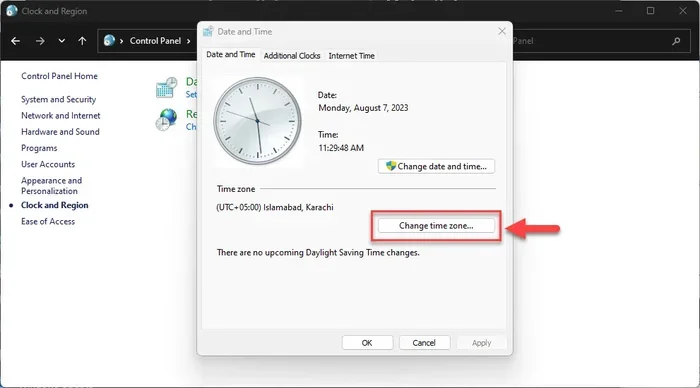
Method 3: Through Control Panel
The Control Panel method works well for users who prefer the classic interface:
- Open the Control Panel by searching for it in the Start menu.
- Click on “Clock and Region.”
- Select “Date and Time.”
- Click the “Change date and time” button.
- Adjust the time and click OK.
This method gives you access to additional options like changing the clock format and adjusting the time zone directly.
Changing the Clock Format
Do you prefer a 24-hour clock over the standard 12-hour format? Windows 10 lets you switch between them easily. Go to Settings, then Time & Language, then Date & Time. Click on “Change date and time formats.” From there, you can pick your preferred clock display style. Some users find the 24-hour format clearer, especially for scheduling or working with international teams.
How to Change System Clock on Mac
If you use a Mac, the process to change your system clock is equally simple. Apple makes it easy to adjust the date and time through System Preferences. Here is a complete walkthrough.
Manual Clock Adjustment on Mac
Follow these steps to set the time manually on your Mac:
- Click the Apple menu in the top-left corner.
- Select System Preferences (or System Settings on macOS Ventura and later).
- Click on Date & Time.
- Click the lock icon in the bottom-left corner and enter your password.
- Toggle off “Set date and time automatically.”
- Click on the date or time field to make your changes.
- Close the window when you are done.
Your Mac system clock will now reflect the new settings you entered.
Adjusting Time Zone on Mac
Getting the right time zone on your Mac is important. Here is how to do it:
- Go to Date & Time in System Preferences.
- Check the box that says “Set time zone automatically using current location.”
- Or, uncheck it and manually select your location from the map.
Using your current location is a great option if you travel often. Your Mac will use GPS or Wi-Fi data to set the correct time zone automatically.
Clock Display Options on Mac
You can also customize how the clock looks on your Mac. In Date & Time settings, you can choose whether to show seconds, use a 24-hour clock, or display the clock in the menu bar. These small tweaks can make a big difference in how you interact with your system clock every day.
Setting Up Automatic Time Sync
Manually changing the clock every time it drifts is tedious. The best approach is to set up automatic time synchronization. This lets your computer stay accurate without any effort on your part. Both Windows 10 and Mac offer built-in tools for this.
Enabling Auto Sync on Windows 10
Here is how to turn on automatic internet time sync on Windows 10:
- Go to Settings, then Time & Language, then Date & Time.
- Toggle on “Set time automatically.”
- Toggle on “Set time zone automatically.”
- Scroll down and click “Sync now” under the “Synchronize your clock” section.
Your Windows 10 PC will now reach out to a time server regularly and correct any drift. This is the most reliable way to keep your system clock accurate.
Enabling Auto Sync on Mac
On a Mac, the process is just as simple:
- Open System Preferences and go to Date & Time.
- Check “Set date and time automatically.”
- Select a time server from the dropdown (apple.pool.ntp.org is the default).
Your Mac will now sync with the selected server whenever it connects to the internet. This keeps your computer clock accurate around the clock.
What Is NTP and Why Does It Matter?
NTP stands for Network Time Protocol. It is the system your computer uses to sync with atomic clocks around the world. When you enable automatic sync, your system clock connects to NTP servers to stay accurate. This technology is behind every reliable clock sync you have ever used. It is invisible but incredibly important for keeping everything running smoothly.
Fixing Common Clock Problems
Even with the best settings, clock issues can still pop up. Here are some of the most common problems and how to fix them.
The Clock Resets After Restart
If your system clock shows the wrong time every time you boot up, the CMOS battery is the likely culprit. This small battery on your motherboard powers the BIOS clock when the computer is unplugged. When it dies, the clock loses its memory. Replacing the CR2032 battery is inexpensive and easy. You can find them at any electronics store. After swapping it out, your computer clock should hold the correct time again.
Clock Is Off by Exactly One Hour
A one-hour discrepancy usually means your daylight saving time setting is misconfigured. Go to your date and time settings and make sure “Adjust for daylight saving time automatically” is turned on. This single setting fixes the problem for most users.
Clock Drifts Slowly Over Time
A slowly drifting clock often points to a sync issue. Check that your internet time sync is enabled and that your firewall is not blocking NTP traffic. On Windows 10, you can also reset the time service by opening Command Prompt as an administrator and typing “w32tm /resync.” This forces your computer to immediately sync with the time server.
Wrong Time After Waking from Sleep
If your system clock is wrong after waking your computer from sleep mode, your time zone settings may be the issue. Double-check that your time zone is set correctly and that auto-detection is enabled. This problem is more common on laptops that travel between locations.
Expert Tips for Keeping Your Clock Accurate
Keeping your system clock accurate is not just about one-time fixes. A few good habits go a long way. Here are some expert tips to help you stay on track.
Check Your Clock Regularly
Make it a habit to glance at your computer clock once a week. A quick check can catch small drifts before they become big problems. If you notice the time is off by even a minute or two, it is worth investigating.
Use Multiple Time Servers
If your default time server is unreachable, your sync will fail. On a Mac, you can add backup time servers in Date & Time settings. Use reliable servers like pool.ntp.org or time.apple.com. This redundancy ensures your clock sync works even if one server goes down.
Keep Your Operating System Updated
Software updates often include fixes for time zone and clock sync bugs. Keeping your Windows 10 or macOS up to date ensures your system clock tools work properly. Never ignore those update notifications if you care about accuracy.
Use the Taskbar Clock as Your Reference
The clock in your system tray is your daily companion. Make sure it is always visible and easy to read. On Windows 10, you can customize the taskbar clock to show seconds or use a 24-hour format. On a Mac, you can add the clock to your menu bar for quick access.
Be Careful with Third-Party Clock Apps
There are many clock apps available for download. While some are great, others can conflict with your built-in system clock settings. Stick with trusted apps and always check their permissions. A rogue app could override your date and time settings without you knowing.
Key Takeaways
- Windows 10 users can change the system clock through Settings, the Control Panel, or the taskbar.
- Mac users can adjust the clock via System Preferences and Date & Time settings.
- Automatic time sync keeps your clock accurate without manual effort.
- Time zone settings matter a lot for getting the correct time on your device.
- Common clock problems like wrong time after restart often point to a CMOS battery issue.
- Daylight saving time can throw off your clock if auto-adjust is turned off.
- Regular clock checks help prevent scheduling conflicts and software errors.
Conclusion
Knowing how do I change my system clock is a basic but essential skill for every computer user. Whether you are on Windows 10 or a Mac, the steps are simple and quick. You can adjust the time manually, set up automatic sync, and fix common problems with just a few clicks. Your system clock touches more of your digital life than you might realize. From email timestamps to calendar appointments, accuracy matters. Take a few minutes today to check your date and time settings and make sure everything is correct. Your future self will thank you when your computer clock is spot-on and you never miss a meeting again.
Remember to keep your operating system updated and to replace that CMOS battery if your clock keeps resetting. These small steps make a huge difference. With the tips and methods in this guide, you have everything you need to keep your system clock running accurately for years to come.
Frequently Asked Questions
How do I change my system clock on Windows 10 without admin rights?
Without admin rights, you can still view the clock and time zone settings, but you may not be able to change them. Try clicking on the clock in the taskbar and selecting “Date and time settings.” If the options are grayed out, you will need to contact your system administrator to make changes to the system clock.
Why does my computer clock keep resetting after I turn it off?
This is usually caused by a dead CMOS battery on your motherboard. The CMOS battery keeps the BIOS clock running when the computer is unplugged. When it dies, the clock loses power and resets. Replacing the battery is a quick and inexpensive fix that solves this problem permanently.
Can I change the system clock on my Mac without an internet connection?
Yes, you can. Go to System Preferences, then Date & Time, and turn off “Set date and time automatically.” You can then manually enter the correct time and date. However, you will need an internet connection to sync your Mac system clock with an accurate time server for long-term accuracy.
How do I fix my clock if it is one hour off?
A one-hour difference is usually caused by a daylight saving time setting issue. Go to your date and time settings and make sure “Adjust for daylight saving time automatically” is turned on. This should correct the clock display immediately on both Windows 10 and Mac.
What is the best time server for syncing my system clock?
Some reliable time servers include pool.ntp.org, time.windows.com for Windows 10, and time.apple.com for Mac. These servers connect to atomic clocks and provide highly accurate time. You can add multiple servers in your system clock settings for redundancy.
Is it safe to change the system clock manually?
Yes, it is completely safe. Changing the system clock manually will not harm your computer or files. However, some software may behave oddly if the clock is set far ahead or behind. It is best to keep your computer clock as close to the actual time as possible for the smoothest experience.