How Do I Connect My Phone to My Car Screen Quickly
Connecting your phone to your car screen is easier than you think. Whether you use Bluetooth, USB, or wireless casting, this guide walks you through every method step by step. You will learn how to mirror your phone, stream music, and use navigation safely on your car display.
Have you ever jumped into your car and wished you could see your phone right on the big screen in front of you? Maybe you want to play your favorite playlist, get directions, or take a hands-free call. The good news is that connecting your phone to your car screen is something almost anyone can do today.
You do not need to be a tech expert. Whether your car is brand new or a few years old, there is a way to make it work. This guide will show you how do I connect my phone to my car screen using the simplest and fastest methods available. By the end, you will know exactly which method works best for your setup.
Let us keep this practical and straightforward. No confusing jargon. No unnecessary steps. Just clear instructions that get your phone connected to your car display in minutes.
Key Takeaways
- Bluetooth pairing is the simplest wireless way to connect most phones to car screens.
- USB cables offer the most stable connection and faster charging while driving.
- Apple CarPlay and Android Auto bring your phone apps directly to your car display.
- Wireless screen mirroring lets you cast your full phone screen without any wires.
- Compatibility matters — always check if your car supports your phone’s connection method.
- Troubleshooting steps can fix most connection problems in under five minutes.
📑 Table of Contents
- Why Connecting Your Phone to Your Car Screen Matters
- Method 1: Connect Using Bluetooth
- Method 2: Connect Using a USB Cable
- Method 3: Use Apple CarPlay or Android Auto
- Method 4: Wireless Screen Mirroring
- Troubleshooting Common Connection Problems
- Expert Tips for the Best Phone-to-Car Experience
- Which Method Should You Choose?
- Final Thoughts
Why Connecting Your Phone to Your Car Screen Matters
Your phone holds so much useful information. Maps, music, messages, and calls are all right there in your pocket. But using your phone while driving is dangerous and often illegal. That is where car screen mirroring comes in.
When you project your phone screen onto your car display, you get the best of both worlds. You can access your apps without touching your phone. You keep your eyes on the road and your hands on the wheel. It makes driving safer and more enjoyable.
Here are some key benefits of smartphone car integration:
- Hands-free calling lets you talk without holding your phone.
- GPS navigation appears directly on your car screen with voice directions.
- Music streaming from apps like Spotify or Apple Music plays through your car speakers.
- Read and reply to messages using voice commands or steering wheel controls.
- Wireless car display options mean no messy cables cluttering your dashboard.
These features are not just luxury extras. They are practical tools that make every drive better. Even if your car is older, you can often add these capabilities with a simple adapter or upgrade.
Method 1: Connect Using Bluetooth
Bluetooth connection is the most common way to link your phone to your car screen. Almost every car made after 2012 has Bluetooth built in. It is wireless, easy to set up, and works with both iPhone and Android devices.
Step-by-Step Bluetooth Pairing
Follow these steps to get your phone connected wirelessly:
- Turn on Bluetooth on your phone. Go to Settings and toggle Bluetooth on.
- Put your car in pairing mode. This is usually found in the car’s infotainment settings under “Bluetooth” or “Phone.”
- Search for available devices on your car screen. Your phone name should appear in the list.
- Tap your phone name on the car screen to pair.
- Confirm the pairing code if prompted. It should match on both screens.
- Test the connection by playing music or making a call.
Once paired, your phone will connect automatically every time you start the car. This is called auto-reconnect, and it is one of the best things about Bluetooth.
Quick Tips for Better Bluetooth Performance
- Keep your phone within 10 feet of the car’s Bluetooth antenna for the strongest signal.
- Delete old pairings from both devices if you experience connection issues.
- Update your phone’s software regularly to fix Bluetooth bugs.
- Turn off Bluetooth on other devices nearby that might interfere.
Bluetooth car connection works well for calls and basic audio streaming. However, it may not support full screen mirroring on all cars. For that, you will need a different method.
Method 2: Connect Using a USB Cable
If you want the most reliable connection, a USB cable is the way to go. Plugging your phone directly into your car’s USB port gives you a stable data connection and charges your phone at the same time.
How to Connect via USB
Here is how to set up a USB connection for phone to car screen display:
- Find your car’s USB port. It is usually located in the center console, armrest, or dashboard area.
- Use a good quality cable. The cable that came with your phone is usually the best choice.
- Plug the USB end into your car and the charging end into your phone.
- Your car screen should detect the phone automatically and display a menu.
- Select “Phone” or “Media” mode on the car display if prompted.
- Allow access on your phone if a permission popup appears.
USB connections are especially great for Apple CarPlay and Android Auto. These systems turn your car screen into a smart display with your favorite apps.
USB vs Bluetooth: Which Is Better?
Both methods have their strengths. Here is a quick comparison:
| Feature | USB Connection | Bluetooth Connection |
|---|---|---|
| Stability | Very stable | Good, but can drop |
| Charging | Yes | No |
| Screen Mirroring | Full support | Limited support |
| Setup Speed | Fast | Fast |
| Wire-Free | No | Yes |
| Audio Quality | Excellent | Good |
As you can see, USB wins for stability and quality. But Bluetooth wins for convenience. Many drivers use both — USB when they need the best experience, and Bluetooth for quick everyday connections.
Method 3: Use Apple CarPlay or Android Auto
Apple CarPlay and Android Auto are the two biggest names in phone to car screen technology. They are designed to make your phone safe and easy to use while driving.
What Is Apple CarPlay?
Apple CarPlay works with iPhones. It mirrors your phone’s interface onto your car display with a simplified, driver-friendly layout. You get access to Maps, Music, Messages, Phone, and thousands of compatible apps.
To use wireless CarPlay, your car and iPhone must both support it. Many newer cars from brands like Ford, BMW, Honda, and Tesla include CarPlay support. If your car does not have it built in, you can add it with an aftermarket CarPlay radio.
What Is Android Auto?
Android Auto works with Android phones. It offers a similar experience with a clean, easy-to-read interface. Google Maps, Spotify, Podcasts, and voice assistant features are all built in.
Like CarPlay, Android Auto can connect via USB or wirelessly depending on your car model. Wireless Android Auto connection is becoming more common in 2024 and 2025 car models.
How to Set Up CarPlay or Android Auto
- Plug your phone into the USB port marked with the CarPlay or Android Auto icon.
- Unlock your phone and tap “Trust” if a prompt appears.
- Wait for the car screen to load the CarPlay or Android Auto interface.
- Allow permissions for location, notifications, and media access.
- Start using your apps right from the car screen.
These systems are the gold standard for smartphone car integration. They make your car feel smarter without replacing the factory infotainment system.
Method 4: Wireless Screen Mirroring
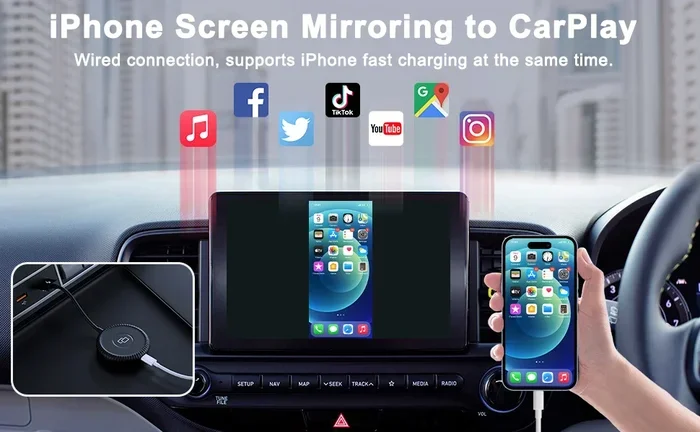
Not everyone wants to deal with cables. Wireless screen mirroring lets you cast your entire phone screen to your car display without any wires. It is clean, simple, and increasingly popular.
How Wireless Mirroring Works
Wireless mirroring uses Wi-Fi or proprietary protocols to send your phone screen to your car. Some cars support this natively. Others need a small adapter or dongle plugged into the USB port or auxiliary input.
Popular wireless mirroring options include:
- Carlinkit — a small device that adds wireless CarPlay to cars that only support wired CarPlay.
- AAutoMirror — works with both iPhone and Android for wireless screen casting.
- Built-in wireless protocols — many 2023 and newer cars support wireless CarPlay and Android Auto natively.
Setting Up Wireless Mirroring
- Check if your car supports wireless screen mirroring. Look in your car’s manual or settings menu.
- If your car does not support it**, buy a compatible wireless mirroring adapter.
- Plug the adapter into your car’s USB port.
- Download the matching app on your phone if required.
- Connect your phone to the adapter’s Wi-Fi network.
- Open the mirroring app and start casting your screen.
Wireless phone projection to car is fantastic for people who hate cables. The connection is instant, and you get full access to your phone’s features on the big screen.
Troubleshooting Common Connection Problems
Even with the best methods, things sometimes go wrong. Your phone might not connect, the screen might freeze, or audio might cut out. Here is how to fix the most common issues.
Phone Not Showing Up on Car Screen
This is the most common problem. Try these steps first:
- Turn Bluetooth off and on again on both your phone and car.
- Restart your phone. A simple reboot fixes many connection issues.
- Check if your phone is in pairing mode. Some phones require you to re-enable Bluetooth discovery.
- Delete the old pairing from both devices and start fresh.
Poor Audio Quality or Connection Drops
If your music sounds fuzzy or keeps cutting out, try these fixes:
- Move your phone closer to the car’s antenna area, usually near the rearview mirror.
- Switch from Bluetooth to USB for a more stable audio connection.
- Check for software updates on both your phone and car infotainment system.
- Turn off other Bluetooth devices in the car that might be interfering.
CarPlay or Android Auto Not Loading
If your car multimedia connection fails to load, try this:
- Use a different USB cable. Many cables only charge and do not transfer data.
- Clean the USB port on both your phone and car.
- Restart the infotainment system by holding the power button for 10 seconds.
- Reinstall the CarPlay or Android Auto app on your phone if needed.
Expert Tips for the Best Phone-to-Car Experience
Here are some insider tips from people who connect their phones to car screens every single day:
- Use a short, braided USB cable. Long cables lose signal strength and cause connection drops.
- Keep your phone case thin. Thick cases can interfere with wireless signals and wireless charging.
- Set up your favorite apps before driving. Pin your navigation and music apps in CarPlay or Android Auto for quick access.
- Enable do-not-disturb mode while driving to reduce notification distractions.
- Update your car’s firmware regularly. Manufacturers often add new features and fix bugs with updates.
These small habits make a big difference. Your phone to car screen connection will be smoother and more reliable every time.
Which Method Should You Choose?
The right method depends on your car, your phone, and what you want to do. Here is a simple guide:
- For hands-free calls and music: Bluetooth is all you need.
- For navigation and apps: Use Apple CarPlay or Android Auto via USB.
- For a clean, cable-free setup: Go with wireless CarPlay or a mirroring adapter.
- For the most stable connection: USB is the clear winner.
Most people benefit from using a combination of methods. Keep Bluetooth active for quick calls, and plug in with USB when you need navigation or full app access.
Final Thoughts
Connecting your phone to your car screen is one of the simplest upgrades you can make to your daily driving experience. It keeps you safer, more connected, and more entertained on the road. Whether you choose Bluetooth, USB, CarPlay, Android Auto, or wireless mirroring, the process is straightforward and well worth the effort.
Start with the method that fits your car and phone best. Follow the steps in this guide, and you will be up and running in no time. If you run into any issues, the troubleshooting section has you covered.
Now that you know how do I connect my phone to my car screen, go ahead and try it. Your car display is waiting to become a powerful extension of your phone. Enjoy the drive!
Frequently Asked Questions
Can I connect any phone to any car screen?
Most modern phones and cars support standard connection methods like Bluetooth and USB. However, older cars may need an adapter to work with newer phones. Always check your car’s manual for supported connection types before buying any accessories.
Is it safe to use my phone screen on my car display while driving?
Yes, as long as you use hands-free features and avoid tapping your phone directly. CarPlay and Android Auto are designed to minimize distractions. You can use voice commands, steering wheel controls, and simple touch gestures to stay safe while driving.
Do I need an expensive adapter to mirror my phone wirelessly?
Not necessarily. Many newer cars support wireless CarPlay and Android Auto natively. If your car does not, affordable adapters like Carlinkit cost around $30 to $60 and work with most vehicles. You do not need a premium system to get wireless mirroring.
Why does my Bluetooth connection keep disconnecting?
Bluetooth disconnections are usually caused by distance, interference from other devices, or outdated software. Try moving your phone closer to the car, turning Bluetooth off and on, or updating your phone’s operating system. If the problem persists, delete the old pairing and reconnect from scratch.
Can I charge my phone while using it on my car screen?
Yes, when you connect via USB, your phone charges while you use it. This is one of the biggest advantages of a USB connection over Bluetooth. Just make sure you use a quality data cable that supports both charging and data transfer.
What is the difference between screen mirroring and Apple CarPlay?
Screen mirroring shows your entire phone screen on the car display, while CarPlay shows a simplified, driver-safe interface with select apps. CarPlay is generally safer and more optimized for driving. Screen mirroring gives you full access to all phone features but can be more distracting.