Why Is My iPhone Not Connecting to My Car Screen Anymore
Why Is My iPhone Not Connecting to My Car Screen Anymore is a common frustration for drivers worldwide. The issue usually stems from Bluetooth glitches, software conflicts, or cable problems that are easy to fix. iPhone car connection troubles can often be resolved with simple resets, settings updates, or a new cable. Apple CarPlay and Bluetooth pairing errors are the top culprits behind this annoying problem. This guide walks you through proven fixes to get your phone back on your car display quickly and easily.
There’s nothing more frustrating than getting into your car, expecting your iPhone to seamlessly connect to the screen, and seeing nothing but a blank display. Whether you rely on Apple CarPlay for navigation, music, or hands-free calls, a failed connection can derail your entire morning commute. Why Is My iPhone Not Connecting to My Car Screen Anymore is a question many drivers search for every single day.
The good news is that this problem is almost always fixable. In most cases, the culprit is a simple software glitch, a loose cable, or a settings mismatch. You don’t need to be a tech expert to solve it. This guide breaks down every possible reason and walks you through step-by-step solutions that actually work.
By the time you finish reading, you’ll have a clear understanding of what’s going wrong and exactly how to make your iPhone car connection work again. Let’s dive in.
Key Takeaways
- Restart Both Devices: A simple restart of your iPhone and car infotainment system can resolve most connection issues.
- Check Bluetooth Settings: Make sure Bluetooth is enabled on both your iPhone and car, and remove old paired devices.
- Use a Certified USB Cable: Cheap or damaged cables are a leading cause of iPhone not showing on car display.
- Update iOS and Car Software: Outdated software is a frequent reason for iPhone connectivity issues.
- Reset Network Settings: This clears cached connection data that may be blocking your iPhone car connection.
- Try Wireless CarPlay: If wired connections fail, wireless CarPlay can bypass many USB-related problems.
- Seek Professional Help When Needed: Persistent issues may indicate a hardware problem with your car’s system.
📑 Table of Contents
- Common Reasons Your iPhone Won’t Connect to Your Car Screen
- Apple CarPlay Connection Problems and How to Fix Them
- Bluetooth Pairing Issues Between iPhone and Car
- USB Cable and Adapter Problems You Need to Know About
- Software and Settings Fixes That Really Work
- When to Seek Professional Help for Your Car Screen
- Conclusion
Common Reasons Your iPhone Won’t Connect to Your Car Screen
Before you start troubleshooting, it helps to understand what might be causing the problem. Several factors can interfere with your iPhone connectivity to your car’s display. Let’s look at the most common reasons drivers run into this issue every day.
Bluetooth Interference and Signal Problems
Bluetooth is the backbone of wireless iPhone car connection. But it’s also prone to interference from other devices, metal surfaces, and even other Bluetooth signals in your car. If your car Bluetooth not connecting to iPhone keeps failing, interference might be the cause.
Try moving your phone closer to the car’s infotainment unit. Remove other wireless devices from the car temporarily. Sometimes a simple change in position fixes the problem instantly. Your car audio Bluetooth settings may also need a refresh if the signal keeps dropping.
Outdated Software on Either Device
Both your iPhone and your car’s infotainment system need to run compatible software. When one device is outdated, the connection can break without warning. This is one of the most overlooked iPhone connectivity issues that people face every day.
Check for iOS updates on your iPhone by going to Settings, then General, then Software Update. For your car, consult the owner’s manual or visit the manufacturer’s website for firmware updates. Keeping both devices current is one of the easiest ways to prevent connection problems.
Corrupted Pairing Data
Over time, your phone and car build up old pairing data that can conflict with new connections. This corrupted data often causes the “iPhone not showing on car display” problem. Clearing this data and re-pairing the devices usually solves the issue in just a few minutes.
Apple CarPlay Connection Problems and How to Fix Them
Apple CarPlay has become essential for modern driving. When it stops working, it feels like your entire car setup falls apart. Let’s look at the specific issues and fixes for CarPlay connection failures.
CarPlay Won’t Launch After Connecting
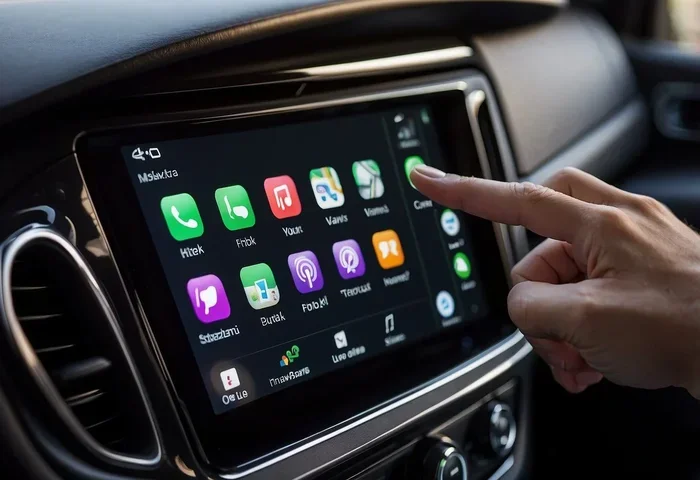
If you plug in your iPhone but CarPlay doesn’t appear, don’t panic. Start by checking that CarPlay is enabled on your phone. Go to Settings, then General, then CarPlay. Make sure your car is listed and selected in the menu.
Next, try disconnecting and reconnecting the cable. Sometimes the car’s system needs a fresh signal to recognize the phone. Wait about ten seconds after unplugging before plugging it back in. This small pause can make a big difference.
Wireless CarPlay Keeps Disconnecting
Wireless CarPlay is convenient, but it can be finicky at times. If your connection drops frequently, the Wi-Fi and Bluetooth settings on both devices might need a reset. Go to your car’s settings and forget the CarPlay connection, then set it up again from your iPhone.
Quick Tip: Restart both your iPhone and your car’s infotainment system before attempting a wireless CarPlay reconnection. This clears temporary glitches that often cause disconnections and gives both devices a fresh start.
CarPlay Shows but Touchscreen Isn’t Responsive
Sometimes CarPlay loads but the touchscreen doesn’t respond to your taps. This can happen when the car’s screen and your iPhone aren’t communicating properly. Try locking and unlocking your iPhone to re-establish the connection.
If that doesn’t work, restart your iPhone. A quick reboot often restores the touchscreen responsiveness within CarPlay. This is one of the simplest fixes for car touchscreen problems that people overlook.
Comparison: Wired vs Wireless CarPlay Connections
| Issue | Likely Cause | Best Fix |
|---|---|---|
| CarPlay won’t launch | Settings disabled or cable issue | Enable CarPlay, replace cable |
| Wireless CarPlay disconnects | Wi-Fi/Bluetooth conflict | Forget and re-pair devices |
| CarPlay screen unresponsive | Communication error | Lock/unlock iPhone, restart |
| CarPlay loads slowly | Old iOS or car software | Update both devices |
| No sound through CarPlay | Audio routing set incorrectly | Check iPhone audio output |
Bluetooth Pairing Issues Between iPhone and Car
Even if you don’t use CarPlay, Bluetooth handles your calls and audio streaming. When car Bluetooth not connecting to iPhone, your driving experience suffers. Here’s how to troubleshoot Bluetooth problems step by step.
iPhone Doesn’t Appear in Car Bluetooth List
First, make sure Bluetooth is turned on. It sounds obvious, but a toggled-off Bluetooth setting is the simplest explanation. Go to Settings, then Bluetooth, and confirm it’s enabled on your iPhone.
Next, check if your iPhone is already connected to another device. If your phone is still paired to your headphones or a portable speaker, it might not broadcast to the car. Disconnect from other devices and try again. Your car Bluetooth settings should show your iPhone as an available device.
Audio Cuts Out During Calls or Music
Intermittent Bluetooth audio is incredibly annoying, especially during important calls or when you’re listening to your favorite playlist. This usually happens when the signal strength drops or when another device tries to take over the connection. Go to your car’s Bluetooth settings and make sure your iPhone is set as the primary audio device.
Expert Insight: Many car manufacturers recommend keeping your iPhone within three to five feet of the car’s infotainment unit during the initial pairing process. This ensures a strong first connection that stays stable throughout your drive.
Car Shows as Connected but No Sound
If your iPhone shows as connected but you can’t hear anything, the audio routing might be set incorrectly. On your iPhone, open Control Center and check which audio output is selected. Make sure it’s set to your car, not your earbuds or home speakers. This simple check resolves the problem more often than people realize.
Common Mistake: Some drivers accidentally switch their audio output to their iPhone speaker while adjusting other settings. Always double-check the audio output in Control Center if you suddenly lose sound through your car speakers.
USB Cable and Adapter Problems You Need to Know About
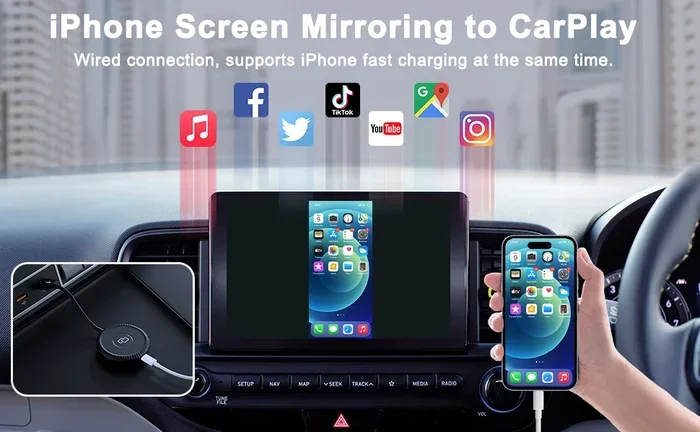
A faulty cable is one of the top reasons for iPhone not showing on car display. It’s also one of the easiest problems to fix. Let’s break down the cable-related issues that cause connection failures.
Use Only MFi-Certified Cables
Not all USB cables are created equal. Apple’s Made for iPhone (MFi) certification ensures the cable meets specific standards for data transfer and charging. Cheap, uncertified cables often fail to transmit data, which means your car screen won’t recognize your iPhone.
Look for the MFi logo on the cable packaging. If you’re using a cable that came with your iPhone, that’s usually a safe bet. But if you’ve switched to a third-party cable, that could be the source of your iPhone connectivity issues. Cable compatibility matters more than most people think.
Damaged or Worn-Out Cables
Cables take a beating. They get bent, twisted, and stuffed in glove compartments day after day. Over time, internal wires break and the cable stops working properly. Inspect your cable for fraying, bent connectors, or visible damage.
Common Mistake: Many people keep using a damaged cable because it still charges the phone. But charging and data transfer are different functions. A cable can charge your iPhone while failing to transmit data to your car’s screen. This is one of the most common reasons for iPhone disconnected from car issues.
USB Port Issues in the Car
Sometimes the problem isn’t the cable at all. The USB port in your car might be dirty, damaged, or loose. Try plugging the cable into a different USB port if your car has multiple options available.
Use a toothpick or compressed air to gently clean any dust or debris from the USB port. Even a small piece of lint can block the connection and prevent your USB cable connection from working properly. Keep your ports clean for the best results.
Software and Settings Fixes That Really Work
When cables and Bluetooth aren’t the issue, software settings are often to blame. These fixes address the deeper iPhone connectivity issues that simple troubleshooting can’t solve. Try each one in order for the best results.
Reset Network Settings on Your iPhone
Resetting your network settings clears all saved Wi-Fi passwords, Bluetooth pairings, and cellular settings. It gives your iPhone car connection a fresh start. Go to Settings, then General, then Transfer or Reset iPhone, then Reset, then Reset Network Settings.
You’ll need to re-enter your Wi-Fi passwords after this reset. But it’s one of the most effective fixes for persistent connection problems that won’t go away with simpler methods.
Update iOS to the Latest Version
Apple regularly releases updates that fix bugs and improve compatibility with car systems. An outdated iOS version can cause your iPhone not connecting to car screen issues. Check for updates in Settings, then General, then Software Update.
If an update is available, connect your phone to Wi-Fi and plug it in before installing. Updates can take several minutes and you don’t want your phone to die mid-installation. Keeping your iOS current is one of the best preventative measures you can take.
Reset Your Car’s Infotainment System
Your car’s computer can benefit from a reset too, just like your phone. The process varies by manufacturer, but most systems have a factory reset option in the settings menu. Consult your car’s manual for specific instructions.
Quick Tip: Some cars allow you to simply hold the power button for ten to fifteen seconds to force a restart of the infotainment system. This is the quickest way to clear temporary software glitches and get your car infotainment system running smoothly again.
Forget and Re-Pair Your Devices
Sometimes the simplest fix is the most effective. Go to your car’s Bluetooth settings and forget your iPhone. Then do the same on your phone. Re-pair the devices from scratch. This clears any corrupted pairing data that might be causing the problem.
Make sure both devices are close together during the re-pairing process. Follow the on-screen instructions on both the car screen and your iPhone carefully. This method resolves the majority of Bluetooth pairing issues that drivers experience.
Check for Siri and CarPlay Permissions
Your iPhone has privacy settings that control which apps and features can access your car’s systems. Go to Settings, then Privacy, then CarPlay and make sure your car is allowed. Also check Siri settings under Settings, then Siri & Search, to ensure voice commands are enabled for driving.
Expert Insight: After major iOS updates, permissions sometimes reset. This can cause your iPhone screen mirroring to stop working even though everything was fine before the update. Checking permissions after every major update can prevent unexpected connection problems.
When to Seek Professional Help for Your Car Screen
Most connection issues are solvable at home with the steps above. But sometimes the problem points to a deeper hardware issue that needs professional attention. Knowing when to call in the experts can save you time and money.
Persistent Problems After Trying All Fixes
If you’ve gone through every troubleshooting step and your iPhone car connection still won’t work, it’s time to see a professional. A certified mechanic or car electronics specialist can diagnose hardware failures in the car’s infotainment unit that aren’t visible to the naked eye.
Don’t keep guessing and trying random fixes. A professional diagnosis can save you time and money in the long run. Sometimes the issue is a faulty connection board inside the car’s system that only a specialist can repair.
Physical Damage to the Car’s USB Port or Screen
If you’ve noticed physical damage to the USB port, such as loose or broken pins, a professional repair is the safest option. Trying to force a connection with a damaged port can cause further problems and even permanent damage to your iPhone car adapter.
Similarly, if your car’s touchscreen is cracked or unresponsive even when your phone isn’t connected, the issue might be with the screen itself rather than the iPhone connectivity. A professional can tell the difference between a software issue and a hardware failure quickly.
Car Is Under Warranty or Has a Service Plan
Check your car’s warranty before paying for any repairs. Many newer vehicles come with infotainment system coverage that includes connection and display issues. Even if the warranty has expired, some dealerships offer affordable service plans that cover electronics repairs.
Common Mistake: Don’t open up your car’s infotainment unit yourself. This can void your warranty and cause additional damage. Always let a professional handle hardware repairs. Your warranty is there to protect you, so use it.
Expert Insight: According to automotive technicians, over 60% of “iPhone not connecting to car” complaints are resolved with a simple reset or cable replacement. Before spending money on repairs, exhaust these basic fixes first. You might be surprised how often the solution is so simple.
Conclusion
Why Is My iPhone Not Connecting to My Car Screen Anymore doesn’t have to be a mystery or a source of daily frustration. Most of the time, the fix is simpler than you think. Whether it’s a loose cable, outdated software, or a Bluetooth reset, one of these solutions will likely get you back up and running in no time.
Start with the simplest fixes and work your way up. Restart your devices, check your cables, and update your software. If those steps don’t work, move on to network resets and re-pairing. And if nothing works, don’t hesitate to seek professional help from a certified technician.
Your iPhone car connection is an important part of your daily driving experience. Taking a few minutes to troubleshoot the problem now can save you hours of frustration on the road. Keep this guide bookmarked for the next time your iPhone connectivity gives you trouble. A little patience and the right approach will have you back to seamless iPhone car connection in no time.
Frequently Asked Questions
Can a dirty USB port cause my iPhone not to connect to my car screen?
Yes, dirt, dust, and lint inside the USB port can block the connection and prevent data transfer. Use a toothpick or compressed air to gently clean the port before trying again. This simple step often solves the problem without any other troubleshooting needed.
Does an iOS update affect Apple CarPlay connection?
Yes, iOS updates can sometimes change how CarPlay communicates with your car’s system. After an update, you may need to re-pair your devices or restart both your iPhone and car system. Always keep both your iPhone and car software up to date for the best compatibility and fewest connection issues.
Why does my iPhone connect to my car but CarPlay won’t start?
This usually happens when CarPlay is disabled on your iPhone or when the cable can’t transfer data properly. Check your CarPlay settings in Settings, then General, then CarPlay. Also try a different MFi-certified cable to rule out a cable problem that might be blocking data transfer.
Is it normal for wireless CarPlay to disconnect frequently?
Wireless CarPlay can be less stable than wired connections, especially in areas with heavy Wi-Fi interference from other devices. If disconnections happen often, try switching to a wired connection for more reliability. You can also reset your car’s Wi-Fi and Bluetooth settings to improve stability and reduce dropouts.
Can a low iPhone battery affect the connection to my car screen?
A very low battery can cause your iPhone to behave unpredictably, including connection drops and slow response times. Plug your iPhone into a charger before connecting to your car. This ensures stable power and a more reliable connection to your car’s display throughout your drive.
Do I need to buy a new car stereo if my iPhone won’t connect?
Not usually. Most connection issues are caused by software glitches, cables, or settings rather than hardware failure. Try all the troubleshooting steps in this guide first. A new car stereo is rarely needed and should only be considered after professional diagnosis confirms a hardware problem with the existing system.