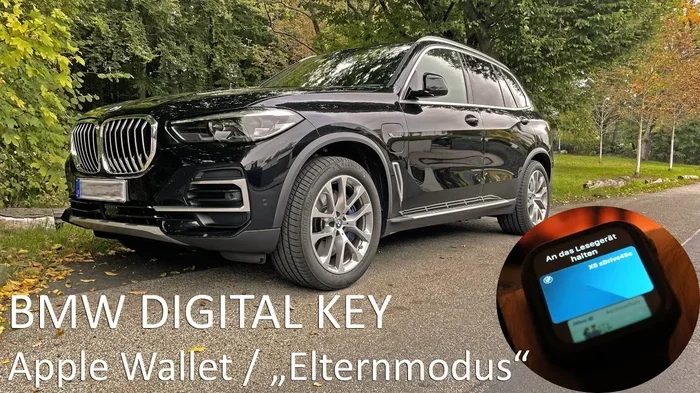
Everything You Need to Add a BMW Key to Apple Wallet
Adding a BMW key to Apple Wallet is one of the most convenient upgrades you can make for your daily drive. This guide walks you through every step, from checking compatibility to troubleshooting common issues. You will learn how to use your BMW digital key on your iPhone, share keys with family, and avoid the most common mistakes.
Adding a BMW key to Apple Wallet might sound like something from a sci-fi movie, but it is very real and incredibly practical. The BMW digital key lets you unlock, lock, and start your vehicle using just your iPhone or Apple Watch. No more fumbling for keys in your pocket or bag. This technology uses Near Field Communication, or NFC, to communicate with your car instantly.
The process is simpler than most people expect. Once you set it up, you will wonder how you ever drove without it. Whether you are dealing with a BMW key fob that keeps dying or just want a sleeker way to access your car, this guide covers everything you need. Let us walk through each step together.
The BMW key Apple Wallet feature works with select BMW models that support the BMW Digital Key Plus. This means your phone essentially becomes your primary key. You can leave your physical key fob at home and still get into your car. The digital key lives securely in Apple Wallet, protected by your iPhone’s built-in security chip.
## What Is a BMW Digital Key in Apple Wallet?
A BMW digital key in Apple Wallet is a virtual version of your physical BMW key fob. It stores your car access credentials directly on your iPhone or Apple Watch. When you hold your phone near the door handle, the car recognizes your device and unlocks the doors. The same goes for starting the engine.
BMW digital keys use a technology called NFC, which stands for Near Field Communication. This is the same technology that lets you tap your phone to pay at a store. The difference here is that your phone talks to your car instead of a payment terminal. The connection happens instantly and securely.
### How BMW Digital Keys Work
The BMW digital key relies on a secure element inside your iPhone. This is a dedicated chip that stores sensitive data like your car credentials. When you tap your iPhone against the car’s reader, the secure element sends a signed authentication request. The car verifies the request and grants access.
Your physical key fob still works too. The digital key does not replace it entirely. Instead, it gives you a second way to access your vehicle. This is especially helpful when your key fob battery dies or you simply do not want to carry the fob.
### Which BMW Models Support Apple Wallet Keys?
Not every BMW model supports the digital key feature. The technology requires specific hardware inside the car. Currently, the following BMW models support Apple Wallet keys:
- BMW 1 Series (F40 and newer)
- BMW 2 Series (F44 and newer)
- BMW 3 Series (G20 and newer)
- BMW 4 Series (G22 and newer)
- BMW X1 (U11 and newer)
- BMW X3 (G01 and newer)
- BMW X5 (G05 and newer)
- BMW X7 (G07 and newer)
- BMW iX and i4
Always check your specific model year before attempting setup. If your car does not support BMW Digital Key Plus, the Apple Wallet option will not appear in the BMW app.
## Requirements for Adding a BMW Key to Apple Wallet
Before you start, you need to make sure everything is in place. Skipping this step can lead to frustration later. The requirements are straightforward, but they are essential.
### Compatible iPhone and BMW Models
Your iPhone must support NFC-based car keys. Here is what you need:
- iPhone 7 or newer
- iPhone SE (2nd generation or later)
- Apple Watch Series 3 or newer (for watch-only access)
- iOS 13.6 or later
- BMW model with Digital Key Plus support
If you are unsure whether your BMW supports digital keys, open the BMW app and look for the “Digital Key” option. If it is there, your car is compatible.
### Software and App Requirements
You will need the BMW app installed on your iPhone. The app acts as the bridge between your car and Apple Wallet. Make sure you have the latest version from the App Store. You also need a BMW ConnectedDrive account with an active subscription.
The BMW app will guide you through the entire setup process. It pairs your iPhone with your car using a secure connection. During pairing, the app writes your digital key credentials to the secure element on your phone. This process takes only a few minutes.
## Step-by-Step Guide to Add a BMW Key to Apple Wallet
Now for the fun part. Follow these steps carefully, and you will have your BMW key in Apple Wallet up and running in no time.
### Step 1: Open the BMW App and Sign In
Launch the BMW app on your iPhone. Sign in with your BMW ConnectedDrive credentials. If you do not have an account yet, you will need to create one. Link your BMW vehicle to your account by entering your vehicle identification number, or VIN.
The VIN is usually found on your dashboard near the windshield. You can also find it on your registration documents. Once your car is linked, the app will show all available features for your vehicle.
### Step 2: Navigate to the Digital Key Section
In the BMW app, tap on “Digital Key” or “BMW Digital Key.” The app will check whether your car and phone are compatible. If everything checks out, you will see an option to “Add to Apple Wallet.”
Tap that option. The app will walk you through a brief tutorial on how the digital key works. Pay attention to this part. It covers important details about unlocking, starting, and sharing your key.
### Step 3: Add the Key to Apple Wallet
The app will prompt you to add the digital key to Apple Wallet. Tap “Add” and follow the on-screen instructions. Your iPhone will use NFC to write the key credentials to the secure element. You will see a confirmation once the process is complete.
After adding the key, open Apple Wallet on your iPhone. You should see your BMW digital key card there. You can also add the key to your Apple Watch for even faster access. Simply open the Watch app on your iPhone and add the BMW key to your watch face.
### Step 4: Test Your Digital Key
Stand near your BMW and try unlocking the car. Hold the top of your iPhone near the door handle. The car should unlock instantly. Try starting the engine by holding your phone near the start button.
If everything works, congratulations. You have successfully added your BMW key to Apple Wallet. If something does not work, do not worry. We will cover troubleshooting in the next section.
## How to Use Your BMW Key from Apple Wallet
Once your digital key is set up, using it is second nature. Here is how the daily experience works.
### Unlocking and Starting Your BMW
To unlock your BMW, simply hold your iPhone or Apple Watch near the door handle. The car detects your device and unlocks the doors. You do not need to open an app or tap any button. It happens automatically.
To start the engine, hold your iPhone near the start/stop button. The car recognizes your device and allows the engine to start. You can keep your phone in your pocket or bag. The NFC reader picks up the signal through fabric and materials.
### Sharing Keys with Family Members
One of the best features of the BMW digital key Apple Wallet setup is key sharing. You can share your digital key with up to five people. Each person gets their own digital key on their iPhone or Apple Watch.
To share a key, open the BMW app and go to the Digital Key section. Select “Share Key” and choose the recipient. They will receive a notification with instructions to accept the key. Once accepted, they can unlock and start your BMW using their own device.
This is incredibly useful for family members, valets, or friends who need temporary access. You can also set restrictions on shared keys, such as speed limits or audio volume limits.
## Troubleshooting Common Issues When Adding a BMW Key to Apple Wallet
Even with a smooth setup, you might run into issues from time to time. Here are the most common problems and how to fix them.
### Key Not Showing in Apple Wallet
If your BMW digital key does not appear in Apple Wallet, start by checking your internet connection. The BMW app needs a stable connection to sync your key. Also, make sure your iPhone is running the latest iOS version.
Try removing the key from Apple Wallet and adding it again. Open the BMW app, delete the digital key, and repeat the setup process. This often resolves sync issues.
Another common cause is insufficient storage on your iPhone. The digital key file is small, but if your phone is nearly full, it can cause problems. Free up some space and try again.
### BMW Key Fob Battery Problems
While the digital key works independently, your physical BMW key fob still plays a role. If your key fob battery is dead, you may have trouble with certain features. A weak fob battery can sometimes interfere with the digital key setup process.
Replacing the key fob battery is easy and inexpensive. You can replace a key fob battery yourself in just a few minutes. The most common battery type for BMW key fobs is the CR2032 coin cell. Simply open the key fob casing, swap the old battery for a new one, and snap it back together.
If you are unsure about the process, you can also visit a BMW dealership. They will replace the battery quickly and often at no cost if your car is still under warranty.
### Connectivity and NFC Issues
The digital key relies on NFC to communicate with your BMW. If NFC is turned off on your iPhone, the key will not work. Go to Settings, then Wallet & Apple Pay, and make sure “Express Transit Card” and car key features are enabled.
Sometimes, a case or cover on your iPhone can block the NFC signal. Remove thick cases or metal covers and try again. The NFC antenna on iPhones is located near the top of the device, so hold your phone at the upper part of the door handle.
If you are still having trouble, restart your iPhone and try again. A simple reboot often fixes temporary NFC glitches. Also, make sure your BMW is within close range. The NFC connection works best when your phone is within a few inches of the car.
## Pros and Cons of Using a BMW Key in Apple Wallet
Like any technology, using a digital BMW key comes with advantages and a few limitations. Let us look at both sides.
### Benefits of a Digital BMW Key
- Ultimate convenience: Your phone is always with you, so your key is always with you.
- No more dead key fobs: You do not need to worry about replacing a key fob battery for digital access.
- Easy key sharing: Share access with family and friends instantly from your phone.
- Enhanced security: The digital key is encrypted and protected by your iPhone’s secure element.
- sleek and modern: It feels futuristic to unlock your car with a tap of your phone.
### Limitations to Keep in Mind
- Not all models support it: Older BMW models may not have the required hardware.
- Battery dependency: If your iPhone dies, you lose digital access unless you carry a physical backup key.
- Limited sharing controls: Shared keys have some restrictions, and not all features are available to shared users.
- Requires a compatible iPhone: Android users cannot use this feature with Apple Wallet.
It is always wise to keep a physical backup key fob handy. Even if you rely entirely on your digital key, having a backup gives you peace of mind. If you ever need a car key replacement or a new fob, a BMW dealership can help you get set up quickly.
## Expert Tips for Getting the Most Out of Your BMW Digital Key
A few extra tips can make your experience with the BMW key Apple Wallet even better. These are small adjustments that make a big difference.
First, enable Express Mode on your iPhone. This lets you use your digital key even when your phone battery is low. Express Mode keeps the NFC chip active for a short time after your phone dies, giving you enough time to unlock and start your car.
Second, update your BMW software regularly. BMW occasionally releases updates that improve digital key performance and fix bugs. Check for updates through the BMW app or visit your dealership for a software refresh.
Third, teach your passengers how to use the digital key. If you share your car with family members, make sure everyone knows how to unlock and start the car with their iPhone or Apple Watch. A quick demo saves confusion later.
Fourth, monitor your iPhone battery health. If your battery is degrading, consider replacing it. A healthy battery ensures your digital key is always ready when you need it.
## Key Takeaways
Key Takeaways
- BMW digital keys work directly in Apple Wallet: You can unlock and start your BMW using just your iPhone or Apple Watch.
- Compatibility matters: Not all BMW models and iPhone versions support this feature. Check your model year and software before starting.
- Setup is simple and fast: The entire process takes about 10 to 15 minutes through the BMW app.
- Key sharing is a standout feature: You can share your BMW digital key with up to five family members or friends.
- Troubleshooting is straightforward: Most issues with BMW key Apple Wallet relate to NFC settings, battery levels, or software updates.
- Keep a backup key fob: Even with a digital key, always carry a physical key fob as a backup for emergencies.
Key Takeaways
- BMW digital keys work directly in Apple Wallet: You can unlock and start your BMW using just your iPhone or Apple Watch.
- Compatibility matters: Not all BMW models and iPhone versions support this feature. Check your model year and software before starting.
- Setup is simple and fast: The entire process takes about 10 to 15 minutes through the BMW app.
- Key sharing is a standout feature: You can share your BMW digital key with up to five family members or friends.
- Troubleshooting is straightforward: Most issues with BMW key Apple Wallet relate to NFC settings, battery levels, or software updates.
- Keep a backup key fob: Even with a digital key, always carry a physical key fob as a backup for emergencies.
## Conclusion
Adding a BMW key to Apple Wallet is a game changer for daily driving. The BMW digital key offers unmatched convenience, modern security, and a seamless user experience. Once you set it up, you will not want to go back to digging for a physical key fob.
The setup process is straightforward and takes only a few minutes. As long as your BMW and iPhone are compatible, you are good to go. Use the digital key to unlock, start, and even share access with people you trust.
Keep in mind that a digital key works best when you also maintain your physical key fob. Replace the key fob battery when needed, and always carry a backup. If you ever encounter issues, the troubleshooting steps in this guide will help you get back on track quickly.
Embrace the future of car access. Your BMW and Apple Wallet work better together than you might expect.
Frequently Asked Questions
Can I add my BMW key to Apple Wallet if I have an older BMW model?
It depends on whether your BMW supports Digital Key Plus. Models from 2020 and newer with the proper hardware typically support this feature. Check the BMW app to see if the Digital Key option appears for your vehicle.
What happens if my iPhone battery dies while I have my BMW key in Apple Wallet?
If you have Express Mode enabled, your digital key remains active for a short time even after your iPhone dies. However, it is always smart to carry your physical key fob as a backup. You should also know that a dead key battery in your physical fob can cause similar access issues, so keep both charged.
Can I use my Apple Watch instead of my iPhone to unlock my BMW?
Yes, you can add your BMW digital key to your Apple Watch. Once added, you can unlock and start your BMW by holding your watch near the door handle and start button. This works even if you leave your iPhone at home.
How many people can I share my BMW digital key with?
You can share your BMW digital key with up to five people through the BMW app. Each person receives their own digital key on their iPhone or Apple Watch. You can also set specific permissions and restrictions for each shared key.
Is it safe to store my BMW key in Apple Wallet?
Yes, it is very safe. The digital key is stored in your iPhone’s secure element, which is a dedicated security chip. The key data is encrypted and cannot be accessed by apps or people without your authorization. This makes it more secure than carrying a physical key fob that could be copied.
What should I do if my BMW key stops working in Apple Wallet after an iPhone update?
After an iPhone update, the digital key may need to be re-added. Open the BMW app, remove the existing digital key, and add it again to Apple Wallet. Also make sure your BMW software is up to date, as compatibility issues between car software and phone software can sometimes cause problems.