How Do I Reset Bluetooth on My Android Phone Fast
If your Bluetooth keeps cutting out, you need a fast fix. This guide shows you exactly how to reset Bluetooth on your Android phone fast with simple steps. You will learn quick resets, cache clearing, and prevention tips to stop the problem from coming back.
Bluetooth problems on an Android phone can feel like a mystery. You try to play music, and nothing happens. Your wireless earphones disconnect at the worst moment. The good news is that a reset almost always fixes the issue. You do not need to be a tech expert to solve this. In this guide, you will learn exactly how do I reset Bluetooth on my Android phone fast. We will walk through simple steps you can try right now. You will also learn why Bluetooth fails and how to stop it from happening again.
Many people panic when Bluetooth stops working. They think they need a new phone or a costly repair. That is almost never true. A simple reset can bring your wireless connection back to life. Think of it like resetting a check engine light on a car. The light comes on, but the fix is often easy. Similarly, your phone’s Bluetooth light might be telling you something small is wrong. This guide will help you turn that light off and get your connection strong again.
Key Takeaways
- Quick Toggle Reset: Turning Bluetooth off and on again fixes most minor glitches in seconds.
- Clear the Cache: Removing the Bluetooth cache can solve stubborn pairing issues without losing your data.
- Unpair and Reconnect: Deleting old device pairings often restores a clean connection.
- Network Reset as a Last Resort: A full network settings reset can fix deep Bluetooth problems but erases saved Wi-Fi passwords.
- Prevent Future Issues: Keep your phone updated, avoid signal interference, and restart devices regularly.
- Car Bluetooth Parallels: Just like you can drive your Toyota without the key fob, you can often fix Bluetooth without a factory reset.
- DIY Confidence: You do not need a technician to reset Bluetooth; the steps are simple and safe.
📑 Table of Contents
Why Bluetooth Keeps Acting Up on Android
Before you reset anything, it helps to understand why Bluetooth fails. Android phones use a short-range wireless signal to talk to devices like earphones, speakers, and car systems. Many things can interrupt that signal. The phone might be too far from the device. Another gadget might be using the same radio frequency. Sometimes, a software glitch simply confuses the Bluetooth system. Your phone might have too many saved pairings, or the Bluetooth cache could be full of old data. Just like a TPMS sensor needs a reset when it gives false readings, your Bluetooth system sometimes needs a fresh start.
Bluetooth issues are very common. They happen after a phone update. They happen when you switch from one car to another. They can even happen when you walk through a crowded airport. The root cause is almost always a small software hiccup. Understanding this helps you stay calm. You are not broken. Your phone just needs a quick reset.
How to Reset Bluetooth on Your Android Phone Fast
The fastest way to reset Bluetooth is also the simplest. You turn it off and turn it back on again. This clears minor glitches without touching any settings. It is like restarting a computer. Most people skip this step, but it works more than half the time. If that does not work, we have three more methods that get progressively deeper.
The Simple Quick Reset Method
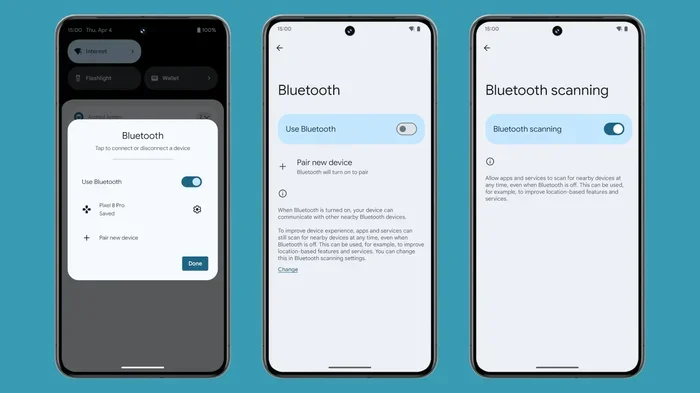
Start with the quick reset. It takes only ten seconds. Swipe down from the top of your screen to open the quick settings panel. Look for the Bluetooth icon. Tap it to turn Bluetooth off. Wait for about five seconds. Then tap it again to turn it back on. Try connecting to your device. If it works, you are done. If not, move to the next step.
This method is perfect for when your Bluetooth just stopped connecting after a minor signal drop. It does not delete any pairings. It simply refreshes the wireless radio. Think of it as taking a deep breath for your phone’s Bluetooth system.
The Full Network Reset (When Quick Reset Fails)
If the quick reset does not work, you can reset your entire network settings. This clears all saved Wi-Fi networks, Bluetooth pairings, and mobile data settings. It sounds scary, but it is safe. You will just need to reconnect to your Wi-Fi after. This method fixes deep Bluetooth bugs that the quick reset cannot touch.
Go to your phone’s Settings app. Tap System or General Management, depending on your Android version. Choose Reset options. Tap Reset Wi-Fi, mobile & Bluetooth. Confirm the reset. Your phone will restart. Once it is back on, try pairing your Bluetooth device again. This is the nuclear option, but it works for stubborn problems.
Step-by-Step Guide to Resetting Bluetooth
Let us walk through each method in detail. You can follow these steps exactly. No guesswork is needed. We will cover the quick toggle, clearing the cache, and unpairing devices.
Turn Bluetooth Off and On Again
This is your first line of defense. It takes seconds and solves many issues. Here is how to do it properly. Swipe down from the top of your screen with one finger. You will see a row of quick action icons. Find the Bluetooth icon. It usually looks like a capital B made of lines. Tap it once. The icon will turn gray or lose its highlight. Wait for five seconds. Tap it again. The icon will light up. Now open your Bluetooth settings and try to connect. This simple action refreshes the Bluetooth radio module inside your phone.
Many people do not wait long enough between turning it off and on. Wait at least five seconds. This gives the radio time to fully power down. If you tap it on again too fast, the phone does not fully reset the connection. Patience is key here.
Clear the Bluetooth Cache
If toggling Bluetooth does not work, clearing the cache is the next best step. The cache stores temporary data for Bluetooth connections. Over time, this data can become corrupted. Clearing it forces your phone to rebuild fresh connection data. You will not lose any personal files, photos, or messages. You will only remove old Bluetooth pairing information.
Open your Settings app. Go to Apps or Applications. Find and tap on Bluetooth. If you do not see it, tap Show system apps first. Tap Storage. Then tap Clear cache. Do not tap Clear data, as that will reset the app completely. After clearing the cache, restart your phone. Try connecting to your Bluetooth device again. This method often fixes the “Bluetooth not connecting” error.
Unpair and Reconnect Your Devices
Sometimes, a specific device pairing has gone bad. Unpairing removes that broken connection, and you can pair it fresh. Go to Settings > Bluetooth. Find the device that is giving you trouble. Tap the gear icon next to it. Tap Unpair or Forget. Now turn off Bluetooth and turn it back on. Put your device in pairing mode. Go back to the Bluetooth menu and tap the device name to pair it again. This gives you a clean slate with that device.
You can do this for multiple devices one by one. Start with the device you use most often. If that works, you have saved time. If not, move to the next device. This method is very effective for Bluetooth speakers and car audio systems that keep dropping the signal.
When to Reset Your Entire Phone (Last Resort)
In rare cases, none of the Bluetooth fixes work. The problem might be deeper in the phone’s software. A factory reset can fix this. But this should be your last option. A factory reset erases everything on your phone. You will lose photos, apps, messages, and settings. Always back up your phone before doing this. Only use this step if Bluetooth problems are stopping you from using your phone entirely.
Before you factory reset, try one more thing. Restart your phone with the power button. A simple reboot can clear temporary bugs. If that fails and Bluetooth still does not work after trying all the steps above, a factory reset may be needed. Go to Settings > System > Reset options > Erase all data (factory reset). Follow the prompts. After the reset, set up your phone and pair your Bluetooth device first thing. This often solves the problem completely.
Preventing Bluetooth Problems in the Future
The best fix is prevention. You can stop Bluetooth problems before they start with a few simple habits. These steps keep your wireless connection strong and stable. They take only a few minutes each week.
Keep Your Phone and Devices Updated
Software updates fix bugs that cause Bluetooth failures. Your phone gets regular updates that improve Bluetooth performance. Check for updates in Settings > System > Software update. Install any available updates. Also, update your Bluetooth devices if they have an app. For example, some wireless earphones need a firmware update through their companion app. Keeping everything updated is one of the best ways to avoid connection drops.
Avoid Interference from Other Devices
Bluetooth uses the 2.4 GHz radio band. Many other devices use this same band. Wi-Fi routers, microwaves, and baby monitors can all cause interference. If your Bluetooth keeps cutting out, move away from these devices. Turn off unused Wi-Fi networks on your phone. Sometimes, simply moving a few feet away from a router fixes the problem. Think of it like avoiding a crowded road. Less traffic means a smoother ride for your Bluetooth signal.
Restart Devices Regularly
Just like you restart a computer to clear its memory, restarting your phone and Bluetooth devices helps. A weekly restart clears temporary glitches. Turn your phone off and on once a week. If your Bluetooth speaker has a power button, turn it off and on too. This keeps the connection fresh and prevents the buildup of old data that causes errors.
Can a Car’s Bluetooth System Teach You Something?
Car Bluetooth systems share many similarities with your phone’s Bluetooth. When a car’s Bluetooth fails, you might wonder if you can still use the car. For example, if your check engine light is on, you might ask yourself, can I drive my Toyota Camry with the check engine light on, and the answer is usually yes, but you should fix the light soon. Similarly, if your Bluetooth fails, you can still use your phone for calls with a wired headset. The Bluetooth problem is annoying but not a total emergency. You can still drive, just like you can still use your phone. This mindset helps you stay calm and apply the right fix step by step.
Another useful comparison is with key fobs. If your key fob battery dies, you might worry about driving. But you can still drive your Toyota without the key fob in many models by using the physical key. This shows that a backup plan exists for wireless systems. The same is true for Bluetooth. If wireless fails, you can always use a wired connection or wait for the reset to work. The fix is always within reach.
Just like resetting a TPMS sensor is a simple DIY task you can do yourself, resetting Bluetooth is also a DIY fix. You do not need a mechanic or a technician. You just need the right steps. Confidence is half the battle. Once you know you can fix Bluetooth, you will feel more in control of your device.
These car analogies are not just fun. They remind us that many tech problems have simple solutions. Whether it is a check engine light, a dead key fob, or a Bluetooth glitch, the pattern is the same. Stay calm, follow the steps, and you will get back on track. The same mindset that helps you handle car issues helps you handle phone issues. You are more capable than you think.
Key Takeaways
- Start Simple: Always try turning Bluetooth off and on first. It solves most problems in seconds.
- Clear the Cache: This removes corrupted data without losing your personal files.
- Unpair and Reconnect: A fresh pairing often fixes stubborn device-specific issues.
- Reset Network Settings: Use this when the quick fixes fail. It clears all wireless settings but does not erase your photos or apps.
- Prevent Future Issues: Update your phone and devices, avoid interference, and restart regularly.
- Stay Calm and Compare: Just like you can drive your Toyota without the key fob, you can still use your phone when Bluetooth is down.
- You Are the Fixer: No technician is needed. You can reset Bluetooth on your Android phone fast and easily.
Frequently Asked Questions
Why does my Bluetooth keep disconnecting on my Android phone?
Bluetooth disconnects because of signal interference, outdated software, or a full Bluetooth cache. Moving closer to the device, updating your phone, and clearing the cache usually fixes this. If the problem continues, try unpairing and reconnecting the device.
Will resetting Bluetooth delete my photos or contacts?
No, resetting Bluetooth will not delete your photos or contacts. Clearing the Bluetooth cache or unpairing devices only removes connection data. A network reset might erase saved Wi-Fi passwords, but it keeps your personal files safe. Always back up your phone just in case.
How long does it take to reset Bluetooth on an Android phone?
A quick Bluetooth reset takes less than ten seconds. Toggling Bluetooth off and on is instant. Clearing the cache takes about a minute. A full network reset takes a few minutes because the phone restarts. The entire process is very fast.
Can I reset Bluetooth without losing my paired devices?
Yes, you can reset Bluetooth without losing pairings by simply toggling it off and on or clearing the cache. If you reset network settings, you will lose all Bluetooth pairings, but you can easily pair them again. Unpairing a single device only removes that one connection.
What should I do if Bluetooth still does not work after a reset?
If Bluetooth still does not work after a reset, try restarting your phone. Check if the other device has enough battery. Move away from Wi-Fi routers and microwaves to reduce interference. If nothing works, a factory reset may be needed, but back up your data first.
Is it safe to reset network settings on my Android phone?
Yes, it is safe. Resetting network settings only clears Wi-Fi passwords, Bluetooth pairings, and mobile data settings. It does not delete your apps, photos, or messages. You will just need to reconnect to your Wi-Fi network after the reset.
=== CONCLUSION ===
Resetting Bluetooth on your Android phone is easier than you think. You do not need to visit a store or call a repair shop. With the steps in this guide, you can fix most Bluetooth problems in under five minutes. Start with the quick toggle, then try clearing the cache, and finally unpair and reconnect your devices. If all else fails, a network reset can bring your connection back to life. Remember to keep your phone updated and avoid signal interference to prevent future issues. You now know exactly how do I reset Bluetooth on my Android phone fast. Use these tips whenever your wireless connection acts up, and you will stay connected with confidence.