How Do I Get Waze on My Car Screen for Better Navigation
Getting Waze on your car screen is easier than you think. Whether you use Android Auto, Apple CarPlay, or a direct tablet setup, this guide walks you through every method step by step. You will learn how to set up Waze, connect it wirelessly, and use it safely while driving.
Key Takeaways
- Android Auto and Apple CarPlay are the two most popular ways to run Waze on your car screen.
- Wireless and wired connections both work, but wireless offers more convenience while driving.
- Setting up Waze preferences like alerts and routes before you start is a smart habit.
- A quality car mount keeps your phone safe and your view clear.
- Waze offers live traffic updates and road alerts that built-in car GPS often misses.
- Troubleshooting common issues like connection drops is simple with a few quick fixes.
- Using Waze hands-free keeps you safe and helps you avoid tickets.
📑 Table of Contents
- How Do I Get Waze on My Car Screen for Better Navigation
- Methods to Get Waze on Your Car Screen
- Setting Up Waze for the Best Car Experience
- Wired vs Wireless Connection: Which Is Better?
- Common Mistakes to Avoid When Using Waze in Your Car
- Expert Tips for Using Waze on Your Car Screen
- Troubleshooting Waze on Your Car Screen
- Conclusion
How Do I Get Waze on My Car Screen for Better Navigation
Waze has become one of the most popular navigation apps in the world. Millions of drivers rely on it every single day. But if you have never used it on your car screen, you might feel a bit lost at first. The good news is that setting it up is simple and fast.
In this guide, we will show you exactly how to get Waze on your car screen. We cover every method you can use. We also share tips that make the experience smoother and safer. By the end, you will feel confident about using Waze on every drive.
Navigation has come a long way over the past few years. Gone are the days when you needed a bulky GPS device on your dashboard. Today, your smartphone does the job better. Waze gives you live traffic updates, road alerts, and the fastest routes. And the best part? You can bring all of that right to your car screen.
Why Waze Beats Built-In Car GPS
Many newer cars come with built-in navigation systems. These systems work fine, but they have limits. They often lack real-time traffic data. They may not update maps as frequently. And they usually do not offer the community-driven alerts that Waze provides.
Waze users report road hazards, accidents, and police traps. This means you always get the most current information. The app reroutes you automatically when traffic builds up. No built-in system matches this level of intelligence. That is why so many drivers choose to run Waze on their car screens instead.
Methods to Get Waze on Your Car Screen
There are several ways to display Waze on your car screen. Each method has its own benefits. Let us walk through them one by one so you can pick the best option for your vehicle.
Method 1: Use Android Auto
Android Auto is Google’s built-in car platform. It lets you run phone apps on your car screen. Waze works perfectly with Android Auto. Here is how to set it up.
First, make sure your phone runs Android 8.0 or later. Next, download the Android Auto app from the Google Play Store if your car does not have it built in. Plug your phone into your car using a USB cable. Your car screen should detect your device automatically.
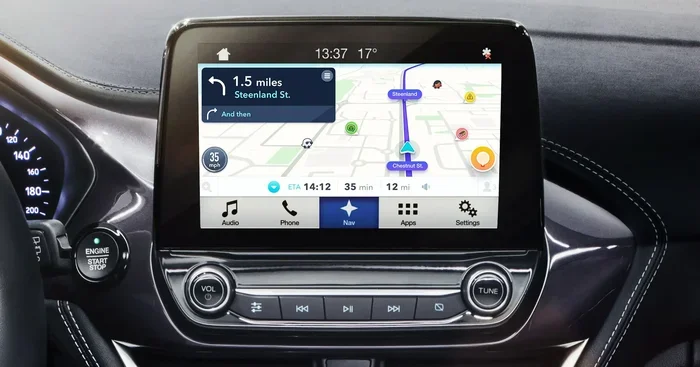
On your phone, open Android Auto. Follow the on-screen prompts to pair your devices. Once connected, you will see the Android Auto home screen on your car display. Tap the Waze icon to launch the app. Your Waze map will now show on your car screen.
Quick Tip: Use a high-quality USB cable. Cheap cables often cause connection issues. A braided cable lasts longer and charges faster too.
Method 2: Use Apple CarPlay
Apple CarPlay works the same way for iPhone users. It mirrors your phone interface onto your car screen. Waze is fully supported on CarPlay. The setup process is straightforward.
Start by plugging your iPhone into your car with a Lightning or USB-C cable. If your car supports wireless CarPlay, you can skip the cable entirely. On your iPhone, unlock your screen and tap Trust when prompted.
Your car screen should switch to the CarPlay interface. Find the Waze icon on the home screen and tap it. Waze will launch and display your route on the big car screen. You can control everything from the car interface or use Siri for hands-free commands.
Quick Tip: Enable wireless CarPlay in your iPhone settings if your car supports it. This saves you from plugging in every time you get in the car.
Method 3: Use a Tablet or Dedicated Screen
Not all cars support Android Auto or CarPlay. In that case, you can mount a tablet on your dashboard. An iPad or Android tablet works great for running Waze. You simply download Waze from the app store and start navigating.
Use a strong magnetic or suction car mount to hold your tablet securely. Make sure the tablet has a clear view of the road ahead. You will need to enable location services and keep the tablet charged. A tablet mount with a USB charging port is ideal for long trips.
This method gives you a larger screen than a phone. It also works in older cars that lack smart features. The downside is that you do not get the seamless integration that Android Auto or CarPlay provides.
Method 4: Mirror Your Phone Screen
Some aftermarket car stereos support screen mirroring. This technology reflects your phone screen directly onto the car display. Apps like Screen Mirroring or MirrorLink can help with this. Check if your car stereo supports this feature.
To use this method, connect your phone to the car stereo via Bluetooth or Wi-Fi. Open the mirroring app on both devices. Your phone screen will appear on the car display. Launch Waze on your phone, and it will show on the car screen.
This is not the most polished option, but it works. It is especially useful for older vehicles that do not have smart infotainment systems.
Setting Up Waze for the Best Car Experience
Once Waze is on your car screen, a little setup goes a long way. Taking a few minutes to configure the app will save you frustration later. Here is what you should do.
Set Your Home and Work Addresses
Open Waze on your phone before you start driving. Tap the Search bar and set your home address. Do the same for your work address. Now, when you open Waze in the car, you can tap Home or Work to get directions instantly. This saves time and makes your daily commute smoother.
Customize Your Alerts
Waze lets you choose which alerts you want to see. You can turn on or off notifications for accidents, hazards, police, and traffic jams. Go to Waze Settings and tap Sound and Alerts. Pick the alerts that matter most to you.
Some drivers prefer fewer alerts to avoid distraction. Others want every warning available. Choose what works for your driving style. Just remember that fewer alerts means less distraction on the road.
Choose Your Preferred Route
Waze offers multiple route options for every trip. You can select the fastest route, the shortest route, or a route that avoids highways. To change this, go to Search and then Route Options. Toggle the settings to match your preferences.
Setting your route preferences before you start driving keeps your eyes on the road. It also prevents you from fumbling with the app while behind the wheel.
Wired vs Wireless Connection: Which Is Better?
When you get Waze on your car screen, you will need to connect your phone. You can do this with a cable or wirelessly. Both options have pros and cons.
| Feature | Wired Connection | Wireless Connection |
|---|---|---|
| Setup Speed | Very fast | Fast, but needs initial pairing |
| Reliability | Very stable | Can drop if signal is weak |
| Convenience | Need to plug in every time | Connects automatically |
| Charging | Yes, phone charges while driving | Phone may drain battery faster |
| Compatibility | Works with almost all cars | Requires CarPlay or Android Auto support |
| Cost | Low (just a cable) | May need a newer car or stereo |
Most people prefer wireless connections for daily driving. It is just more convenient. However, wired connections are more reliable for long road trips. If your phone battery drains fast, a wired connection keeps your phone charged while you navigate.
Quick Tip: If you go wireless, invest in a fast wireless car charger. This keeps your phone powered up without needing a cable.
Common Mistakes to Avoid When Using Waze in Your Car
Even with a simple setup, some mistakes can ruin your Waze experience. Here are the most common ones and how to avoid them.
Forgetting to Update the App
Waze releases updates regularly. These updates fix bugs and improve map accuracy. If you skip updates, you may get incorrect directions or experience crashes. Go to the App Store or Google Play Store and check for updates once a week.
Ignoring Battery Drain
Running Waze on your car screen uses a lot of phone power. If you are on a long trip, your phone battery can drop quickly. Turn on battery saver mode or keep your phone plugged in at all times. A portable car charger is a smart backup too.
Mounting the Phone in a Bad Spot
Where you place your phone matters a lot. If the mount is too low, you cannot see the screen over the dashboard. If it is too high, it blocks your view of the road. The best spot is usually the lower corner of the windshield, near the dash.
Make sure the mount does not block your airbags or obstruct your view. Safety always comes first. A poorly placed phone mount can be a distraction and even a hazard.
Not Using Voice Commands
One of the biggest mistakes drivers make is tapping the screen while driving. This takes your eyes off the road. Use Waze voice commands instead. Say “Hey Google” or “Hey Siri” to search for destinations, change routes, or mute the volume.
Voice commands keep your hands on the wheel and your eyes on the road. They make Waze much safer to use while driving. If you have not tried them yet, give it a shot on your next trip.
Expert Tips for Using Waze on Your Car Screen
Want to get the most out of Waze on your car screen? These expert tips will help you level up your navigation game.
Download Offline Maps
Waze does not support full offline maps like Google Maps does. However, you can save your frequent routes. Go to the Search bar and tap your saved home or work route. This ensures you always have directions ready even if your signal drops in a tunnel or rural area.
Use Waze Carpool for Commutes
If you share your commute with coworkers or neighbors, try Waze Carpool. This feature lets you split gas costs and find others heading the same way. It reduces traffic and saves money. You can access Carpool from the Waze home screen on your car display.
Report Hazards While Driving
One of Waze’s best features is community reporting. You can report accidents, police, hazards, and road closures with a single tap. This helps other Waze drivers avoid problems. Just make sure you use voice commands or tap the screen quickly when it is safe to do so.
Keep Your Phone Cool
Phones can overheat when running navigation apps for hours. This is especially true in summer. An overheating phone will slow down or shut off Waze unexpectedly. Keep your phone out of direct sunlight. A ventilated car mount helps a lot with heat management.
Troubleshooting Waze on Your Car Screen
Sometimes things do not work as expected. Here are the most common Waze problems and how to fix them fast.
Waze does not open on CarPlay or Android Auto. This usually means the app needs an update. Check the app store and install the latest version. Restart both your phone and your car system, then try again.
The screen does not display the map. This can happen if your phone loses GPS signal. Move your phone to a spot with better reception. Restart Waze and wait for the map to load. Check that location services are turned on.
Audio directions are not working. Go to Waze Settings and tap Sound and Alerts. Make sure the volume is turned up and not muted. Also check your car stereo volume. Sometimes the car audio system and Waze volume are separate controls.
The app crashes frequently. Clear the Waze app cache on your phone. Go to Settings, then Apps, then Waze, and tap Clear Cache. If the problem continues, uninstall and reinstall the app. This fixes most stability issues.
Connection keeps dropping. For wired connections, try a different USB cable or port. For wireless, turn Bluetooth off and back on. Restarting your phone and car infotainment system often resolves connection issues too.
Conclusion
Getting Waze on your car screen is one of the best upgrades you can make for your daily drives. It gives you better navigation, live traffic updates, and helpful road alerts. Whether you use Android Auto, Apple CarPlay, a tablet, or screen mirroring, the setup is simple and well worth the effort.
Take a few minutes to set up your preferences and alerts before your next trip. Use voice commands to stay safe. Keep your app updated and your phone charged. With these habits, Waze will make every drive smoother and more enjoyable.
Now that you know how to get Waze on your car screen, there is no reason to rely on outdated navigation tools. Try it on your next drive and feel the difference. Better navigation means less stress, shorter trips, and a safer ride for everyone on the road.
Frequently Asked Questions
Can I use Waze on my car screen without Android Auto or CarPlay?
Yes, you can use a tablet mounted on your dashboard or use screen mirroring with an aftermarket car stereo. These methods work without built-in smart systems. You will need a strong car mount and a charged device for the best experience.
Is Waze free to use on my car screen?
Absolutely. Waze is completely free to download and use. There are no subscription fees or hidden costs. The app is supported by ads, which appear on the phone screen but not on the car display when using Android Auto or CarPlay.
Does Waze work better than Google Maps for driving?
Many drivers prefer Waze over Google Maps because of its community alerts. Waze tells you about accidents, police, and road hazards in real time. Google Maps is better for general maps and transit directions. For pure driving, Waze often wins.
Can I use Waze hands-free while driving?
Yes, you can use voice commands with both Android Auto and CarPlay. Say Hey Google or Hey Siri to search for destinations and control the app. This keeps your hands on the wheel and your eyes on the road.
Why does Waze keep disconnecting from my car screen?
This is usually caused by a loose cable or a weak Bluetooth signal. Try a different USB cable or port for wired connections. For wireless, restart both your phone and car system. Updating the Waze app and your car software also helps.
Does Waze drain my phone battery quickly?
Yes, using Waze for long periods can drain your battery fast. Navigation uses GPS, the screen, and data constantly. Keep your phone plugged in while driving. Using battery saver mode and lowering screen brightness also helps conserve power.