How Do I Get to the Settings on My Toyota Highlander
Getting to settings on your Toyota Highlander is simple once you know where to look. Whether you want to adjust the display brightness, change audio preferences, or tweak safety features, the settings menu is just a few taps away. This guide walks you through every method to reach the Toyota Highlander settings on your specific model year, so you can customize your ride with confidence.
Owning a Toyota Highlander comes with a lot of great features. But sometimes, finding the right setting can feel like a treasure hunt. You are not alone if you have squinted at the screen and wondered where everything is hidden.
The good news is that accessing the settings menu on your Highlander is straightforward once you know the steps. Whether you have a 2015 model or the latest 2024 version, this guide covers it all. You will learn every way to get into the Toyota Highlander settings, what each section controls, and how to make the system work for you.
Let us walk through it together. No jargon. No confusing menus. Just clear, simple steps that get you where you need to go.
Key Takeaways
- Multiple Access Points: You can reach the Toyota Highlander settings through the touchscreen home screen, the steering wheel controls, or the physical menu button on the center console.
- Model Year Matters: Newer Highlander models (2020+) use a different menu layout than older ones, so the path to settings may vary depending on your year.
- Common Settings Categories: Display, audio, climate, driver assistance, and phone pairing are the most frequently adjusted settings.
- Factory Reset Option: You can restore the system to default settings if the interface becomes unresponsive or cluttered.
- Settings Sync with Phone: Some preferences sync when you pair your phone via Bluetooth, making transitions seamless.
📑 Table of Contents
- How to Access Settings on Your Toyota Highlander
- Understanding the Toyota Highlander Settings Menu
- Settings Paths by Toyota Highlander Model Year
- Customizing Your Toyota Highlander Experience
- Troubleshooting Settings Issues on the Toyota Highlander
- Tips for Getting the Most Out of Your Toyota Highlander Settings
- Common Mistakes to Avoid When Adjusting Settings
- Final Thoughts on Accessing Settings on Your Toyota Highlander
How to Access Settings on Your Toyota Highlander
The Toyota Highlander settings menu is the control center for your vehicle’s features. From here, you can adjust the screen brightness, change the audio balance, set up Bluetooth, and even tweak safety alerts. But the path to get there depends on your model year and the type of infotainment system your Highlander has.
There are three main ways to reach the settings. You can tap the touchscreen home button, use the steering wheel controls, or press a physical button on the console. Let us break down each method so you can pick the one that works best for you.
Method 1: Using the Touchscreen Home Screen
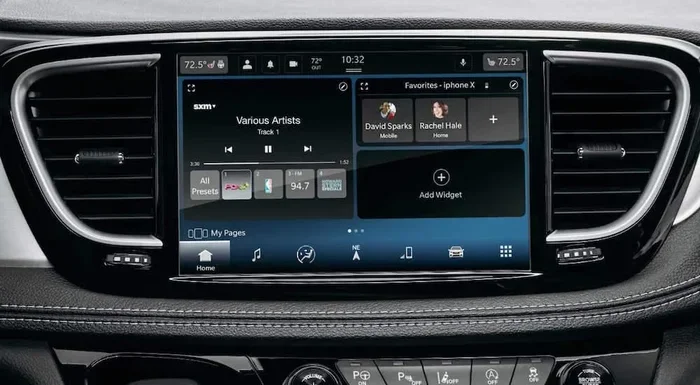
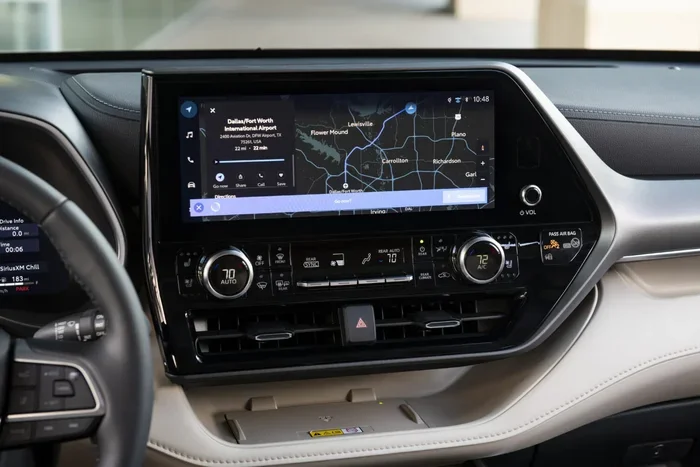
This is the most common way to access settings. On most Toyota Highlander models, you will see a home icon at the bottom of the infotainment screen. Tap it, and you will see a grid of options. Look for the gear icon or the word “Settings.”
Once you tap it, a full menu opens up. You will see categories like Display, Audio, Vehicle, and Phone. Each category holds submenus with specific options. For example, under Display, you can change the theme, adjust brightness, or turn on dark mode.
Quick Tip: If your screen is too bright or too dim, this is the fastest way to fix it. Go to Settings, then Display, and slide the brightness bar to your comfort level.
Method 2: Using Steering Wheel Controls
Your Highlander’s steering wheel has a set of buttons that control the infotainment system. On the left side, you will find the menu and back buttons. On the right, there are up, down, and OK buttons for navigating through the screen.
To reach settings using the steering wheel, press the menu button. Use the up and down arrows to scroll to “Settings.” Press OK to select it. Then use the same buttons to navigate through the submenus.
This method is great when you are driving and do not want to reach for the screen. It keeps your hands on the wheel and your eyes on the road. If you want to learn more about how different Toyota controls work, check out our guide on Can I Roll Down My Toyota Windows With The Key Fob for more tips on steering wheel and key fob functions.
Method 3: Using the Physical Menu Button
Some Toyota Highlander models have a physical menu button on the center console, right next to the gear shift. This button takes you directly to the main settings screen without needing to touch the touchscreen.
Simply press the button, and the menu appears on screen. Scroll to “Settings” and press enter. This is especially helpful if your touchscreen is unresponsive or if you prefer a tactile button.
If you are having trouble with your touchscreen not responding, you might want to look into how to address related display issues. For instance, some owners wonder about driving with warning lights on. Learn more in our article on Can I Drive A Highlander With The Vsc Light On.
Understanding the Toyota Highlander Settings Menu
Once you are inside the Toyota Highlander settings menu, you will see several main categories. Each one controls a different part of your vehicle. Let us walk through what you will find.
Display Settings
The Display section lets you control how the screen looks and behaves. Here is what you can adjust:
- Brightness: Make the screen easier to see in daylight or save battery at night.
- Theme: Choose between light mode and dark mode.
- Screen Timeout: Set how long the screen stays on when you are not using it.
- Font Size: Make the text bigger or smaller for easier reading.
These settings are simple but make a big difference in your daily driving experience. A screen that is too bright at night can be distracting, and a screen that turns off too quickly can be frustrating when you are trying to read a map.
Audio Settings
The Audio section gives you control over your Highlander’s sound system. You can adjust the volume, balance the speakers, and fine-tune the equalizer. Here are the key options:
- Volume Balance: Adjust the sound between the front and rear speakers.
- Equalizer: Choose presets like Rock, Jazz, or Flat, or create your own custom sound profile.
- Fader: Shift the sound focus to the front or rear of the cabin.
- Surround Sound: Toggle the surround sound feature on or off if your model supports it.
If you pair your phone via Bluetooth, the audio settings also let you control call volume separately from music volume. This is a handy feature that many new Highlander owners overlook.
Vehicle Settings
The Vehicle settings section is where you can adjust features related to how your Highlander drives and operates. This includes things like:
- Door Lock Settings: Choose whether the doors lock automatically when you start driving.
- Mirror Adjustments: Set up the auto-dimming rearview mirror or power mirror preferences.
- Lighting: Control the interior ambient lighting, headlight delay, and door welcome lights.
- Driving Mode: Switch between Eco, Normal, and Sport modes if your model supports it.
One of the most useful features in this section is the ability to customize warning alerts. You can choose which notifications you want to see on the dashboard and which ones you want to silence.
Phone and Bluetooth Settings
The Phone section is where you manage your connected devices. You can pair new phones, delete old ones, and control how calls are handled through the vehicle. Key options include:
- Pair New Device: Follow the on-screen prompts to connect a new phone.
- Call History: View recent calls and dial favorites directly from the screen.
- Audio Routing: Choose whether calls come through the speakers or the headunit.
If you want to use Google Maps or other navigation apps while driving, you might need to set up a few extra things. Check out our guide on Can I Use Google Maps In My Toyota for step-by-step instructions.
Driver Assistance and Safety Settings
The Safety section lets you customize features like lane departure warnings, pre-collision alerts, and adaptive cruise control settings. You can turn certain alerts on or off, adjust sensitivity levels, and set preferences for how the system warns you.
Some owners like to fine-tune these settings after they get used to how the system behaves. For example, you might want the lane departure warning to be less sensitive if you frequently use turn signals and still get alerts.
Settings Paths by Toyota Highlander Model Year
Toyota has updated the Highlander’s infotainment system several times over the years. The path to settings can look different depending on which generation you own. Here is a quick comparison to help you find your way.
| Model Year Range | Infotainment System | Settings Path |
|---|---|---|
| 2014-2019 | Toyota Entune | Home Screen > Gear Icon > Settings |
| 2020-2022 | Toyota Audio Plus / Multimedia | Home Screen > Settings (Gear Icon) |
| 2023-2024 | Toyota Audio & Navigation | Home Screen > Settings Menu |
If you own a 2020 or newer model, the process is very similar across years. The gear icon is always on the home screen. Older models might have a slightly different layout, but the gear icon or “Settings” label is still easy to find.
If you are having trouble finding the right menu, try pressing the home button multiple times. This resets the screen to the main dashboard and gives you a clean starting point. You can also try restarting the infotainment system by holding the power button for about 10 seconds.
Customizing Your Toyota Highlander Experience
Once you know how to get to the settings, you can start customizing your Highlander to match your preferences. Here are some of the most popular adjustments that owners make.
Setting Up Your Preferred Display
Start with the display settings. Adjust the brightness to a level that is comfortable for both day and night driving. Turn on dark mode if you prefer a softer look at night. Set the screen timeout to a duration that works for you. Some owners like a longer timeout so the screen stays on while they are reading directions, while others prefer it to turn off quickly to reduce distractions.
Configuring Audio Preferences
Next, spend a few minutes in the audio settings. If you listen to a lot of music, take time to adjust the equalizer to match your taste. If you mostly take calls through the car’s speakers, set the call volume to a level that is clear but not overpowering.
You can also save multiple Bluetooth profiles if you share your Highlander with a passenger. Each person can have their own audio and call preferences saved to their phone.
Personalizing Safety and Driving Alerts
Take a look at the safety settings and adjust them to your comfort level. If you find certain alerts too frequent, you can reduce their sensitivity. If you want more warnings, you can turn them up. The goal is to make the system work for you, not against you.
For more tips on keeping your Highlander running smoothly, check out our article on Can I Drive My Toyota Without The Key Fob, which covers additional Toyota Highlander features and functions.
Troubleshooting Settings Issues on the Toyota Highlander
Sometimes the settings menu does not work the way it should. The screen might freeze, options might not respond, or changes might not save. Here are some common issues and how to fix them.
Settings Menu Freezing or Not Responding
If the settings menu freezes, the first thing to try is a soft reset. Press and hold the power button on the infotainment system for about 10 seconds. The screen will go dark and then restart. This clears temporary glitches without erasing any of your saved settings.
If a soft reset does not work, you can try a factory reset. Go to Settings, then System, and look for “Restore Defaults.” This will reset all settings back to the original factory configuration. Make sure you write down any custom settings you want to keep before doing this.
Changes Not Saving
If you change a setting and it does not stick, try restarting the vehicle. Turn off the engine, remove the key, wait 30 seconds, and start again. This gives the system a fresh boot and often resolves saving issues.
Another common cause is a low battery. If your Highlander’s 12-volt battery is weak, the infotainment system may not save changes properly. If you notice other electrical issues along with this, it might be time to check the battery.
Bluetooth Settings Not Connecting
If your phone will not connect through Bluetooth, go to the Phone settings and delete the old pairing. Then restart your phone and try pairing again. Make sure Bluetooth is turned on both on your phone and in the vehicle settings.
Tips for Getting the Most Out of Your Toyota Highlander Settings
Getting to the settings is just the beginning. Here are some expert tips to help you use the system like a pro.
- Explore Every Category: Spend 10 minutes going through each settings category. You will likely find features you did not even know your Highlander had.
- Save Your Preferences: If your Highlander supports multiple driver profiles, save your settings under your name. This way, your spouse or passenger can switch to their own profile with a single tap.
- Update the Software: Toyota occasionally releases infotainment updates. Check for updates in the System settings to make sure you have the latest features and bug fixes.
- Use Voice Commands: Many Highlander models support voice commands for adjusting settings. Press the voice button on the steering wheel and say “Go to settings” or “Change brightness.”
- Keep a Note of Your Favorites: Write down the settings you adjust most often. This saves time if you ever need to reset the system or switch profiles.
For more information on keeping your Toyota in top shape, check out our guide on Can I Get Remote Connect Installed In My Toyota to learn about additional connected features you can add to your Highlander.
Common Mistakes to Avoid When Adjusting Settings
Even experienced Highlander owners make mistakes when adjusting the settings menu. Here are a few to watch out for.
- Skipping the Owner’s Manual: The manual has detailed explanations of every setting. A quick read can save you hours of trial and error.
- Making Too Many Changes at Once: If you change multiple settings and something goes wrong, it becomes hard to figure out which change caused the issue. Make one change at a time and test it.
- Ignoring Software Updates: Outdated software can cause settings to behave strangely. Keep your system up to date for the best experience.
- Forgetting to Save: Some changes require you to confirm or save before they take effect. Always look for a “Save” or “Apply” button after making adjustments.
Final Thoughts on Accessing Settings on Your Toyota Highlander
Finding your way to the Toyota Highlander settings is easier than you might think. Whether you use the touchscreen, the steering wheel buttons, or the physical menu button, you have multiple paths to get there. Once inside, you can customize everything from the display brightness to the safety alerts to the audio balance.
Take the time to explore each section. You will discover features that make your daily drive more comfortable and enjoyable. And if something ever goes wrong, a soft reset or factory restore usually fixes the problem quickly.
Your Highlander is a powerful and customizable vehicle. The settings menu is your gateway to unlocking its full potential. So go ahead, dig in, and make your Highlander truly yours.
Frequently Asked Questions
Where is the settings button on a Toyota Highlander?
The settings button is typically a gear icon on the home screen of your infotainment touchscreen. You can also access it through the physical menu button on the center console or by using the steering wheel menu controls. The exact location may vary slightly depending on your model year.
Can I access settings on my Toyota Highlander while driving?
Yes, you can access the settings menu while driving, but Toyota recommends pulling over for safety. Using the steering wheel controls to navigate the settings is the safest way to make adjustments on the go. Some settings, like display brightness, can be changed quickly without much distraction.
Why can’t I find the settings menu on my Toyota Highlander?
If you cannot find the settings menu, try pressing the home button on the touchscreen to return to the main dashboard. Look for the gear icon or the word “Settings.” If the screen is unresponsive, try a soft reset by holding the power button for 10 seconds. If the issue persists, your system may need a software update.
Will resetting the settings erase my Bluetooth pairings?
A soft reset will not erase your Bluetooth pairings or saved settings. However, a factory reset will restore the system to its original state, which means you will need to re-pair your phone and re-adjust your preferences. Always save important settings before performing a factory reset.
How do I update the software on my Toyota Highlander?
You can check for software updates by going to Settings, then System, and selecting “Software Update.” If an update is available, follow the on-screen prompts to download and install it. Make sure your vehicle is parked and the engine is off during the update process.
Can I customize the home screen layout on my Toyota Highlander?
Yes, many Toyota Highlander models allow you to customize the home screen layout. You can choose which shortcuts appear, rearrange them, and set your most-used features for quick access. Look for “Home Screen” or “Display Settings” in the main settings menu to explore these options.
=== CONCLUSION ===
Getting to the settings on your Toyota Highlander is a simple process once you know the steps. You now have three reliable methods to access the menu, a clear understanding of what each settings category controls, and practical tips for troubleshooting common issues. Whether you are adjusting the display, fine-tuning the audio, or personalizing your safety alerts, the power is in your hands.
Take a few minutes today to explore your Highlander’s settings. You will be surprised at how much control you have over your driving experience. And if you ever get stuck, come back to this guide for a quick refresher.
Your Toyota Highlander is more than just a vehicle. It is a personalized driving experience. Now go make it yours.