How to Connect Apple CarPlay Wirelessly in Seconds
Connecting Apple CarPlay wirelessly is simpler than you think, and it lets you ditch the USB cable for good. Wireless Apple CarPlay offers a cleaner dashboard, hands-free calling, and seamless navigation without the clutter. This guide walks you through every step, from checking compatibility to fixing common connection issues. Whether you have a new car or an older model, you will find practical solutions that work. Follow our tips to get your wireless CarPlay running in just a few minutes.
There is something incredibly satisfying about tapping your iPhone and having your favorite apps appear right on your car’s screen. Wireless Apple CarPlay has changed the way we drive, making it easier than ever to stay connected without fumbling with cables. If you have been wondering how to connect Apple CarPlay wirelessly, you are in the right place.
This guide covers everything you need to know, from understanding what wireless CarPlay is to troubleshooting common problems. We keep things simple and practical, so you can get back on the road quickly. Let us walk through the entire process together, step by step.
Key Takeaways
- Wireless CarPlay is available on most newer cars and requires no extra hardware in many cases.
- Check compatibility first to make sure your car and iPhone support wireless mirroring.
- Setup takes under two minutes once your car is on the right settings.
- Common issues like connection drops can usually be fixed with a simple reset or update.
- A wireless CarPlay adapter is a great option for older cars that lack built-in support.
- Keep your iPhone and car software updated for the smoothest wireless CarPlay experience.
📑 Table of Contents
What Is Wireless Apple CarPlay?
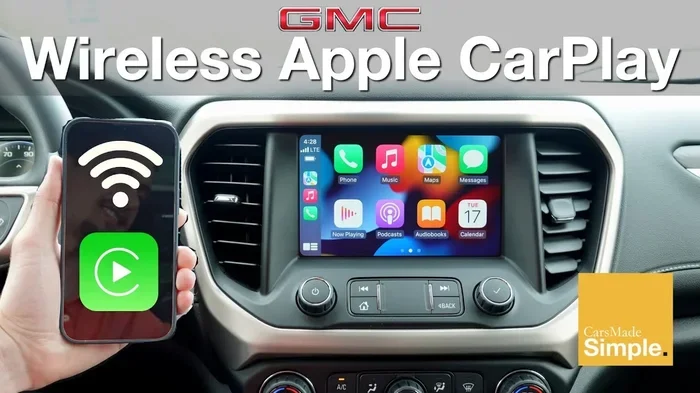
Apple CarPlay is a system that mirrors key iPhone features onto your car’s display. It lets you access maps, music, messages, and phone calls safely while driving. Wireless CarPlay removes the need for a USB cable entirely. Instead, it uses Bluetooth and WiFi to connect your iPhone to the car’s infotainment system.
The experience feels seamless. You plug in your phone once, and future connections happen automatically. Wireless mirroring means your screen stays clean and clutter-free. No more tangled cables or searching for the right port in the dark.
How Does Wireless CarPlay Work?
Wireless CarPlay uses a combination of Bluetooth for initial pairing and WiFi for data transfer. Once paired, your iPhone and car communicate over a local WiFi network. This connection is fast enough to stream music, display real-time navigation, and handle voice commands through Siri CarPlay integration.
The technology has improved significantly over the years. Earlier versions sometimes lagged or disconnected, but modern wireless CarPlay is stable and reliable. Most users say the experience is nearly identical to using a wired connection.
Which Cars Support Wireless Apple CarPlay?
Not every car supports wireless CarPlay right out of the box. CarPlay compatible cars include most models from 2019 onward, especially from brands like BMW, Mercedes-Benz, Honda, Toyota, and Ford. CarPlay wireless adapter devices can also add support to older vehicles, which we will cover later.
Built-In Wireless CarPlay Vehicles
Many new cars come with factory CarPlay install that includes wireless support. Here are some popular brands and their wireless CarPlay availability:
- BMW: Most models from 2019 onward support wireless CarPlay.
- Mercedes-Benz: Wireless CarPlay is standard in many 2020+ models.
- Honda: Select 2020 and newer models offer wireless support.
- Toyota: Wireless CarPlay is available on 2019+ models with the right package.
- Ford: Many 2021+ Ford vehicles include wireless CarPlay as standard.
- Hyundai: Wireless support is common in 2020 and newer models.
Cars That Need a Wireless CarPlay Adapter
If your car does not have built-in wireless CarPlay, do not worry. A wireless CarPlay adapter is a small device you plug into your car’s USB port. It bridges the gap between your iPhone and the car’s system. Popular options include devices from brands like Belkin, AA CarPlay, and Carlinkit. These adapters cost between $40 and $150 and are easy to install.
How to Connect Apple CarPlay Wirelessly in Seconds
Connecting Apple CarPlay wirelessly is a straightforward process. Follow these steps, and you will be streaming music and navigating in no time. The exact steps may vary slightly depending on your car model.
Step 1: Check That Your Car Supports Wireless CarPlay
Before you begin, confirm that your car supports wireless CarPlay. Look for the CarPlay icon on your car’s infotainment screen. If you see a wireless CarPlay option in your settings, you are good to go. CarPlay supported vehicles will list wireless as a feature in the owner’s manual.
Step 2: Turn on Bluetooth and WiFi on Your iPhone
Make sure both Bluetooth and WiFi are enabled on your iPhone. CarPlay wireless connection relies on both technologies. Go to Settings, then Bluetooth, and toggle it on. Do the same for WiFi. Your iPhone does not need to be connected to a specific WiFi network, but WiFi must be turned on.
Step 3: Start Your Car and Access the Infotainment System
Start your car and press the CarPlay or Media button on your dashboard. The infotainment screen should display a CarPlay home screen option. Select it to begin the pairing process.
Step 4: Select Your iPhone from the Available Devices
Your car should now detect your iPhone. Select it from the list of available devices. You may see a prompt on your iPhone asking you to confirm the connection. Tap “Allow” or “Connect” to proceed.
Step 5: Enjoy Your Wireless CarPlay
Once connected, your iPhone screen will mirror on your car’s display. You will see your apps, navigation, music, and calls. Future connections should happen automatically whenever you start your car with your iPhone nearby.
Wireless CarPlay vs USB CarPlay
You might wonder whether wireless CarPlay is really better than using a USB cable. Both options have their merits, but wireless CarPlay offers a noticeably cleaner and more convenient experience. Here is a side-by-side look:
| Feature | Wireless CarPlay | USB CarPlay |
|---|---|---|
| Connection Method | Bluetooth and WiFi | USB cable |
| Setup Time | One-time pairing, then automatic | Plug in every time |
| Cable Clutter | None | Cable runs across the dashboard |
| Connection Stability | Very good on modern systems | Extremely stable |
| Charging While Driving | Depends on car’s wireless charging | Yes, charges through the cable |
| Compatibility | Requires wireless support | Works with all CarPlay cars |
| Cost | Free (built-in) | Free (cable included) |
For most drivers, wireless CarPlay is the better choice. It eliminates cable clutter and provides a seamless experience every time you get in the car. However, if you need your phone to charge while driving and your car lacks wireless charging, USB CarPlay still has an advantage.
Troubleshooting Common Wireless CarPlay Issues
CarPlay not connecting can be frustrating, but most issues have simple fixes. Here are the most common problems and how to solve them.
CarPlay Disconnects Frequently
If your wireless CarPlay keeps dropping, the first thing to check is your WiFi connection. Restart both your iPhone and your car’s infotainment system. Sometimes a simple reboot fixes the issue. CarPlay Bluetooth interference from other devices can also cause drops, so try turning off nearby Bluetooth devices temporarily.
CarPlay Will Not Appear on the Screen
Make sure CarPlay is enabled in your car’s settings. On your iPhone, go to Settings, then General, then CarPlay. Your car should appear in the list. If it does not, try resetting your iPhone’s network settings. CarPlay troubleshooting often involves checking these basic settings first.
Slow or Laggy Connection
A slow wireless CarPlay connection can make navigation and music frustrating. Ensure your iPhone is updated to the latest iOS version. Similarly, check for car software updates. iPhone car integration works best when both devices are running current software. Restarting both devices can also improve speed.
Connection Drops When You Lock Your Phone
Some iPhones disconnect wireless CarPlay when the screen locks. To fix this, go to your iPhone settings and disable Low Power Mode. Also check that your car’s infotainment system is set to prioritize WiFi connections. Wireless mirroring stays stable when power settings are optimized.
Tips to Get the Best Wireless CarPlay Experience
Once you have Apple CarPlay wirelessly connected, a few simple habits can keep everything running smoothly.
Keep Your Software Updated
Both iOS updates and car software updates improve wireless CarPlay performance. Apple regularly adds bug fixes and new features through iOS updates. Check for updates at least once a month. Your car manufacturer may also release firmware updates through the dealer or a dedicated app.
Use a Dedicated WiFi Network
Some cars allow you to create a dedicated WiFi network for CarPlay. This reduces interference from other devices. Check your car’s settings to see if this option is available. A dedicated network means a more stable and faster CarPlay WiFi connection.
Restart Regularly
Just like any technology, restarting your iPhone and car infotainment system clears temporary glitches. Make it a habit to restart both devices once a week. This simple step prevents most minor CarPlay not connecting issues before they become problems.
Organize Your CarPlay Home Screen
You can customize your CarPlay home screen to show only the apps you use most. Rearrange apps by holding down on the screen and tapping “Edit.” This makes navigation faster and keeps your dashboard clean. Siri CarPlay voice commands also work better when your most-used apps are easy to find.
Consider a Wireless CarPlay Adapter for Older Cars
If your car does not support wireless CarPlay natively, a wireless CarPlay adapter is a game-changer. These small devices plug into your car’s USB port and create a wireless bridge. You get all the benefits of wireless mirroring without replacing your entire infotainment system. Look for adapters that support your specific car model for the best results.
Use Siri for Hands-Free Control
Siri CarPlay voice commands let you make calls, send messages, and change navigation without touching your phone. Press and hold the voice command button on your steering wheel to activate Siri. This keeps your eyes on the road and hands on the wheel. Wireless CarPlay makes voice control even more convenient because there is no cable to manage.
Is Wireless CarPlay Worth It?
Wireless Apple CarPlay is absolutely worth it for most drivers. The convenience of an automatic, cable-free connection changes your daily driving experience. You no longer have to dig for a cable or worry about it pulling loose while driving. CarPlay music streaming and CarPlay navigation work just as well wirelessly as they do with a cable.
If you drive a newer car, wireless CarPlay is likely already available. Simply follow the steps in this guide to get started. For older cars, a wireless CarPlay adapter is an affordable upgrade that brings modern technology into your vehicle. Wireless CarPlay is not just a luxury; it is a practical improvement that makes every drive smoother and safer.
Conclusion
Connecting Apple CarPlay wirelessly is one of the easiest upgrades you can make to your driving experience. With just a few simple steps, you can enjoy hands-free calling, real-time navigation, and your favorite music without a single cable. Wireless CarPlay works with most modern vehicles and adds a level of convenience that wired connections simply cannot match.
If you run into issues, remember that most problems have quick fixes. Keep your software updated, restart your devices regularly, and consider a wireless adapter if your car needs one. The key to a great wireless CarPlay experience is knowing your car’s capabilities and staying on top of updates.
Now that you know how to connect Apple CarPlay wirelessly, there is no reason not to try it. Get behind the wheel, follow these steps, and enjoy a cleaner, smarter drive starting today.