How Do I Set My Device to Automatic Time on Any Phone
Setting your phone to automatic time is one of the easiest ways to keep your clock accurate everywhere you go. Whether you are driving cross-country or flying overseas, your device can sync with network servers and GPS signals to update the time instantly. This guide walks you through every step for iPhone, Android, and car infotainment systems.
Have you ever glanced at your phone and noticed the time is completely off? Maybe you just landed in a new city or got into your car after a long road trip. A wrong clock can mess up your schedule, your GPS arrival times, and even your appointments. The good news is that fixing this is incredibly simple. You just need to turn on automatic time on your device.
In this guide, we will show you exactly how to set automatic time on any phone. We cover iPhone, Android, and even your car’s infotainment system. By the end, you will never have to worry about an incorrect clock again. Let us get started.
Key Takeaways
- Automatic time sync saves you from manual errors: Your phone pulls the correct time from network towers or GPS satellites.
- iPhone and Android have different paths: We cover both with clear, step-by-step instructions.
- Car infotainment systems benefit too: Sync your vehicle’s clock with your phone for seamless driving.
- Traveling across time zones is hassle-free: Automatic detection adjusts your clock as you move.
- Daylight saving time updates happen automatically: No more forgetting to spring forward or fall back.
- Troubleshooting is simple: We address common issues like wrong time zone or sync failures.
📑 Table of Contents
- Why Automatic Time Matters for Your Daily Drive
- How to Set Automatic Time on iPhone
- How to Set Automatic Time on Android
- Setting Automatic Time in Your Car Infotainment System
- Automatic Time and Daylight Saving Time
- Troubleshooting Common Automatic Time Issues
- Quick Tips for Perfect Time Sync Every Time
- Common Mistakes People Make with Phone Clock Settings
- Expert Insights on Time Synchronization Technology
- Key Takeaways
- Conclusion
Why Automatic Time Matters for Your Daily Drive
Most people do not think about their phone clock until something goes wrong. But accurate timekeeping plays a bigger role than you might think. Your GPS navigation relies on precise timestamps to calculate arrival times. Your calendar events depend on the correct time zone to remind you at the right moment. Even your car’s Bluetooth connection uses time data to log calls and media tracks.
When you travel across states or countries, your time zone changes. Manually updating your clock every time you cross a border is tedious and error-prone. Automatic time synchronization solves this problem completely. Your phone detects your location through cell towers or GPS and adjusts the clock settings accordingly.
For drivers, this is especially important. Imagine using your car infotainment system and seeing the wrong time on your dashboard display. It throws off your entire sense of timing. Automatic sync keeps everything aligned between your phone and your vehicle.
How Network Time Works Behind the Scenes
Your phone does not guess the time. It connects to a network time protocol server through your carrier or Wi-Fi connection. This server sends the exact current time based on atomic clocks around the world. Your device then updates its internal smartphone clock to match.
The process happens in seconds. You do not need Wi-Fi for it to work either. As long as your phone has a cellular signal, it can pull the correct time from the nearest tower. This is why automatic date and time features are so reliable, even in areas with weak internet connections.
How to Set Automatic Time on iPhone
Apple makes this process straightforward, but many people still miss the setting. Here is exactly how to do it on any iPhone model.
Step-by-Step for iPhone Users
Open the Settings app on your iPhone. Scroll down and tap General. Then select Date & Time. You will see a toggle labeled Set Automatically. Flip it on. Your phone will immediately connect to the network and pull the correct time zone and clock settings.
Make sure your Location Services are enabled for this to work properly. Go to Settings, then Privacy, then Location Services. Scroll down to Setting Services and make sure it is turned on. This allows your iPhone to detect your time zone based on your physical location.
What to Do If Set Automatically Is Grayed Out
Sometimes the Set Automatically option appears dimmed or unavailable. This usually happens when Screen Time restrictions are active. Go to Settings, then Screen Time, then Content & Privacy Restrictions. Tap Allowed Changes and make sure Change Clock is set to Allow. After that, return to Date & Time and the toggle should work again.
Another common cause is a carrier profile issue. Try toggling Airplane Mode on and off. This forces your phone to reconnect to the network and often fixes sync clock problems instantly.
How to Set Automatic Time on Android
Android phones offer a similar feature, but the path varies slightly depending on your manufacturer. Samsung, Google Pixel, and OnePlus all have slightly different menu layouts. We will cover the general steps that work across most devices.
Step-by-Step for Android Users
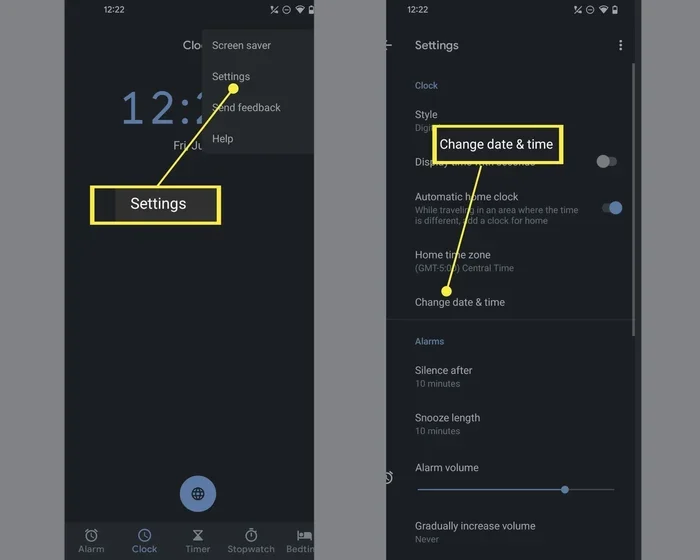
Open your Settings app. Look for System or Connections, depending on your phone. Tap Date & Time. You will see an option called Use Network-Provided Time. Toggle it on. Your phone will now pull the correct time from your carrier’s network automatically.
Next, look for Use Network-Provided Time Zone. Turn this on as well. This ensures your time zone updates whenever you travel. The combination of these two settings gives you full automatic time zone detection without any manual input.
Samsung-Specific Steps
On Samsung devices, the path is slightly different. Go to Settings, then General Management, then Date and Time. Toggle on Automatic Date and Time. You will also see an Automatic Time Zone option. Turn that on too. Samsung phones also have a feature that lets you pick your time zone manually if automatic detection fails, but we recommend keeping it on automatic for the best experience.
Google Pixel-Specific Steps
Pixel phones keep it simple. Go to Settings, then System, then Date & Time. Toggle on Set Time Automatically and Set Time Zone Automatically. Google Pixel devices use a combination of cell network time and GPS data to keep your clock perfectly accurate at all times.
Setting Automatic Time in Your Car Infotainment System
Your car’s clock is one of the most overlooked settings in any vehicle. Yet it affects your trip planning, your Bluetooth call logs, and even your GPS navigation accuracy. Many modern cars can sync their clock with your phone, making this process almost effortless.
How Car Infotainment Systems Sync Time
Most cars built after 2015 support Bluetooth time sync. When you pair your phone with your vehicle, the infotainment system can pull the correct time from your phone’s automatic date and time settings. This means if your phone clock is accurate, your car clock will be too.
To enable this, go to your car’s Settings menu. Look for Bluetooth or Phone Settings. Find your paired device and check the box for Sync Phone Time. Not all vehicles offer this feature, but most do. If yours does not, you can still set your car clock to adjust automatically through your phone’s hotspot connection.
Using GPS Time in Your Vehicle
Some advanced infotainment systems use GPS time directly. These systems connect to satellites to determine the exact current time and time zone. This is especially useful for trucks and commercial vehicles that cross multiple time zones frequently. If your car has this feature, look for a Clock Settings menu and enable GPS-Based Time.
Tips for Keeping Your Car Clock Accurate
- Always keep your phone’s automatic time setting enabled when driving.
- Pair your phone with your car regularly to refresh the time synchronization data.
- If your car has a built-in modem, check its network time settings in the vehicle’s owner manual.
- After a battery replacement or jump start, your car clock may reset. Reconnect your phone to restore the correct time.
Automatic Time and Daylight Saving Time
One of the biggest headaches of manual clock management is daylight saving time. Every spring and fall, millions of people forget to adjust their clocks. This leads to missed appointments, late arrivals, and general frustration. Automatic time synchronization handles this completely for you.
When you enable automatic time on your phone, the network time protocol server also updates the daylight saving offset. Your phone knows exactly when to spring forward and when to fall back. This is based on your time zone and the local rules set by each region’s government.
For drivers, this is a game changer. You no longer need to worry about your dashboard clock being an hour off after the weekend time change. Your smartphone clock and your car’s infotainment system will both update automatically, keeping everything in sync.
What If Your Phone Gets Daylight Saving Wrong?
Rarely, a phone might not update for daylight saving correctly. This usually happens when the device’s software is outdated. Check for system updates in your Settings app. Install any pending updates and restart your phone. The automatic date and time feature should work perfectly after that.
Troubleshooting Common Automatic Time Issues
Even with automatic time enabled, you might occasionally run into problems. Here are the most common issues and how to fix them fast.
Your Clock Shows the Wrong Time Zone
This is the most frequent complaint. Your phone might be stuck on a time zone from a previous location. The fix is simple. Toggle Airplane Mode on, wait ten seconds, and turn it off again. This forces your phone to reconnect to the nearest cell tower and update your time zone detection.
If that does not work, go to your clock settings and manually select your current time zone. Then turn automatic time back on. The combination of a manual reset and automatic sync usually resolves the issue immediately.
Your Phone Shows the Correct Time but the Wrong Date
Sometimes the date gets out of sync even though the time is correct. This points to a network issue rather than a settings problem. Make sure your phone has a strong cellular signal. If you are in a remote area, move to a location with better coverage and wait a few minutes for the network time protocol to update.
Automatic Time Does Not Work After a Software Update
Occasionally, a major software update can reset your clock settings. Go back to your Date & Time menu and re-enable automatic time. Also check that your location services are still active, as these are essential for time zone detection.
Car Clock Resets After Turning Off the Engine
If your car clock resets every time you turn off the ignition, the vehicle’s internal battery might be weak. This is common in older cars. Replace the car battery and pair your phone again. The Bluetooth time sync should keep the clock accurate going forward.
Quick Tips for Perfect Time Sync Every Time
Here are some expert-backed tips to keep your device synchronization running smoothly:
- Keep your phone updated. Software updates often include improvements to time zone databases and network time protocol handling.
- Enable Wi-Fi even at home. Wi-Fi networks can provide additional time servers for more precise time synchronization.
- Check your carrier settings. Some carriers offer their own time sync features. Update your carrier settings regularly through your phone’s Settings app.
- Restart your phone monthly. A simple restart clears cached data and refreshes your connection to time servers.
- Travel with automatic time on. Always keep this feature enabled when traveling. It saves you from constantly adjusting your world clock manually.
Common Mistakes People Make with Phone Clock Settings
Avoid these mistakes to keep your smartphone clock perfectly accurate:
- Manually setting the time and forgetting to update it. This is the number one cause of wrong clocks. Always use automatic settings when possible.
- Turning off location services to save battery. Location services are essential for automatic time zone detection. Instead, adjust your battery settings in other ways.
- Ignoring carrier updates. Your carrier pushes time zone and network updates regularly. Ignoring these updates can lead to sync clock failures.
- Assuming all phones sync the same way. iPhone and Android handle automatic date and time differently. Always check your specific device’s settings.
- Not checking car infotainment sync settings. Even if your phone is perfect, your car’s clock can drift if the sync feature is not enabled.
Expert Insights on Time Synchronization Technology
Time synchronization has come a long way since the early days of mobile phones. Modern devices use a combination of cell network time, Wi-Fi time servers, and GPS satellite data to keep clocks accurate to within milliseconds. This technology is called network time protocol, and it powers everything from your phone to airplane navigation systems.
According to industry experts, the most reliable time synchronization method for everyday users is the combination of cellular network time and GPS. Your phone uses whichever signal is strongest at any given moment. This redundancy ensures your clock settings stay accurate even in challenging environments like tunnels, rural areas, or dense urban canyons.
For automotive applications, GPS time is becoming the gold standard. Modern vehicles with built-in GPS receivers can maintain perfect time without any phone connection. This is especially valuable for fleet management and commercial driving where accurate timestamps matter for logging and compliance.
The future of automatic time looks even brighter. With the rollout of 5G networks, time synchronization will become faster and more precise. Car manufacturers are already working on systems that sync with atomic clocks through 5G towers, eliminating any possibility of time drift.
Key Takeaways
- Automatic time sync saves you from manual errors: Your phone pulls the correct time from network towers or GPS satellites.
- iPhone and Android have different paths: We covered both with clear, step-by-step instructions.
- Car infotainment systems benefit too: Sync your vehicle’s clock with your phone for seamless driving.
- Traveling across time zones is hassle-free: Automatic detection adjusts your clock as you move.
- Daylight saving time updates happen automatically: No more forgetting to spring forward or fall back.
- Troubleshooting is simple: Airplane Mode toggles and software updates fix most issues quickly.
- Keep your phone and car software updated: This ensures your time zone databases stay current.
Conclusion
Setting your device to automatic time is one of the simplest yet most impactful things you can do. It takes less than a minute, and it saves you from countless headaches down the road. Whether you are driving across the country, flying to a different time zone, or just commuting to work, accurate timekeeping keeps your day on track.
We covered how to enable this feature on iPhone, Android, and car infotainment systems. We also explored troubleshooting tips, common mistakes, and the technology behind time synchronization. With this knowledge, you are fully equipped to keep every clock in your life perfectly accurate.
Take a moment right now to check your phone’s clock settings. Flip on that automatic toggle and enjoy the peace of mind that comes with knowing your time is always right. Your future self will thank you every time you glance at your phone and see the correct time without even thinking about it.
Frequently Asked Questions
How do I set automatic time on my phone?
On iPhone, go to Settings, then General, then Date & Time, and toggle on Set Automatically. On Android, go to Settings, then System or Connections, then Date & Time, and enable Use Network-Provided Time. Both methods pull the correct time from your carrier’s network automatically.
Why does my phone show the wrong time zone when I travel?
This usually happens when your time zone detection is turned off or your Location Services are disabled. Make sure both automatic time zone and Location Services are enabled in your settings. Toggle Airplane Mode on and off to force a fresh sync with the nearest cell tower.
Can my car’s clock sync with my phone automatically?
Yes, most cars built after 2015 support Bluetooth time sync. When you pair your phone, look for a Sync Phone Time option in your car’s Bluetooth settings. This pulls the correct clock settings from your phone directly to your car’s infotainment display.
Does automatic time work without Wi-Fi?
Yes, it does. Your phone uses cellular network towers to pull the correct time through the network time protocol. Wi-Fi helps improve accuracy but is not required. As long as you have a cellular signal, automatic time will work.
How does daylight saving time update on my phone?
When automatic time is enabled, your phone receives daylight saving updates through your carrier’s network. The network time protocol server sends the updated offset based on your time zone. You do not need to do anything manually.
What should I do if automatic time keeps failing on my device?
First, toggle Airplane Mode on and off to refresh your network connection. Then check that your software is up to date. If the issue persists, manually set your time zone and re-enable automatic time. Restarting your phone can also resolve most sync clock issues.