How Do I Quickly Reset My Toyota Highlander Bluetooth
Resetting your Toyota Highlander Bluetooth is simple and takes just a few minutes. Whether your phone won’t connect, audio keeps cutting out, or the system freezes, a Bluetooth reset solves most problems. This guide walks you through every method with clear, easy-to-follow steps for all Highlander model years.
There’s nothing more frustrating than trying to play your favorite playlist through your Toyota Highlander and hearing nothing but static. Or maybe your phone connects but the audio keeps cutting out mid-sentence. If you have been dealing with Bluetooth issues on your Highlander, you are not alone. This is one of the most common tech complaints Toyota owners face.
The good news is that resetting your Toyota Highlander Bluetooth is usually quick and easy. Most Bluetooth problems come from a simple software glitch that a reset fixes right away. You do not need to be a tech expert. You do not need expensive tools. And you definitely do not need to visit a dealership for the basic fixes.
In this guide, we will walk you through every method to reset your Bluetooth system. We cover soft resets, full resets, and phone-side fixes. We also share tips to prevent these issues from coming back. Whether you drive a 2015 Highlander or the latest 2024 model, this article has you covered.
Key Takeaways
- Soft Reset: A quick soft reset fixes most minor Bluetooth glitches without losing any paired devices.
- Full Reset: A factory reset clears all Bluetooth pairings and restores the system to its original state.
- Phone Side Matters: Often the fix is on your phone, not the car. Restarting your device solves many issues.
- Model Year Differences: Older Highlanders use a different reset process than 2020+ models with the newer infotainment system.
- Prevention Tips: Regular maintenance and keeping your software updated prevents most Bluetooth problems.
- Toyota Tech Support: When all else fails, Toyota dealerships can help with advanced troubleshooting.
📑 Table of Contents
- Why Does My Toyota Highlander Bluetooth Stop Working?
- How to Soft Reset Your Toyota Highlander Bluetooth
- How to Perform a Full Bluetooth Reset on Your Toyota Highlander
- Reset Bluetooth on Your Phone Too
- Toyota Highlander Bluetooth Reset by Model Year
- Preventing Toyota Highlander Bluetooth Problems
- When to See a Toyota Dealer for Bluetooth Issues
- Final Thoughts on Resetting Your Toyota Highlander Bluetooth
Why Does My Toyota Highlander Bluetooth Stop Working?
Before we dive into the reset steps, let us talk about why Bluetooth problems happen in the first place. Understanding the cause helps you prevent future issues. Bluetooth connectivity in the Highlander relies on both the car’s infotainment system and your phone’s wireless hardware. When either side has a glitch, the connection breaks down.
Common Causes of Bluetooth Problems
- Software Glitches: The infotainment system sometimes freezes after a long drive or a software update. This interrupts Bluetooth pairing.
- Outdated Software: Both your phone and your car’s system need updates. When one falls behind, compatibility issues arise.
- Too Many Paired Devices: The Highlander Bluetooth system remembers multiple devices. Over time, this can slow things down and cause conflicts.
- Distance and Interference: Bluetooth has a limited range. Other wireless signals from devices in your car can interfere with the connection.
- Low Battery: A low phone battery or a weak car battery can reduce Bluetooth performance significantly.
- Accidental Unpairing: Sometimes a simple accidental tap in the settings menu unpairs your device without you noticing.
If you have also noticed issues with other tech features, check out our guide on using Google Maps in your Toyota. Many infotainment problems overlap with Bluetooth connectivity issues.
How to Soft Reset Your Toyota Highlander Bluetooth
A soft reset is the first thing you should try. It takes less than a minute and does not delete any of your paired devices. Think of it like restarting your phone. It clears temporary glitches and refreshes the connection without affecting your saved data.
Step-by-Step Soft Reset Process
- Turn off your engine. Put the Highlander in park and switch the ignition off. This powers down the infotainment system completely.
- Open the driver-side door. This keeps the car’s electrical system partially active during the reset.
- Wait 60 seconds. Let the system fully power down. Count slowly to 60 in your head. This is important. Rushing this step is a common mistake.
- Close the door and start the engine. Turn the ignition back on. Wait for the infotainment screen to fully load.
- Go to Bluetooth settings. Navigate to Settings, then Bluetooth, then select your phone from the paired devices list.
- Reconnect. Tap connect and test the audio. Play a song or make a test call to confirm everything works.
If the soft reset does not work, do not worry. Move on to the full reset method below. Most users find that the soft reset solves the problem about 70% of the time.
How to Perform a Full Bluetooth Reset on Your Toyota Highlander
A full reset clears all paired Bluetooth devices from your Highlander. This is the nuclear option, but it works when nothing else does. Use this method when the soft reset fails or when you have multiple devices causing conflicts.
Full Reset for 2020 and Newer Models
Newer Highlanders with the updated infotainment system have a straightforward reset process:
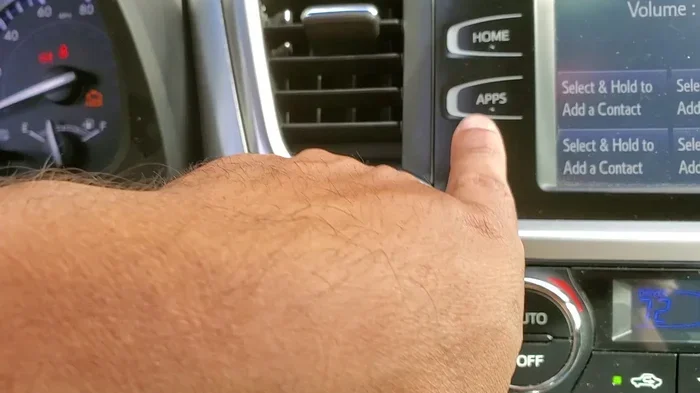
- Go to the home screen. Tap the home button on your touchscreen.
- Open Settings. Look for the gear icon, usually in the top right corner.
- Select Device Settings. Scroll down and tap on Device Settings or Bluetooth Settings.
- Choose Initialize. Look for an option that says “Initialize” or “Reset to Factory Defaults.”
- Confirm the reset. The system will ask you to confirm. Tap yes or OK.
- Wait for completion. The screen may go black for a few moments. This is normal. Let the system finish restarting.
- Re-pair your devices. Go back to Bluetooth settings and pair your phone again as if it were the first time.
Full Reset for Older Models (2019 and Earlier)
Older Highlanders use a slightly different process:
- Press and hold the volume knob. With the engine off, press and hold the volume knob on the audio system for about 10 seconds.
- Wait for the screen to go blank. The display will turn off. This means the system is resetting.
- Release the knob. Wait another 30 seconds.
- Start the engine. The system will reboot with factory Bluetooth settings restored.
- Re-pair your phone. Go through the pairing process again from scratch.
After a full reset, make sure your phone’s Bluetooth is turned off and then back on before trying to reconnect. This small step makes a big difference.
Reset Bluetooth on Your Phone Too
Here is a tip many people miss. Sometimes the problem is not the car. It is your phone. If your Toyota Highlander Bluetooth keeps disconnecting or will not connect, try resetting your phone’s Bluetooth settings as well.
iPhone Bluetooth Reset
- Go to Settings and tap Bluetooth.
- Find your Toyota Highlander in the device list.
- Tap the “i” icon next to your car.
- Select “Forget This Device.”
- Turn Bluetooth off and wait 10 seconds.
- Turn Bluetooth back on and re-pair your phone.
Android Bluetooth Reset
- Go to Settings and tap Connected Devices or Bluetooth.
- Find your Toyota Highlander in the paired devices list.
- Tap the gear icon and select “Unpair” or “Forget.”
- Toggle Bluetooth off and wait 15 seconds.
- Toggle Bluetooth back on and search for new devices.
- Select your Highlander and complete the pairing process.
If you are also having trouble with remote features on your Toyota, you might want to check out our article on getting Remote Connect installed in your Toyota. Remote Connect and Bluetooth share the same connectivity base, so fixing one often helps the other.
Toyota Highlander Bluetooth Reset by Model Year
Different Highlander model years use different infotainment systems. The reset process varies slightly depending on your year. Here is a quick reference to help you find the right method for your specific model.
| Model Year | Infotainment System | Reset Method | Reset Time |
|---|---|---|---|
| 2020-2024 | Toyota Audio Plus / JBL | Settings > Device Settings > Initialize | 2-3 minutes |
| 2016-2019 | Toyota Entune | Hold Volume Knob for 10 sec | 1-2 minutes |
| 2013-2015 | Toyota Entune (Early) | Hold Volume Knob + Track Skip | 1-2 minutes |
| 2010-2012 | Toyota Entune (Base) | Hold Volume Knob for 15 sec | 2-3 minutes |
| 2008-2009 | Toyota Audio System | Hold Power Button for 20 sec | 2-3 minutes |
If you are unsure about your model year or infotainment system, check your owner’s manual. It lists the exact system name and provides model-specific reset instructions. You can also visit our guide on unlocking your RAV4 with your phone for more Toyota connectivity tips that apply across the lineup.
Preventing Toyota Highlander Bluetooth Problems
Once you get your Bluetooth working again, you want to keep it working. Prevention is always easier than fixing problems. Here are simple habits that keep your Toyota Highlander Bluetooth running smoothly.
Keep Your Software Updated
Toyota releases infotainment updates that fix Bluetooth bugs and improve compatibility. Check for updates at least once a year. You can do this through your dealer or by visiting a Toyota service center. On the phone side, always install the latest iOS or Android updates. These updates often include Bluetooth improvements.
Limit Paired Devices
Your Highlander works best with fewer paired devices. If you have more than three devices stored in the Bluetooth memory, delete the ones you no longer use. This frees up system memory and reduces connection conflicts. Go to your Bluetooth settings and select “Delete” or “Forget” for old devices.
Restart Your Phone Weekly
A weekly phone restart clears temporary Bluetooth cache and refreshes wireless connections. Make it a habit. Just like your car needs the engine turned off and on again, your phone benefits from the same routine.
Avoid Interference
Other wireless devices in your car can interfere with Bluetooth signals. If you use multiple Bluetooth devices at once, such as a smartwatch, earbuds, and your phone, they may compete for bandwidth. Turn off devices you are not actively using. This gives your Highlander Bluetooth a clear channel to work with.
Keep Your Phone Charged
Low battery mode on your phone can reduce Bluetooth signal strength. If your phone is below 20%, Bluetooth performance may drop. Keep your phone charged before long drives. A portable car charger is a great investment for this reason.
When to See a Toyota Dealer for Bluetooth Issues
Most Bluetooth problems resolve with a reset. But sometimes the issue is deeper. If you have tried every method in this guide and your Toyota Highlander Bluetooth still will not connect, it might be time to see a professional.
Here are signs that you need dealer help:
- The infotainment screen stays frozen even after a full reset.
- Bluetooth works for calls but not for audio, or vice versa, and neither responds to resets.
- You see error messages about Bluetooth hardware failure.
- The problem started after a recent software update from Toyota.
- Multiple electronic systems in your Highlander are malfunctioning at the same time.
A Toyota dealer has diagnostic tools that can pinpoint hardware failures. They can also flash the infotainment system with the latest software. In some cases, a Bluetooth module replacement is needed, but this is rare. Most dealers resolve Bluetooth issues with a software fix during a single visit.
If you are also dealing with other car tech questions, check out our article on starting your Prius without the key for more Toyota troubleshooting tips.
Final Thoughts on Resetting Your Toyota Highlander Bluetooth
Resetting your Toyota Highlander Bluetooth does not have to be stressful. The soft reset should always be your first step. It is fast, easy, and preserves all your paired devices. If that does not work, the full reset clears everything and gives the system a fresh start. And do not forget to check your phone side too. Sometimes the fix is simpler than you think.
Prevention goes a long way. Keep your software updated, limit paired devices, and restart your phone regularly. These small habits save you from the frustration of Bluetooth problems down the road. Most Highlander owners find that a reset once or twice a year keeps everything running smoothly.
If you have tried all the steps in this guide and still have issues, reach out to a Toyota dealer. They have the tools and expertise to handle even the trickiest Bluetooth problems. You should be back to enjoying hands-free calls and your favorite music in no time.
Remember, technology glitches happen to everyone. The key is knowing how to fix them quickly. With the steps in this guide, you are now equipped to handle any Toyota Highlander Bluetooth issue that comes your way. Drive confidently and stay connected.
Frequently Asked Questions
How long does it take to reset Toyota Highlander Bluetooth?
A soft reset takes about one minute. A full reset takes two to five minutes depending on your model year. The actual reset process is fast, but re-pairing your devices adds a few extra minutes. Overall, plan for about five minutes total from start to finish.
Will resetting my Toyota Highlander Bluetooth delete my paired devices?
A soft reset keeps all your paired devices intact. A full reset, however, removes every paired device from the system. After a full reset, you will need to re-pair your phone and any other devices you use with the car.
Why does my Toyota Highlander Bluetooth keep disconnecting after a reset?
If Bluetooth keeps disconnecting after a reset, the issue might be on your phone side. Try forgetting the car in your phone Bluetooth settings and then re-pairing. Also check for phone software updates. Interference from other wireless devices in your car can also cause repeated disconnections.
Can I reset my Toyota Highlander Bluetooth without turning off the engine?
For a soft reset, you can turn off the infotainment system without starting the reset process. But for a full reset, turning off the engine is recommended. This ensures the system powers down completely and resets properly. Skipping this step can cause the reset to fail.
What should I do if the reset button does not work on my Toyota Highlander?
If the reset button does not seem to work, try the volume knob method instead. Hold the volume knob for 10 to 15 seconds with the engine off. If that also fails, the issue may be hardware-related. In that case, a visit to a Toyota dealer is the best next step. They can run diagnostics and identify the problem.
Is it safe to reset Bluetooth while my phone is connected?
Yes, it is safe. The reset simply refreshes the Bluetooth connection. Your phone data is not affected at all. However, you will need to re-pair your device after the reset. Make sure you know your phone’s Bluetooth passcode before starting the reset, just in case.