How Do I Connect My Toyota to My iPhone Without Hassle
Connecting your Toyota to your iPhone is easier than you think. Whether you want to stream music, use navigation, or make hands-free calls, this guide walks you through every method. You will learn Bluetooth pairing, Apple CarPlay setup, USB connections, and how to fix common issues quickly.
You just got into your Toyota and want to play your favorite playlist from your iPhone. Or maybe you need directions and do not want to type on a small screen while driving. Whatever the reason, connecting your phone to your car should not be a headache. This guide shows you exactly how to connect your Toyota to your iPhone without any hassle.
The good news is that most newer Toyota models come with built-in tools that make phone pairing simple. You can use Bluetooth, Apple CarPlay, a USB cable, or even the Toyota app to stay connected. Each method has its own benefits, and we will walk you through all of them. By the end of this article, you will know exactly which method works best for your setup.
We will also cover common problems and how to fix them fast. No more guessing why your phone will not connect or why the audio keeps cutting out. Let us get started.
Key Takeaways
- Bluetooth pairing is the most common and wireless way to link your iPhone to your Toyota.
- Apple CarPlay brings your favorite apps to your Toyota touchscreen for safer driving.
- USB connection offers a reliable wired alternative when wireless options fail.
- Remote Connect lets you control certain Toyota features from your iPhone before you even get in the car.
- Troubleshooting steps can resolve most connection issues in just a few minutes.
- Google Maps and other apps work better through CarPlay than through Bluetooth alone.
- Hands-free calling and Siri keep you focused on the road while staying connected.
📑 Table of Contents
- Why Connecting Your iPhone to Your Toyota Matters
- Method 1: Connecting via Bluetooth
- Method 2: Using Apple CarPlay with Your Toyota
- Method 3: USB Connection for Direct Access
- Method 4: Using the Toyota App on Your iPhone
- Using Google Maps and Navigation on Your Toyota
- Troubleshooting Common Connection Issues
- Expert Tips for the Best Toyota iPhone Experience
- Frequently Asked Questions
- Conclusion
Why Connecting Your iPhone to Your Toyota Matters
Your phone holds so much of your daily life. Contacts, music, maps, podcasts, and messages all live right there in your pocket. When you connect your iPhone to your Toyota, you bring all of that into your car safely and conveniently.
Hands-free calling is one of the biggest advantages. You can answer calls through your car speakers without ever touching your phone. This keeps your eyes on the road and your hands on the wheel. The Toyota infotainment system makes this process smooth and intuitive.
Music streaming is another big reason to pair your devices. Apple Music, Spotify, and podcasts all sound great through your car speakers. You can control everything from the touchscreen or through voice commands. This means fewer distractions and a better driving experience.
Navigation is where the real magic happens. Instead of squinting at your phone mount, you can see maps right on your Toyota display. Apps like Google Maps and Apple Maps work beautifully when connected properly. We will show you how to set this up below.
Method 1: Connecting via Bluetooth
Bluetooth is the most popular way to connect an iPhone to a Toyota. It is wireless, easy, and works with almost every Toyota model. If you have a Toyota from the last decade, Bluetooth pairing should be straightforward.
Step-by-Step Bluetooth Pairing
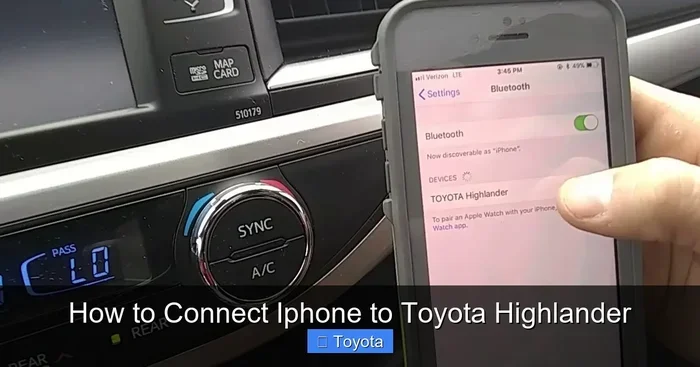
First, make sure Bluetooth is turned on your iPhone. Open the Settings app and tap Bluetooth. Slide the toggle to on if it is not already enabled. You should see your iPhone name appear under Other Devices once it is discoverable.
Next, start your Toyota and press the Bluetooth button on the steering wheel or the infotainment screen. On the Toyota display, select Add New Device or Pair New Phone. Your Toyota will start searching for available devices.
When your iPhone shows up on the Toyota screen, tap on it. You may see a passkey displayed on both screens. Make sure the numbers match, then tap Pair on your phone. That is it. Your iPhone is now connected to your Toyota via Bluetooth.
Once paired, you can control music, make calls, and access contacts all from your car. The connection will automatically reconnect every time you start your car, which is one of the best things about Bluetooth.
Tips for Better Bluetooth Performance
- Keep your phone close to the car when pairing for the first time.
- Delete old pairings from both devices if you are having trouble connecting.
- Restart both devices before attempting a new connection.
- Update your Toyota software at your dealer if Bluetooth options seem limited.
- Turn off other Bluetooth devices that might interfere with the pairing process.
Bluetooth works well for calls and basic audio streaming. But if you want to see your apps on the big screen, you need CarPlay, which we cover next.
Method 2: Using Apple CarPlay with Your Toyota
Apple CarPlay is a game changer for Toyota owners. It mirrors the most useful parts of your iPhone directly onto your Toyota touchscreen. You get navigation, music, messages, and phone calls all in one place. The best part is that CarPlay keeps things simple and driver-friendly.
Not all Toyota models support CarPlay, but most models from 2016 onward do. Check your Toyota owner manual or look for the CarPlay icon on your infotainment screen. If you see it, you are good to go.
Wired vs Wireless CarPlay
Wired CarPlay uses a Lightning cable to connect your iPhone to the Toyota USB port. It is fast, reliable, and works with almost every Toyota that supports CarPlay. The downside is that you need to plug and unplug your phone every time.
Wireless CarPlay connects without any cables. It uses Bluetooth and Wi-Fi to link your iPhone to the Toyota system. This is more convenient, but not all Toyota models offer wireless CarPlay. Newer models like the 2023 and 2024 Toyota Camry, RAV4, and Highlander often include this feature.
If your Toyota does not have wireless CarPlay, you can use a wireless CarPlay adapter. These small devices plug into the USB port and create a wireless bridge between your phone and the car. They are affordable and work great.
Setting Up CarPlay in Your Toyota
Plug your iPhone into the USB port or connect wirelessly if your model supports it. The CarPlay icon should appear on your Toyota screen. Tap it, and your iPhone interface will show up on the display.
You can now use Siri for voice commands, get directions with Apple Maps or Google Maps, and control your music. The Toyota multimedia system integrates seamlessly with CarPlay, making it one of the best ways to use your phone in the car.
One thing to note: if you have trouble with CarPlay, check that your iPhone is running the latest iOS version. Also make sure your Toyota software is up to date. A simple software update often fixes CarPlay connection issues.
Method 3: USB Connection for Direct Access
Sometimes the simplest method is the best. A USB cable connects your iPhone directly to your Toyota and gives you a stable connection. This method works well for charging your phone while you listen to music or use navigation.
Use a high-quality Lightning cable or USB-C cable depending on your iPhone model. Plug one end into your phone and the other into the Toyota USB port. Most Toyotas have USB ports in the center console and sometimes in the rear area too.
Once connected, your Toyota screen should recognize your iPhone. You may need to tap Trust on your phone screen to allow access. From there, you can browse your music library, use CarPlay, or charge your phone.
The USB method is especially useful if Bluetooth is acting up. It also charges your phone while you drive, which is a nice bonus on long trips. Just keep in mind that a long cable can be annoying if your USB port is far from the driver seat.
Method 4: Using the Toyota App on Your iPhone
Toyota offers a mobile app that connects your iPhone to your car in smart ways. The app lets you control features remotely, which is incredibly handy. You can lock and unlock doors, check fuel levels, and even start the engine from your phone.
The Toyota app works best with Remote Connect, a subscription service that adds remote features to your Toyota. You can get Remote Connect installed at your dealership. This is a great way to pre-condition your car or locate it in a crowded parking lot.
The app also provides maintenance reminders and service scheduling. You can check your Toyota warranty coverage and find nearby dealers too. It is a useful tool that makes owning a Toyota even more convenient.
Using Google Maps and Navigation on Your Toyota
Navigation is one of the top reasons people connect their iPhone to their car. Google Maps offers detailed directions, live traffic updates, and voice guidance. When connected to your Toyota through CarPlay, Google Maps feels like a built-in system.
You can also check if Google Maps works directly in your Toyota without CarPlay. Some Toyota models have a built-in browser that supports Google Maps through the infotainment system. Check our guide on using Google Maps in your Toyota for more details.
For the best navigation experience, use CarPlay with Google Maps. The larger screen, clearer directions, and voice commands make it much safer than using your phone alone. Plus, you get real-time traffic data and rerouting suggestions automatically.
Troubleshooting Common Connection Issues
Even with the best setup, things can go wrong sometimes. Your iPhone might not connect, the audio might cut out, or CarPlay might freeze. These issues are usually easy to fix with a few simple steps.
iPhone Will Not Pair via Bluetooth
If your iPhone will not pair with your Toyota, start by turning Bluetooth off and back on. Restart both your phone and the car system. Delete the old pairing from both devices and try again. Sometimes the simplest fix is the most effective one.
CarPlay Not Showing Up on the Screen
Make sure CarPlay is enabled on your iPhone. Go to Settings, then General, then CarPlay. Select your Toyota from the list. If it does not appear, try a different USB cable or port. A loose connection is a common culprit.
Also check that your iPhone software is updated. Go to Settings, General, Software Update. If an update is available, install it and try again. The same goes for your Toyota system. Visit a dealer for a software update if needed.
Audio Keeps Cutting Out
Interference can cause audio to cut out during Bluetooth playback. Move your phone closer to the car console. Make sure nothing else is connected to the Toyota audio system that might cause a conflict. If the problem continues, unpair and re-pair the devices.
Siri Not Responding
Siri needs to be enabled for hands-free use in your Toyota. Go to Settings, Siri, and turn on Listen for Hey Siri. Make sure Siri is also enabled in CarPlay settings. If Siri still does not respond, restart your iPhone and try again.
Expert Tips for the Best Toyota iPhone Experience
Here are some expert tips that will help you get the most out of your Toyota iPhone connection. These small changes make a big difference in day-to-day use.
- Keep your iPhone software updated. New updates often fix connectivity bugs and improve CarPlay performance.
- Use a short, braided USB cable for wired connections. They last longer and tangle less.
- Clean your USB ports regularly. Dust and debris can cause connection problems.
- Set up Siri shortcuts for common tasks like calling home or navigating to work.
- Enable Do Not Disturb While Driving to reduce distractions while still allowing important calls through.
- Pair your iPhone automatically by keeping Bluetooth on and your phone in the car often.
These tips apply to all Toyota models and iPhone versions. They will save you time and frustration every time you get behind the wheel.
Frequently Asked Questions
Can I connect my iPhone to any Toyota model?
Most Toyota models from 2016 onward support either Bluetooth or Apple CarPlay. Older models may only have Bluetooth or a basic audio input. Check your Toyota owner manual or look for the smartphone integration icon on your infotainment screen to confirm compatibility.
Do I need a special cable to use Apple CarPlay?
For wired CarPlay, you need a Lightning cable or USB-C cable depending on your iPhone model. Any Apple-certified cable works well. For wireless CarPlay, no cable is needed if your Toyota supports it. If your car does not have wireless CarPlay, a wireless CarPlay adapter can add this feature.
Why does my Toyota iPhone connection keep disconnecting?
Frequent disconnections are usually caused by software glitches or interference. Restart both your iPhone and the Toyota infotainment system. Delete the old pairing and create a new one. Also make sure your phone and car software are both up to date, as updates often fix these issues.
Can I use Google Maps through my Toyota screen?
Yes, Google Maps works great through Apple CarPlay on your Toyota touchscreen. It provides turn-by-turn directions, live traffic updates, and voice guidance. You can also check if Google Maps works natively in some Toyota models without CarPlay. This is especially useful if you prefer Google Maps over Apple Maps.
Is it safe to use my iPhone while driving my Toyota?
Apple CarPlay and Bluetooth are designed to keep you safe. They allow hands-free calling, voice-controlled messaging, and audio playback without taking your eyes off the road. Always use Siri or steering wheel controls to interact with your phone while driving. Never type on your phone screen while the car is in motion.
Can I connect multiple phones to my Toyota at once?
Most Toyota models can store multiple Bluetooth pairings. You can switch between phones easily from the infotainment screen. However, only one phone can use CarPlay at a time. If multiple people drive the same car, each person can pair their phone and switch as needed.
Conclusion
Connecting your Toyota to your iPhone is a straightforward process once you know the right steps. Bluetooth gives you wireless convenience for calls and music. Apple CarPlay brings your favorite apps to the big screen for safer and more enjoyable driving. USB connections offer a reliable backup when wireless options are not working.
The Toyota app adds another layer of convenience with remote features and maintenance tools. And when issues come up, the troubleshooting steps in this guide will help you fix them fast. With the right setup, your Toyota and iPhone work together like a well-oiled machine.
Take a few minutes today to connect your devices properly. You will wonder how you ever drove without it. Enjoy the seamless integration of your Toyota and iPhone, and make every drive more connected and more enjoyable.