How Do I Connect My Toyota App to My Car Step by Step
Connecting your Toyota app to your car is simple and unlocks powerful features like remote start, lock/unlock, and navigation. This guide walks you through every step of the Toyota app setup process, from downloading the app to pairing your phone with your vehicle. You will learn how to troubleshoot common connection issues and make the most of your Toyota connected services.
Have you ever wanted to start your car from your phone or unlock the doors without fumbling for your keys? The Toyota app makes all of this possible. But first, you need to know how to connect the Toyota app to your car properly.
Setting up the Toyota app might feel confusing at first. There are a few steps involved, and the process is a little different depending on your vehicle model and phone type. But dont worry. This guide breaks everything down into simple, easy-to-follow steps. You will be up and running in no time.
The Toyota app connects to your car through a combination of Bluetooth, Wi-Fi, and the Toyota Entune system. Once connected, you can access a wide range of features right from your smartphone. These include remote engine start, door lock and unlock, vehicle location tracking, and even navigation with Google Maps.
Whether you own a Toyota Camry, a Toyota RAV4, or any other Toyota model, this guide will help you get everything working. We will walk through the entire Toyota app setup process. You will also learn how to fix common problems and get the most out of your Toyota connected services.
Before you begin, make sure your phone is fully charged and your car is parked in a safe location with a stable Wi-Fi or cellular connection. Having these basics in place will make the whole process much smoother.
Key Takeaways
- Easy Setup: Connecting your Toyota app takes just a few minutes with the right steps.
- Remote Features: The Toyota app lets you start your car, lock doors, and locate your vehicle remotely.
- Smartphone Integration: Both iPhone and Android devices work with the Toyota app.
- Troubleshooting Tips: We cover the most common issues and how to fix them fast.
- Entune System: The Toyota Entune infotainment system plays a key role in app connectivity.
- Dealer Support: Some features may require professional installation or a visit to your Toyota dealer.
📑 Table of Contents
- What Is the Toyota App and What Does It Do?
- How to Download and Install the Toyota App
- Step-by-Step Guide to Connecting the Toyota App to Your Car
- Using Toyota Remote Connect Features
- Common Toyota App Connection Issues and How to Fix Them
- Tips for Getting the Best Experience with the Toyota App
- Is the Toyota App Worth Using?
- Conclusion
What Is the Toyota App and What Does It Do?
The Toyota app is a free smartphone application designed to work with Toyota vehicles. It acts as a remote control for your car, giving you access to features that were once only available from inside the vehicle. The app works through Toyotas connected services platform, which uses built-in hardware in your car to communicate with your phone.
Here are some of the key features the Toyota app offers:
- Remote Start: Start your engine from your phone before you get in.
- Lock and Unlock: Lock or unlock your doors remotely.
- Vehicle Location: Find your car in a crowded parking lot.
- Trip Data: Check fuel levels, mileage, and service alerts.
- Navigation: Send destinations to your cars infotainment system.
- Smartphone Integration: Use Siri or Google Assistant hands-free.
Not all Toyota models support every feature. The availability of features depends on your vehicles year, trim level, and whether it has the Toyota Entune system installed. Some older models may need a dealer visit to add the necessary hardware.
How to Download and Install the Toyota App
The first step in the Toyota app setup process is downloading the app to your smartphone. The app is available for both iPhone and Android devices, so no matter what type of phone you have, you are covered.
For iPhone Users
Open the App Store on your iPhone. Search for “Toyota” or “Toyota App.” Look for the official Toyota app with the Toyota logo. Tap “Get” to download and install the app. You may need to enter your Apple ID password or use Face ID to confirm the download.
For Android Users
Open the Google Play Store on your Android phone. Search for “Toyota” in the search bar. Find the official Toyota app and tap “Install.” The app will download and appear on your home screen once the installation is complete.
Once the app is installed, open it and create your account. You will need to provide your email address, create a password, and enter your vehicle information. Make sure you have your VIN (Vehicle Identification Number) handy. You can usually find the VIN on the dashboard near the windshield or on the driver’s side door frame.
After creating your account, log in and follow the on-screen prompts to register your vehicle. The app will guide you through linking your specific Toyota model to your account. This step is essential for the app to communicate with your car.
Step-by-Step Guide to Connecting the Toyota App to Your Car
Now that the app is installed and your account is set up, it is time to connect the Toyota app to your car. This process involves pairing your phone with your vehicles infotainment system. Follow these steps carefully for the best results.
Step 1: Turn on Your Cars Infotainment System
Start your car and turn on the infotainment screen. This is the large display in the center of your dashboard. Make sure your car is in park before you begin. The Toyota Entune system needs to be active for the app to connect properly.
Step 2: Enable Bluetooth on Your Phone
Go to your phones settings and turn on Bluetooth. Your phone will start scanning for nearby devices. The Toyota app uses Bluetooth to establish a connection between your phone and your car.
Step 3: Pair Your Phone with the Car
On your cars infotainment screen, go to the Bluetooth settings menu. Look for your phone name in the list of available devices. Tap on it to initiate pairing. You may see a passkey on the car screen. Enter that passkey on your phone to confirm the connection.
Step 4: Open the Toyota App and Follow the Prompts
Once Bluetooth is paired, open the Toyota app on your phone. The app should detect your car automatically. Follow any on-screen instructions to complete the connection. You may need to grant certain permissions, such as location access and notification access, for the app to work fully.
Step 5: Test Your Connection
After the setup is complete, test a few features. Try locking and unlocking your doors through the app. If that works, you are all set. If something does not work, do not worry. We will cover troubleshooting in the next section.
Pro Tip: If you are having trouble with the initial pairing, try turning Bluetooth off and back on again. Also, make sure your car is not too far from your phone during the pairing process. A distance of about 10 feet works best.
Using Toyota Remote Connect Features
One of the most popular reasons people connect the Toyota app to their car is to use the remote connect features. These features let you control certain functions of your car from anywhere, as long as you have a cellular or Wi-Fi connection on your phone.
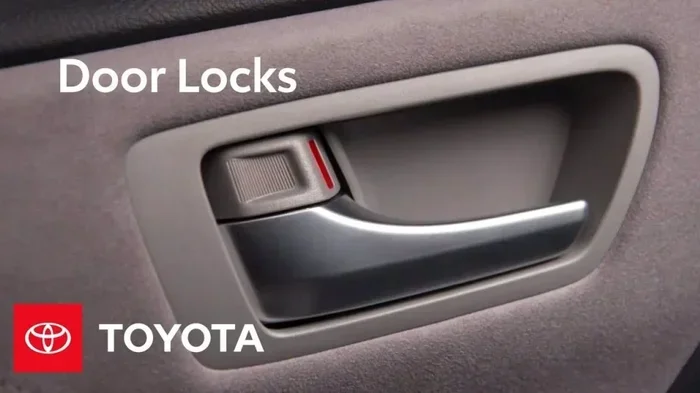
With Toyota Remote Connect, you can start your engine remotely. This is incredibly useful in cold weather when you want to warm up your car before you get in. You can also lock and unlock your doors remotely, which is great if you accidentally leave your car unlocked or if you need to let someone into your car while you are away.
The app also lets you locate your vehicle on a map. This is helpful if you are in a large parking lot or if you forget where you parked. Some Toyota models also support remote horn and flash features, which can help you find your car in a crowded area.
If you are interested in getting Remote Connect installed in your vehicle, you can check whether your model supports it. Some newer Toyota models come with this feature built in, while older models may need a dealer visit for installation. You can learn more about getting Remote Connect installed in your Toyota to see if your vehicle qualifies.
How to Use Remote Start Through the App
Using the remote start feature through the Toyota app is straightforward. Open the app and log in. Tap the remote start button. Your car should respond within a few seconds. You will hear the engine turn on. The car will then run for a preset amount of time, usually 10 to 15 minutes, before shutting off automatically.
Keep in mind that some Toyota models require you to press the brake pedal and then press the engine start button inside the car to fully drive away. The remote start feature does not let you drive the car remotely. It only starts the engine and activates the climate control system.
Common Toyota App Connection Issues and How to Fix Them
Even with a straightforward setup, you may run into some issues when connecting the Toyota app to your car. These problems are usually easy to fix. Here are the most common issues and their solutions.
App Won’t Connect to the Car
If the Toyota app will not connect to your car, the first thing to check is your Bluetooth connection. Make sure Bluetooth is turned on and that your phone is paired with the car. If it is already paired, try unpairing and pairing again. Sometimes a fresh connection solves the problem.
Another common cause is an outdated app version. Check the App Store or Google Play Store for any available updates. Installing the latest version of the Toyota app can fix bugs and improve compatibility with your vehicle.
App Crashes or Freezes
If the Toyota app crashes or freezes, try closing the app completely and reopening it. On an iPhone, double-click the home button and swipe the app away. On Android, go to your recent apps and swipe the app off the screen. Then reopen it and try again.
If that does not work, try restarting your phone. A simple reboot can clear temporary glitches and refresh your phones connection to the car. Also, make sure your phones operating system is up to date, as older software versions can sometimes cause compatibility issues.
Features Not Working as Expected
Some Toyota app features require an active data connection on your phone. If you are in an area with poor cellular service, certain features may not work. Move to an area with better reception and try again.
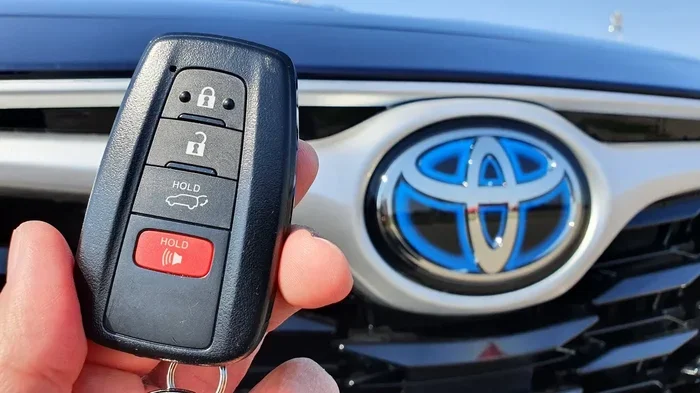
Additionally, some features may not be available on all Toyota models. Check your vehicles manual or contact your Toyota dealer to confirm which features your car supports. If you are unsure about your specific model, you can also check whether your Toyota supports driving without the key fob or rolling down windows with the key fob through the app, as these features depend on the same connectivity systems.
Navigation and Google Maps Issues
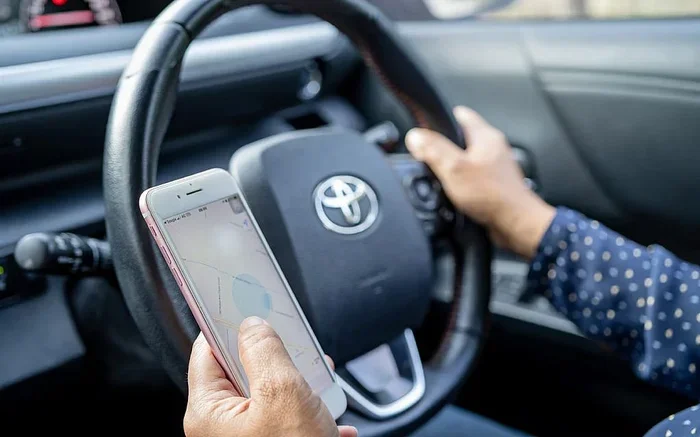
If you are having trouble using Google Maps through the Toyota app, make sure your car’s infotainment system supports navigation. You can also check if your Toyota model supports Google Maps integration. Some older Toyota models may not have full navigation support through the app, but newer models generally do.
Tips for Getting the Best Experience with the Toyota App
To get the most out of your Toyota app and ensure a smooth connection every time, follow these helpful tips:
- Keep the App Updated: Regular updates fix bugs and add new features. Check for updates at least once a month.
- Maintain a Stable Connection: Use the app in areas with good Wi-Fi or cellular coverage for the best performance.
- Restart Your Car Occasionally: Just like your phone, your cars infotainment system benefits from a fresh restart every now and then.
- Check Your Subscription: Some Toyota connected services require a subscription. Make sure your subscription is active to avoid service interruptions.
- Use Official Channels: Only download the Toyota app from the official App Store or Google Play Store. Avoid third-party sources.
- Visit Your Dealer for Help: If you are still having trouble, your local Toyota dealer can help you set up the app and troubleshoot any issues.
Taking care of your app and car connection will ensure you have a seamless experience every time you use the Toyota app. A little maintenance goes a long way in keeping everything running smoothly.
Is the Toyota App Worth Using?
The Toyota app is a valuable tool for any Toyota owner. It adds convenience and peace of mind to your daily driving experience. The ability to start your car remotely, lock your doors from your phone, and locate your vehicle in a crowded lot are features that many owners find indispensable.
The setup process is straightforward, and the app is free to download. While some features may require a subscription or a dealer visit for installation, the core functionality is available at no extra cost. If you own a Toyota, connecting the app to your car is one of the best things you can do to enhance your ownership experience.
Whether you are a new Toyota owner or have been driving one for years, taking a few minutes to set up the Toyota app is well worth your time. The step-by-step process is simple, and the benefits are immediate. You will wonder how you ever managed without it.
Conclusion
Connecting your Toyota app to your car is easier than you might think. With just a few simple steps, you can unlock a world of convenience and control right from your smartphone. From remote start to navigation, the Toyota app transforms the way you interact with your vehicle.
Remember to keep your app updated, maintain a stable connection, and do not hesitate to reach out to your Toyota dealer if you need help. The Toyota app is designed to make your life easier, and following this guide ensures you get the full experience. Start your Toyota app setup today and enjoy the benefits of a connected Toyota.
Frequently Asked Questions
How long does it take to connect the Toyota app to my car?
The entire process usually takes about 10 to 15 minutes. Downloading the app takes a few minutes, and the pairing process is quick once you have your vehicle information ready. If you run into any issues, it may take a little longer, but most users complete the setup without any problems.
Do I need a special subscription to use the Toyota app?
The Toyota app is free to download and use for basic features. However, some advanced features like remote start and vehicle tracking may require a Toyota connected services subscription. You can check with your Toyota dealer to see what subscription plan works best for your needs.
Can I use the Toyota app on more than one phone?
Yes, you can. The Toyota app allows you to register multiple devices under one account. However, only the registered owner or authorized users can control the vehicle features. You can add or remove devices through the app settings at any time.
What should I do if my Toyota app will not connect after following all the steps?
First, make sure your phone’s Bluetooth and Wi-Fi are turned on and working properly. Try unpairing and re-pairing your phone with the car. If the problem continues, restart both your phone and your car’s infotainment system. You can also check for app updates or contact your Toyota dealer for further assistance.
Is the Toyota app available for all Toyota models?
The Toyota app works with most Toyota models, but the available features depend on your vehicles year and equipment level. Newer models generally have full support, while older models may have limited functionality. Check with your Toyota dealer or visit the Toyota website to confirm compatibility with your specific model.
Can I use the Toyota app to lock and unlock my car from far away?
Yes, you can. The Toyota app lets you lock and unlock your car remotely as long as you have a cellular or Wi-Fi connection on your phone. This feature works from anywhere, not just near your car. It is a great security tool and very convenient for everyday use.