How Do I Reconnect My Phone to Bluetooth in My Car
Reconnecting your phone to Bluetooth in your car is easier than you think. Whether your wireless connection dropped after an update or your car audio system needs a quick reset, this guide walks you through every fix. You will learn proven Bluetooth troubleshooting steps, expert tips, and common mistakes to avoid so your phone sync stays strong on every drive.
Key Takeaways
- Restart Both Devices First: A simple car Bluetooth reset on both your phone and car system solves most connection issues.
- Check Bluetooth Settings Carefully: Make sure Bluetooth visibility is turned on and your phone is in device pairing mode before attempting to reconnect.
- Delete Old Pairings: Removing stale Bluetooth pairing records frees up space and prevents conflicts with your mobile device connection.
- Update Software Regularly: Keeping your phone and car infotainment system updated ensures phone connectivity stays reliable.
- Avoid Common Mistakes: Things like leaving Bluetooth on in crowded areas or ignoring low battery can weaken your wireless audio experience.
- Know When to Get Help: If basic fixes fail, a professional can diagnose hardware issues with your car stereo Bluetooth module.
📑 Table of Contents
Why Does Bluetooth Disconnect in Your Car?
You are driving down the road, music flowing through your speakers, and then — silence. Your phone connectivity drops without warning. It happens to almost every driver at some point. The good news is that reconnecting is usually quick and painless.
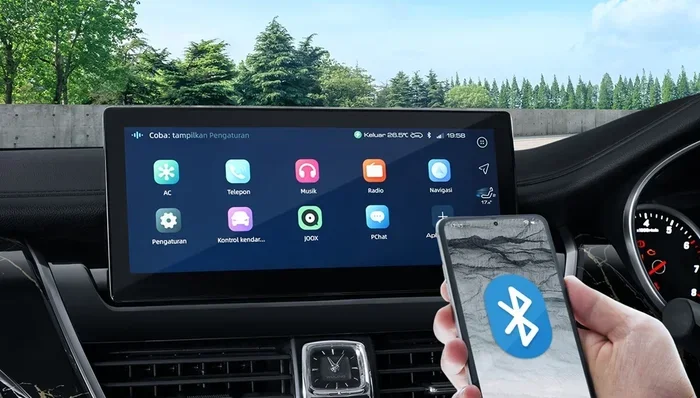
Bluetooth technology lets your mobile device connection talk to your car audio system wirelessly. You get hands-free calling, audio streaming, and navigation prompts right through your speakers. But this wireless connection depends on several things working together perfectly.
When something goes wrong, it is rarely just one thing. Software glitches, outdated settings, signal interference, or even a low battery can all cause the same frustrating result. Understanding why your phone sync failed helps you fix it faster and prevent it from happening again.
Common Reasons Bluetooth Drops
Several factors can break your Bluetooth pairing between your phone and car. Here are the most common culprits:
- Software updates on either your phone or car system can reset Bluetooth settings.
- Distance and obstacles affect your Bluetooth range, even inside a vehicle.
- Too many paired devices can confuse your car infotainment system.
- Low phone battery causes your device to shut off wireless features to save power.
- Interference from other devices like USB chargers or aftermarket accessories.
- Corrupted cache data on either device blocks proper communication.
Once you know what went wrong, fixing it becomes much simpler. Let us walk through the exact steps to get your wireless audio back up and running.
Step-by-Step Guide to Reconnect Your Phone to Bluetooth in Your Car
Follow these steps in order. Most people find their phone sync restored within just a few minutes. No special tools are needed — just your phone and your car keys.
Step 1: Turn Off Bluetooth on Both Devices
Start by disabling Bluetooth settings on your phone and in your car. On your phone, swipe down to access quick settings and tap the Bluetooth icon to turn it off. In your car, go to the Bluetooth settings menu and toggle Bluetooth off.
This clears any active connection attempts that might be stuck. Think of it as giving both devices a fresh start. Wait about 10 seconds before moving to the next step.
Step 2: Restart Both Devices
Now restart your phone completely. Power it off, wait a few seconds, and turn it back on. For your car, turn the ignition off, wait 30 seconds, and start it again.
This is the most underrated fix in Bluetooth troubleshooting. A full restart clears temporary glitches and refreshes all wireless modules. Many drivers skip this step and jump straight to complex solutions, when a simple reboot does the trick.
Step 3: Turn Bluetooth Back On and Make Your Phone Visible
After both devices restart, turn Bluetooth back on your phone first. Then go to your car’s Bluetooth settings and look for an option called “Visible” or “Discoverable.” Turn this on.
Bluetooth visibility allows your car to detect your phone during the search process. Without it, your car might not even see your device when you try to pair again. Keep this setting on only while you are reconnecting for security reasons.
Step 4: Search for Available Devices
Go to your car’s infotainment screen and select the option to search for or scan for new devices. Your phone should appear in the list within a few seconds.
If your phone does not show up, try moving it closer to the car’s console or center stack. Bluetooth range is usually about 30 feet, but metal and electronic interference can reduce that distance. Placing your phone on the passenger seat often helps.
Step 5: Select Your Phone and Complete Pairing
Tap on your phone’s name when it appears in the car’s device list. You may see a pairing code on both screens. Confirm that the codes match, then tap “Pair” or “Connect” on both devices.
Once paired, test your hands-free calling and audio streaming right away. Make a test call or play a song to confirm everything works. This quick check saves you from discovering a problem mid-drive.
Common Bluetooth Problems and How to Fix Them
Sometimes the basic steps above are not enough. Here are the most common Bluetooth pairing problems and exactly how to solve each one.
Your Phone Finds the Car but Won’t Connect
This happens when your phone detects the car’s Bluetooth signal but refuses to complete the connection. The most likely cause is a mismatch in device pairing mode or a stored pairing conflict.
Go to your phone’s Bluetooth settings and find your car’s name. Tap “Forget” or “Unpair” next to it. Do the same on your car’s system. Then start the pairing process fresh from Step 3 above. This clears any corrupted pairing data that was causing the conflict.
Your Car Finds Your Phone but Audio Does Not Stream
You can see your phone in the car’s device list, but no music plays. This usually means the audio streaming profile was not selected during pairing.
Go to your car’s Bluetooth settings, find your phone, and check the profile permissions. Make sure “Media Audio” and “Phone Audio” are both enabled. On some car infotainment systems, you need to manually toggle these profiles on after the initial pairing.
Bluetooth Keeps Disconnecting Randomly
Intermittent disconnections are incredibly annoying. They often point to interference or a weak signal. Here is what to check:
- Are there other Bluetooth devices nearby competing for connection?
- Is your phone battery critically low?
- Are you parked near a large building or structure blocking the signal?
- Did you recently install a new USB charger or aftermarket accessory?
Remove potential sources of interference one by one and test your connection each time. Often, a simple car Bluetooth reset — turning Bluetooth off and on again — resolves random drops.
Your Phone Does Not Show Up at All
If your phone never appears in the car’s search list, the problem is likely with Bluetooth visibility or a deeper software issue.
First, double-check that your phone’s Bluetooth is on and set to visible. Then try toggling Airplane Mode on and off — this forces your phone to refresh all wireless connections including Bluetooth. If that still does not work, clearing your phone’s Bluetooth cache can help. On Android, go to Settings, then Apps, find Bluetooth, and clear the cache. On iPhone, you may need to reset network settings entirely.
Tips to Keep Your Bluetooth Connection Stable
Prevention is always better than fixing. These simple habits keep your phone sync strong and your wireless audio playing without interruption.
Keep Your Software Updated
Both your phone and your car infotainment system benefit from regular software updates. Manufacturers release patches that fix Bluetooth connectivity bugs and improve device pairing mode performance. Check for updates at least once a month.
Limit Paired Devices
Your car stereo Bluetooth system can usually handle several paired devices, but too many creates confusion. Delete devices you no longer use regularly. This keeps your car audio system running smoothly and reduces pairing conflicts.
Avoid Extreme Temperatures
Heat and cold affect electronic components, including Bluetooth modules. If your phone overheats in direct sunlight, its mobile device connection may weaken or drop. Keep your phone in a shaded area or use a vent-mounted holder.
Charge Your Phone Before Long Drives
A low battery causes your phone to disable Bluetooth to conserve power. Before a road trip, make sure your phone is fully charged. If you need to charge while driving, use a high-quality USB connection cable that supports data transfer, not just power.
Use Your Car Manufacturer’s App
Many car manufacturer apps offer dedicated Bluetooth management tools. These apps let you monitor connections, update firmware, and troubleshoot issues directly from your phone. Check if your car brand has an app and install it.
Quick Tips for Faster Reconnection
Here are some fast hacks that save time every time you get in your car:
- Enable auto-connect: Most cars remember paired devices and connect automatically when you start the engine.
- Keep Bluetooth on always: Leaving Bluetooth on your phone at all times means it is ready to connect instantly.
- Name your phone clearly: A recognizable device name like “iPhone” or “Samsung Galaxy” makes it easy to find in the car’s list.
- Restart before long trips: A quick restart of both devices before a road trip prevents connection issues on the highway.
- Use voice commands: Once connected, voice commands let you make calls and change music without touching your phone.
When Should You Seek Professional Help?
Most Bluetooth troubleshooting can be done at home. But some situations need a professional touch. If you have tried every step above and your phone connectivity still fails, it is time to dig deeper.
A technician can check whether your car’s Bluetooth module has a hardware fault. They can also update your car infotainment system firmware if a dealer-level update is needed. Sometimes the Bluetooth antenna inside the car’s dashboard has a loose connection that only a professional can fix.
Do not ignore persistent problems. A failing Bluetooth module can sometimes affect other electronic systems in your vehicle. Getting it checked early saves money and prevents bigger issues down the road.
Final Thoughts
Reconnecting your phone to Bluetooth in your car does not have to be stressful. With the right steps and a little patience, you can restore your wireless connection in minutes. Start with the basics — restart both devices, check your Bluetooth settings, and delete old pairings. These simple actions solve the vast majority of connection problems.
Keep your software updated, limit paired devices, and make it a habit to check your Bluetooth visibility before you need it. These small routines make a huge difference in your daily driving experience. Your hands-free calling, audio streaming, and navigation all depend on a solid phone sync, so taking a few minutes to maintain it is well worth your time.
Next time your phone reconnects to Bluetooth in your car fails, you will know exactly what to do. You will be back to enjoying your music and staying connected on the road in no time.
Frequently Asked Questions
Why does my phone keep disconnecting from Bluetooth in my car?
Frequent disconnections usually happen due to interference, outdated software, or too many paired devices. Try restarting both your phone and car system, then delete old pairings and reconnect fresh. Keeping your Bluetooth settings updated and limiting the number of connected devices can prevent this from happening again.
How do I put my phone in pairing mode for my car?
Go to your phone’s Bluetooth settings and make sure Bluetooth is turned on. Look for an option called “Visible” or “Discoverable” and enable it. Your phone will then broadcast a signal that your car’s infotainment system can detect during its device search.
Can I connect multiple phones to my car’s Bluetooth at once?
Most car audio systems support multiple paired phones, but only one phone can stream audio at a time. When you get in the car, the system usually connects to the last phone that was paired. You can manually switch between phones in your car’s Bluetooth settings menu.
What should I do if my car does not find my phone during a Bluetooth search?
First, make sure Bluetooth visibility is turned on your phone. Move your phone closer to the car’s console. Try toggling Airplane Mode on and off to refresh the connection. If that still does not work, restart both devices and try again. Clearing your phone’s Bluetooth cache can also resolve this issue.
Does updating my phone affect my car Bluetooth connection?
Yes, software updates can sometimes reset your Bluetooth pairing or change settings that affect phone connectivity. After a major phone update, it is a good idea to recheck your Bluetooth settings and reconnect if needed. This simple step prevents unexpected disconnection issues.
Is there an alternative to Bluetooth for playing music in my car?
Yes, you can use a USB connection cable for audio and charging, or an FM transmitter that plugs into your car’s cigarette lighter. AUX cables also provide a reliable wired connection. However, wireless audio through Bluetooth remains the most convenient option for most drivers.
=== CONCLUSION ===
Knowing how to reconnect your phone to Bluetooth in your car is an essential skill for every driver. The steps are simple, the fixes are fast, and the payoff is a seamless wireless connection every time you turn the key. From Bluetooth troubleshooting basics to advanced car stereo Bluetooth tips, you now have everything you need to keep your phone sync strong and reliable.
Start with the quick fixes, work through the detailed steps, and build good habits that prevent future problems. Your car infotainment system and mobile device connection will thank you. Get back on the road with confidence, and enjoy your hands-free calling and audio streaming without interruption.