How Do I Change My Time To Auto
Changing your car clock to auto time is one of the easiest ways to keep your vehicle’s time accurate year-round. This guide walks you through the exact steps for most car brands, explains why auto sync matters, and helps you troubleshoot common issues. You will learn how to switch from manual time to automatic time in just a few minutes.
Have you ever driven across a time zone and noticed your car clock is completely off? Or maybe you forgot to reset your clock after daylight saving time ended. It happens to all of us. The good news is that most modern vehicles let you switch your clock to auto time, and the process is much simpler than you might think.
In this guide, we will walk you through exactly how to change your time to auto on any car. Whether you drive a sedan, truck, or SUV, the steps are similar across most brands. We will also cover why auto time is so useful, what to do if it does not work, and how to keep your car clock accurate all year long.
By the end of this article, you will know exactly where to find the auto time setting in your vehicle and how to enable it in under five minutes. Let us get started.
Key Takeaways
- Auto time sync saves you effort: Your car clock updates itself using GPS or network signals so you never have to reset it manually.
- Most vehicles support auto time: Nearly all modern cars with infotainment systems offer an automatic time setting option.
- The process is simple: You typically find the auto time toggle in your car’s settings menu under clock or display options.
- Daylight saving time adjusts automatically: When your clock is set to auto, it handles time changes without any input from you.
- Troubleshooting is straightforward: Most issues with auto time can be fixed with a simple restart or signal check.
- Different brands have slightly different menus: We cover the steps for popular brands like Ford, Toyota, BMW, and more.
📑 Table of Contents
- What Does “Auto Time” Mean in Your Car?
- Why Switching to Automatic Time Is a Smart Move
- Step-by-Step: How to Change Your Time to Auto
- How Auto Time Works Across Different Car Brands
- Troubleshooting: What to Do When Auto Time Does Not Work
- Tips to Keep Your Car Clock Accurate All Year
- Frequently Asked Questions
- Conclusion
What Does “Auto Time” Mean in Your Car?
When your car clock is set to auto time, it means the vehicle pulls its time data from an external source instead of relying on you to set it manually. Most cars use one of two methods to get this data.
The first method is GPS. Your car receives satellite signals that tell it exactly what time it is, down to the second. The second method is through your phone connection or cellular network. If your car supports Bluetooth or has a built-in SIM card, it can pull the current time from your phone or a network server.
Either way, the result is the same. Your dashboard clock stays accurate without you lifting a finger. You never have to worry about resetting the time after a battery change or when you cross into a different time zone.
How Auto Time Sync Works
Most cars that support automatic time sync check for the correct time every few minutes. They compare their internal clock with the GPS signal or phone connection and make small adjustments as needed. This keeps your car clock accurate to within a second or two of the actual time.
Some older vehicles may not have this feature built in. If your car was made before 2010, it might only offer manual time adjustment. But if your vehicle has a touchscreen or infotainment system, there is a very good chance it supports auto time.
Why Switching to Automatic Time Is a Smart Move
You might be wondering why you should bother changing your car clock to auto. After all, if you set it manually once, it should keep running, right? Well, there are several reasons why auto time is the better choice.
First, manual clocks drift over time. The internal crystal in your car clock can gain or lose a few seconds every week. Over a few months, that adds up to several minutes of difference. With auto time, your car constantly corrects itself so the clock stays precise.
Second, daylight saving time changes are a headache when you have to adjust your clock manually. When you use automatic clock update, your car handles the switch between standard time and daylight saving time automatically. You wake up on the Monday after the change and your clock is already correct.
Third, if you travel across time zones, your car adjusts the time for you. This is incredibly helpful for road trips or commutes that cross state or even country borders.
Benefits of Auto Time You Might Not Know About
- No more forgetting to reset: You never have to worry about the clock being wrong after a long trip.
- Better navigation accuracy: Some GPS systems use the car clock to calculate arrival times. An accurate clock means better ETA predictions.
- Phone pairing works better: When your car clock matches your phone clock, call logs and timestamps line up correctly.
- Saves time and frustration: You skip the hassle of digging through menus every time the clock needs adjusting.
- Works with smart features: Some cars use the clock to schedule maintenance reminders and service alerts accurately.
Step-by-Step: How to Change Your Time to Auto
Now let us get into the practical part. Here is exactly how to change your car clock to auto time. The steps vary slightly depending on your vehicle, but the general process is the same for most cars.
Step 1: Access Your Car Settings Menu
Start your car and look for the settings icon on your infotainment screen. This is usually a gear icon or a menu button on the dashboard. Tap on it to open the main settings panel. If you are not sure where to find it, check your owner manual for the exact location.
In some vehicles, you may need to press a physical button on the steering wheel or center console to access settings. Common buttons include a “Menu” button, a “Setup” button, or a “Settings” icon on the touchscreen.
Step 2: Find the Clock or Display Settings
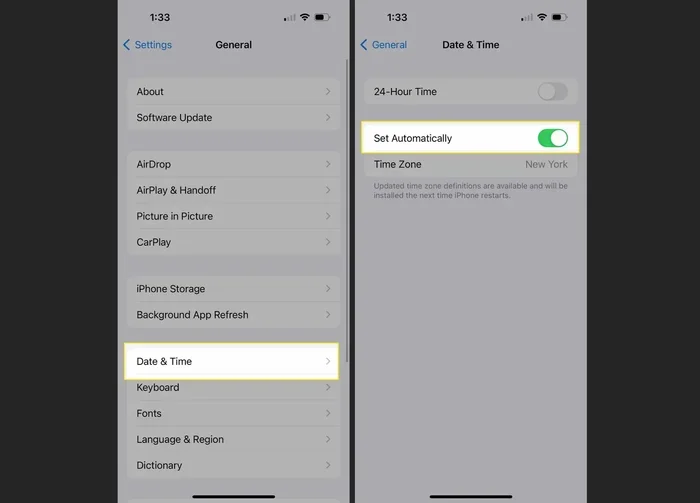
Once you are in the settings menu, look for an option called “Clock,” “Time,” “Display,” or “Date and Time.” This is where you control how your car clock behaves. In some brands, this option is nested under a “General” or “System” submenu.
For example, in Toyota vehicles, you typically go to Settings > Clock > Time Zone. In Ford vehicles, the path is usually Settings > General > Date and Time. BMW owners can find it under Settings > System > Time/Date.
Step 3: Toggle Auto Time On
Inside the clock settings, look for a switch or checkbox labeled “Auto Time,” “Automatic Time,” or “Sync with GPS.” Toggle this option to the on position. Your car will immediately start searching for a time signal.
You may see a brief loading screen or a message saying “Searching for time signal.” This is normal. Once the car finds the signal, the clock will update automatically to the correct time.
Step 4: Verify the Time Is Correct
After enabling auto time, check the clock on your dashboard to make sure it shows the right time. Give it a minute or two to sync fully. If the time looks correct, you are all set. If it is still off, try restarting your infotainment system and letting it sync again.
Quick Tips for a Smooth Setup
- Make sure your GPS antenna has a clear view of the sky. Park your car outside or near a window if the clock is not syncing.
- If you use a phone connection, ensure Bluetooth is turned on and your phone is paired before enabling auto time.
- Some cars let you choose between 12-hour and 24-hour format on the same screen. Set your preferred format while you are in the clock menu.
- Write down your previous manual time setting before switching to auto. This helps you confirm the auto time is working correctly.
How Auto Time Works Across Different Car Brands
Every car brand organizes its settings a little differently. Below is a comparison of how to access auto time on some of the most popular vehicle brands.
| Brand | Settings Path | Auto Time Feature |
|---|---|---|
| Toyota | Settings > Clock > Time Zone | Auto updates via GPS |
| Ford | Settings > General > Date and Time | Syncs with phone or GPS |
| Honda | Settings > Setup > Clock | GPS-based auto sync |
| BMW | Settings > System > Time/Date | Auto via GPS and navigation |
| Chevrolet | Settings > Vehicle > Clock | Network or GPS time |
| Nissan | Settings > Display > Clock | Auto time zone detection |
| Hyundai | Settings > System > Clock | GPS sync with auto update |
| Volkswagen | Settings > Car > Clock | MIB system auto time |
As you can see, most brands follow a similar pattern. You go to Settings, find the Clock or Time section, and toggle auto time on. If your brand is not listed here, the general steps still apply. Look for any menu option related to clock, time, or date settings.
Common Mistakes When Setting Auto Time
Even though the process is simple, there are a few mistakes that can trip you up. Avoid these common errors to make sure your auto time setup works smoothly.
- Forgetting to turn on GPS or location services: If your car uses GPS for auto time, the GPS antenna must be active. Check that your GPS or navigation system is enabled before toggling auto time.
- Not pairing your phone first: Some cars rely on your phone for time data. If Bluetooth is off or your phone is not connected, auto time may not work.
- Ignoring the time zone setting: Even with auto time enabled, your car still needs to know your general time zone. Make sure the time zone is set correctly in your clock settings.
- Restarting too soon: After enabling auto time, give your car a minute or two to find the signal. Restarting immediately can interrupt the sync process.
- Assuming all models support auto time: Older or base trim models may not have this feature. Check your owner manual or contact your dealer to confirm.
Troubleshooting: What to Do When Auto Time Does Not Work
Sometimes things do not go as planned. If you followed the steps above and your car clock is still showing the wrong time, do not worry. There are a few things you can try to fix the problem.
Check Your GPS Signal
The most common reason auto time fails is a weak GPS signal. If you are parked in a garage, underground parking, or a dense urban area with tall buildings, your GPS antenna may not be receiving a clear signal. Park your car outside in an open area and wait a few minutes. The clock should sync automatically once it picks up the signal.
Restart Your Infotainment System
A simple restart can fix many issues with car clock settings. To restart, press and hold the power button on your infotainment screen for about 10 seconds. The screen will go dark and then turn back on. Once it boots up, check if the auto time is working.
Update Your Car Software
Older software versions sometimes have bugs that prevent auto time from working correctly. Check with your dealer or visit the manufacturer’s website to see if there is a software update available for your infotainment system. Installing the latest update often fixes clock-related issues.
Reset Clock to Factory Defaults
If nothing else works, you can try resetting your clock settings to factory defaults. Go back to the clock settings menu and look for a “Reset” or “Restore Defaults” option. This will clear any custom settings and let you start fresh with auto time enabled.
Expert Insights on Car Clock Accuracy
According to automotive experts, most modern vehicles sync their clocks within 30 seconds of enabling auto time. If your car takes longer than two minutes, there may be a hardware issue with the GPS antenna or the infotainment system. In that case, it is worth visiting a certified dealer for a diagnostic check.
Experts also recommend checking your automatic time zone setting alongside auto time. When both features are enabled, your car adjusts not only for the correct time but also for the correct time zone whenever you travel. This is especially useful for frequent travelers or anyone who lives near a time zone border.
Tips to Keep Your Car Clock Accurate All Year
Once you have auto time enabled, you can mostly forget about it. But there are a few simple habits that will keep your car clock running at peak accuracy.
Keep Your GPS Antenna Clear
Make sure nothing is blocking your car’s GPS antenna. Rooftop cargo boxes, tinted windows with metal coatings, and thick tree cover can all interfere with GPS signals. If you notice your clock drifting, check for any obstructions around your roof or windshield.
Keep Bluetooth Connected
If your car uses your phone for time data, make sure Bluetooth stays enabled and your phone stays paired. A weak phone connection can cause the clock to fall back to manual time or show incorrect data.
Periodically Check Your Time Zone
Even with auto time on, it is a good idea to glance at your time zone setting once in a while. If you have moved to a new area or your car’s time zone is set incorrectly, the clock will still be off even though auto sync is enabled.
Update Your Car Software Regularly
Software updates often include improvements to clock syncing and GPS accuracy. Check for updates at least once every few months. Most modern cars will notify you when an update is available, but it is still good practice to check manually.
Frequently Asked Questions
Can I change my car clock to auto if my vehicle is older?
It depends on your car’s model year and features. Most vehicles made after 2010 with an infotainment system support auto time. If your older car has a basic radio with a simple clock display, it may only offer manual time adjustment. Check your owner manual or contact your dealer to find out for sure.
Does auto time use extra battery power?
No. The GPS receiver in your car uses very little power, and the clock sync process is minimal. You will not notice any difference in battery life. Your car’s electrical system is designed to handle this process without any impact on performance.
What happens to my clock when I disconnect my phone?
If your car uses GPS for auto time, disconnecting your phone will not affect the clock at all. If your car relies on your phone for time data, the clock may revert to the last synced time or stop updating until you reconnect. Using GPS-based auto time is the more reliable option.
How often does auto time sync with the GPS signal?
Most cars check for a time sync every few minutes when the ignition is on. The exact frequency depends on your vehicle’s make and model. You do not need to do anything manually. The system handles everything in the background.
Will auto time adjust for daylight saving time?
Yes. When your clock is set to auto time, your car automatically adjusts for daylight saving time changes. You do not need to reset your clock when the clocks spring forward or fall back. This is one of the biggest benefits of using auto time.
What should I do if my car clock shows the wrong time even with auto time on?
First, check that your GPS signal is strong. Park outside in an open area and wait a few minutes. If the clock still does not update, restart your infotainment system. If the problem persists, check for software updates or reset your clock settings to defaults. If none of these steps work, visit a certified service center for further diagnosis.
Conclusion
Changing your car clock to auto time is one of the simplest and most useful things you can do for your vehicle. It saves you time, eliminates the frustration of manual adjustments, and keeps your dashboard clock accurate no matter where you drive or what time of year it is.
Whether you drive a Toyota, Ford, BMW, or any other brand, the process is straightforward. Access your settings menu, find the clock options, and toggle auto time on. Within minutes, your car will be synced to the correct time automatically.
If you run into any issues, the troubleshooting tips in this guide should help you get everything working smoothly. Remember to keep your GPS signal clear, your software up to date, and your time zone settings correct for the best results.
Now that you know how to change your time to auto, go ahead and make the switch. Your future self will thank you every time you glance at an accurate car clock without having to think about it. It is a small change that makes a big difference in your daily driving experience.