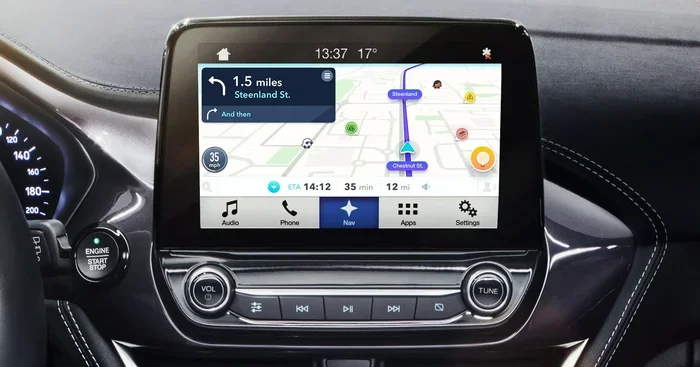
Why Is Google Maps Not Showing on My Car Screen Anymore
Google Maps not showing on your car screen is a frustrating problem many drivers face after updates, compatibility changes, or connection issues. This guide covers the most common reasons your car navigation system won’t display maps and gives you clear, step-by-step fixes you can try right now. We also share expert tips to prevent the problem from coming back.
There is nothing more annoying than hopping in your car, tapping the screen, and seeing a blank space where Google Maps should be. You need directions. You need to get somewhere. But your car navigation system just refuses to cooperate. This is a problem more drivers are running into than you might think.
Whether your car display shows an error message, freezes on the loading screen, or simply goes blank, the root cause usually falls into one of a few common categories. Software updates, connection problems, cache issues, or hardware conflicts can all trigger this frustrating situation. The good news is that most of these problems have simple solutions you can try at home without visiting a mechanic.
In this article, we will walk you through every major reason Google Maps might not be working on your car screen. We will also give you clear, actionable steps to fix the issue and get back on the road with confidence. Let us dive in.
Key Takeaways
- Software conflicts are the #1 reason Google Maps stops working on car screens after updates.
- Clearing cache and data often fixes map loading errors instantly.
- Android Auto and Apple CarPlay compatibility issues can block map display.
- Weak GPS signals and outdated maps cause blank or frozen screens.
- Regular app updates and cache clearing keep your car navigation running smoothly.
- Factory resets should be your last resort after trying all other fixes.
📑 Table of Contents
- Why Google Maps Stops Working on Your Car Screen
- How to Fix Google Maps Not Showing on Your Car Screen
- Common Mistakes That Cause Google Maps to Fail on Car Screens
- Preventing Google Maps Display Issues in the Future
- When to Seek Professional Help
- Quick Tips for a Smoother Navigation Experience
- Frequently Asked Questions
- Conclusion
Why Google Maps Stops Working on Your Car Screen
Understanding the root cause is the first step to fixing the problem. When Google Maps suddenly disappears from your infotainment system, something has changed. Here are the most common reasons this happens.
Software Updates Gone Wrong
Sometimes a software update is the culprit. Both your phone and your car’s head unit receive regular updates. These updates can introduce bugs or create compatibility problems. After an update, Google Maps might refuse to launch or display properly on your car screen.
For example, a recent Android Auto update caused many drivers to report that their maps would not load. The same thing can happen with Apple CarPlay updates. When the navigation app and the car system no longer communicate properly, you get a blank or frozen screen.
Cache and Data Corruption
Your phone and car system store temporary data called cache. This helps Google Maps load faster. But over time, this cached data can become corrupted. When that happens, the app struggles to display maps correctly.
Think of it like a cluttered desk. When too much junk piles up, things stop working well. Clearing the cache is like tidying up that desk. It removes old, broken files so the app can start fresh.
Connection Issues Between Phone and Car
Most modern cars use Bluetooth connection or USB cables to link your phone to the infotainment system. If this connection drops or becomes unstable, Google Maps may not display at all.
Wireless projection through Android Auto or Apple CarPlay relies on a strong Wi-Fi or Bluetooth signal. A weak signal, interference from other devices, or a faulty cable can all break that link. The result? Your GPS not displaying on the car screen even though everything else seems fine.
App Compatibility Problems
Not every version of Google Maps works with every car model. App compatibility is a real issue, especially with older vehicles. If your car’s head unit runs outdated software, it might not support the latest version of the app.
Similarly, if you recently updated Google Maps on your phone but your car system has not kept up, the two may not sync properly. This mismatch can cause the map to fail to load or display incorrectly.
GPS Signal Problems
Google Maps needs a strong GPS signal to show your location and route. If your car’s antenna is damaged or blocked, the navigation app cannot get the data it needs. You might see a blank screen or a moving dot that does not match your actual position.
Driving through tunnels, tall buildings, or remote areas can also weaken the signal temporarily. But if the problem happens all the time, something deeper is going on with your car’s GPS hardware or settings.
How to Fix Google Maps Not Showing on Your Car Screen
Now that you know the common causes, let us look at the fixes. Most of these steps take less than five minutes and do not require any special tools.
Step 1: Restart Your Phone and Car System
This sounds too simple, but it works more often than you would think. A quick restart clears temporary glitches and resets connections between your phone and the infotainment system.
Turn off your car. Unplug your phone if it is connected by USB. Restart your phone. Then turn the car back on and reconnect. In many cases, this alone fixes the map loading error and gets your car navigation system working again.
Step 2: Clear Google Maps Cache and Data
Go to your phone’s Settings. Find the Apps section. Tap on Google Maps. Then go to Storage. You will see options to Clear Cache and Clear Data.
Start with Clear Cache. This removes temporary files without deleting your saved places or directions. If that does not work, try Clear Data as well. Just know that this will reset the app to its default settings. You will need to sign in again and reconfigure your preferences.
Step 3: Update Google Maps and Your Car Software
Open the Google Play Store or Apple App Store. Check if there is an update available for Google Maps. Install it. Then check your car’s head unit for software updates as well.
Many car manufacturers release updates through USB downloads or over Wi-Fi. Keeping both your phone app and car software current helps prevent app compatibility issues that cause the map to disappear.
Step 4: Reconnect Bluetooth and USB
If you use a wireless connection, turn off Bluetooth on your phone and then turn it back on. Re-pair your phone with the car system if needed.
For USB connections, try a different cable or a different USB port in your car. Faulty cables are a surprisingly common reason for Google Maps not displaying properly. A damaged cable can interrupt data transfer and cause the screen to go blank.
Step 5: Disable and Re-enable Android Auto or Apple CarPlay
Sometimes the projection system itself needs a reset. On your phone, go to Settings and find Android Auto or Apple CarPlay. Turn it off, wait a few seconds, and turn it back on.
This refreshes the connection between your phone and the car screen. It often resolves issues where the navigation app loads but the map itself does not appear.
Step 6: Check Your GPS Settings
Make sure location services are turned on in your phone settings. Go to Settings > Location and ensure it is enabled. Also check that Google Maps has permission to access your location.
On your car’s display, look for GPS settings in the navigation menu. Make sure the car’s GPS antenna is not blocked by a phone mount, metal tray cover, or any other object. A clear signal path helps the GPS not displaying problem resolve quickly.
Common Mistakes That Cause Google Maps to Fail on Car Screens
There are some habits and mistakes that make Google Maps problems more likely. Avoiding these can save you a lot of frustration.
Ignoring App Updates
Many people leave app updates sitting in the notification bar for days or weeks. Outdated versions of Google Maps are more likely to crash, freeze, or fail to connect with your car’s infotainment system. Make it a habit to update your apps regularly.
Overloading Your Phone’s Storage
When your phone is nearly full, apps struggle to function properly. Google Maps needs storage space to save map data and cache files. If your phone storage is almost full, the app may not be able to load maps at all.
Delete unused apps, photos, or videos to free up space. A phone with at least 2GB of free storage tends to run navigation apps much more smoothly.
Using Low-Quality USB Cables
Cheap USB cables often cannot carry enough data for Android Auto or Apple CarPlay to work properly. They may charge your phone but fail to transmit the data your car screen needs to display maps.
Invest in a high-quality, short USB cable. Shorter cables with good shielding provide more stable connections and reduce screen frozen issues significantly.
Skipping Car System Restarts
Just like your phone, your car’s head unit benefits from a regular restart. If you rarely turn your car off completely, the system can build up memory issues over time. A full restart at least once a week keeps everything running smoothly.
Preventing Google Maps Display Issues in the Future
Once you get Google Maps working again, you want to keep it working. Here are some simple habits that help.
- Update regularly. Keep both your phone and car software up to date. Updates fix bugs and improve app compatibility with your car navigation system.
- Clear cache monthly. Set a reminder to clear Google Maps cache once a month. This prevents data corruption from building up.
- Use quality cables. Always use certified USB cables from reputable brands. Avoid free cables from gas stations.
- Restart your system weekly. A simple restart clears memory and refreshes connections between your phone and the infotainment system.
- Monitor storage space. Keep at least 2GB of free space on your phone at all times. This ensures Google Maps has room to operate properly.
- Check GPS signal strength. If your map loads slowly or shows incorrect locations, check for physical obstructions near your car’s antenna.
When to Seek Professional Help
Most of the time, the fixes above will solve the problem. But sometimes the issue goes deeper than a simple app glitch. Here are signs you should see a professional.
If your car display shows artifacts, flickering, or permanent black spots, the screen itself may be failing. If Google Maps works fine on your phone but never displays on the car screen even after trying every fix, the head unit may have a hardware problem.
Also, if you notice other apps on your car screen behaving strangely, the entire infotainment system might need a factory reset or professional servicing. A certified car technician or dealership can diagnose these deeper issues safely.
Quick Tips for a Smoother Navigation Experience
Quick Tips
- Always pre-load your destination before you start driving.
- Download offline maps in Google Maps for areas with weak cell signal.
- Use a phone mount that does not block your car’s GPS antenna.
- Keep a spare USB cable in your glove box at all times.
- If the screen freezes, do not slam the power button. Instead, hold it for 10 seconds to force a clean restart.
- Consider using a dedicated GPS device as a backup for long road trips.
Frequently Asked Questions
Why did Google Maps suddenly stop working on my car screen?
The most common reason is a software conflict after a phone or car update. Clearing the app cache, restarting both devices, and checking for updates usually fixes this quickly. Connection issues between your phone and the car’s infotainment system can also trigger this problem suddenly.
Can I use Google Maps on my car screen without Android Auto or Apple CarPlay?
Yes, some cars have Google Maps built directly into their head unit through a web browser or native app. Check your car’s manual or settings to see if this option is available. Built-in systems work independently of your phone but may have fewer features.
Is a blank car screen a sign of a broken display?
Not necessarily. A blank screen is often caused by a software glitch, a loose connection, or a cache problem. Try restarting your phone and car system first. If the screen remains completely dark even after a restart, then a hardware issue might be the cause and professional help may be needed.
How often should I clear Google Maps cache on my phone?
Clearing your cache once a month is a good routine. If you notice map loading errors or slow performance, clear it immediately. Regular cache clearing prevents data corruption and keeps the navigation app running smoothly on your car screen.
Does a weak GPS signal mean my car antenna is broken?
Not always. Weak signals can happen in tunnels, dense cities, or remote areas. However, if you consistently lose signal in open areas, your car antenna might be damaged or blocked. Have a professional check the antenna and its connection to the car display.
Will resetting my car system delete my saved locations and preferences?
A factory reset on your car’s infotainment system can delete saved Wi-Fi networks, radio presets, and some app settings. However, your phone’s Google Maps data stays safe on your phone. Always back up important settings before performing a reset on your car system.
Conclusion
Dealing with Google Maps not showing on your car screen can ruin your morning commute or a weekend road trip. But as we have covered, the problem usually has a straightforward fix. Whether it is a software update gone wrong, a corrupted cache, a weak connection, or a simple compatibility issue, you have the tools to solve it yourself.
Start with the simplest fixes. Restart your devices. Clear the cache. Update your apps. Most of the time, one of these steps brings your car navigation system back to life. If the problem persists, dig deeper into connection settings and GPS configuration. And remember, prevention is always easier than repair.
Keep your apps updated, your cables quality, and your system restarted regularly. These small habits go a long way toward keeping Google Maps running smoothly on your car screen every single time you hit the road. Safe travels and happy navigating.