How Do I Find My Toyota Wi-Fi Password Step by Step
Finding your Toyota Wi-Fi password is simple once you know where to look. Whether you drive a Toyota Camry, RAV4, or Highlander, this guide walks you through every step to locate, reset, and troubleshoot your car’s Wi-Fi hotspot. You will learn how to access the password on the infotainment screen, use the Toyota app, and fix common connection issues.
Have you ever climbed into your Toyota and needed to get online, but you simply could not remember the Wi-Fi password? You are not alone. Many Toyota owners struggle to find their car’s Wi-Fi password, especially after a reset or when using the hotspot for the first time. Finding your Toyota Wi-Fi password does not have to be a headache. This guide gives you every method you need to pull up that password quickly and easily.
Whether you are trying to connect your phone, tablet, or laptop to the Toyota hotspot, knowing where to look makes all the difference. This step-by-step guide covers every Toyota model and every possible way to find your Wi-Fi password. We also include troubleshooting tips for when things do not work as expected. By the end of this article, you will feel confident connecting to your Toyota Wi-Fi every single time.
Let us dive right in and walk through the simplest ways to find your Toyota Wi-Fi password. No guesswork. No frustration. Just clear, actionable steps you can follow right now.
Key Takeaways
- Check the infotainment screen: Your Toyota Wi-Fi password is usually found under the Settings or Wi-Fi menu on the center display.
- Use the Toyota app: The Toyota Connected Services app can display your Wi-Fi password and hotspot name directly on your phone.
- Reset if needed: A simple factory reset of the Wi-Fi settings often fixes connection problems and restores the default password.
- Know your Toyota model: Different Toyota models may store the password in slightly different menu locations.
- Contact Toyota support: If all else fails, Toyota customer service can provide your default Wi-Fi credentials.
📑 Table of Contents
- Why Does Your Toyota Have a Wi-Fi Hotspot?
- How to Find Your Toyota Wi-Fi Password Step by Step
- Toyota Wi-Fi Password: Common Locations by Model
- How to Reset Your Toyota Wi-Fi Password
- Troubleshooting Toyota Wi-Fi Connection Issues
- Tips to Keep Your Toyota Wi-Fi Secure
- Expert Insights on Toyota Wi-Fi Connectivity
- Frequently Asked Questions
- Conclusion
Why Does Your Toyota Have a Wi-Fi Hotspot?
Toyota has built Wi-Fi hotspots into many of its newer models. This feature lets you and your passengers stay connected while on the road. You can stream music, use navigation apps, check email, or browse the web. It works much like a home router, but it is built right into your car.
The Toyota Wi-Fi hotspot uses a built-in cellular connection or connects to your phone’s data plan. This means you can get online even without a home network nearby. The hotspot creates a private Wi-Fi network inside your vehicle that your devices can join.
Toyota calls this feature by different names depending on the model year and trim level. Some Toyota models use the Toyota Entune system, while others use the Toyota Connected Services platform. Regardless of the name, the process for finding the Wi-Fi password remains very similar across the lineup.
Now, let us get into the real reason you are here. How do you actually find that password?
How to Find Your Toyota Wi-Fi Password Step by Step
There are several ways to locate your Toyota Wi-Fi password. Each method works well, and you can try them in any order. Below, we walk through each method in detail.
Method 1: Check the Infotainment Screen
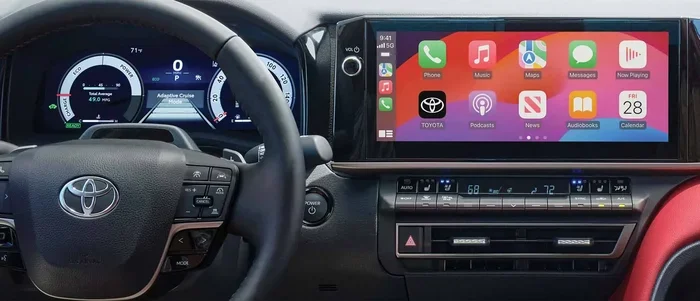
The most direct way to find your Toyota Wi-Fi password is through the car’s infotainment system. Here is exactly what to do:
- Start your Toyota and let the infotainment system fully boot up.
- Press the “Settings” button on the center screen. It usually looks like a gear icon.
- Look for a menu option labeled “Wi-Fi,” “Network,” or “Connections.”
- Tap on “Wi-Fi Settings” or “Hotspot Settings.”
- You should see the network name (SSID) and the Wi-Fi password displayed on screen.
Write the password down or take a screenshot so you do not have to go through this process again. Some Toyota models hide the password behind a “Show Password” toggle. If you do not see the password right away, look for this option on the screen.
The exact menu path can vary slightly depending on your Toyota model. For example, a 2023 Toyota Camry may have a slightly different layout than a 2022 Toyota RAV4. But the general steps remain the same across the board.
Method 2: Use the Toyota Connected Services App
If you have a smartphone, the Toyota app is one of the fastest ways to find your Wi-Fi password. Toyota offers the Toyota Connected Services app for both iPhone and Android users. Here is how to use it:
- Download the Toyota app from the App Store or Google Play Store.
- Open the app and log in with your Toyota account credentials.
- Navigate to the “Vehicle Settings” or “Connectivity” section.
- Look for the Wi-Fi hotspot settings.
- The app will display both the network name and the Wi-Fi password.
This method is especially helpful if you have forgotten the password and do not have access to the vehicle right now. The Toyota app also lets you manage other connected features, such as remote start, lock controls, and vehicle diagnostics. It is a powerful tool for any Toyota owner.
Keep in mind that you need to be connected to your Toyota account and have the vehicle registered in the app. If you have not set this up yet, you can do so by following the prompts in the app.
Method 3: Check the Owner’s Manual
Your Toyota owner’s manual is a goldmine of information. Many people toss it in the glove box and forget about it. But it contains the default Wi-Fi password for your specific model. Here is what to look for:
- Flip to the “Connectivity” or “Wi-Fi” section.
- Look for a table or list that shows default network names and passwords.
- The manual may also include the Wi-Fi password on a sticker inside the cover.
The owner’s manual is especially useful for first-time Toyota Wi-Fi users. If you have lost your physical manual, you can download a PDF version from the Toyota website for free. Just search for your model year and “owner’s manual PDF.”
Method 4: Contact Toyota Customer Support
If none of the above methods work, you can always reach out to Toyota customer support. They have access to your vehicle’s information and can provide the default Wi-Fi credentials. You can call Toyota, use the live chat on their website, or visit your local Toyota dealership.
Have your Vehicle Identification Number (VIN) ready when you call. This helps the support team pull up your specific vehicle details quickly. Toyota support is free and very helpful for this type of question.
Toyota Wi-Fi Password: Common Locations by Model
Different Toyota models store the Wi-Fi password in slightly different places. Below is a quick reference guide to help you find the password for your specific model.
| Toyota Model | Wi-Fi Password Location |
|---|---|
| Toyota Camry | Settings > Wi-Fi > Hotspot Settings |
| Toyota RAV4 | Settings > Network & Internet > Wi-Fi Hotspot |
| Toyota Highlander | Settings > Connections > Wi-Fi Hotspot |
| Toyota Corolla | Settings > Wi-Fi > Mobile Hotspot |
| Toyota Tacoma | Settings > Network > Wi-Fi Hotspot Password |
| Toyota 4Runner | Settings > Wi-Fi > Hotspot & Tethering |
These paths are based on the latest Toyota infotainment systems. Older models may have slightly different menu names. If you do not see the exact path listed above, look for a menu item that mentions “Wi-Fi,” “Network,” or “Hotspot.”
For example, if you drive a Toyota RAV4 and you want to use Wi-Fi for navigation, you might also want to check whether you can use Google Maps in your Toyota while connected to the hotspot. This can help you get the most out of your car’s connectivity features.
How to Reset Your Toyota Wi-Fi Password
Sometimes you need to reset the Wi-Fi password on your Toyota. This is common after a system update or if you have forgotten a custom password you set earlier. Here is how to do it:
Soft Reset the Wi-Fi Settings
A soft reset clears the current Wi-Fi settings and restores the default password. Here is the process:
- Go to Settings on the infotainment screen.
- Navigate to Wi-Fi or Network Settings.
- Select “Reset to Default” or “Factory Reset.”
- Confirm the reset when prompted.
- The system will restore the original Wi-Fi password.
A soft reset does not delete any of your other settings. It only affects the Wi-Fi and network configurations. This is the safest and quickest way to recover your default password.
Hard Reset the Infotainment System
If a soft reset does not work, you can try a hard reset. This reboots the entire infotainment system:
- Turn off the Toyota ignition.
- Disconnect the negative battery terminal for about 5 minutes.
- Reconnect the battery terminal.
- Start the car and check the Wi-Fi settings.
Use the hard reset only as a last resort. It will reset all infotainment settings, not just the Wi-Fi password. You may need to reconfigure your radio presets, Bluetooth connections, and other preferences afterward.
Troubleshooting Toyota Wi-Fi Connection Issues
Even after finding the password, you might run into connection problems. Here are the most common issues and how to fix them.
The Password Does Not Work
If the password you found does not connect, try the following:
- Double-check for typos. Wi-Fi passwords are case-sensitive.
- Make sure you are using the correct network name (SSID).
- Restart the Wi-Fi hotspot on the infotainment screen.
- Forget the network on your device and reconnect using the password.
Sometimes the simplest fix is just restarting the hotspot. Turn it off, wait 10 seconds, and turn it back on. This refreshes the connection and often resolves the issue.
Slow Wi-Fi Speed in the Car
Slow speeds are a common complaint with car Wi-Fi hotspots. Here is what you can do:
- Move to an area with strong cellular signal.
- Limit the number of connected devices.
- Close background apps on connected devices.
- Check if your Toyota Wi-Fi plan has a data limit.
For more information on how car Wi-Fi compares to other options, check out our article on whether car Wi-Fi is better than a phone hotspot. It covers speed, reliability, and cost differences in detail.
Wi-Fi Hotspot Will Not Turn On
If the hotspot option is grayed out or will not turn on, try these steps:
- Make sure your Toyota has an active cellular data plan.
- Check that the SIM card is properly seated (if applicable).
- Update the infotainment system software to the latest version.
- Perform a soft reset of the Wi-Fi settings.
A software update can often fix connectivity bugs. Toyota regularly releases updates for its infotainment systems. You can check for updates in the Settings menu under “System” or “Software Update.”
Tips to Keep Your Toyota Wi-Fi Secure
Once you find and connect to your Toyota Wi-Fi, it is important to keep it secure. Here are some quick tips:
- Change the default password to something unique and strong.
- Do not share the password with strangers or people you do not trust.
- Turn off the hotspot when you are not using it.
- Monitor connected devices regularly to make sure no unauthorized devices are using your network.
- Use WPA2 encryption if your Toyota supports it.
Keeping your Toyota Wi-Fi secure protects your personal data and ensures you get the best speeds when you need them most. A simple password change can make a big difference in your online safety.
Expert Insights on Toyota Wi-Fi Connectivity
Toyota’s Wi-Fi system has improved significantly over the past few years. Newer models offer faster speeds, better range, and more reliable connections. However, the system still has some limitations that owners should be aware of.
First, the Wi-Fi range is limited to the vehicle. You cannot use the car’s hotspot when the engine is off in most models. Some Toyota models allow the hotspot to stay active for a short period after turning off the ignition, but this varies.
Second, data plans cost extra. Most Toyota Wi-Fi hotspots require a monthly or annual data subscription. You can purchase these plans through Toyota or through third-party providers. The cost typically ranges from $10 to $50 per month depending on your data needs.
Third, not all Toyota models support Wi-Fi hotspots. Older models and base trim levels may not include this feature. If you are shopping for a used Toyota, check the connectivity features before purchasing.
If you are interested in other Toyota connectivity features, you might want to learn about whether you can get Remote Connect installed in your Toyota. This feature adds remote start, lock/unlock, and vehicle tracking capabilities to your Toyota experience.
Frequently Asked Questions
Where is the default Wi-Fi password on my Toyota?
The default Wi-Fi password is usually printed on a sticker inside the owner’s manual or displayed in the Wi-Fi settings menu on the infotainment screen. Check under “Settings > Wi-Fi > Hotspot Settings” for the default credentials.
Can I change my Toyota Wi-Fi password?
Yes, you can change your Toyota Wi-Fi password through the infotainment system. Go to Settings, select Wi-Fi Hotspot, and choose the option to change the password. Pick a strong password that is easy for you to remember but hard for others to guess.
Why will my Toyota Wi-Fi not connect?
There are several reasons why a Toyota Wi-Fi connection might fail. The password could be incorrect, the hotspot might need a restart, or the cellular data plan might be inactive. Try resetting the hotspot and reconnecting your device to fix the issue.
Do I need a data plan for Toyota Wi-Fi?
Yes, most Toyota Wi-Fi hotspots require an active data plan to work. You can purchase a plan through Toyota or a compatible carrier. Some newer Toyota models include a free trial period, but you will need to subscribe to continue using the service after the trial ends.
Can I use my Toyota Wi-Fi outside the car?
In most Toyota models, the Wi-Fi hotspot only works when the engine is running or the car is in accessory mode. Some models allow a short window of use after turning off the ignition, but the hotspot will eventually shut down when the battery voltage drops too low.
How many devices can connect to Toyota Wi-Fi at once?
Most Toyota Wi-Fi hotspots support up to 5 to 7 connected devices at the same time. The exact number depends on your Toyota model and the hotspot hardware. Connecting too many devices can slow down the speed for everyone on the network.
Conclusion
Finding your Toyota Wi-Fi password is easier than you think. Whether you check the infotainment screen, use the Toyota app, or consult the owner’s manual, there are multiple ways to get connected quickly. The key is knowing where to look and understanding how the system works.
If you run into issues, a simple reset or a call to Toyota support can solve most problems. Keep your password stored safely so you never have to hunt for it again. And always remember to secure your hotspot with a strong, unique password.
Now that you know exactly how to find and manage your Toyota Wi-Fi password, you can enjoy seamless connectivity on every drive. Stay connected, stay safe, and enjoy the ride.