How Do I Connect My Phone to My Toyota Corolla Screen
Connecting your phone to your Toyota Corolla screen is simple once you know the steps. Whether you use Bluetooth for wireless streaming or a USB cable for a stable connection, this guide walks you through every method. You will also learn how to set up Apple CarPlay and Android Auto, fix common pairing issues, and keep your connection running smoothly.
Your Toyota Corolla comes with a built-in screen that does a lot more than just play the radio. It can connect to your phone, stream your favorite music, show you directions, and let you make calls without ever touching your device. But if you have never set this up before, the process can feel a little confusing at first.
The good news is that connecting your phone to your Toyota Corolla screen is easier than most people think. Whether you have a newer model with wireless capabilities or an older version that uses a cable, the steps are straightforward. In this guide, we will walk you through every method, answer common questions, and share tips that make the whole process smoother.
Before we dive in, it helps to understand what you are working with. The Toyota Corolla uses a multimedia system that supports Bluetooth wireless connection, USB input, and smart phone integration through Apple CarPlay and Android Auto. Each method has its own benefits, and we will cover them all so you can pick what works best for you.
Key Takeaways
- Bluetooth pairing is the most popular way to connect your phone wirelessly to the Toyota Corolla screen.
- USB connection offers a more stable link for music and navigation, especially in older model years.
- Apple CarPlay and Android Auto bring your favorite apps directly to the Toyota touchscreen.
- Resetting Bluetooth settings often fixes common connection problems quickly.
- Keeping your phone and Toyota software updated ensures the best performance and fewer glitches.
- Hands-free calling and messaging are safer and more convenient once your phone is connected.
📑 Table of Contents
- How to Connect Your Phone to Your Toyota Corolla Screen
- Apple CarPlay and Android Auto Setup
- Using Your Phone for Navigation and Maps
- Troubleshooting Common Connection Issues
- Making the Most of Phone Integration
- Tips for Maintaining a Stable Connection
- How to Remove Your Phone Connection Safely
- Frequently Asked Questions
- Conclusion
How to Connect Your Phone to Your Toyota Corolla Screen
The first thing you need to do is decide how you want to connect. Most people choose between Bluetooth and a USB cable. Both methods get your phone talking to the Toyota screen, but they work a bit differently. Let us look at each one in detail.
Using Bluetooth Wireless Connection
Bluetooth is the go-to method for most Toyota Corolla owners. It lets you connect your phone without any wires, which means less clutter on your dashboard. Once paired, you can make calls, stream music, and use voice commands all through the car’s speakers and screen.
Here is how to set up Bluetooth pairing on your Toyota Corolla:
- Turn on your car or set it to accessory mode.
- Press the Bluetooth button on the steering wheel or navigate to Settings on the touchscreen.
- Select “Add New Device” or “Pair New Phone.”
- On your phone, go to Settings and turn on Bluetooth.
- Look for your Toyota Corolla in the list of available devices.
- Tap on it and confirm the pairing code that appears on both screens.
- Wait a few seconds for the connection to complete.
Once paired, your phone will automatically connect every time you start the car. This is one of the best features of the Toyota multimedia system. If you are new to phone pairing in general, you might want to check out our guide on how to put a phone in pairing mode for extra tips.
Connecting via USB Cable
Some Toyota Corolla owners prefer a USB connection, especially if they have an older model. A USB cable provides a more stable and reliable link between your phone and the car screen. It also charges your phone while you drive, which is a nice bonus.
To connect using a USB cable:
- Find the USB port in your Toyota Corolla. It is usually located in the center console or under the armrest.
- Plug one end of the cable into your phone and the other into the car’s USB port.
- The Toyota screen should recognize your phone automatically.
- Select the USB or Aux input source on the touchscreen.
- You can now access your music library and use navigation apps directly through the car screen.
A USB connection is especially helpful if your phone does not support wireless Bluetooth streaming or if you experience frequent audio cutting out. It is also the best option for Apple CarPlay and Android Auto on models that require a wired connection.
Apple CarPlay and Android Auto Setup
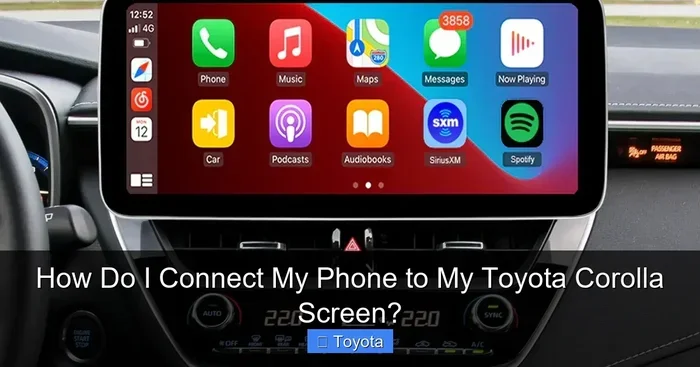
If you have a smartphone, Apple CarPlay and Android Auto are game changers. They mirror your phone’s screen onto the Toyota Corolla display, giving you access to maps, music, messages, and more. These features work best with a USB cable or, on newer models, wirelessly.
Setting Up Apple CarPlay
Apple CarPlay is available for iPhone users. It brings Siri, Maps, Music, and your favorite apps right to the Toyota screen. Here is how to get it running:
- Plug your iPhone into the USB port using a Lightning cable.
- An Apple CarPlay icon should appear on the Toyota touchscreen.
- Tap the icon and follow the on-screen prompts.
- Grant the necessary permissions for calls, messages, and location access.
- Once set up, you can use Siri voice commands to make calls, send texts, and get directions.
On newer Toyota Corolla models from 2019 and up, wireless Apple CarPlay is supported. This means you do not need a cable at all. Just make sure Bluetooth is turned on, and the car should detect your iPhone automatically.
Setting Up Android Auto
Android Auto works similarly for Android phone users. It gives you access to Google Maps, Spotify, Podcasts, and messaging apps through the Toyota screen. Here is the setup process:
- Download the Android Auto app from the Google Play Store on your phone.
- Connect your phone to the car using a USB cable.
- Open the Android Auto app and follow the setup instructions.
- Accept the permissions for location, calls, and messages.
- You will now see the Android Auto interface on your Toyota Corolla screen.
Wireless Android Auto is also available on select Toyota Corolla models. Check your owner’s manual or visit the Toyota website to confirm whether your specific year supports wireless smart phone integration.
Using Your Phone for Navigation and Maps
One of the biggest reasons people connect their phone to the car screen is for navigation. Whether you rely on Google Maps, Waze, or Apple Maps, having directions on the big Toyota screen is much safer and easier than squinting at your phone mount.
If you use Google Maps on your Toyota, you can get directions displayed right on the center console. Just open the app on your phone, and it will mirror to the car screen once you are connected. For a deeper look at using Google Maps in your Toyota, check out our article on can I use Google Maps in my Toyota.
Another great feature is the ability to download car maps for offline use. This means you can still get directions even if you lose cell signal in a tunnel or a remote area. You can find detailed steps for downloading maps in our guide on how to download car maps.
Having navigation on the Toyota screen also means you can use voice commands to search for destinations. Just say “Hey Google” or “Hey Siri” and tell it where you want to go. It keeps your eyes on the road and your hands on the wheel.
Troubleshooting Common Connection Issues
Sometimes things do not go as planned. Your phone might not pair, the audio might cut out, or the screen might not recognize your device. These issues are more common than you think, and most of them have simple fixes.
Phone Won’t Pair with Toyota Corolla
If your phone refuses to connect, try these steps first:
- Turn Bluetooth off and back on both on your phone and in the car.
- Delete the old pairing from your Toyota’s Bluetooth memory and try again.
- Make sure your phone is not connected to another device nearby.
- Restart both your phone and the car’s infotainment system.
- Check if your phone is in discoverable mode so the car can find it.
If none of these work, the issue might be with your phone’s Bluetooth settings. You can learn more about common pairing problems by reading our guide on how to put a phone in pairing mode.
Audio Keeps Cutting Out
Intermittent audio is a frustrating issue, but it usually has an easy fix:
- Move closer to the car’s Bluetooth antenna, which is typically near the center console.
- Make sure nothing is blocking the signal between your phone and the car.
- Check if other devices are connected to the Toyota system and causing interference.
- Update your phone’s software and the Toyota multimedia system firmware.
- Switch from Bluetooth to a USB cable connection for a more stable audio stream.
A stable connection makes a big difference in your driving experience. Nothing ruins a road trip faster than music that keeps pausing or skipping.
Making the Most of Phone Integration
Once your phone is connected, there are several features you should take advantage of. These go beyond just playing music and can make your daily commute safer and more enjoyable.
Hands-Free Calling and Messaging
With your phone linked to the Toyota Corolla screen, you can make and receive calls using the car’s microphone and speakers. This is much safer than holding your phone while driving. You can also read and reply to text messages using voice commands.
Just say “Call [contact name]” or “Read my messages” and the Toyota system handles the rest. This feature alone makes phone integration worth setting up.
Streaming Music and Podcasts
Whether you use Spotify, Apple Music, YouTube Music, or Pandora, connecting your phone to the Toyota screen lets you control playback right from the dashboard. You can browse playlists, skip tracks, and adjust volume without ever touching your phone.
Some Toyota Corolla models also support phone mirroring, which displays your phone’s interface on the car screen. This gives you access to apps that are not natively supported by the Toyota infotainment system.
Using Voice Assistants
Both Siri and Google Assistant work through your connected phone. You can ask them to set reminders, check the weather, find a restaurant, or navigate to a specific address. The Toyota Corolla’s microphone picks up your voice clearly, even with the radio on.
Tips for Maintaining a Stable Connection
Once you have your phone connected, keeping the connection strong is important. Here are a few simple tips:
- Keep your phone software updated. Updates often include Bluetooth and connectivity fixes.
- Delete old pairings regularly. A cluttered Bluetooth memory can slow things down.
- Use a high-quality USB cable if you go the wired route. Cheap cables can cause connection drops.
- Restart the car’s infotainment system once a month. This clears temporary glitches and keeps things running smoothly.
- Turn off Bluetooth on devices you are not using. Multiple connected devices can cause interference.
Following these simple habits will keep your Toyota Corolla phone connection strong and reliable for years to come.
How to Remove Your Phone Connection Safely
There may be times when you need to disconnect your phone from the Toyota Corolla screen. Maybe you are selling the car, lending it to someone, or just want a fresh start. Here is how to do it safely.
To remove a paired device from the Toyota system, go to Settings, then Bluetooth, find the device name, and select “Delete” or “Forget Device.” This removes the phone from the car’s memory without affecting your phone’s settings.
If you are selling your Toyota Corolla, make sure to also reset the infotainment system to factory settings. This protects your personal data and gives the new owner a clean slate. You can also check our article on unlocking your Toyota with your phone for more tips on managing phone features in Toyota vehicles.
Frequently Asked Questions
Can I connect multiple phones to my Toyota Corolla screen?
Yes, the Toyota Corolla supports multiple paired devices. The system can remember several phones and will automatically connect to the one that was last used. You can switch between devices through the Bluetooth settings on the touchscreen.
Do I need a cable to use Apple CarPlay or Android Auto?
It depends on your Toyota Corolla model year. Newer models from 2019 and up support wireless Apple CarPlay and Android Auto. Older models require a USB cable to connect. Check your owner’s manual to confirm which method your specific car supports.
Why does my phone keep disconnecting from the Toyota screen?
This is usually caused by Bluetooth interference or outdated software. Try resetting the Bluetooth connection, updating your phone’s operating system, and deleting old pairings. If the problem continues, a USB cable connection can provide a more stable alternative.
Can I charge my phone while using Bluetooth or USB?
Yes. If you use a USB cable, your phone will charge while connected. If you use Bluetooth only, the car does not charge your phone. You may want to keep a portable charger handy for long drives when using wireless connection.
Is it safe to connect my phone to the Toyota Corolla screen?
Absolutely. The Toyota multimedia system is designed with security in mind. When you connect your phone, you control what permissions you grant. You can limit access to calls, messages, and music separately. Always review permissions before accepting them.
Can I connect an Android phone to a Toyota Corolla that only supports Apple CarPlay?
No, Apple CarPlay is exclusive to iPhones. However, most Toyota Corolla models also support Android Auto for Android phone users. If your specific model does not support either, you can still use Bluetooth for calls and music streaming.
Conclusion
Connecting your phone to your Toyota Corolla screen opens up a world of convenience and safety. Whether you choose Bluetooth for wireless freedom, a USB cable for stable performance, or Apple CarPlay and Android Auto for full app access, the process is simple and well worth the effort.
Start with the method that fits your needs best. If you run into any issues, the troubleshooting tips in this guide should help you get back on track quickly. Once your phone is connected, you will wonder how you ever drove without it.
Take a few minutes today to set up your connection. You will enjoy hands-free calling, streaming music, and navigation on the big Toyota screen every time you hit the road. A connected Toyota Corolla is a smarter, safer, and more enjoyable car to drive.