How Do I Get Bluetooth to Recognize My Device Quickly
Struggling with Bluetooth not recognizing your device? This guide walks you through proven fixes to get Bluetooth working fast. You will learn simple pairing steps, common mistakes to avoid, and expert tips for car Bluetooth setups. Whether your phone won’t connect or your car stereo won’t find your device, we have you covered.
You are trying to connect your phone to your car stereo, your headphones, or your speaker. But Bluetooth just does not see it. You turn it on, wait, and nothing happens. It is frustrating, right? You are not alone. Thousands of people deal with Bluetooth not recognizing devices every single day. The good news is that fixing this problem is usually quick and easy.
In this guide, we will walk you through every step to make Bluetooth recognize my device without headaches. We will cover simple fixes, common mistakes, and pro tips that actually work. Whether you are connecting a phone to a car or pairing headphones to a laptop, this article has the answers you need. Let us get your Bluetooth connected right now.
Key Takeaways
- Turn Bluetooth off and on again: This simple step resolves most connection problems instantly.
- Check visibility and discovery mode: Your device must be visible to be found by other Bluetooth devices.
- Remove old pairings: Clearing old connections frees up space and prevents conflicts.
- Update your Bluetooth drivers: Outdated software is a leading cause of recognition failures.
- Restart both devices: A fresh restart clears temporary glitches that block pairing.
- Check distance and interference: Bluetooth has a limited range and can be disrupted by other signals.
- Reset network settings: A full reset can fix stubborn Bluetooth issues that nothing else solves.
📑 Table of Contents
- Why Bluetooth Fails to Recognize Your Device
- How to Get Bluetooth to Recognize My Device Step by Step
- Bluetooth Pairing for Cars: Special Tips
- How to Fix Bluetooth on Different Devices
- Common Mistakes That Stop Bluetooth From Working
- When to Seek Professional Help for Bluetooth Issues
- Final Thoughts
Why Bluetooth Fails to Recognize Your Device
Before we jump into fixes, it helps to understand why Bluetooth pairing problems happen in the first place. Bluetooth uses short-range radio waves to connect devices. When two devices try to talk to each other, they need to be on the same page. If something is off, the connection fails.
Several things can cause this. Sometimes the Bluetooth signal is weak. Other times, a device is not in discovery mode. Software glitches, outdated drivers, and interference from other electronics can all get in the way. Knowing the root cause helps you fix the problem faster.
Common Reasons Bluetooth Does Not Find Devices
- Bluetooth is turned off or disabled: It sounds obvious, but this happens more than you think.
- Discovery mode is off: Devices hide themselves by default to save battery and stay private.
- Too many saved pairings: Your device memory gets full and refuses new connections.
- Outdated software: Old Bluetooth drivers or firmware cause compatibility issues.
- Distance is too far: Bluetooth works best within about 30 feet of each other.
- Interference from Wi-Fi or USB devices: Other wireless signals can block Bluetooth communication.
- Device is already connected to something else: Many Bluetooth devices can only pair with one thing at a time.
How to Get Bluetooth to Recognize My Device Step by Step
Now let us get into the actual fixes. These steps work for phones, tablets, laptops, car stereos, headphones, and speakers. Follow them in order for the best results.
Step 1: Make Sure Bluetooth Is Turned On
This is the most basic step, and it is the one people skip most often. On your phone, go to Settings > Bluetooth and make sure the switch is on. On a computer, check your taskbar or system tray for the Bluetooth icon. If it is off, turn it on and wait a few seconds.
For car stereos, press the Bluetooth button on the dashboard or infotainment screen. Some cars require you to navigate to the Settings > Bluetooth menu first. Make sure the car system is powered on and ready to pair.
Step 2: Turn Bluetooth Off and Back On Again
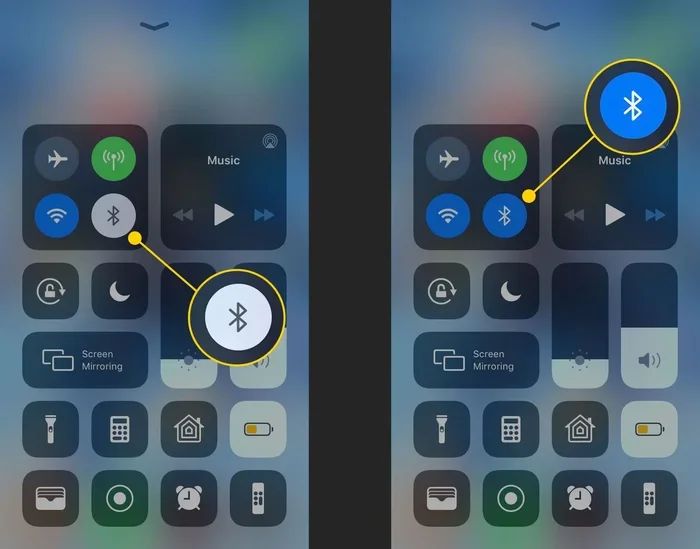
Sometimes a simple refresh fixes everything. Turn Bluetooth off, wait 10 seconds, and turn it back on. This clears temporary glitches and forces your device to scan for new connections again.
On most phones, you can do this from the quick settings panel. Just tap the Bluetooth icon to turn it off, wait, and tap it again. On a computer, go to Settings > Bluetooth & devices and toggle the switch off and on.
Step 3: Enable Discovery Mode
Your device will not show up to other Bluetooth devices unless it is in discovery mode or visible mode. This setting tells your device to broadcast its presence so other devices can find it.
On most phones, enabling Bluetooth automatically puts the phone in discovery mode for a few minutes. On car stereos, look for a Pair New Device or Search option in the Bluetooth menu. On headphones and speakers, hold down the Bluetooth button for several seconds until a light starts flashing.
Quick Tip: Discovery mode usually turns off after a few minutes to save battery. If you do not pair your device quickly, you may need to turn discovery mode on again.
Step 4: Delete Old Pairings and Start Fresh
Old saved connections can cause conflicts. Your device might try to reconnect to a previous device instead of finding the new one. Clearing the Bluetooth device list solves this problem.
On your phone, go to Bluetooth settings and tap the gear icon or Forget button next to old devices. On your car stereo, go to the paired devices list and remove old connections. Then try pairing again from scratch.
Expert Insight: Keeping your Bluetooth device list clean prevents most pairing issues. Make it a habit to remove devices you no longer use.
Step 5: Restart Both Devices
A full restart clears out temporary software bugs that can block Bluetooth. Turn off both devices completely. Wait 30 seconds. Then turn them back on and try pairing again.
This works especially well for car stereos. Turn off the car engine, wait a minute, and restart. The infotainment system will reset and be ready to scan for new devices.
Step 6: Check the Distance Between Devices
Bluetooth has a limited range. Most devices work best within 10 to 30 feet of each other. If your phone is in your pocket and your car stereo is across the vehicle, the signal may be too weak.
Bring the devices closer together when pairing. Once they are connected, you can move farther apart. Keep in mind that walls, metal surfaces, and other obstacles can weaken the Bluetooth signal.
Step 7: Update Bluetooth Drivers and Software
Outdated software is a hidden cause of Bluetooth connection problems. On a computer, go to your device manager and check for Bluetooth driver updates. On a phone, check for system updates in your settings menu.
For car stereos, check the manufacturer website for firmware updates. Many newer car models support over-the-air updates that fix Bluetooth bugs automatically.
Quick Tip: Set your devices to update automatically whenever new software is available. This prevents future Bluetooth issues.
Bluetooth Pairing for Cars: Special Tips
Connecting your phone to your car through Bluetooth car stereo setups is one of the most common pairing challenges. Car infotainment systems can be finicky. Here are some tips that make car Bluetooth work smoothly.
Make Sure Your Phone Is Not Connected to Another Device
If your phone is still connected to your home speaker or your smartwatch, it may not search for your car stereo. Disconnect from other Bluetooth devices before trying to pair with your car.
Some phones have a priority device setting. This tells the phone which Bluetooth device to connect to first. Set your car stereo as the priority device for hands-free calling and audio streaming.
Use the Correct Pairing Code
Many Bluetooth devices require a pairing code to complete the connection. The code is usually 0000, 1234, or displayed on one of the screens. Enter the code on both devices to confirm the pairing.
If you are unsure of the code, check the user manual for your car stereo or Bluetooth device. Some newer devices use passkeyless pairing, which skips the code step entirely.
Check for Interference from Other Car Electronics
Cars are full of electronics that can interfere with Bluetooth signals. USB chargers, dash cams, GPS trackers, and even fluorescent lights can cause Bluetooth interference. Try turning off other electronic devices when pairing.
If your car has a USB port, avoid plugging in your phone while pairing. USB connections can sometimes take priority over Bluetooth and cause conflicts.
How to Fix Bluetooth on Different Devices
Different devices need different approaches. Here is how to fix Bluetooth recognition issues on the most common devices.
Smartphones (iPhone and Android)
On iPhone, go to Settings > Bluetooth and toggle it off and on. If that does not work, reset network settings by going to Settings > General > Transfer or Reset iPhone > Reset > Reset Network Settings. This clears all Bluetooth pairings and Wi-Fi connections.
On Android, go to Settings > Connected Devices > Connection Preferences > Bluetooth. Tap the gear icon next to the device you want to forget and select Unpair. Then scan for new devices and try pairing again.
Quick Tip: Restarting your phone is one of the most effective fixes for Bluetooth problems on both iPhone and Android.
Laptops and Computers
On Windows, go to Settings > Bluetooth & devices and make sure Bluetooth is on. Click Add device and select Bluetooth. If your device does not appear, click More Bluetooth options and check the box for Allow Bluetooth devices to discover this PC.
On Mac, go to System Preferences > Bluetooth and make sure it is turned on. Hold the Shift key and click Bluetooth in the menu bar, then select Reset the Bluetooth module. This resets the Bluetooth connection completely.
Headphones, Speakers, and Earbuds
Most wireless headphones and speakers have a dedicated Bluetooth button. Press and hold it for 5 to 10 seconds until a light flashes. This puts the device in discovery mode and makes it visible to other devices.
If your headphones still do not show up, try resetting them. Most headphones have a reset procedure that involves holding down multiple buttons at the same time. Check the user manual or the manufacturer website for specific reset steps.
Common Mistakes That Stop Bluetooth From Working
Many people make simple mistakes that prevent Bluetooth from working. Avoid these common Bluetooth pairing mistakes and you will save yourself a lot of frustration.
Mistake 1: Not Checking if Bluetooth Is Enabled
It sounds silly, but many people assume Bluetooth is on when it is not. Always double-check that Bluetooth is enabled on both devices before trying to pair.
Mistake 2: Leaving Devices Too Far Apart
Bluetooth has a limited range. If your phone is in the back seat and your car stereo is in the front, the signal may not reach. Keep devices within a few feet of each other during pairing.
Mistake 3: Not Clearing Old Pairings
Old connections take up memory and can cause conflicts. Always clear old pairings before trying to connect a new device. This is one of the most overlooked Bluetooth troubleshooting steps.
Mistake 4: Ignoring Software Updates
Outdated software causes many Bluetooth problems. Always keep your devices updated. Software updates often include fixes for Bluetooth connectivity issues.
Mistake 5: Pairing in a Crowded Wireless Area
Busy places like airports, malls, and offices have tons of wireless signals. These signals can interfere with Bluetooth and prevent devices from finding each other. Try pairing in a quiet location first.
When to Seek Professional Help for Bluetooth Issues
Most Bluetooth problems are easy to fix at home. But sometimes the issue is deeper. Here is when you should consider getting professional help.
If you have tried every step in this guide and Bluetooth still does not recognize your device, there may be a hardware problem. The Bluetooth antenna in your device could be damaged. The car stereo’s Bluetooth module could be malfunctioning. In these cases, a professional technician can diagnose and repair the issue.
Also, if your car is under warranty, check with your dealer before trying complex fixes. Some Bluetooth issues may be covered by your warranty. And if you recently bought a used car, the previous owner may have paired their phone to the stereo. A dealership can clear all previous pairings for you.
Final Thoughts
Getting Bluetooth to recognize my device does not have to be stressful. With the right steps, most pairing issues are resolved in just a few minutes. Start with the basics, like turning Bluetooth on and off, and work your way through the more advanced fixes if needed.
Remember to keep your devices updated, clear old pairings regularly, and avoid common mistakes. These simple habits will keep your Bluetooth connections strong and reliable. Whether you are connecting your phone to your car, your headphones to your laptop, or your speaker to your tablet, the steps in this guide will help you get it right.
Now that you know how to fix Bluetooth recognition problems, go ahead and try these steps. Your devices will be connected in no time. And the next time Bluetooth gives you trouble, you will know exactly what to do.
Frequently Asked Questions
Why won’t my Bluetooth find any devices?
Your Bluetooth may not be in discovery mode, or your device may be too far away. Make sure Bluetooth is turned on and that your device is set to visible or discoverable. Also check if your device list is full of old pairings that need to be cleared.
How do I make my phone visible to Bluetooth devices?
On most phones, turning on Bluetooth automatically makes your phone visible for a few minutes. On Android, go to Bluetooth settings and look for a Visible to all nearby Bluetooth devices option. On iPhone, you may need to go to Settings and toggle Bluetooth off and back on to refresh visibility.
Can too many paired devices cause Bluetooth problems?
Yes, having too many saved pairings can cause your device to run out of memory or create connection conflicts. Regularly delete pairings you no longer use. This keeps your Bluetooth device list clean and prevents recognition issues.
Why does my car Bluetooth keep disconnecting from my phone?
This usually happens when your phone is connected to another Bluetooth device at the same time. It can also be caused by a weak signal, outdated software, or interference from other electronics in your car. Try unpairing other devices and restarting both your phone and your car stereo.
Do I need to update my Bluetooth drivers?
Yes, outdated Bluetooth drivers can cause recognition and connection problems. On Windows, go to Device Manager and update your Bluetooth adapter driver. On phones, check for system updates in your settings. Keeping software current is one of the best ways to prevent Bluetooth issues.
What is the best distance for Bluetooth pairing?
Bluetooth works best within 10 to 30 feet of each other during pairing. Once connected, most devices can stay connected at a greater distance. However, walls, metal, and other electronics can weaken the signal. Keep devices close together when pairing for the best results.
=== CONCLUSION ===
Getting Bluetooth to recognize your device is easier than most people think. The key is to follow the right steps in the right order. Start with the basics like turning Bluetooth on and off, checking discovery mode, and clearing old pairings. If those do not work, move on to updating software, checking distance, and resetting network settings.
Car Bluetooth setups may need extra attention, but the same principles apply. Keep your devices updated, avoid interference, and stay patient during the pairing process. With these tips, you will solve Bluetooth connection problems quickly and get back to enjoying your music, calls, and hands-free driving.
Now you have everything you need to fix Bluetooth issues on any device. Try these steps today and see how fast your devices connect. Share this guide with friends who struggle with Bluetooth pairing too. A little knowledge goes a long way toward solving Bluetooth not recognizing devices for good.