Why Are My Text Messages Not Displaying On My Device
Why Are My Text Messages Not Displaying on your device can be frustrating, especially when you need to stay connected while driving. This guide covers the most common causes, from Bluetooth glitches to software bugs, and gives you clear, step-by-step fixes. You will learn how car infotainment systems handle texts and what to do when messages simply do not show up.
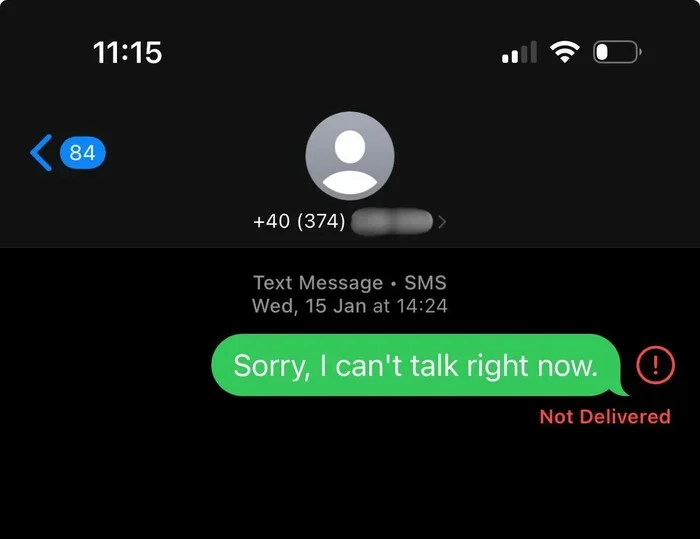
Have you ever looked at your phone or your car screen and wondered, Why Are My Text Messages Not Displaying? It is a confusing and sometimes stressful experience. You know you have new messages, but nothing shows up on the screen. Whether you are dealing with a car infotainment system or your personal phone, a blank message screen can make you feel disconnected.
The good news is that this problem is very common and usually easy to fix. In this article, we will walk through every major reason your text messages might not be showing up. We will also give you clear, practical steps to get your messages back on screen. Let us dive in and solve this together.
Key Takeaways
- Bluetooth connection problems are the top reason text messages fail to display on car screens and mobile devices.
- Outdated software on your phone or car infotainment system can cause message display failures.
- Notification settings on both your device and your car system control whether texts appear on screen.
- Android Auto and Apple CarPlay each have unique settings that affect how text messages are shown.
- Simple resets and restarts often fix display issues without needing professional help.
- Cache and data corruption in messaging apps can block messages from appearing correctly.
- Knowing when to seek help from a dealership or technician saves time and money.
📑 Table of Contents
- Common Reasons Your Text Messages Are Not Displaying
- How Car Infotainment Systems Handle Text Messages
- Bluetooth Connectivity Issues and Text Display
- Android Auto and Apple CarPlay Text Display Problems
- Software and Settings Fixes for Text Message Issues
- When to Seek Professional Help for Display Problems
- Key Takeaways
- Conclusion
Common Reasons Your Text Messages Are Not Displaying
There are several reasons why your text messages might not appear on your device. Each cause has a different fix, so it helps to understand what is going on underneath the surface. Below, we break down the most common culprits.
Bluetooth Connection Problems
Bluetooth is the bridge between your phone and your car screen. When this connection drops or glitches, your text messages may stop showing up. This is the number one reason drivers ask, Why Are My Text Messages Not Displaying in their vehicle. A weak Bluetooth signal, interference from other devices, or an outdated pairing can all cause this issue. Sometimes the phone connects to the car for calls but fails to sync messages. This happens because the Bluetooth profile for message sharing, called MAP, is not active or has become unlinked.
Notification Settings Are Turned Off
Your phone and your car system both have notification settings. If either one blocks text alerts, messages will not show up on screen. On your phone, you need to make sure the messaging app has permission to send notifications. On your car, the infotainment system must be set to display incoming text alerts. Many people never check these settings after buying a new car or phone. A simple toggle change can bring your messages back to life.
Software Bugs and Outdated Apps
Software bugs happen. Your messaging app or your car system may have a glitch that prevents messages from loading. Outdated apps are more likely to have these bugs. Car manufacturers release software updates to fix known issues. If you have not updated your infotainment system in a while, an old bug might be the reason your texts are not showing. The same goes for your phone. Running an older version of iOS or Android can cause compatibility problems with message display.
Corrupted Cache or App Data
Messaging apps store temporary data called a cache. Over time, this cache can become corrupted. When that happens, messages may not load or display properly. This is a very common cause of text display issues on both phones and car systems. Clearing the cache forces the app to rebuild fresh data. It is a simple fix that many people overlook.
How Car Infotainment Systems Handle Text Messages
Modern cars are essentially computers on wheels. Your car’s infotainment system does more than play music. It also handles calls, navigation, and text messages. Understanding how this system works helps you troubleshoot display problems more effectively.
The Role of the MAP Profile
The Message Access Profile, or MAP, is the Bluetooth setting that allows your car to read and display text messages. When you pair your phone to your car, the MAP profile must be enabled on both devices. If it is not, your car will not show incoming texts. This is one of the most frequent reasons people ask, Why Are My Text Messages Not Displaying on their car screen. To check this, go to your Bluetooth settings on your phone and look for the MAP option. Make sure it is turned on.
Hands-Free Text Reading Features
Many newer cars have a hands-free text reading feature. This reads your messages out loud through the car speakers. It relies on the same MAP profile and notification settings. If this feature stops working, your visual display will likely fail too. Some car brands, like Ford with SYNC and Toyota with Entune, have their own specific settings for text message alerts. Checking your car’s user manual can help you find the right menu.
Infotainment System Limitations
Not all car systems handle text messages the same way. Older infotainment systems may not support rich text display. They might show sender names but not message previews. Some systems only display texts when the car is parked. Understanding your car’s limits helps you set realistic expectations. It also prevents you from thinking something is broken when it is actually working as designed.
Bluetooth Connectivity Issues and Text Display
Bluetooth problems are the leading cause of text message display failures in cars. Let us look at the specific issues and how to fix them.
Why Bluetooth Drops Message Sync
Bluetooth message sync can drop for several reasons. Distance matters. If your phone is too far from the car’s antenna, the connection weakens. Interference from other Bluetooth devices, Wi-Fi routers, or even USB cables can also disrupt the sync. Sometimes the phone prioritizes a different Bluetooth profile, like audio streaming, over the MAP profile. When this happens, calls work but messages do not display.
Steps to Re-Pair Your Phone with Your Car
Re-pairing your phone with your car is one of the most effective fixes. Here is how to do it:
- Go to your car’s infotainment settings and forget the current phone pairing.
- On your phone, go to Bluetooth settings and remove the car from the list.
- Turn off Bluetooth on both devices for 30 seconds.
- Turn Bluetooth back on your phone first, then on the car system.
- Search for the car and select it to create a new pairing.
- Make sure the MAP profile is enabled during the pairing process.
After re-pairing, send a test message to yourself. Check if it appears on your car screen. This simple process fixes the issue for many drivers.
Quick Tips for Stable Bluetooth Messaging
- Keep your phone within three feet of the car’s center console when starting the vehicle.
- Avoid connecting too many Bluetooth devices at once.
- Restart your phone weekly to clear temporary Bluetooth glitches.
- Update your car’s firmware when new versions are available.
- Use only one phone at a time for message syncing.
Android Auto and Apple CarPlay Text Display Problems
If you use Android Auto or Apple CarPlay, these apps add another layer where text messages can fail to display. Each platform has its own quirks.
Android Auto Text Message Issues
Android Auto relies on a stable connection between your phone and your car. If the app is not running in the background, messages may not show on the car screen. Go to your phone’s apps settings and make sure Android Auto is allowed to run at all times. Also check that the app has notification permission. A common mistake is disabling background data for Android Auto, which breaks message syncing completely.
Apple CarPlay Message Display Problems
Apple CarPlay users sometimes face a similar issue. CarPlay mirrors your iPhone’s messaging app to the car screen. If your iPhone has Focus mode or Do Not Disturb enabled, CarPlay will suppress text notifications. This means no messages will appear on the car display. Check your iPhone’s Focus settings and make sure messaging is allowed through. Also, ensure that CarPlay is set to show message notifications in the car’s settings menu.
Comparison: Android Auto vs. Apple CarPlay for Text Messaging
| Feature | Android Auto | Apple CarPlay |
|---|---|---|
| Message Display | Shows sender and preview | Shows sender and preview |
| Voice Reply | Supported | Supported |
| Background App Requirement | Must run in background | Mirrors iPhone state |
| Notification Blocking | Can be blocked by battery saver | Can be blocked by Focus mode |
| Bluetooth MAP Dependency | Yes | Yes |
| Firmware Updates | Via phone updates | Via iOS updates |
Software and Settings Fixes for Text Message Issues
Many text message display problems come down to software settings. Before you assume something is broken, try these fixes first. They are simple and often solve the problem in minutes.
Restart Your Phone and Car Infotainment System
A restart clears temporary glitches that can block message display. Turn your phone off and back on. For your car, turn the ignition off, wait 60 seconds, and start again. This refreshes both the Bluetooth connection and the infotainment system. It is the first step any expert recommends when troubleshooting display issues.
Update Your Software
Outdated software is a hidden cause of message display problems. Check for phone updates in your settings. For your car, check the manufacturer’s website or visit a dealership for firmware updates. Many car brands now offer over-the-air updates. Keeping both your phone and car system current prevents compatibility issues with message display.
Clear Messaging App Cache
On Android phones, go to Settings, then Apps, find your messaging app, and select Clear Cache. On iPhone, you may need to offload and reinstall the app. For car systems, a factory reset of the infotainment system can clear corrupted data. Always back up your car settings before doing a factory reset.
Check Default Messaging App Settings
Your phone might be set to use a default messaging app that is not syncing properly. Go to your phone settings and check which app is set as the default for SMS and MMS. If you recently switched apps, the new app may not have the right permissions. Set the default app back to one you know works well and check if messages display again.
Common Mistakes That Cause Text Display Issues
- Ignoring software update notifications on both your phone and car.
- Leaving Bluetooth connected to multiple devices at the same time.
- Disabling notifications for the messaging app to save battery.
- Not checking the MAP profile after a phone reset.
- Assuming the car system is broken when it is just a settings issue.
- Using third-party messaging apps that do not support car integration.
When to Seek Professional Help for Display Problems
Most text message display issues are fixable at home. But sometimes, the problem goes deeper. Knowing when to call for help saves you time and frustration.
Signs You Need a Technician
If you have tried all the fixes above and messages still do not display, it may be time to see a professional. Look for these warning signs. The car screen freezes every time a message arrives. The Bluetooth connection keeps dropping even after re-pairing. The infotainment system shows error messages related to messaging. These could point to a hardware issue with the car’s antenna or a deeper software problem that only a dealership can fix.
What to Expect at the Dealership
A technician will run diagnostics on your car’s infotainment system. They will check the Bluetooth module, the MAP profile settings, and the firmware version. They may also test your phone’s compatibility with the car system. In most cases, the fix is a software update or a system reset. In rare cases, a hardware component may need replacement. Dealership visits are usually covered under warranty if your car is still in the coverage period.
Expert Insights on Automotive Text Display
Automotive tech experts recommend keeping your car system updated at least once a month. They also suggest pairing only one phone at a time to avoid sync conflicts. Many experts note that Android users face more text display issues than iPhone users because of the variety of phone models and car system combinations. The key takeaway is to stay proactive with updates and settings checks.
Key Takeaways
- Bluetooth connection problems are the top reason text messages fail to display on car screens and mobile devices.
- Outdated software on your phone or car infotainment system can cause message display failures.
- Notification settings on both your device and your car system control whether texts appear on screen.
- Android Auto and Apple CarPlay each have unique settings that affect how text messages are shown.
- Simple resets and restarts often fix display issues without needing professional help.
- Cache and data corruption in messaging apps can block messages from appearing correctly.
- Knowing when to seek help from a dealership or technician saves time and money.
Conclusion
Dealing with text messages that do not display is a hassle no one needs. Whether you are behind the wheel or just using your phone, the frustration is real. But as we have covered, Why Are My Text Messages Not Displaying usually comes down to a handful of fixable causes. Bluetooth glitches, notification settings, outdated software, and app cache problems are the main culprits. With the right steps, you can get your messages back on screen quickly and easily.
Start with the simple fixes. Restart your devices. Check your Bluetooth and MAP settings. Update your software. Clear your app cache. These steps solve the problem for most people. If they do not work, do not hesitate to seek professional help. Your car dealership or a qualified technician can dig deeper and find the root cause.
Staying connected matters. Your text messages keep you in touch with family, friends, and work. Taking a few minutes to troubleshoot display issues pays off in the long run. Apply the tips in this guide and enjoy a smoother, more connected driving and phone experience.
Frequently Asked Questions
Why are my text messages not showing up on my car screen?
The most common reason is a Bluetooth connection issue or the MAP profile being disabled. Check your car’s Bluetooth settings and make sure message sharing is turned on. Also, verify that your phone’s notification settings allow texts to appear on the car display.
How do I fix text messages not displaying on Android Auto?
First, make sure Android Auto is running in the background and has notification permission. Go to your phone’s app settings and check that background data is enabled for Android Auto. Restarting both your phone and the car system can also resolve the issue quickly.
Can outdated car software cause text message display problems?
Yes, outdated firmware is a common cause. Car manufacturers release updates that fix bugs related to message syncing and display. Check your car manufacturer’s website or visit a dealership to see if a software update is available for your model.
Why do my text messages show on my phone but not on my car?
This usually means the Bluetooth MAP profile is not active or the message sync setting is turned off in the car system. Re-pairing your phone with the car and ensuring the MAP profile is enabled during pairing typically fixes this problem.
Is it normal for text messages to not display while driving?
Some car systems suppress message previews while the car is in motion for safety reasons. However, sender names and basic alerts should still appear. Check your car’s safety and notification settings to see if this feature is enabled.
What should I do if none of the fixes work?
If you have tried all the troubleshooting steps and messages still do not display, visit a dealership or certified technician. They can run advanced diagnostics on your car’s infotainment system and check for hardware issues that may be blocking message display.